
Why you'll love it
- All three services treated equally: whichever you use — Spotify, QQ Music or NetEase Cloud Music — ZoneFoundry gives them the exact same browsing and search experience. Learn it once, use it everywhere.
- Tapping a song won't interrupt what's playing: tap any single track and it queues up next and starts playing right away — your existing queue stays intact, nothing gets wiped. To start a whole album or playlist from the top, use "Play all" instead.
- Search results sorted at a glance: results are grouped into songs/albums/playlists/artists with filter chips right above them — tap the one you want instead of scrolling through everything mixed together.
Before you start
- The service you want (Spotify/QQ Music/NetEase Cloud Music) is already connected in ZoneFoundry — a one-time step under Settings
- Your phone and Sonos speakers are on the same Wi-Fi
Tip: If search or the library shows "Connect XX to browse", just connect that service once under Settings — this is separate from signing in through the official Sonos app, and specifically unlocks search and library browsing.
Steps
Open the search tab and browse your library first
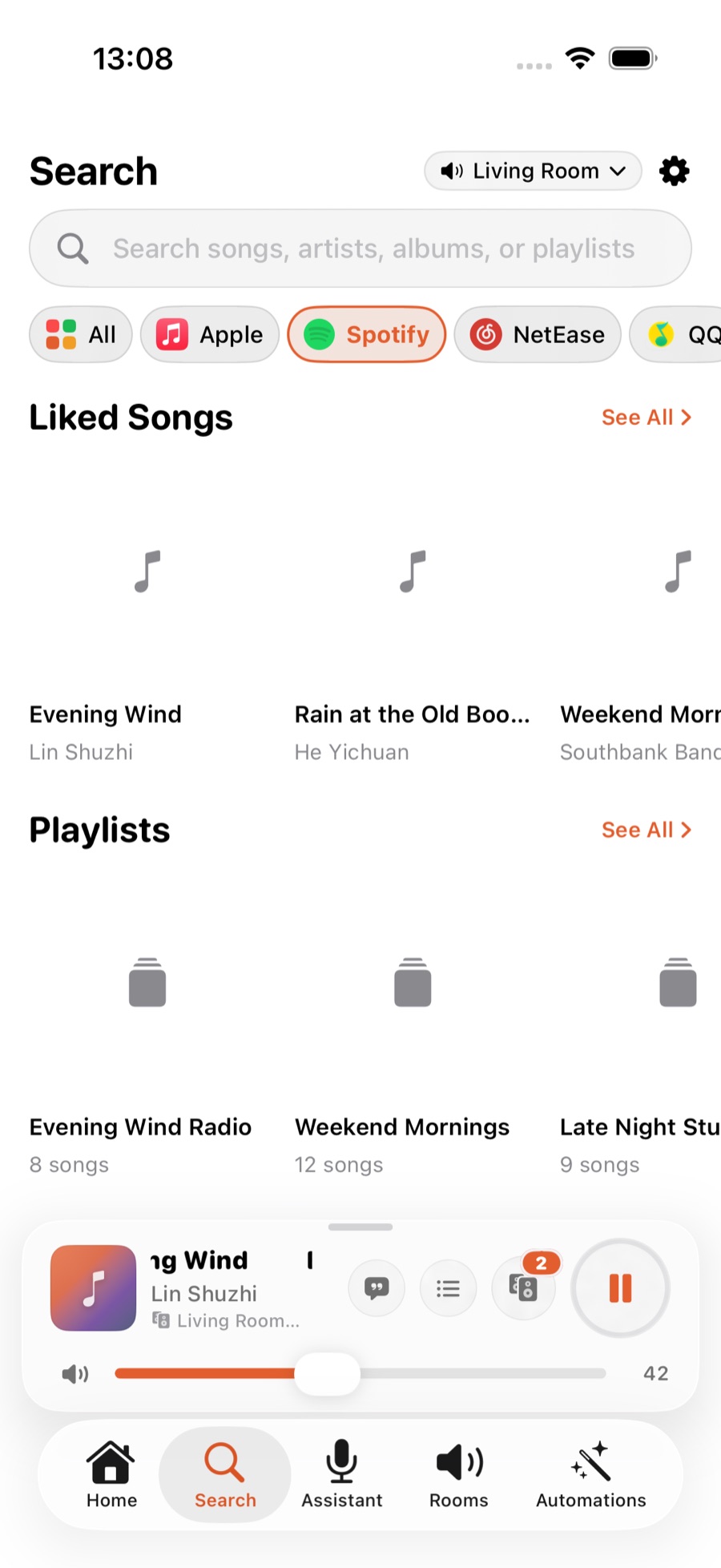
Switch to the Search tab, pick a service (Spotify/QQ Music/NetEase Cloud Music), and without typing anything, scroll down to see your library: Spotify shows Liked Songs, Playlists, Albums, Charts and more; QQ Music shows Liked, Daily Recommendations, Top Charts, New Releases; NetEase shows Liked Songs, Daily Recommendations, Charts, Podcasts. Swipe each row for more, or tap the arrow next to a section title to see the full list.
Open an album or playlist
Tap any album or playlist cover in your library to open its detail page: a large cover, the title, a track count, and Play all/Shuffle/⋯ underneath. Tap "Play all" to play the whole thing in order, or "Shuffle" to play it in random order. Even a playlist with hundreds of tracks loads the first batch instantly and keeps loading more as you scroll — once you're deep into a long list, a round "back to top" button appears in the bottom-right corner.
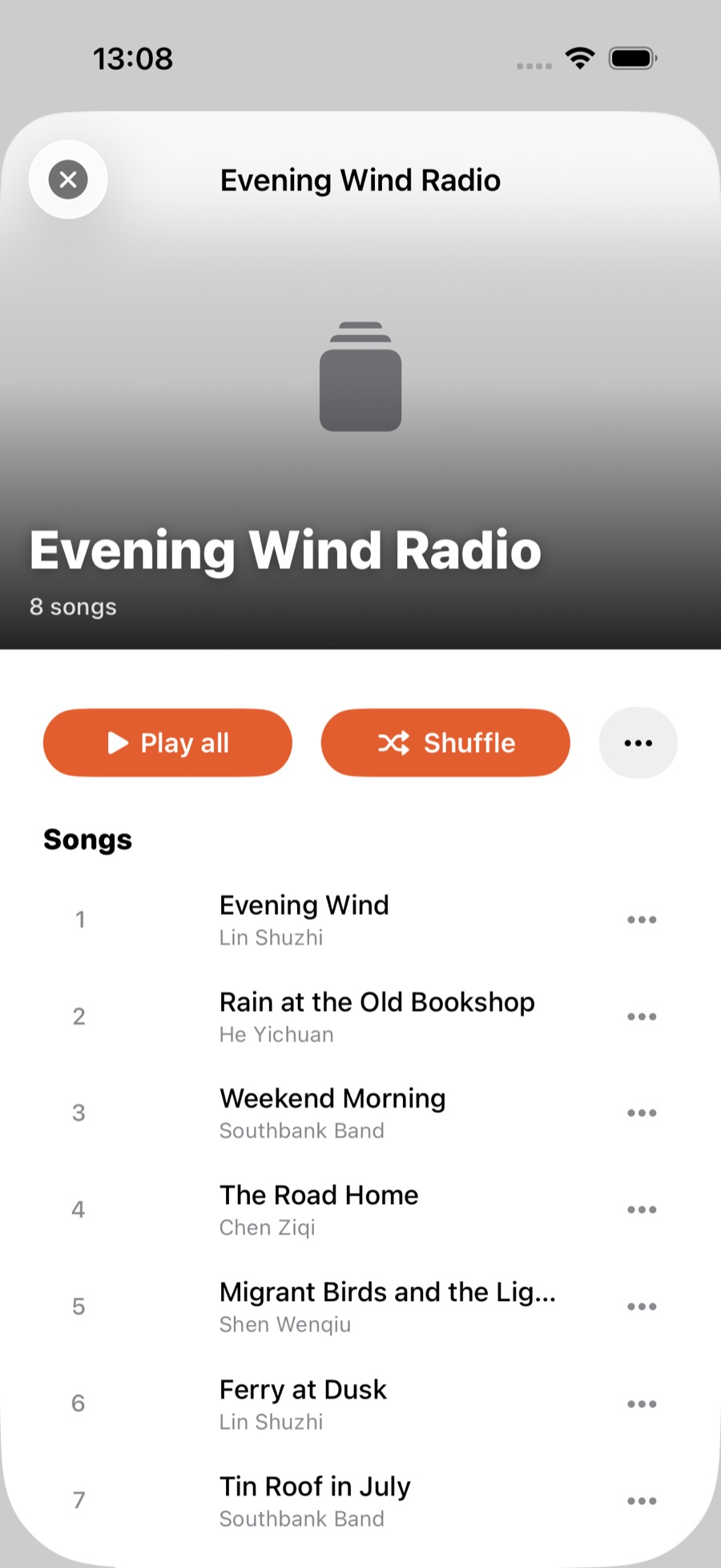
Tip: Tapping any single track on a detail page queues it up next and plays it right away — it doesn't restart the whole playlist from that point. So you can casually add a song while browsing without disturbing whatever you're already listening to.
Use the ⋯ menu to decide how a track plays
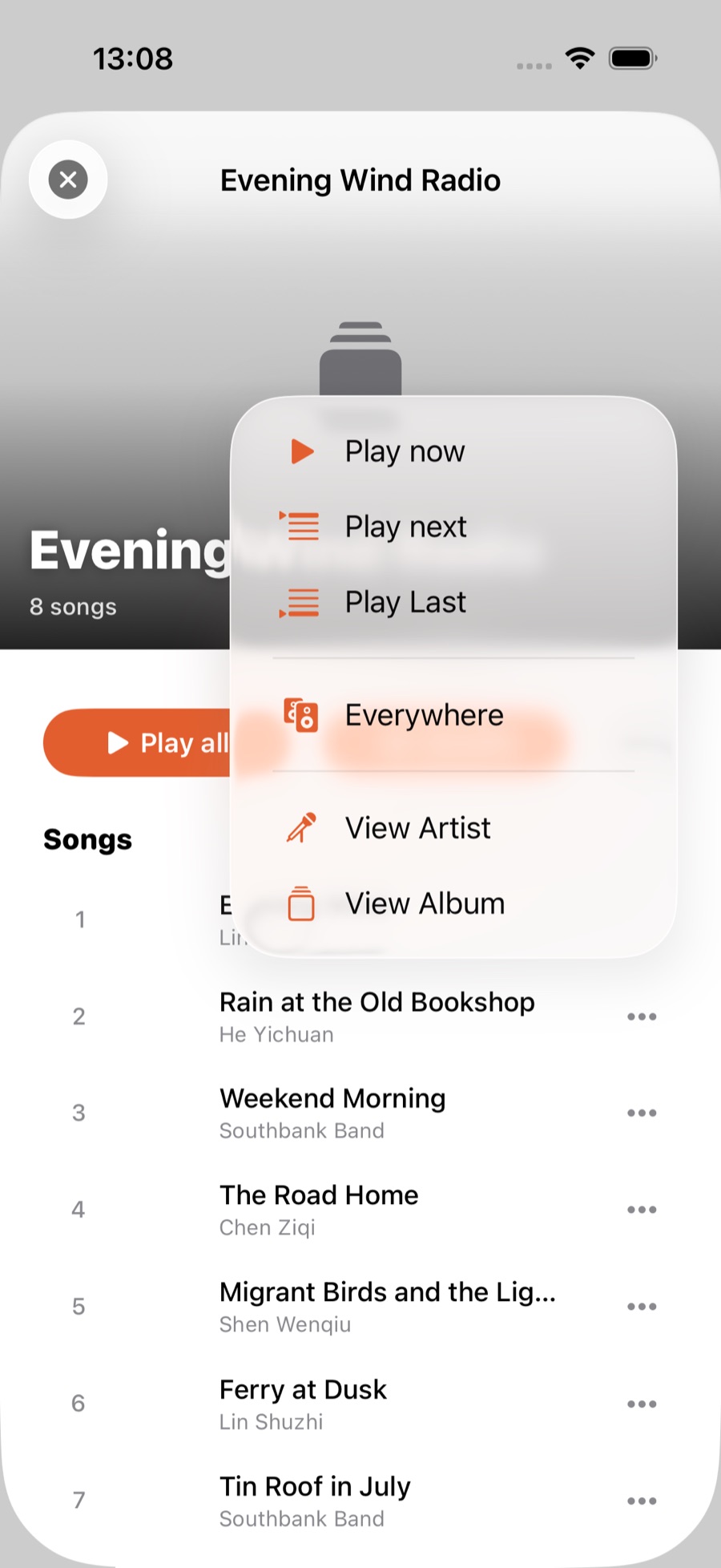
Every track has a "⋯" button on the right with four options: "Play now" (queues and plays immediately), "Play next" (goes right after what's currently playing, without interrupting it), "Play Last" (goes to the very end of the queue), and "Choose room" (plays in a different room instead of the current one). Long-pressing the row brings up the same menu.
Filter search results by type
Type an artist or song name into the search box, and a row of filter chips appears above the results: All, Songs, Albums, Playlists, Artists. Tap "Artists" to jump straight to an artist page, or "Songs" to see only tracks. Every result has the same "⋯" menu as tracks in your library.
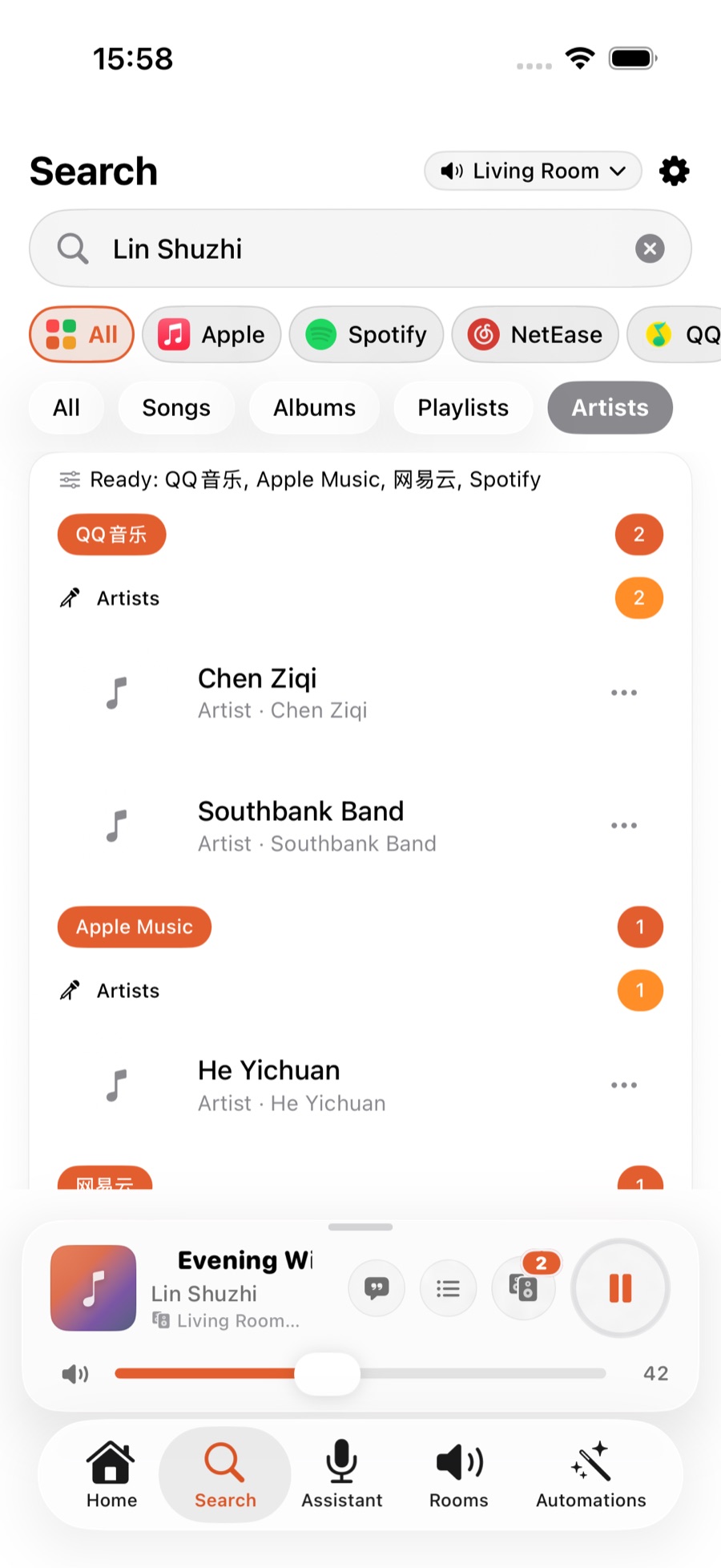
Tip: QQ Music and NetEase Cloud Music even understand pinyin — typing "zhoujielun" finds Jay Chou just fine. Spotify's own search engine isn't as friendly to pinyin, so it's best to type the full artist or song name (in Chinese or English).
Favorites and play history live here too: scroll further and you'll find "Sonos Favorites" and "Sonos Play History" — no matter which service you played a track from, it lands in the same shared history. When Favorites has more than fits on screen, tap "See all" for the full list, where you can search, play, and queue next just the same.
Why do all three feel the same now? Spotify and NetEase Cloud Music search used to lag behind Apple Music and QQ Music — a legacy gap. All four music services now get equal treatment in ZoneFoundry, and any service added in the future will get the same.
Search every music service at once
Apple Music, Spotify, NetEase and QQ Music share one search box in ZoneFoundry. Find a track and it goes straight to Sonos — no switching apps to cast it again.