
Why it's special
- Sonos as native HomeKit accessories: a typical Sonos controller won't turn your speakers into real Apple Home accessories — ZoneFoundry does, so Siri and Home automations can treat Sonos like a light or an AC.
- Music scenes sync in too: beyond rooms, your whole music scenes show up in Apple Home — fold them into any automation alongside lights and AC.
- Best of both: ZoneFoundry focuses on great Sonos audio and hands device & scene orchestration to Apple's mature Home engine — honestly, that's the point.
Before you start
- An iPhone
- The ZoneFoundry bridge connected (rooms map into Apple Home through it)
- "Add to Apple Home" permission granted
Steps
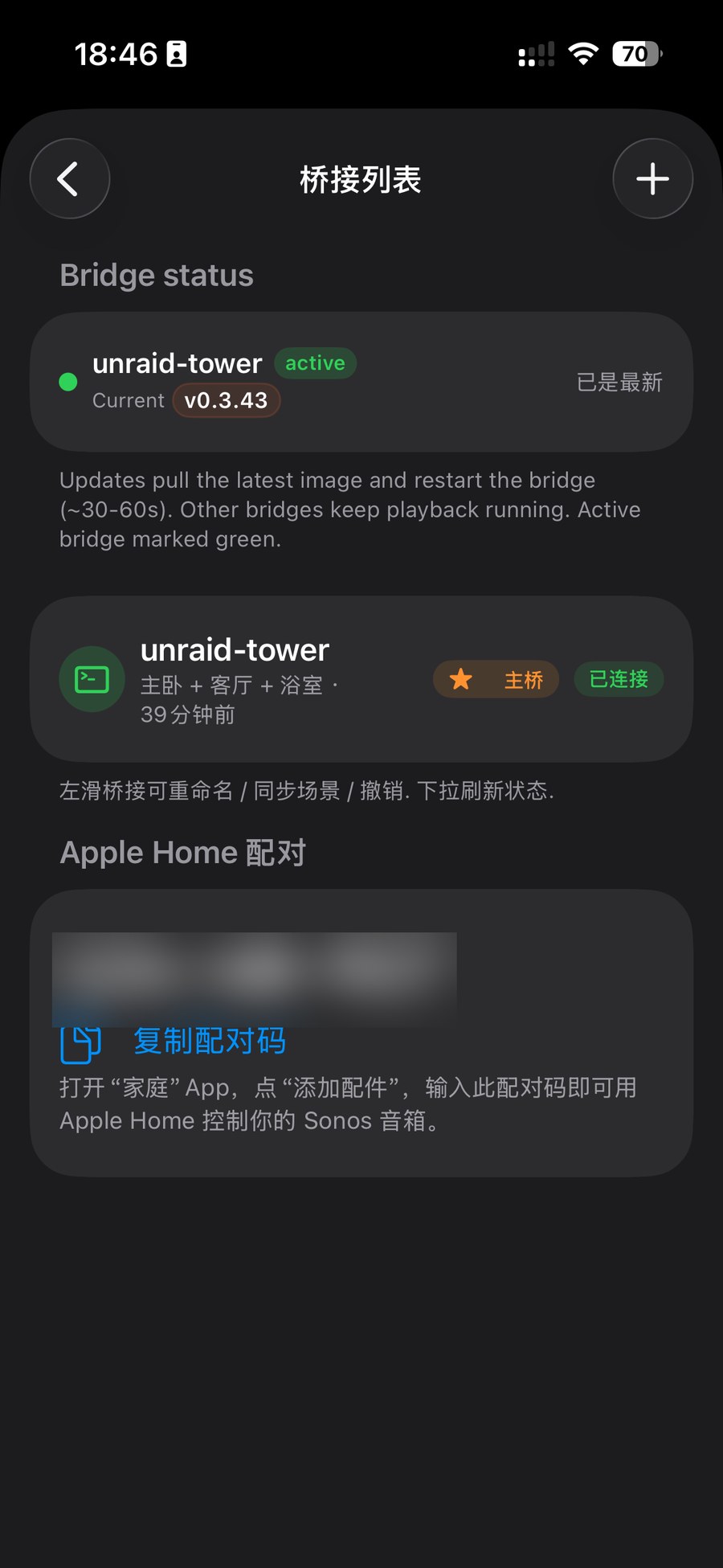
Connect the bridge
First connect the ZoneFoundry bridge. Only once it's connected do your Sonos rooms map into Apple Home — both the "lightbulbs" and the scene sync described above depend on this step.
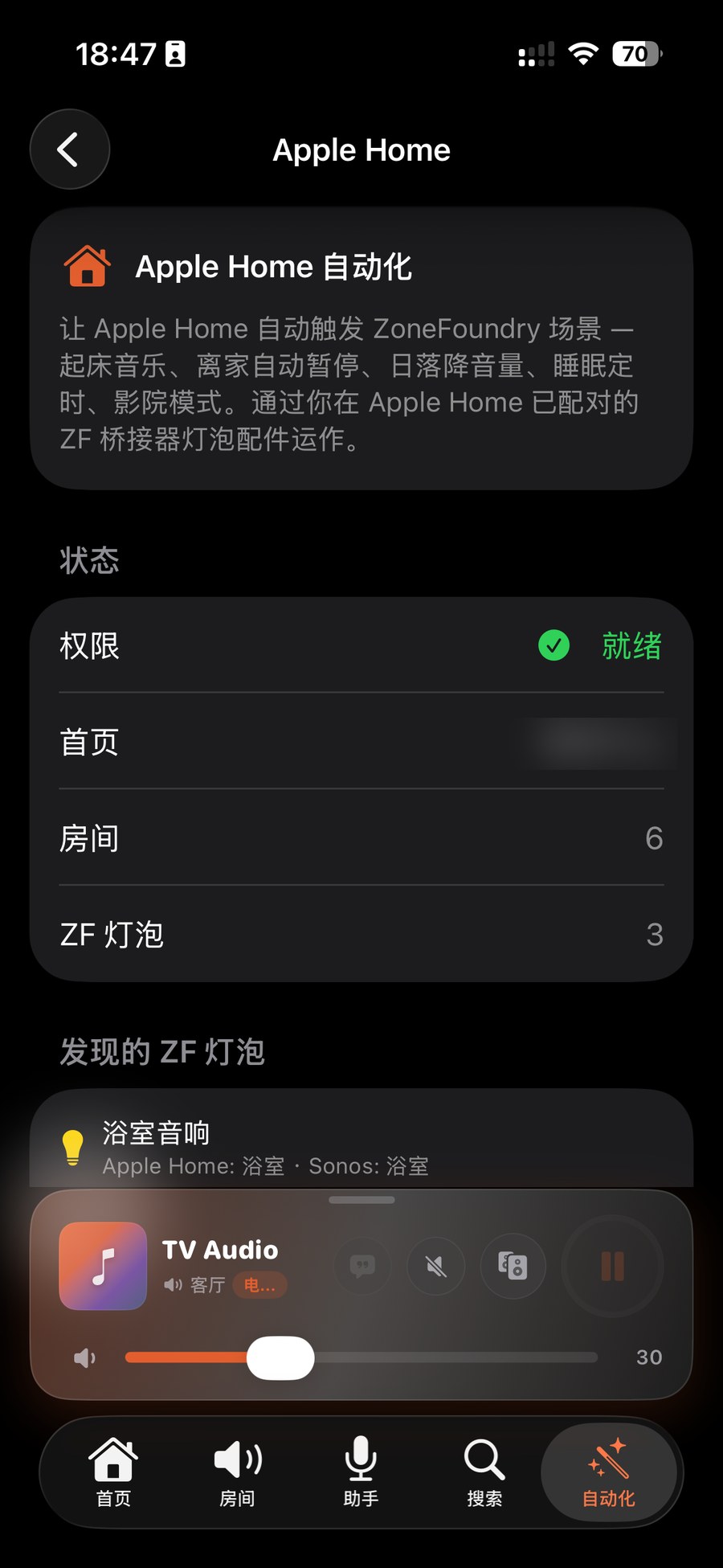
Open Automations → Apple Home and see your room lightbulbs
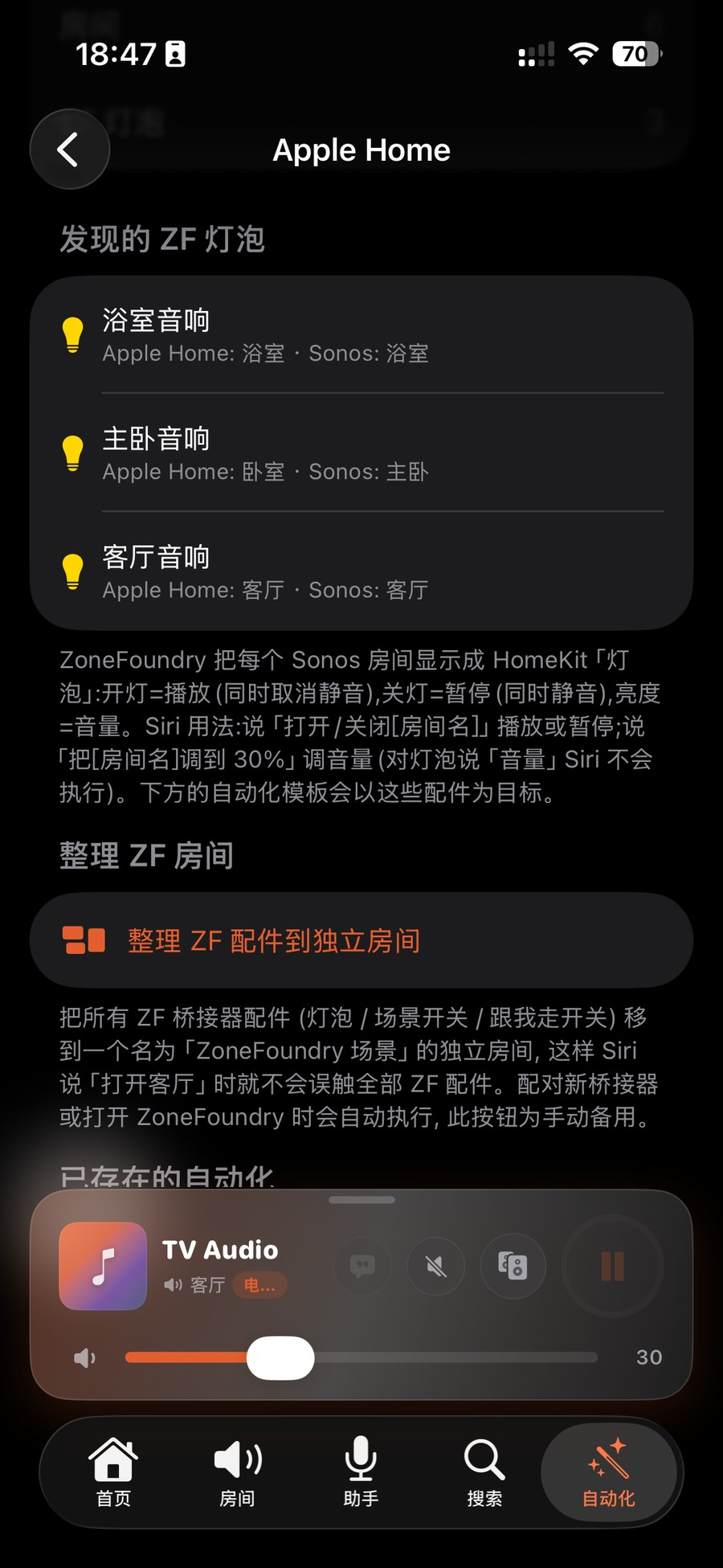
In ZoneFoundry open the Automations tab → "Apple Home". This screen is the setup and overview for the whole feature: it lists discovered rooms as "ZF lightbulbs" and shows the room↔Sonos mapping, e.g. "Living-room speaker → Apple Home Living room · Sonos Living room". Seeing this mapping list means the rooms are now in Home.
Control with Siri or the Home app
Each room is now a lightbulb: On = play (and unmute), Off = pause (and mute), brightness = volume. Tell Siri "Turn on the living room" to play, "Turn off the living room" to pause, "Set the living room to 30%" to set volume. Tapping the bulb or dragging the brightness slider in the Home app does the same.
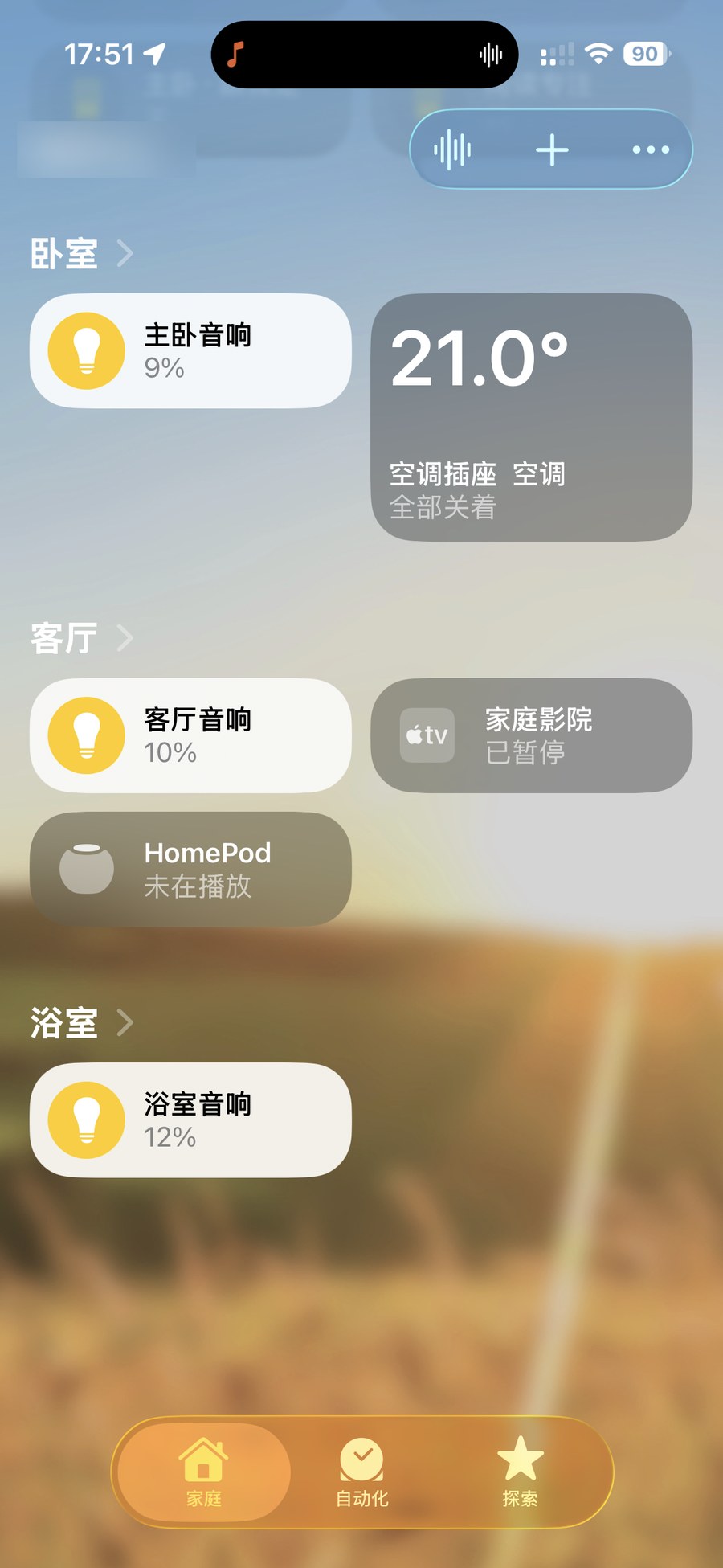
Heads up: because rooms appear as "lightbulbs", saying the word "volume" to Siri won't work on a bulb — use a brightness percent instead, e.g. "Set the living room to 30%".
Scenes: edit once, auto-sync to Home
Create or edit a scene in ZoneFoundry — it auto-saves and syncs as a scene in Apple Home. From there, trigger it by saying its name to Siri, by tapping in Home, or fold it into a Home automation alongside your lights and AC.
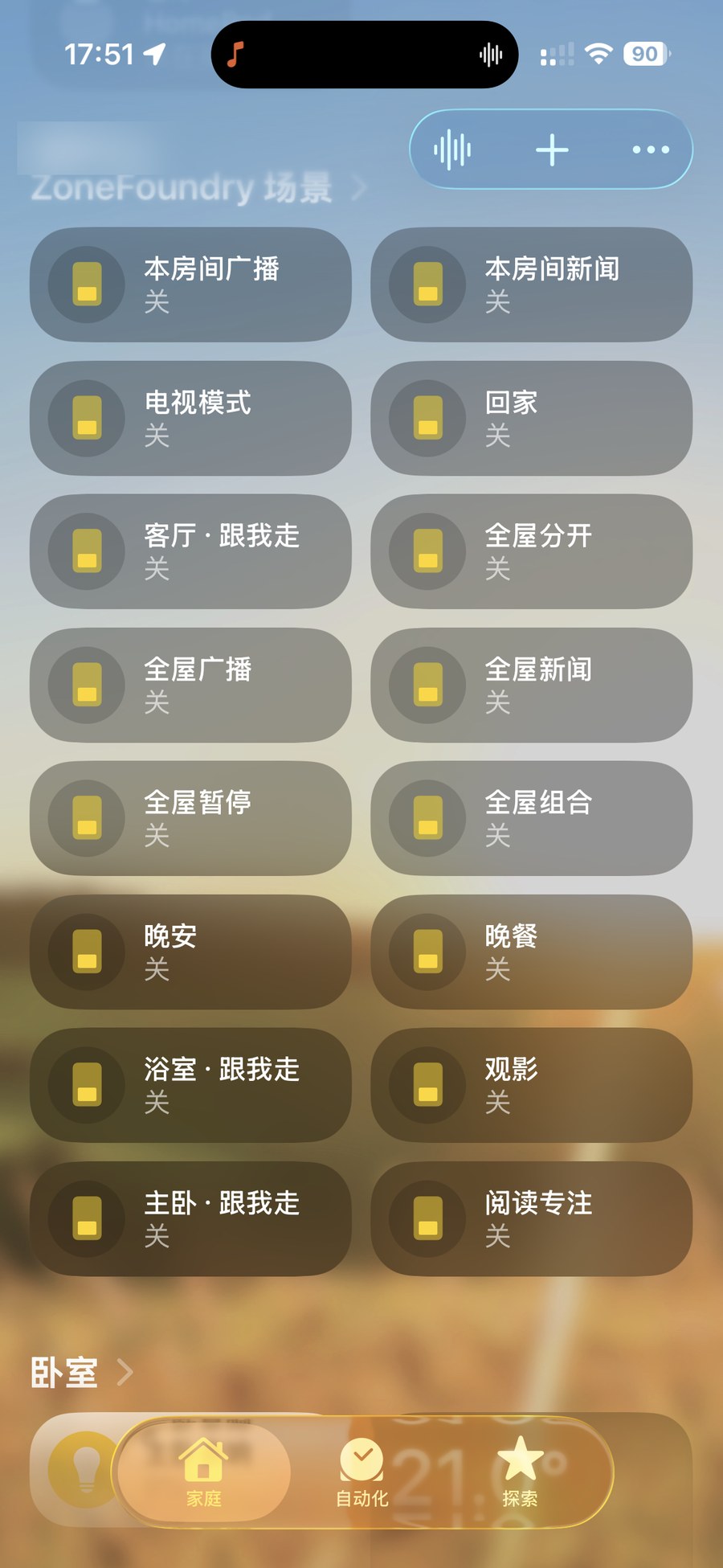
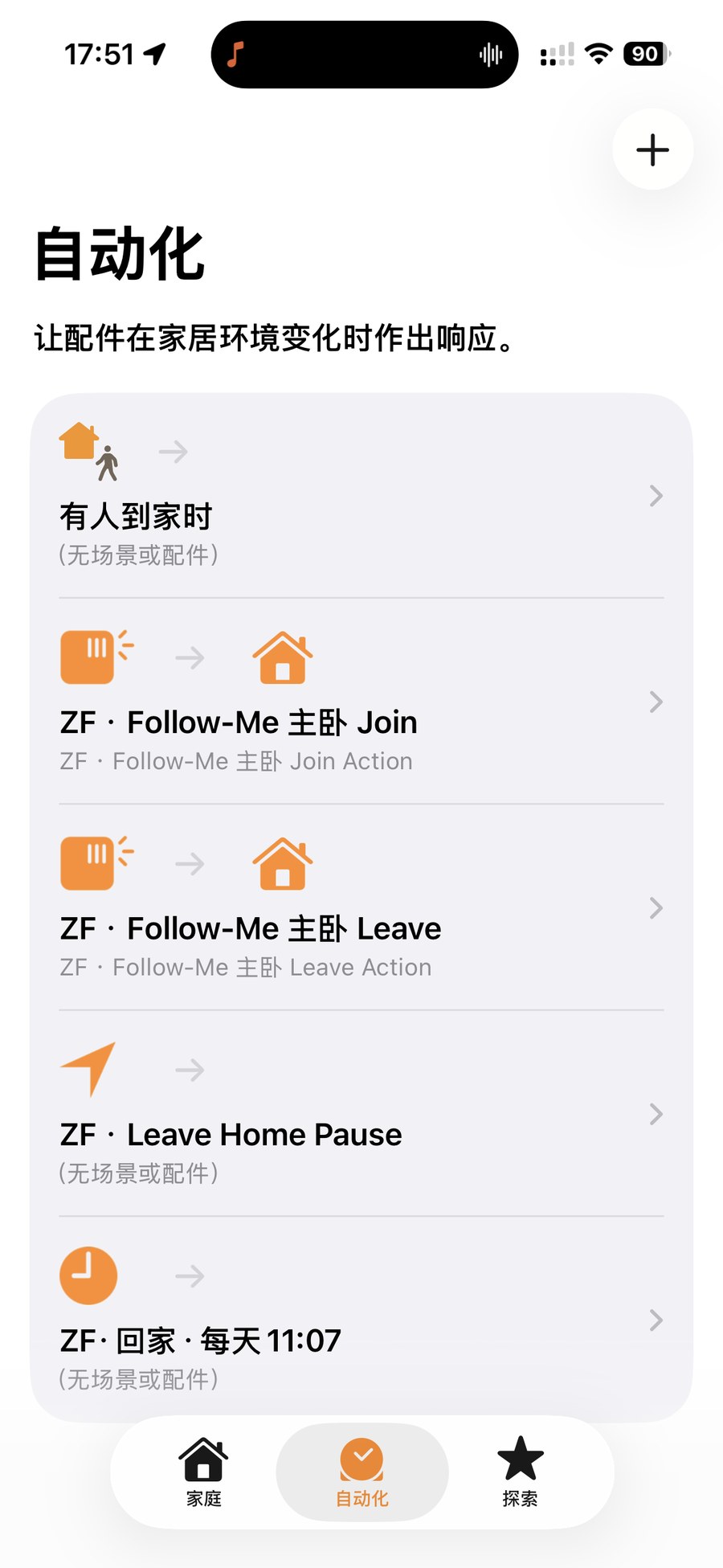
Rooms or scenes missing? First check the ZoneFoundry bridge is still connected — rooms and scenes both map into Apple Home through the bridge. You can re-check the mapping list any time under Automations → Apple Home.
Lock screen, Apple Home and Shortcuts all connect
ZoneFoundry brings Sonos into Apple Home and Shortcuts, with full playback controls on the lock screen — no unlocking and opening an app just to change a track.