
What can it actually do?
- Queue music for real: say "play Eason Chan in the bedroom" and ten tracks slot in right after what's playing — exactly as if you'd asked inside the app.
- Ask what's on: "Which room is playing?" "What's on in the living room?" — it answers with the track, artist and volume.
- Control playback: pause, resume, skip, previous, set volume — room by room.
- News, radio, announcements: anything the ZoneFoundry voice assistant can do, your AI can trigger too.
Before you start
- An iPhone with ZoneFoundry installed and your Sonos rooms already showing up
- An AI assistant that can connect to external tools (e.g. Claude desktop / Claude Code, or any assistant that speaks MCP)
Steps
Generate an access key
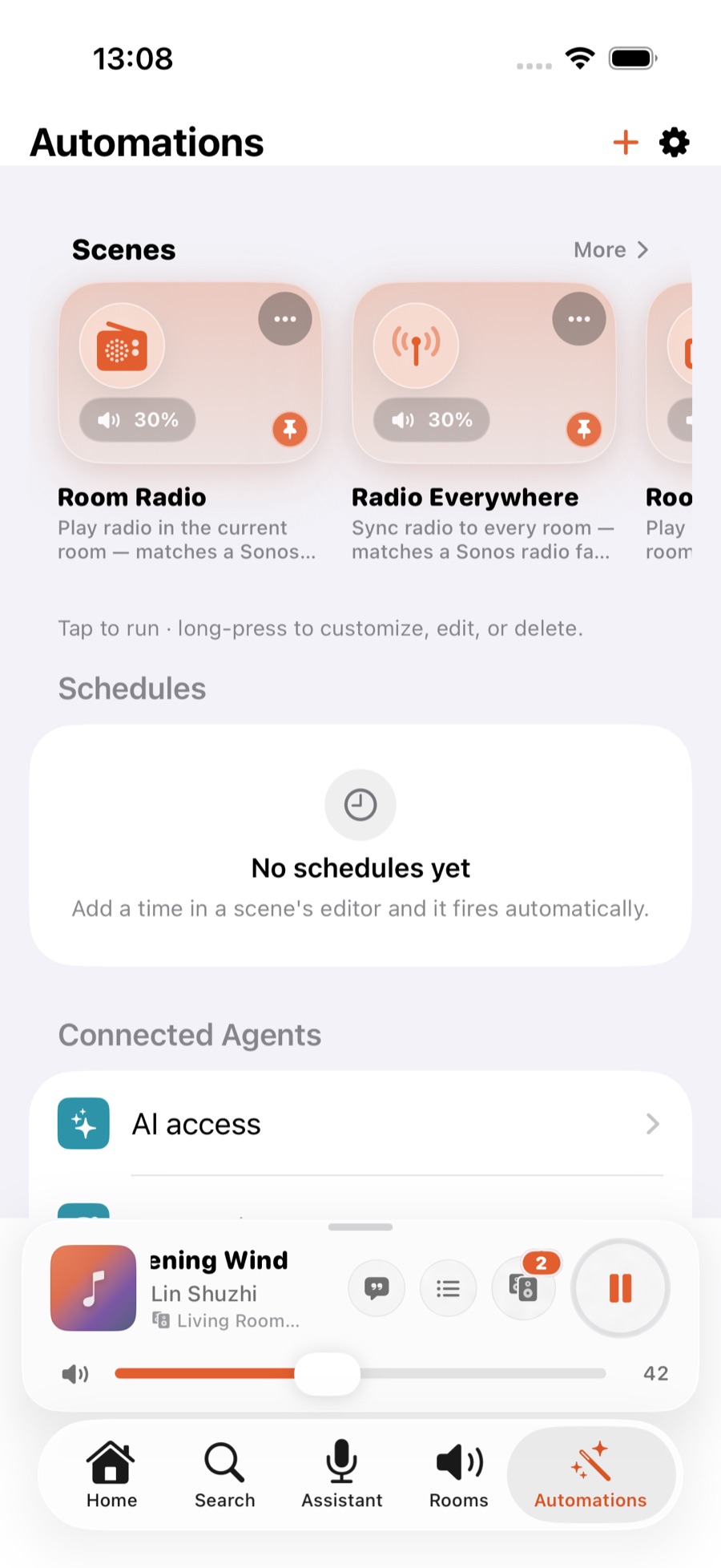
Easiest on a computer: sign in to the web console, find AI access and hit Generate access key. The phone works the same way — ZoneFoundry → Automations → Connected Agents → AI access (Settings → Connections is the same entry). Same account, same home: whichever side you generate on, both sides list it and either can revoke it.
You'll get a short block of text you can paste straight to your assistant, with your personal key already inside.
Paste it to your assistant
Paste the whole block into the chat. Your assistant handles the setup itself — nothing to type by hand. The same block works across assistants, so switching later needs no rewrite.
Just talk to it
Once connected, talk to it the way you normally would: "play Jay Chou in the living room", "turn the bedroom down a bit", "what's playing right now?" It actually does it, then tells you what happened.
How does it actually get tracks into the queue?
Getting tracks into the actual Sonos queue (not just making sound) needs something at home that can reach the speakers. ZoneFoundry offers four ways — any one is enough, and most people need to do nothing at all:
- Your iPhone (default — nothing to set up): as long as it's home and you haven't swiped ZoneFoundry away, it wakes briefly to do the queuing, even with the screen locked. This covers most people.
- App in the foreground: always works while ZoneFoundry is open.
- A device that stays home: an old iPhone or iPad left running ZoneFoundry stands by around the clock.
- Local bridge: if you have a NAS or an always-on computer, the bridge keeps it available at all times.
When it can't, it says so. If you're away from home, or you've swiped ZoneFoundry out of the app switcher, the music still plays but won't enter the queue — and your assistant tells you plainly: played, but not queued. It never pretends otherwise.
What about security?
- The key maps only to your own home — nobody else reaches your rooms.
- Revoke it any time, in the app or the web console; the assistant loses access immediately and your own sign-in is unaffected.
- Volume is capped, so an assistant can't blast the whole house.
No fixed command phrasing to memorise
ZoneFoundry understands natural phrasing in Chinese and English. “Play something quiet in the bedroom” is enough — no fixed syntax to memorise, and no microphone required on the Sonos speaker.