
Make sure you actually need this guide. If you have the ZoneFoundry bridge, or you're happy to leave a device at home (a dedicated iPad, a spare iPhone) with ZoneFoundry open, you don't need any of the steps here — just tick your rooms and pair a sensor in the app, done in minutes: see Follow-Me — music walks with you. This guide is for people who have neither: a longer setup, in exchange for following you with the app closed and your phone out of the house.
Three executors — which one runs it
The room hand-off can be done by three different things. They stand down for each other automatically — whoever is closest to the speakers takes the job, and they don't fight.
- Bridge (24/7) — highest priority, controls the speakers directly on your home network, fastest to react.
- This device (bridge-free) — runs while ZoneFoundry is open in the foreground on your home Wi-Fi. Good for a dedicated iPad or a spare iPhone.
- Cloud (24/7, bridge-free) — steps in only when neither of the others is on duty. This guide sets up this one.
Do they conflict? No. When the cloud receives an event it first waits a few seconds to let a closer executor act, then goes ahead anyway — but every action is idempotent: on join, if the room is already in a group that's playing music it stays put and doesn't touch the volume; on leave, if the room is already standalone it skips. Worst case it does a redundant pass; it never shuffles speakers around.
Before you start
- ZoneFoundry already signed in to Sonos cloud (the home screen no longer shows "Tap to sign in")
- A motion / presence sensor in each room you want to follow you, already added to Apple Home (Linptech ES5, Aqara P1/FP2/E1, Eve, Hue, Onvis all work)
- HomeKit permission granted in ZoneFoundry (both rows in the Follow Me prerequisites checklist ticked)
- Recommended: a Home Hub at home (HomePod / Apple TV / a plugged-in iPad). Without one, automations only fire while your phone is home and awake.
Part 1 — Get your links in the app
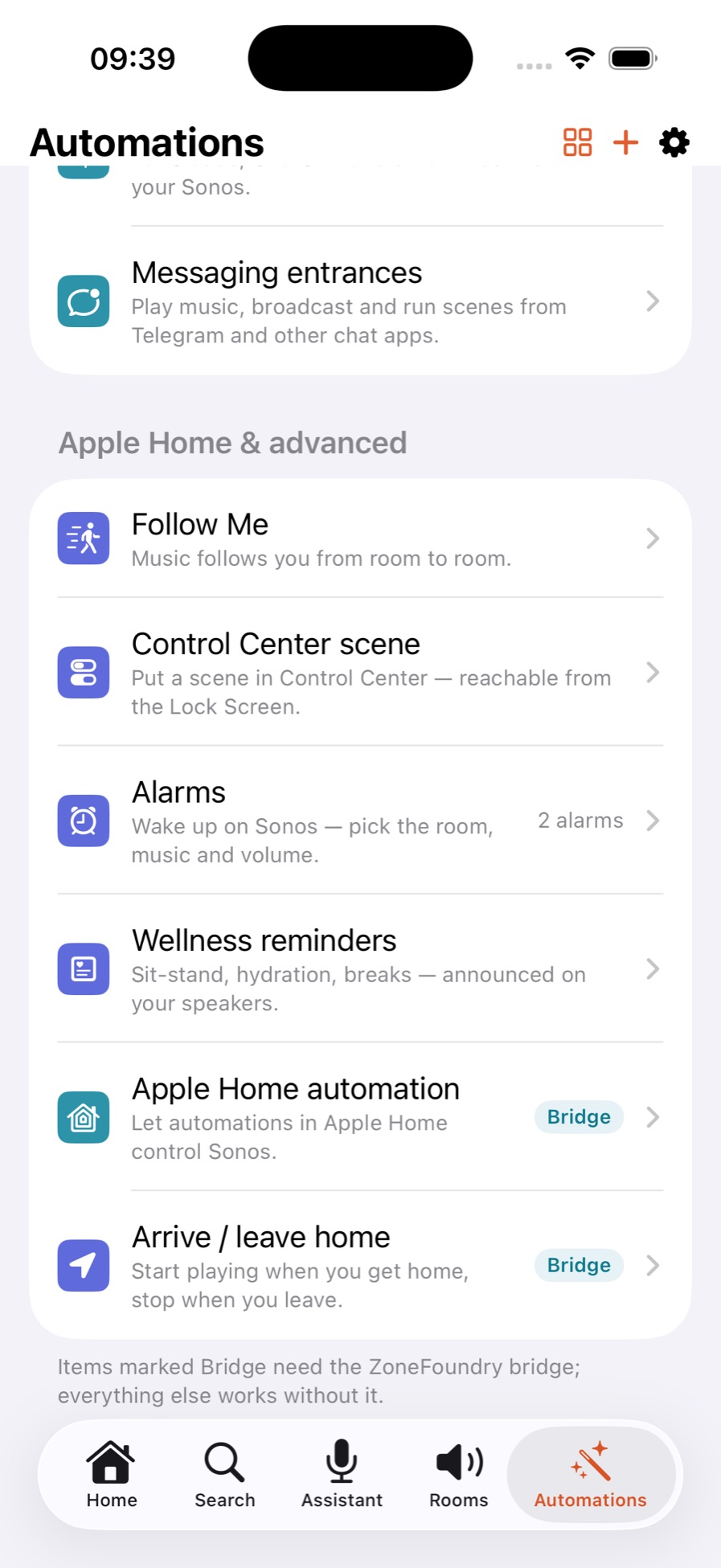
Automations tab → scroll down to "Apple Home & advanced"
Follow Me is not in the top half of the page — that's Scenes, Schedules and Connected Agents. Keep scrolling to the last group, headed "Apple Home & advanced". Follow Me is the first row in it.
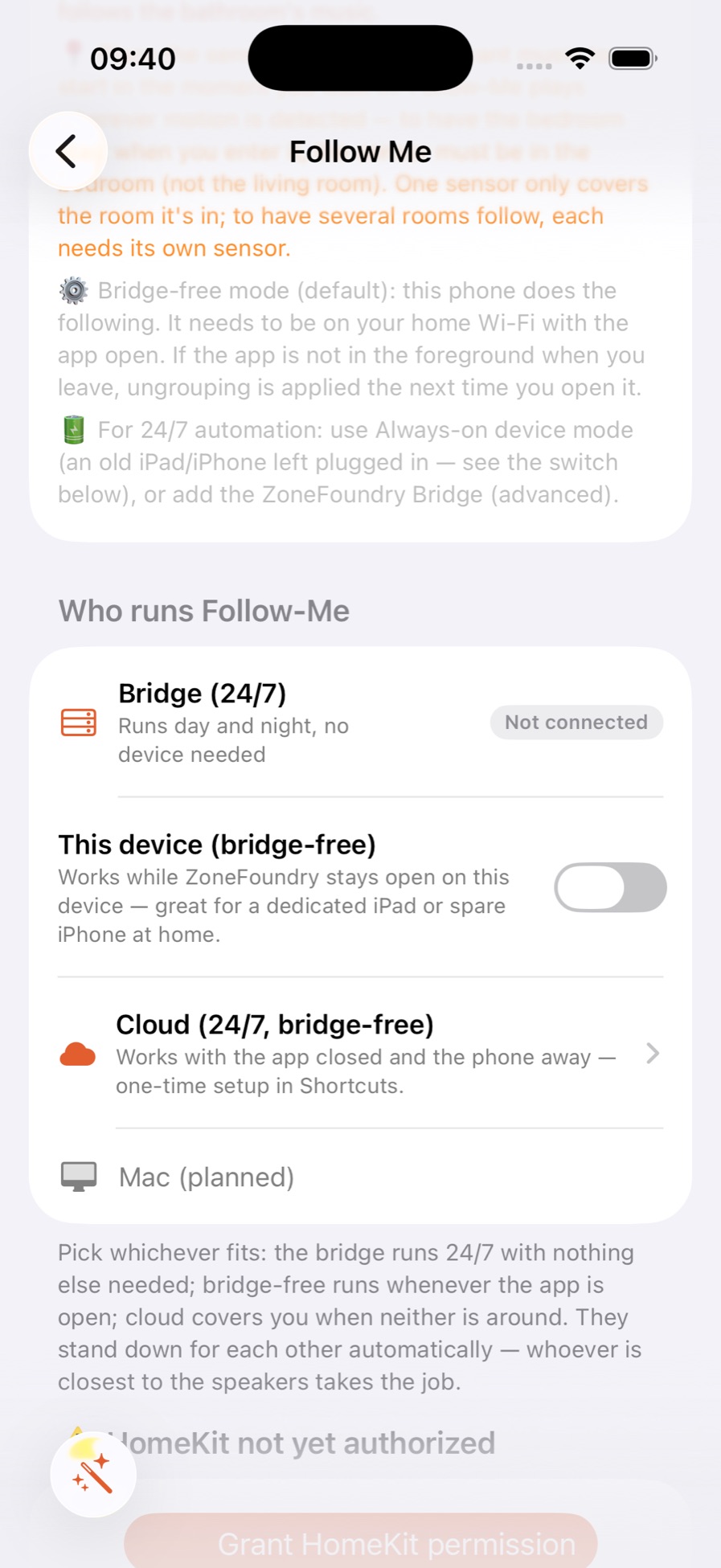
Open Follow Me, scroll to "Who runs Follow-Me"
The three executors are listed together — tap the third one: "Cloud (24/7, bridge-free)".
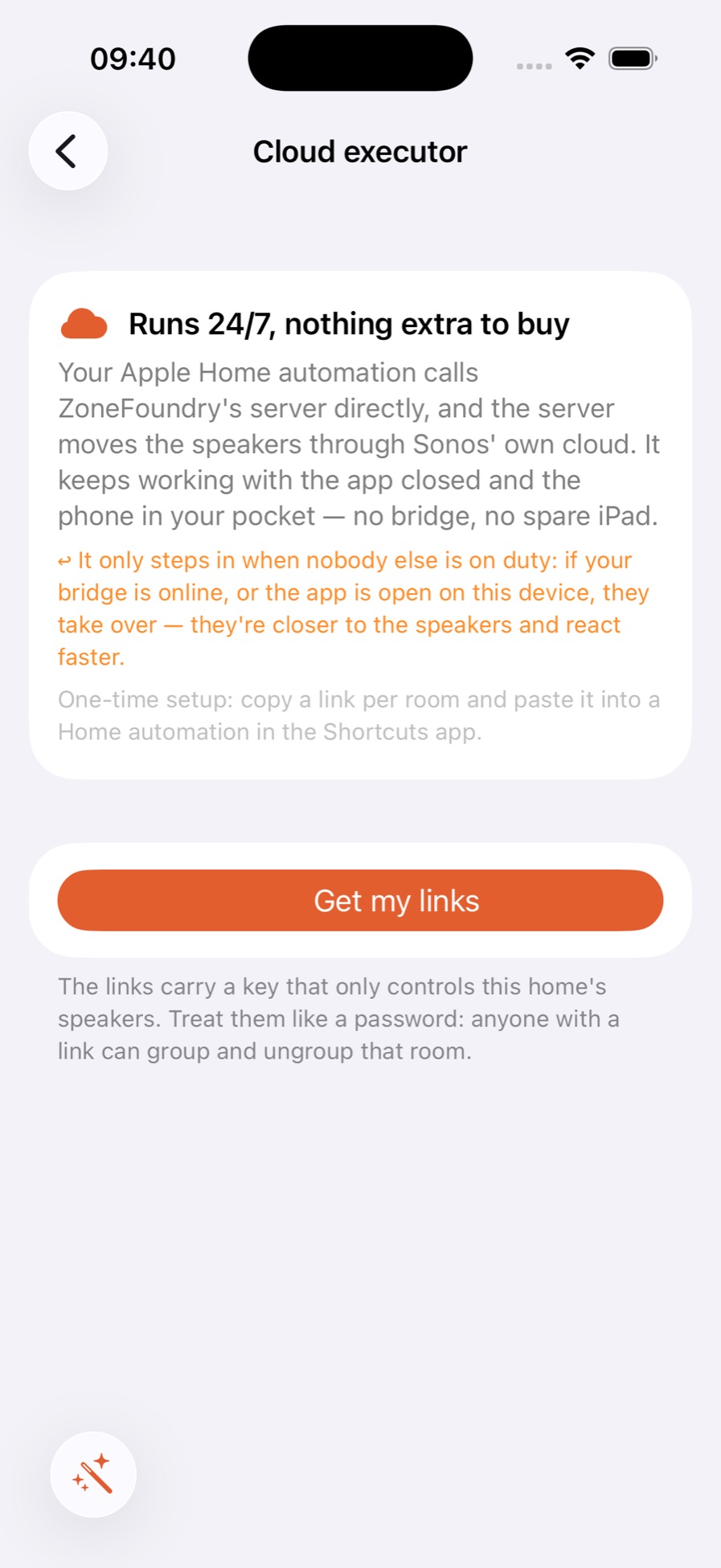
Tap "Get my links"
Each room gets two links: someone arrives → join the music, and room empties → leave after a delay. Three rooms means six links.
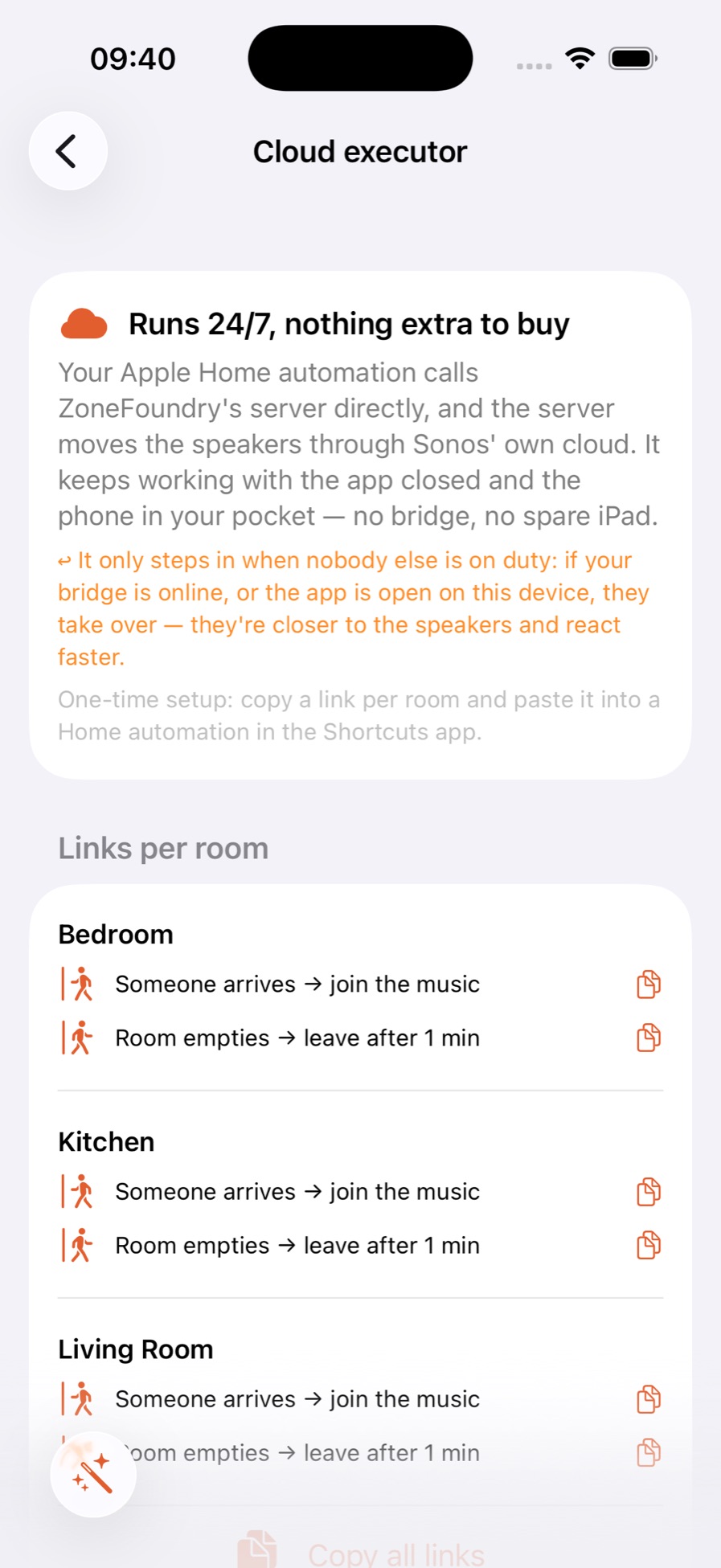
Treat these links like a password. Each one carries a key that controls this home's speakers — anyone with the link can group and ungroup that room. Don't post them in group chats, forums or anywhere public, and redact the token before sharing a screenshot.
Part 2 — What "Copy all links" is for
The button at the bottom is not a one-tap import — it doesn't create any automations. It does exactly one thing, but that one thing saves you five round trips between apps.
- The icon on each row: copies just that one link. You then have to switch to the Home app, paste it, and come back for the next one — six round trips for three rooms. Fine if you only have one room.
- "Copy all links" at the bottom: puts all six links on the clipboard with their room names and labels. Paste that into Notes, and the rest of the setup happens entirely in the Home app. Use this for two rooms or more.
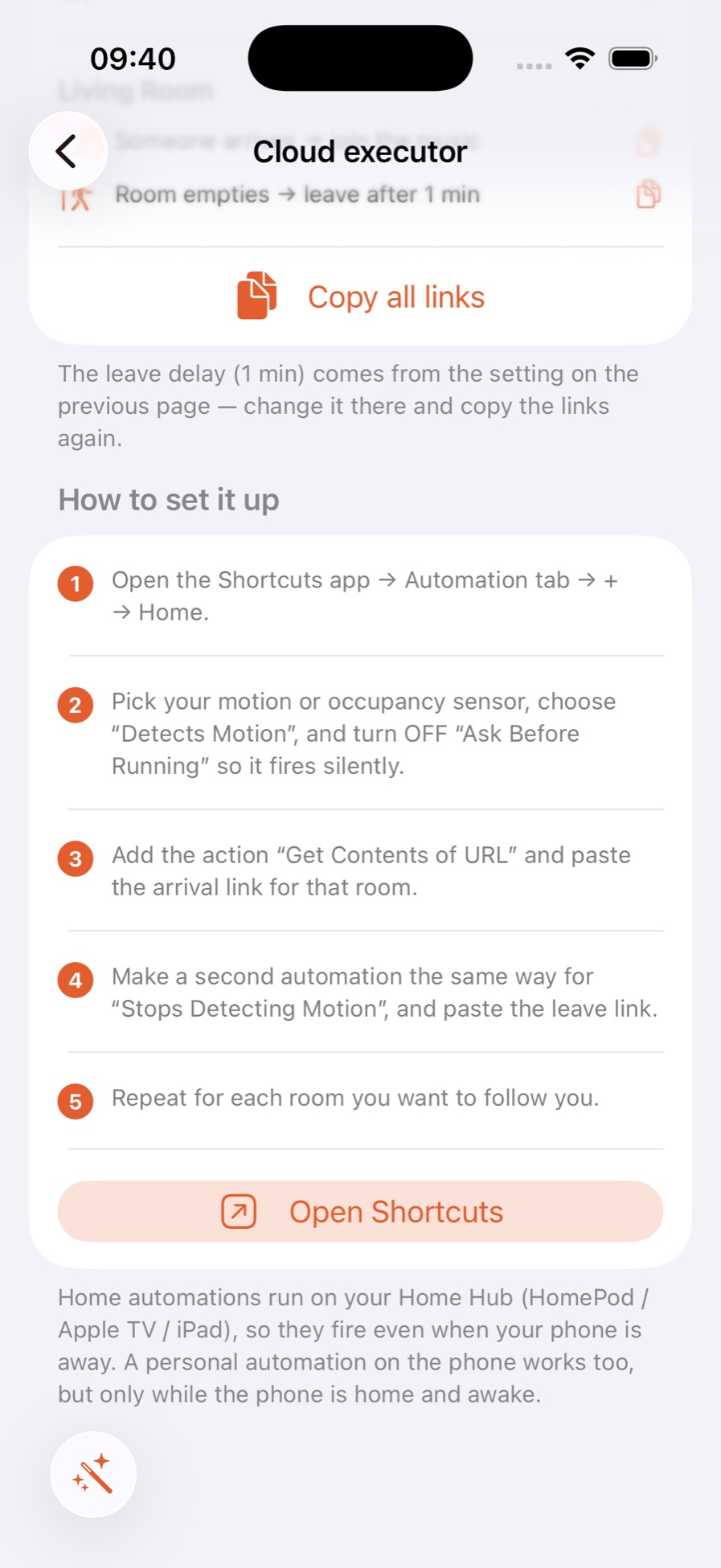
What you get looks like this (token redacted) — the value is in those label lines; six bare URLs are impossible to tell apart:
ZoneFoundry Follow-Me links

── Bedroom ──
Someone arrives → join the music
https://relay.zonefoundry.dev/api/followme/webhook?token=zfwh_xxxx&room=Bedroom&presence=in
Room empties → leave after 1 min
https://relay.zonefoundry.dev/api/followme/webhook?token=zfwh_xxxx&room=Bedroom&presence=out&delay=60

── Kitchen ──
…
Delete that note once you're done.
Part 3 — Build the automation in the Home app
Start in the Home app, not Shortcuts. You can build it from Shortcuts, but you have to scroll the whole trigger list to the very bottom to find the "Home Automation" section. The path below is much shorter.
Home app → Automation → + → "A Sensor Detects Something"
The New Automation sheet lists five events: People Arrive, People Leave, A Time of Day Occurs, An Accessory is Controlled, and A Sensor Detects Something. Choose the last one.
Pick that room's sensor → "Detects Occupancy" → Next
Sensors are grouped by room — pick the presence / motion sensor for this room. On the next screen choose "Detects Occupancy" (this is the arrive one). Leave Time = Any and People = Off.
Select nothing on this screen — scroll to the bottom and tap "Convert To Shortcut"
"Select scenes and accessories to automate" lists every light, speaker and thermostat in your home — tick none of them. Scroll all the way to the bottom and tap the orange "Convert To Shortcut".
This is where most people get stuck. With nothing ticked, "Next" in the top right stays greyed out and it looks like a dead end. The way forward is the button at the very bottom, not the top right.
Add "Get Contents of URL" and paste the link
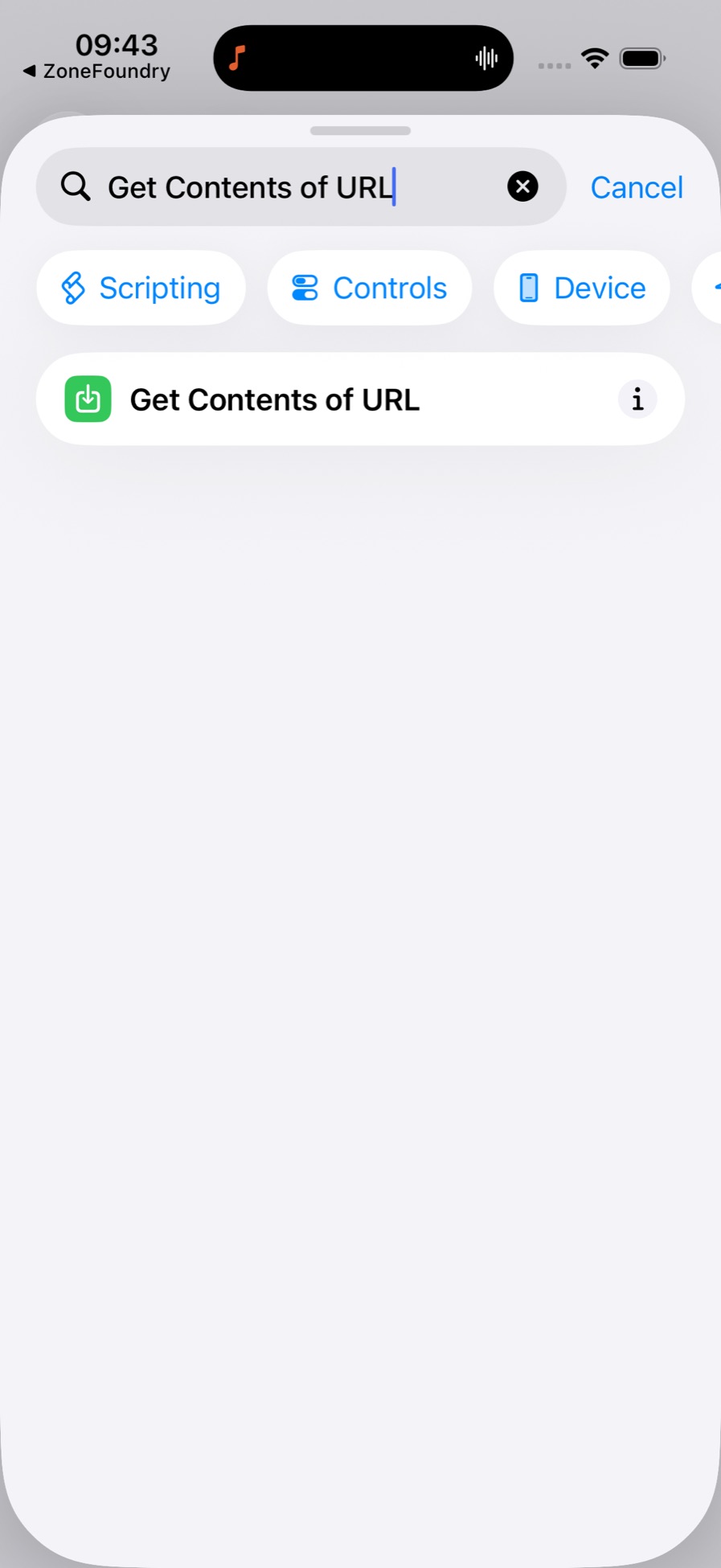
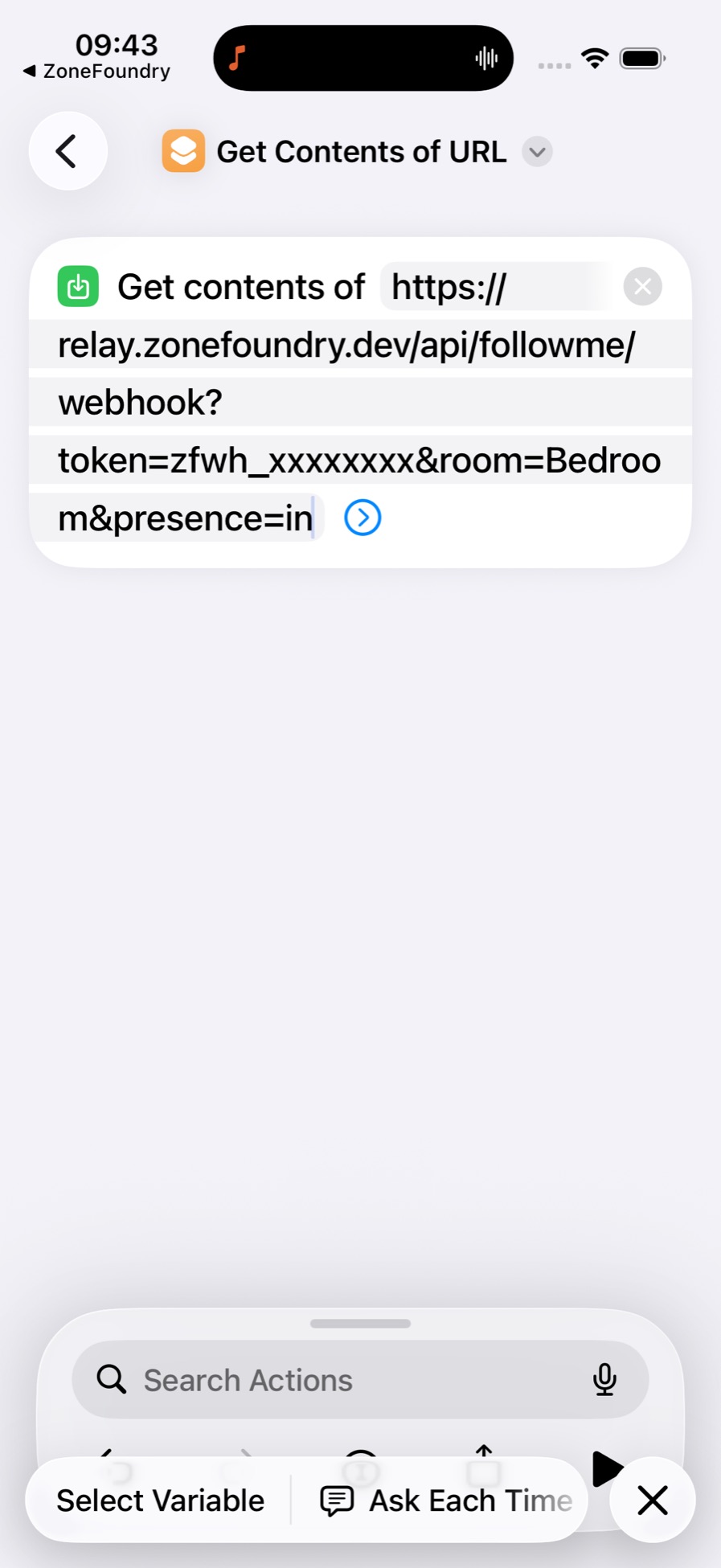
You land in an empty shortcut editor. In the search field at the bottom type Get Contents of URL — there's exactly one result; tap it to add it. Then tap the pale blue URL field in the action and paste this room's arrive link in full. Tap ✓ at the top right.
Name it, check it, save
Back on the automation screen, give it a name (e.g. Follow Me-IN), check the following, then tap ✓:
- Enable This Automation = on
- When = "Occupancy Detected in ⟨room⟩"
- Do = "Shortcut (no scenes or accessories)" — that "(no scenes or accessories)" line is expected, not an error
There is no "Ask Before Running" here — that switch only exists on personal automations in Shortcuts. Automations built in the Home app run on your Home Hub without prompting.
Build the second one: "Stops Detecting Occupancy"
Repeat steps 4–8 with two changes: in step 5 choose "Stops Detecting Occupancy", and in step 7 paste the leave link. Then do both for every room you want to follow you.
The link's room must match the sensor's room. Follow-Me means "sensor in room A → room A follows you". So the automation for the living-room sensor must use room= the living room. Get it backwards and you'll get "walk into the living room → a different room starts playing", which isn't Follow-Me. To check: open the automation and compare "When: Occupancy Detected in ⟨X⟩" against room=⟨X⟩ in the link.
About the leave delay — changing it doesn't mean re-copying
The delay=60 at the end of the link records the setting at the moment you copied it — but it's only a fallback. What actually decides is the current setting in the app: on every request the server overrides the link's value with whatever you have set now.
So: change the leave delay in ZoneFoundry's Follow-Me page and the links you already pasted into Home automations follow the new value automatically — same for all three executors (bridge, this device, cloud). No need to copy the links again.
The one change that does require re-copying is renaming a room. The room name is baked into the link (room=Bedroom) and the server won't rewrite it. After a rename, go back to "Get my links" in the app and re-paste. The server reports an error when it doesn't recognise a room name — it won't fail silently.
Check that it works
Each automation page has a "Test This Automation" button at the bottom — use it before walking around. To test the cloud executor specifically, take the bridge offline and send ZoneFoundry to the background, otherwise a closer executor takes the job and you aren't testing the cloud at all.
| Action | Measured |
|---|---|
| Arrive → room joins and starts playing | about 6–9 s (including the 2–4 s the HomeKit sensor itself takes) |
| Leave → ungroup | your delay + about 7 s (fade out, leave the group, restore volume) |
Nothing happens? The three usual causes
| Symptom | Cause | Fix |
|---|---|---|
Testing the automation reports unknown_room |
The room was renamed; the link still has the old name | Go back to "Get my links" and re-paste |
| You enter one room but a different room starts playing | The sensor's room doesn't match room= in the link |
Compare the two and make them the same room |
| The automation never fires | "Enable This Automation" is off, or the sensor isn't reporting | Check the switch on the automation page; check the sensor's state in Home |
Why isn't there a one-tap import? It's an iOS limitation, not laziness. A HomeKit automation's action can only write an accessory characteristic — there is no "open a URL" action — and Shortcuts' home automations have no API for a third-party app to create them. So picking the sensor will always be a human step: the app has no way to know what your sensor is called.