
Why you'll love it
- Together or separate, switch in a tap: group the living room, kitchen and patio to play in sync, or split them so each plays its own thing — grouping and ungrouping take a tap or two.
- Per-room volume: adjust the whole group at once, or dive into a single room to set just that one — turn the kitchen up when it's noisy without touching the rest.
- Save combinations as scenes: "whole-home party", "living room only", "closing time" — bundle rooms, volumes and what to play into one scene that drops into place with a tap, or fires on a schedule.
Before you start
- An iPhone with ZoneFoundry installed and your Sonos rooms already showing up
- Phone and Sonos on the same Wi-Fi (grouping and per-room volume work on Wi-Fi alone — no bridge needed)
Steps
Group and ungroup under Rooms
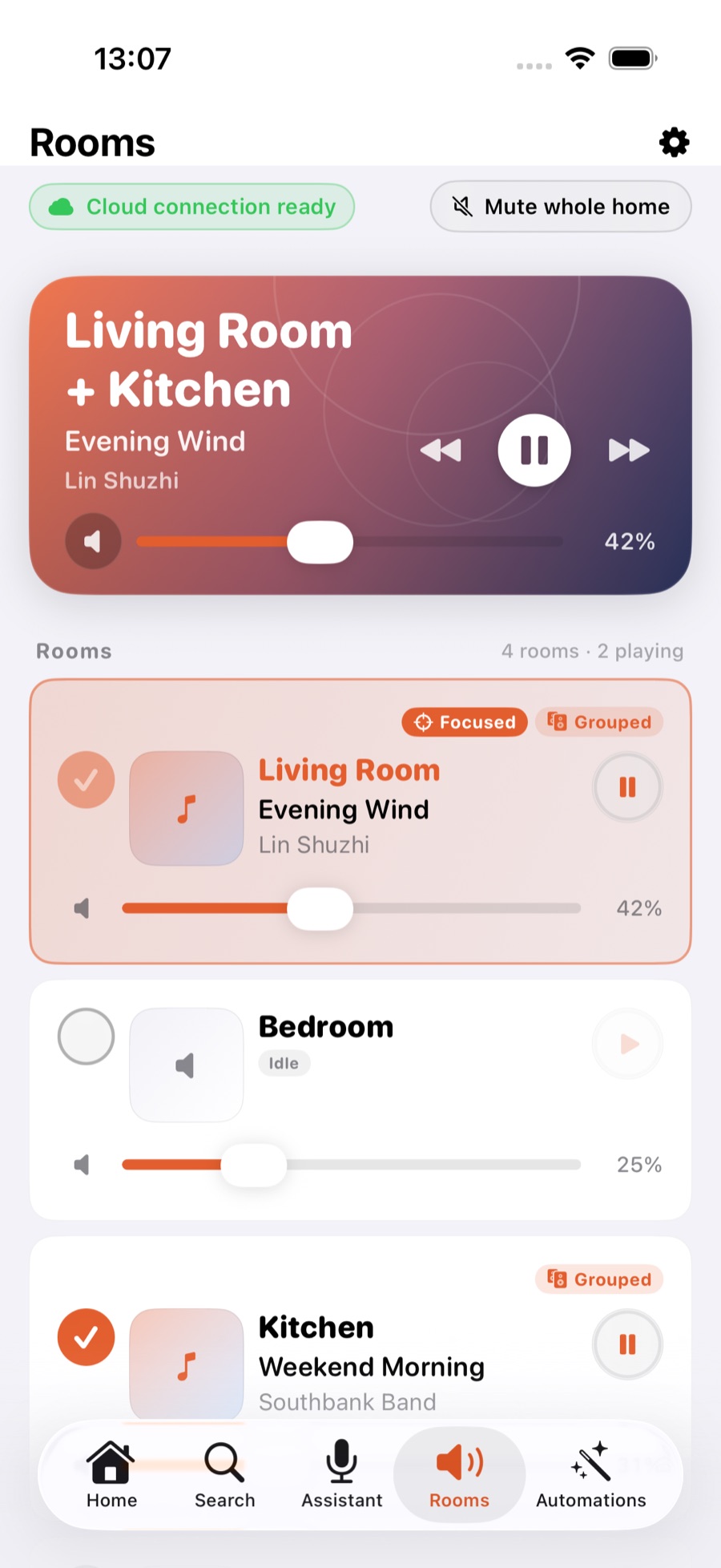
Go to the Rooms tab at the bottom, add the rooms you want playing together into one group and they'll play the same thing in sync; to make one independent, split it back out. Grouping is always reversible, with nothing left behind.
Set the group volume, or one room at a time
While a group plays, the main volume bar controls the whole group; open the group and you'll see each room's own volume bar to set individually. Switch between the master and per-room controls anytime.
Save a combination as a scene
In the Automations tab, create a scene that bundles rooms, volumes and what to play, and give it a name. Trigger it with one tap later, or put it on a schedule — like a shop that starts its background music automatically every morning.
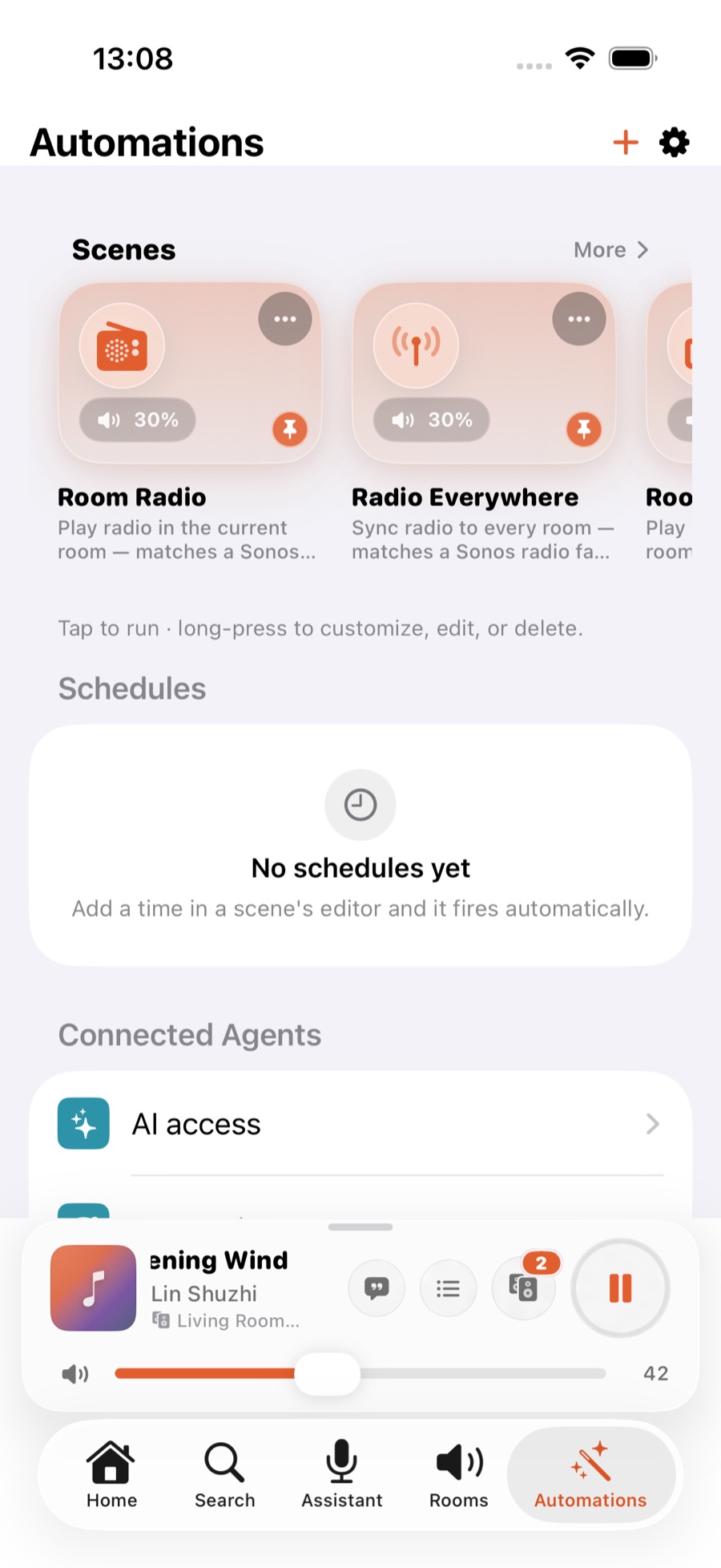
Tip: Scenes and scheduled triggers can go further with Apple Home — bringing lights, AC and music on together. To dig in, see Link a scene with your lights & AC.
Grouping rooms can be one sentence
“Play the living room and bedroom together” is a single sentence in ZoneFoundry — no tapping through rooms one by one. It is an iOS app that works with your existing Sonos, no extra hardware needed.