
Before you start
- A presence / motion sensor already added to the Apple Home app (Linptech ES5, Aqara FP series, etc.)
- A ZoneFoundry scene you've already created (see the previous guide)
Why a mmWave sensor? A plain infrared (PIR) sensor only detects motion — sit still and it thinks the room is empty, so the music cuts out. A mmWave sensor (like the Linptech ES5) detects presence: it still sees you when you're sitting or lying still — ideal for this kind of automation.
Steps
New automation, pick your sensor
Open Apple Home → Automation → Add Automation → choose "A Sensor Detects Something" → pick your presence sensor (e.g. the living-room Linptech ES5).
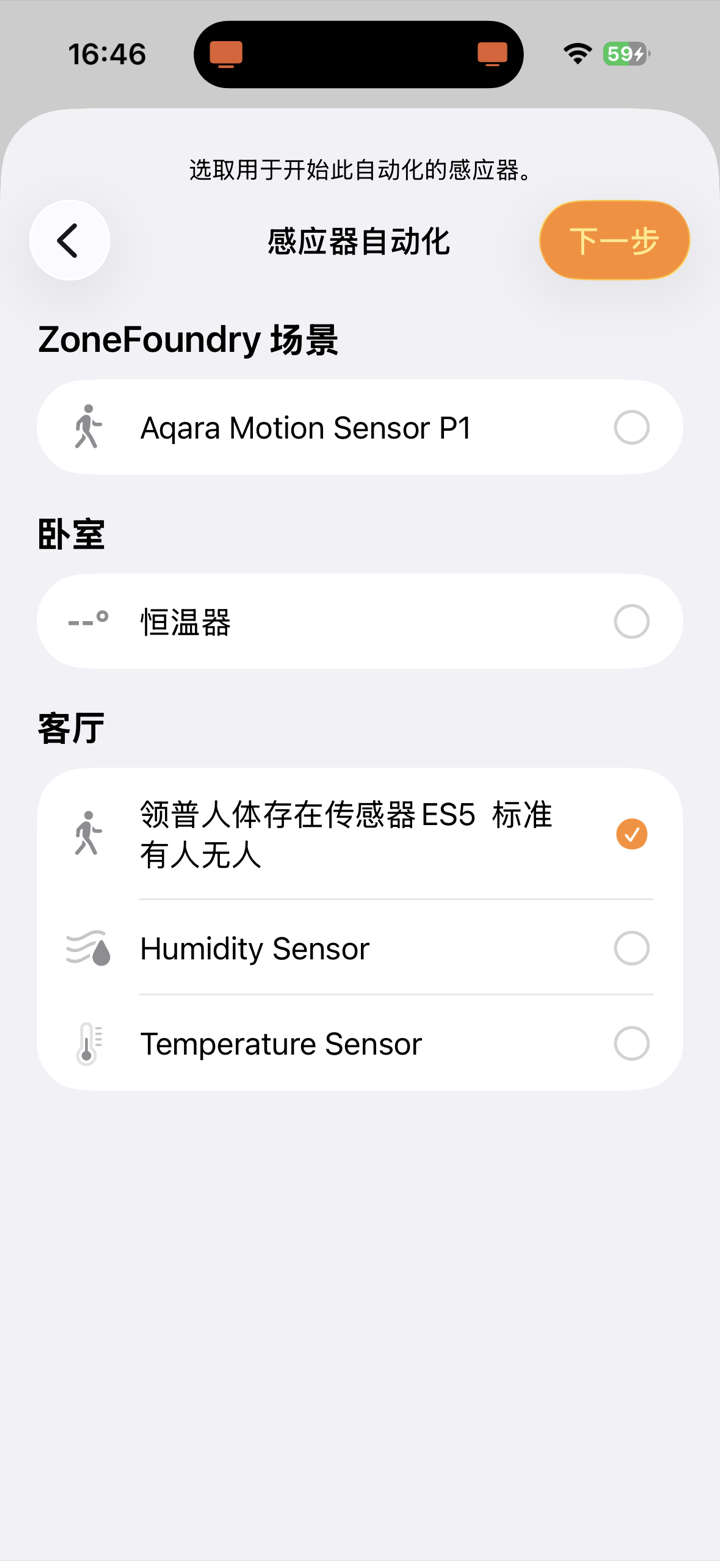
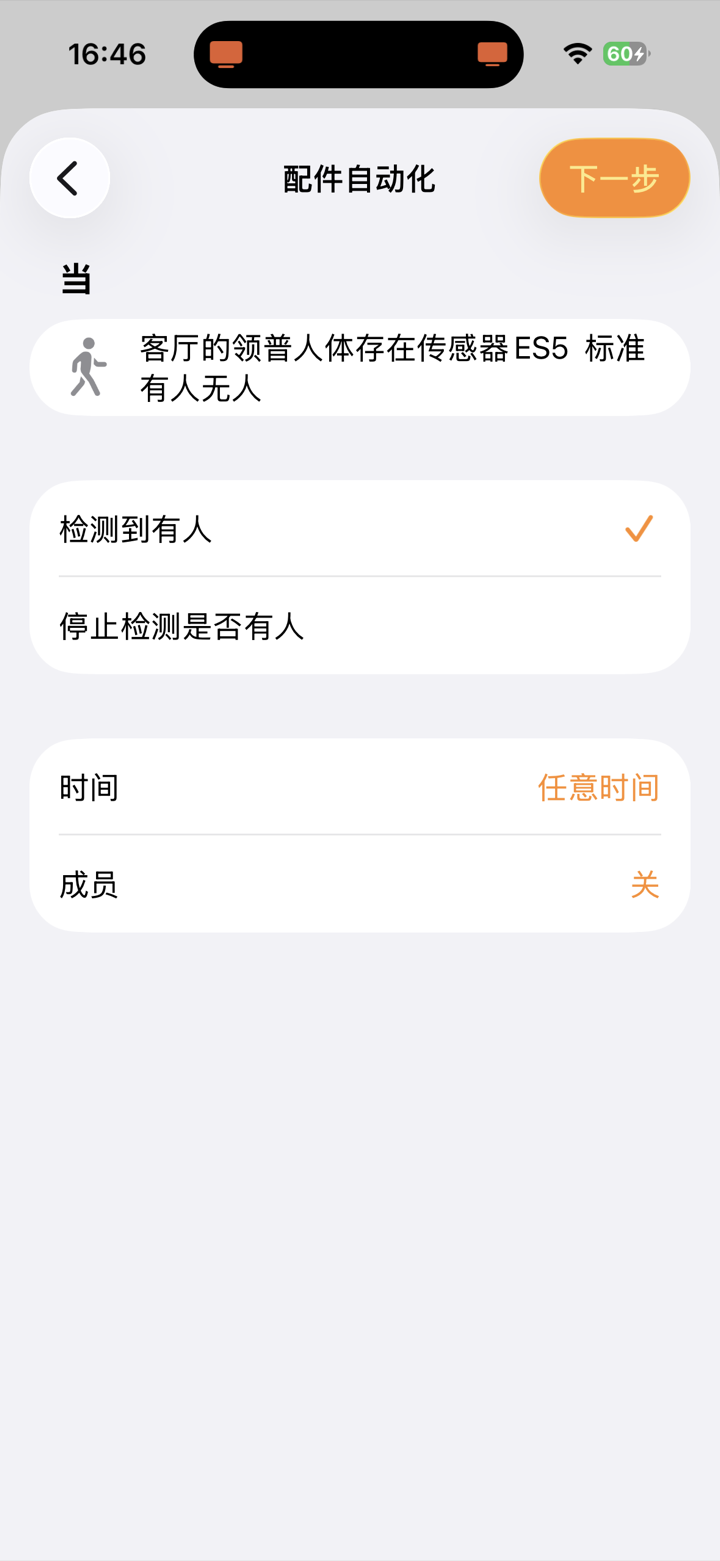
Set the trigger to "detects presence"
Choose "Detects presence". You can also add conditions like time of day or who's home (e.g. only in the evening).
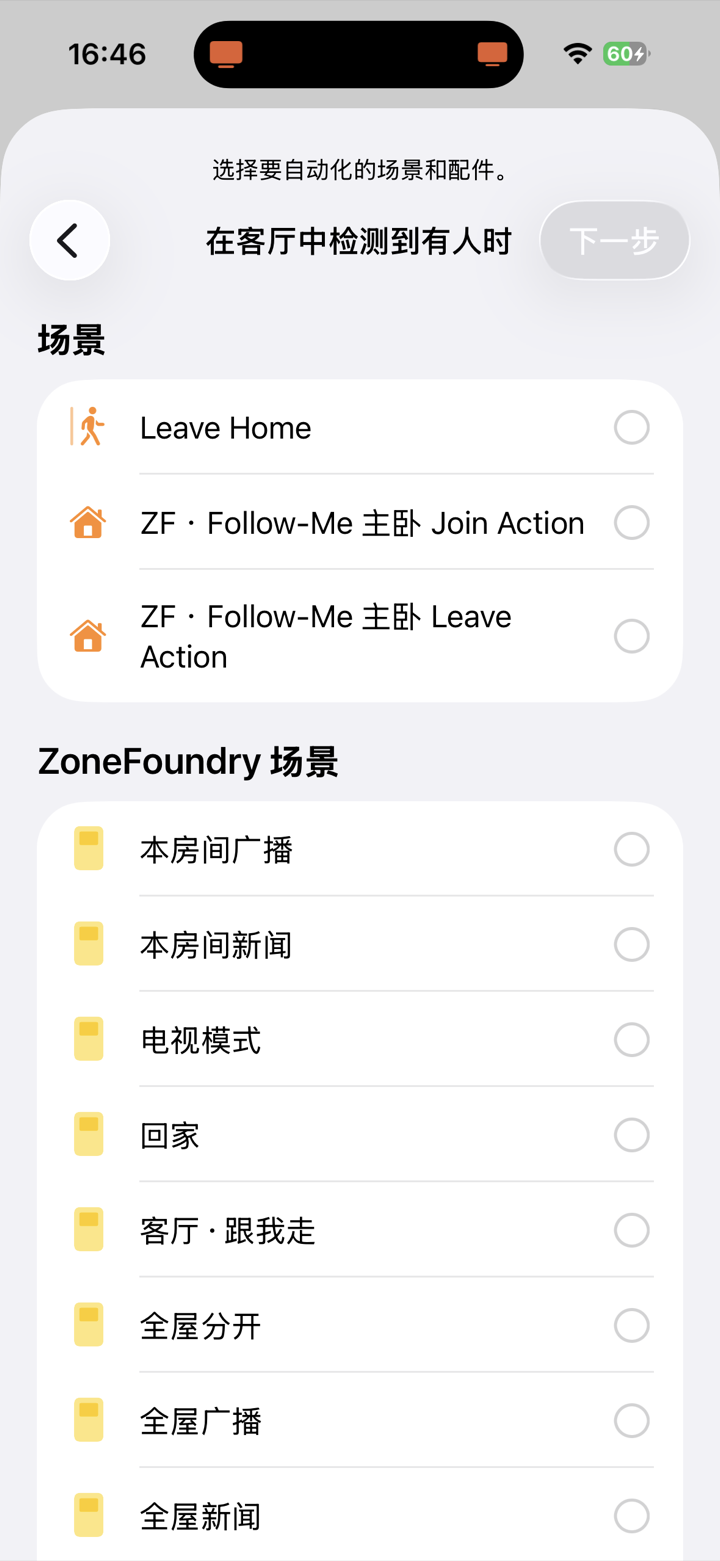
Pick the ZoneFoundry scene to run
From the scenes and accessories list, pick your ZoneFoundry scene (e.g. "Arrive home"). Want lights and AC too? Tick them as well — just like the previous guide.
Finish, then test it
Tap "Done". You can hit "Test This Automation" to check it right away. From now on, walking into the room runs the scene by itself — even with your iPhone locked.

Want it to stop when you leave? Add a second automation: same sensor, trigger set to "Stops detecting presence" → run a "Stop" or "Pause everywhere" scene. Now it follows you both ways, fully automatic.
A whole routine can collapse into one scene
Waking up, coming home, winding down — ZoneFoundry can bundle rooms, volume, music and announcements into one scene, triggered by a sentence or a button instead of rebuilt each time.