为什么在 Apple「家庭」做為何在 Apple「家庭」做Why do it in Apple Home
- 一次设置,永远有效:iPhone 锁屏、甚至关掉 App 都会执行(由 Apple Home 中枢 HomePod / Apple TV 跑)。一次設定,永遠有效:iPhone 鎖定畫面、甚至關掉 App 都會執行(由 Apple Home 中樞 HomePod / Apple TV 運行)。Set once, always on: runs even when your iPhone is locked or the app is closed (handled by your Apple Home hub — HomePod / Apple TV).
- 任何品牌都行:只要设备在 Apple「家庭」里(原生 HomeKit、Matter,或经米家 / Home Assistant 桥接),都能和场景组合。任何品牌都可以:只要設備在 Apple「家庭」裡(原生 HomeKit、Matter,或經米家 / Home Assistant 橋接),都可以與場景組合。Any brand works: as long as the device is in Apple Home (native HomeKit, Matter, or bridged via Mi Home / Home Assistant), it can join the scene.
- 各司其职:ZoneFoundry 专注把 Sonos 多房间音频做到最好,设备联动交给 Apple 成熟的家庭自动化。各司其職:ZoneFoundry 專注把 Sonos 多房間音頻做到最好,設備聯動交給 Apple 成熟的家庭自動化。Best of both: ZoneFoundry focuses on great multi-room Sonos audio; device automation is handled by Apple's mature Home engine.
开始前你需要開始前你需要Before you start
- iPhone(iOS 18 或以上)iPhone(iOS 18 或以上)iPhone (iOS 18 or later)
- 在 ZoneFoundry 已经建了至少一个场景在 ZoneFoundry 已建立至少一個場景At least one scene already created in ZoneFoundry
- 你的灯 / 空调已经加进 Apple「家庭」App你的燈 / 空調已加入 Apple「家庭」AppYour lights / AC already added to the Apple Home app
步骤步驟Steps
在 ZoneFoundry 确认你的场景在 ZoneFoundry 確認你的場景Confirm your scene in ZoneFoundry
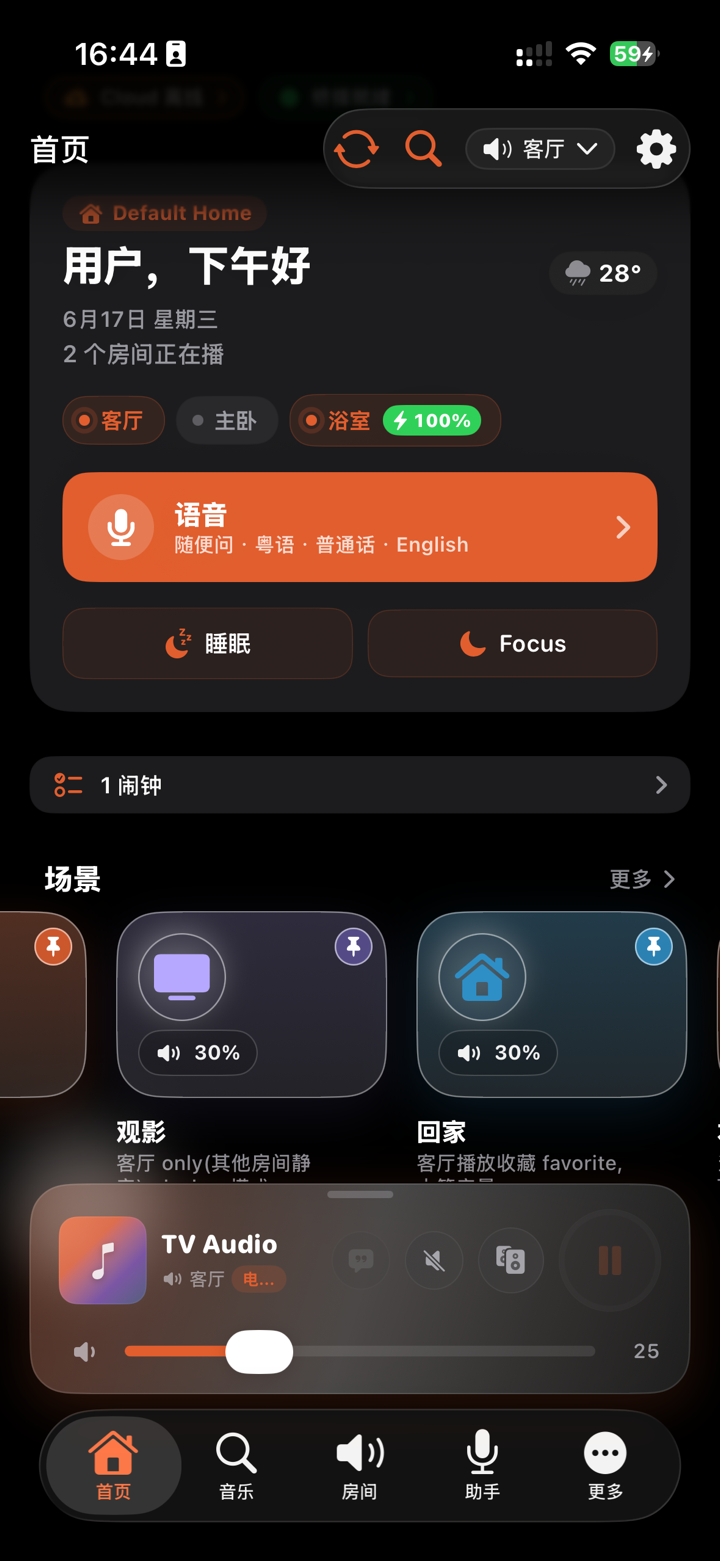
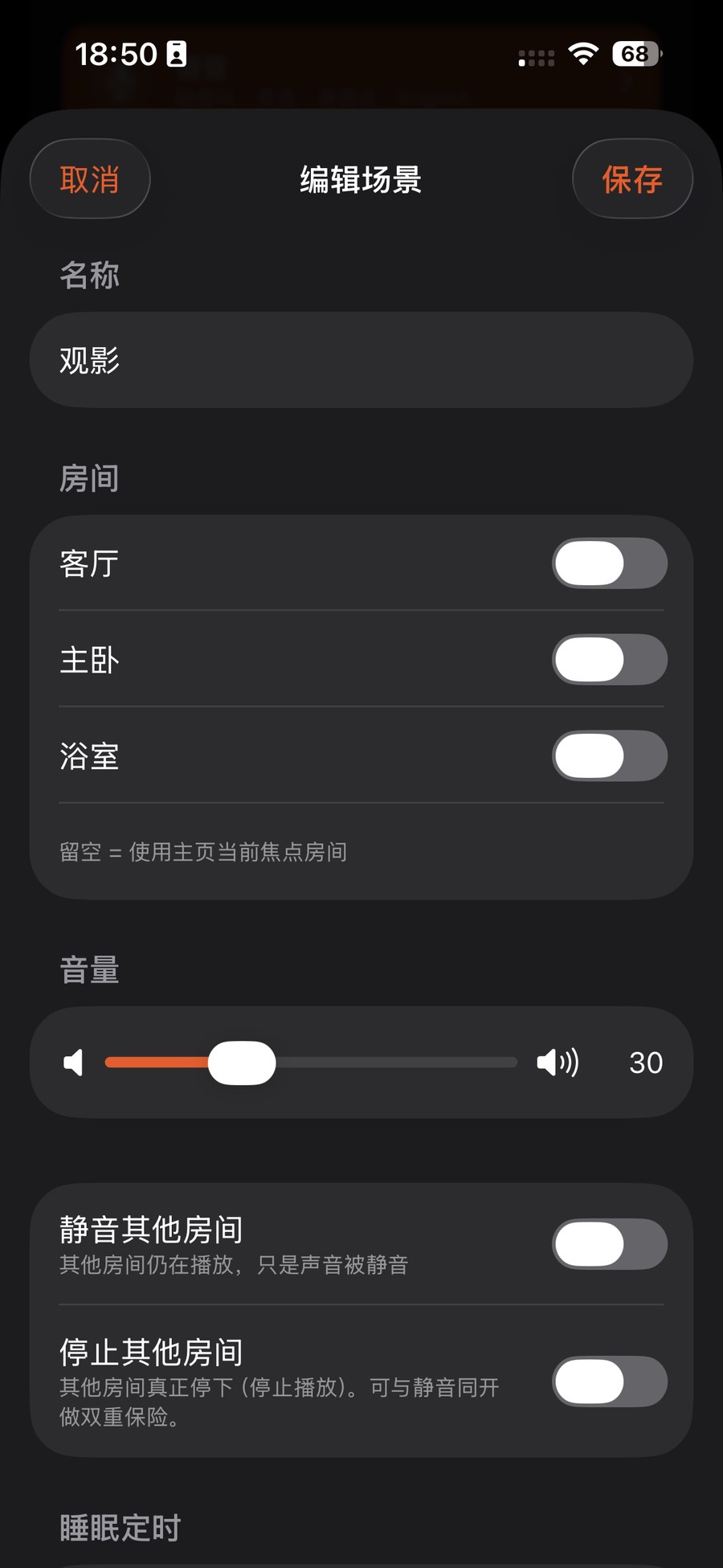
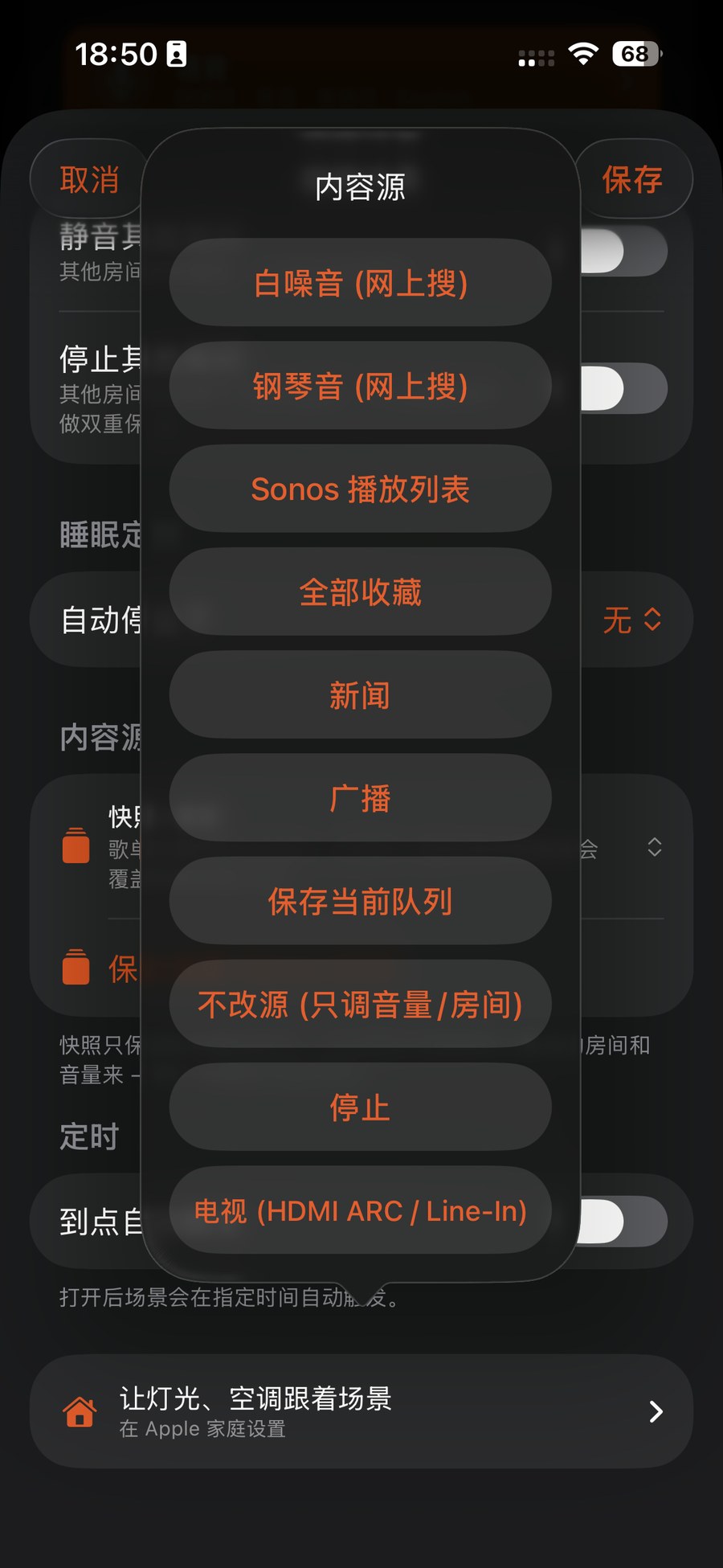
打开 ZoneFoundry →「自动化」,最上面就是「场景」,确认你有一个场景(例如「回家」)。它会自动以「回家」这个名字,作为一个开关出现在 Apple「家庭」App 里。打開 ZoneFoundry →「自動化」,最上方就是「場景」,確認你有一個場景(例如「回家」)。它會自動以「回家」這個名字,作為一個開關出現在 Apple「家庭」App 中。Open ZoneFoundry → Automations — Scenes sits right at the top — and confirm you have a scene (e.g. "Arrive home"). It appears automatically as a switch with that name in the Apple Home app.
在「家庭」App 新建一个家庭场景在「家庭」App 新建一個家庭場景Create a Home scene in the Home app
打开 Apple「家庭」App → 右上角「+」→「添加场景」→「自定义」→ 起个名(例如「回家」)。打開 Apple「家庭」App → 右上角「+」→「加入場景」→「自訂」→ 起個名(例如「回家」)。Open the Apple Home app → top-right "+" → "Add Scene" → "Custom" → name it (e.g. "Arrive home").
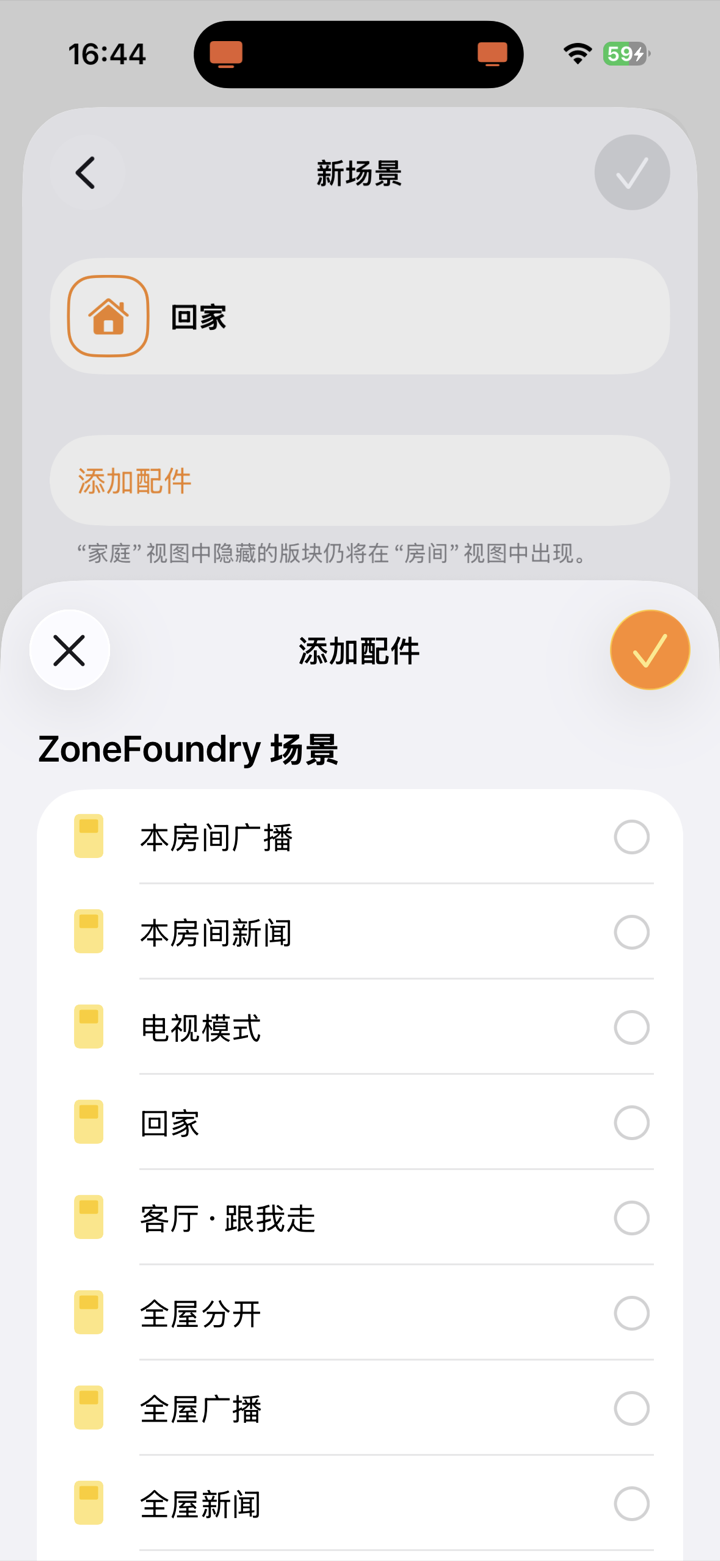
加入 ZoneFoundry 场景 + 你的设备加入 ZoneFoundry 場景 + 你的設備Add the ZoneFoundry scene + your devices
在「添加配件」里勾选:① 你的 ZoneFoundry 场景开关(设为「开」=播放音乐)② 客厅灯(开)③ 空调(开,并设好温度)。然后保存。在「加入配件」裡勾選:① 你的 ZoneFoundry 場景開關(設為「開」=播放音樂)② 客廳燈(開)③ 空調(開,並設好溫度)。然後儲存。In "Add Accessories" select: ① your ZoneFoundry scene switch (set to On = play music), ② living-room light (On), ③ AC (On, set the temperature). Then save.
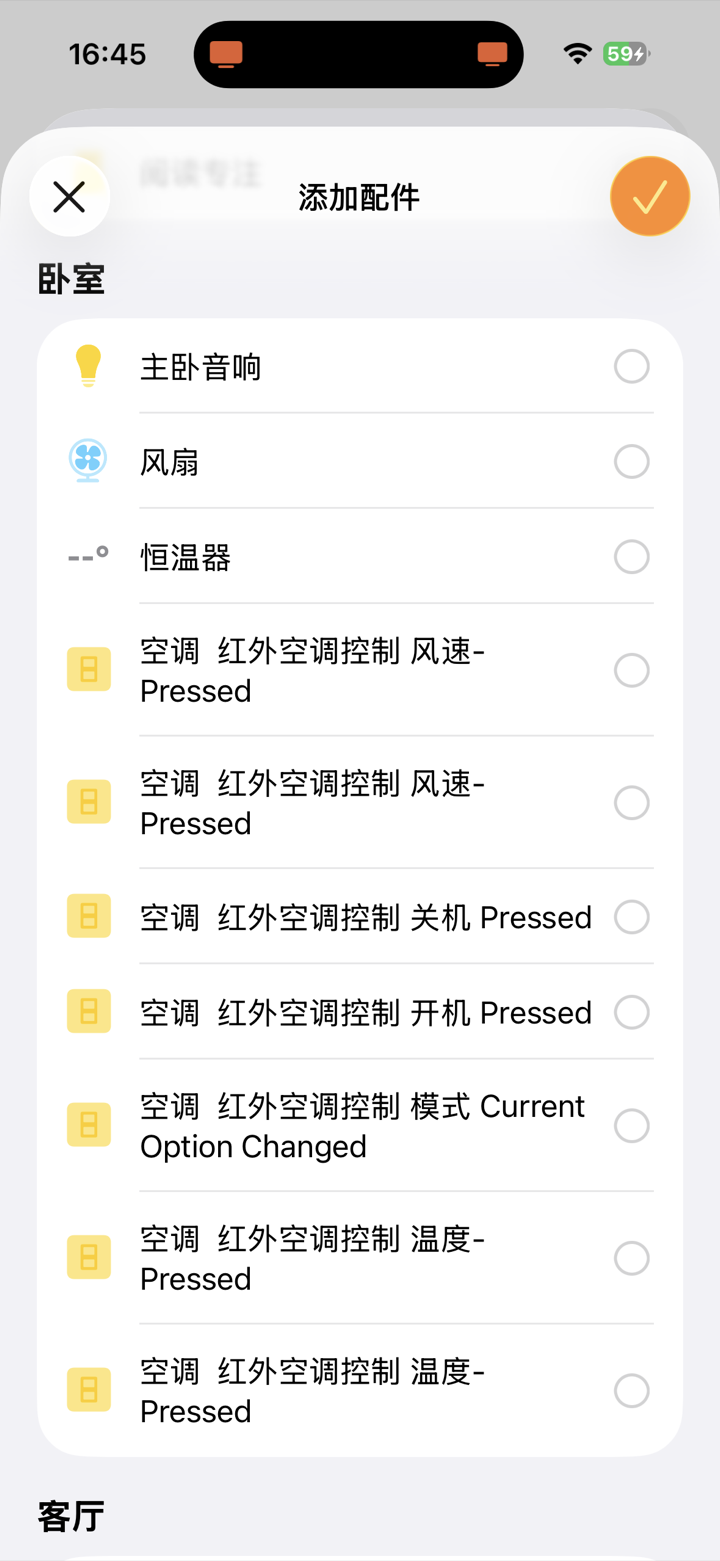
提示:ZoneFoundry 场景在「家庭」里是一个开关,把它设成「开」就会触发整个 Sonos 场景(房间、音量、内容都按你在 ZoneFoundry 里的设定)。提示:ZoneFoundry 場景在「家庭」裡是一個開關,把它設成「開」就會觸發整個 Sonos 場景(房間、音量、內容都按你在 ZoneFoundry 裡的設定)。Tip: A ZoneFoundry scene is a switch in Home — turning it On fires the whole Sonos scene (rooms, volume and content exactly as set in ZoneFoundry).
(可选)让它自动触发(可選)讓它自動觸發(Optional) Make it automatic
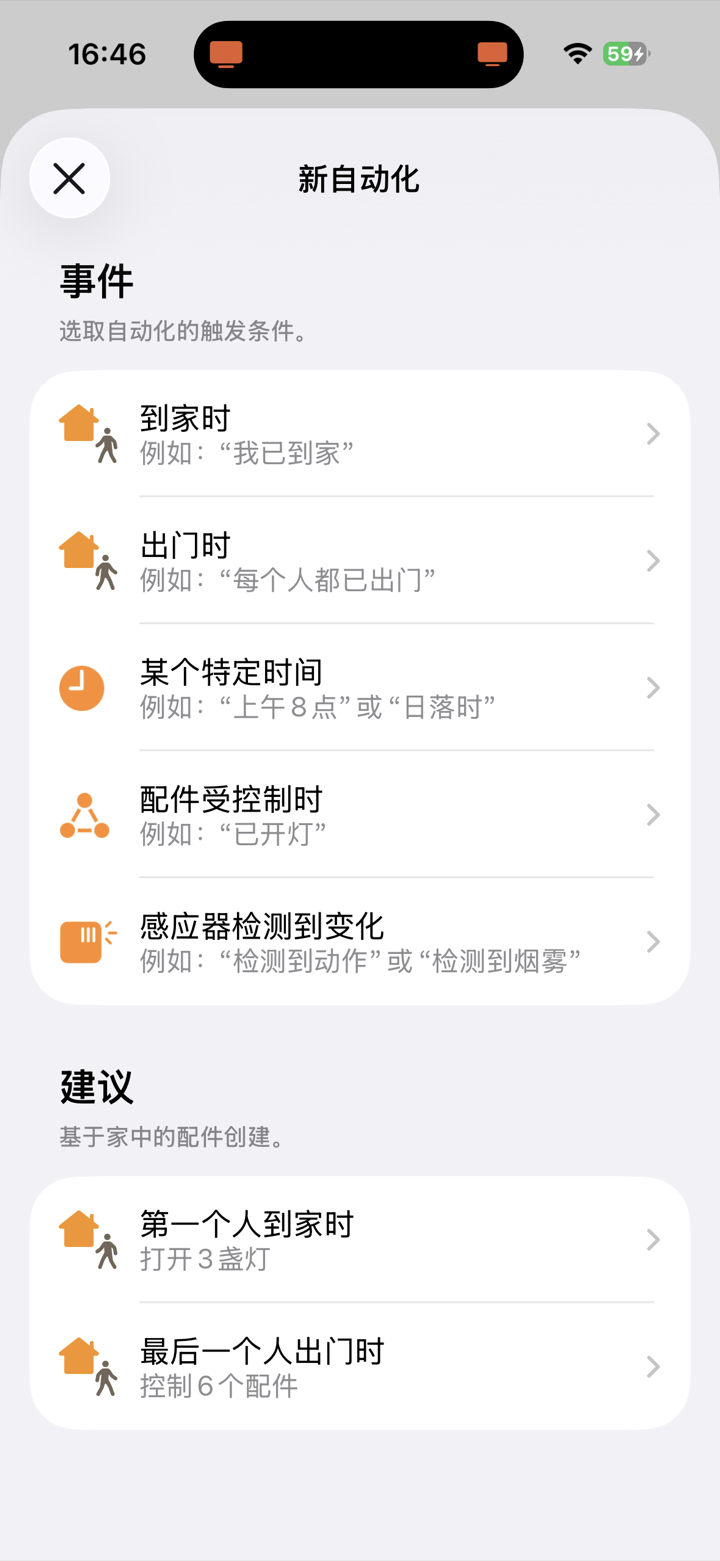
「家庭」App →「自动化」→「添加自动化」→ 选触发条件(传感器侦测到有人 / 某个时间 / 到家)→ 选择运行刚才建的「回家」场景。这样人一进门,音乐、灯、空调就自动一起来。「家庭」App →「自動化」→「加入自動化」→ 選觸發條件(傳感器偵測到有人 / 某個時間 / 到家)→ 選運行剛才建立的「回家」場景。這樣人一進門,音樂、燈、空調就自動一起啟動。Home app → Automation → Add Automation → pick a trigger (a sensor detects someone / a time of day / when you arrive home) → run the "Arrive home" scene you just made. Walk in and music, lights and AC all come on by themselves.
设备没出现?确认它真的在 Apple「家庭」App 里(不是只在米家或其他厂商 App)。米家 / Home Assistant 的设备要先经「家庭」桥接进来,才会被 ZoneFoundry 和家庭场景看到。設備沒有出現?確認它真的在 Apple「家庭」App 裡(不是只在米家或其他廠商 App)。米家 / Home Assistant 的設備要先經「家庭」橋接進來,才會被 ZoneFoundry 與家庭場景看到。Device missing? Make sure it's actually in the Apple Home app (not only in Mi Home or another vendor app). Mi Home / Home Assistant devices must be bridged into Home first before ZoneFoundry and Home scenes can see them.
锁屏、Apple Home、快捷指令,都能接上鎖屏、Apple Home、捷徑,都能接上Lock screen, Apple Home and Shortcuts all connect
ZoneFoundry 把 Sonos 接进 Apple Home 和快捷指令,锁屏上也有完整的播放控制,不用为了换首歌先解锁再开 App。ZoneFoundry 把 Sonos 接進 Apple Home 和捷徑,鎖屏上也有完整的播放控制,不用為了換首歌先解鎖再開 App。ZoneFoundry brings Sonos into Apple Home and Shortcuts, with full playback controls on the lock screen — no unlocking and opening an app just to change a track.