
Why sign in at all
Most of ZoneFoundry runs on Sonos's official cloud APIs, and those APIs recognize your Sonos account. Once signed in, all of this lights up:
- Cloud music search: find any song across your connected services and play it
- Voice and text commands: one-liners like "play jazz in the living room"
- Scenes, alarms, announcements, news briefings: the whole automation kit
- Control from anywhere: adjust volume and skip tracks even away from home
None of this needs a bridge or any extra hardware — it's a single, ordinary account authorization.
How to sign in
Find the entry point
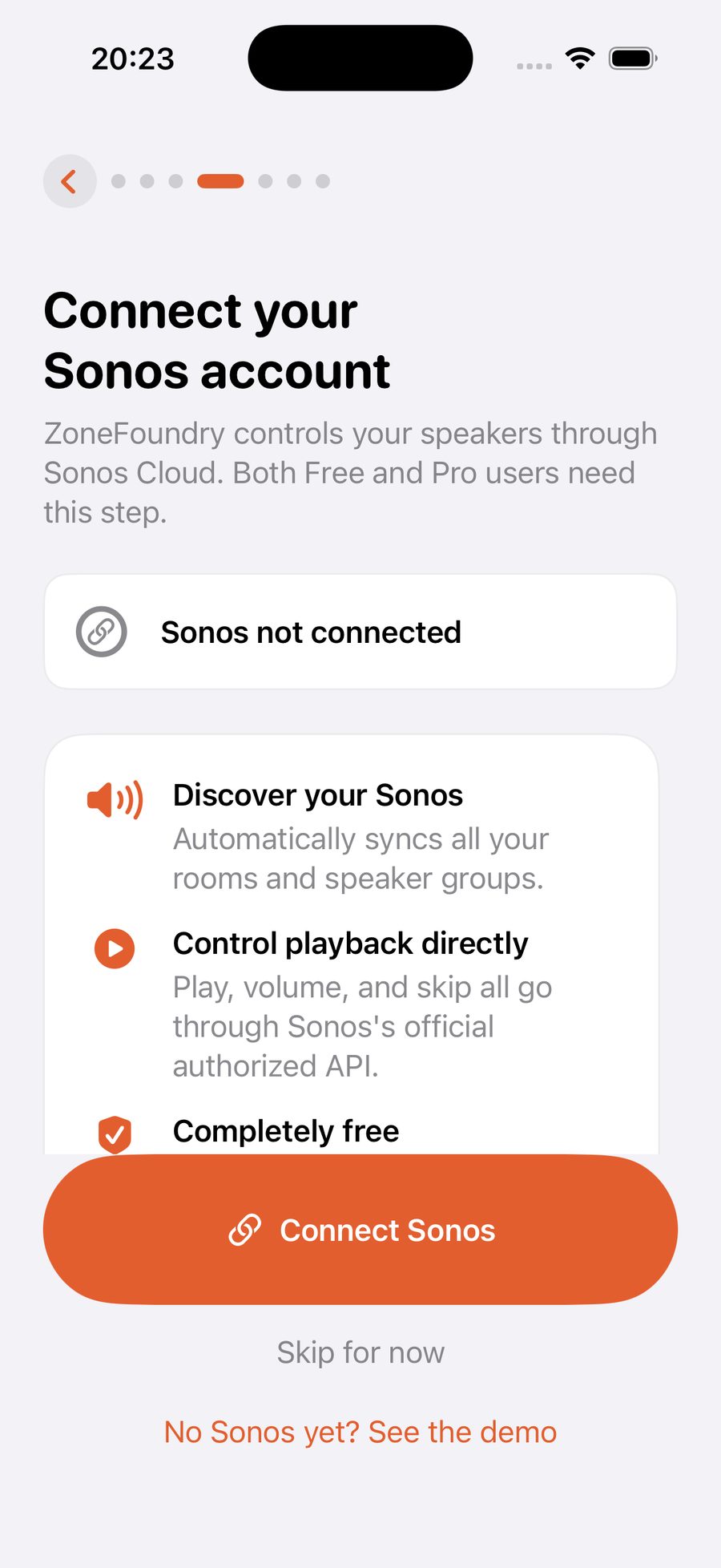
Onboarding has a "Connect Sonos" step built in; if you skipped it, no problem — Settings → Sonos account gets you there any time.
Authorize on Sonos's own page
Tapping "Connect Sonos" opens Sonos's official sign-in page (on sonos.com — your password goes only to Sonos; ZoneFoundry receives just an authorization key). Enter the same credentials as the official app, tap Allow, and it closes back into the app.
Confirm your rooms appear
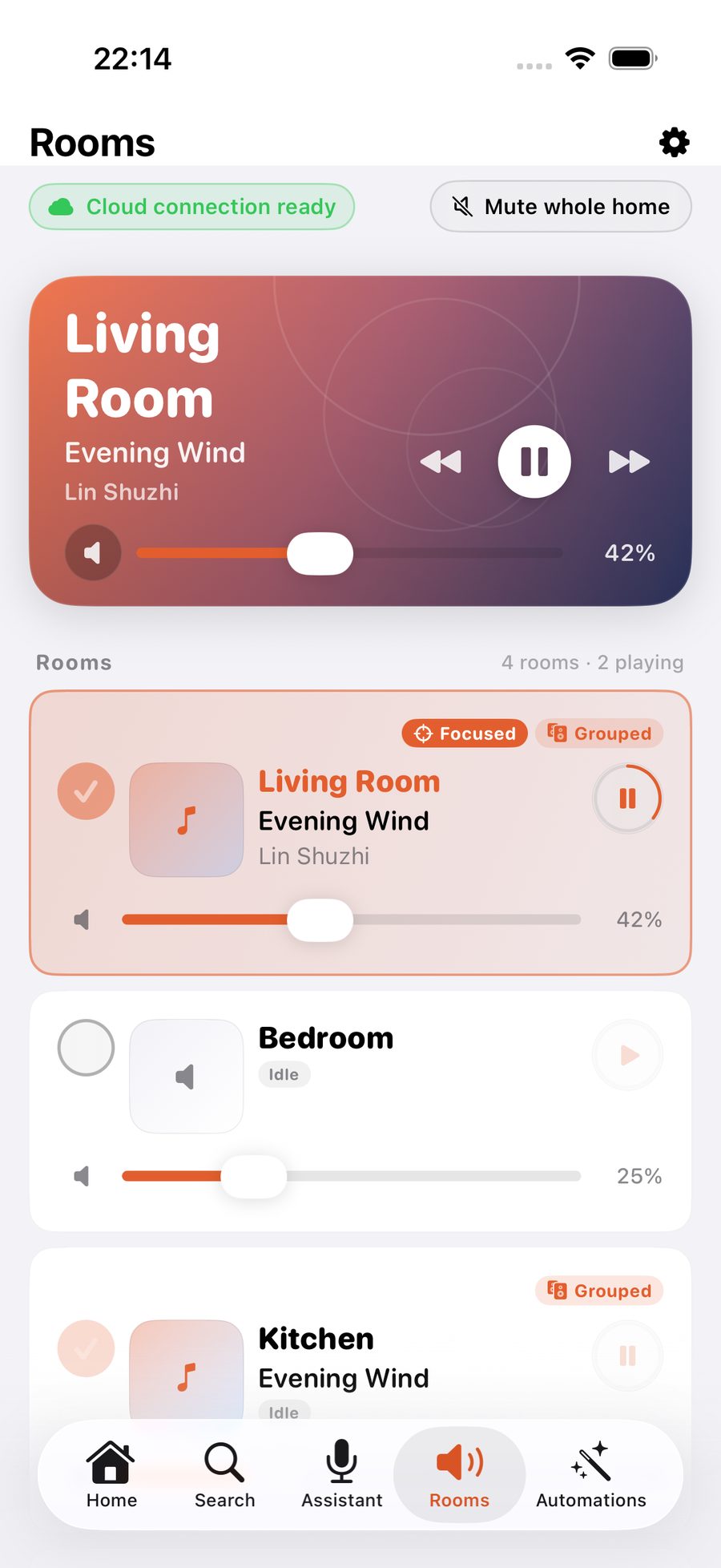
Back in the app, your rooms show up on Home and the Rooms tab within seconds. Rooms visible = connection done — go search for a song.
What do you miss if you skip?
Without signing in, ZoneFoundry runs in pure local mode: on the same Wi-Fi, play/pause, volume, grouping and EQ all work (see Wi-Fi-only control). Search, voice, scenes and away-from-home control simply wait until you sign in — which you can do any time, losing nothing.
Disconnecting or switching accounts
Settings → Sonos account lets you disconnect any time; the app falls back to pure local mode. To switch accounts, disconnect and sign in again. If you run Sonos in more than one home, the same screen switches between households.
You do not have to sign in to the cloud
ZoneFoundry can control Sonos directly over your local network without a Sonos cloud account. Sign in later if you want the cloud features. The Bridge is an optional upgrade, not an entry ticket.