Before you start
- A Xiaomi 17 / K90 / Xiaomi Pad 8 on HyperOS 4 with Super XiaoAi 8.2.3.1619 or later. Check the version on Super XiaoAi's About page, which also has Check for updates. Other models are rolling out.
- ZoneFoundry 1.0.14 or later on an iPhone or iPad (update from the App Store if needed; 1.0.11–1.0.13 also work, see Older app versions at the end), signed in to your Sonos account (ZoneFoundry is iOS-only; that's where you generate the link).
- XiaoAi smart speakers aren't supported yet; only Super XiaoAi on phones and tablets.
Generate the link on your iPhone
ZoneFoundry → Settings (gear at the top right of Home) → AI access → under AI apps, tap the Super XiaoAi card → in How to connect, step 1 "Generate a link for Super XiaoAi:", tap Generate link.
The key is already inside the link (https://relay.zonefoundry.dev/mcp/zh?token=zfagt_…), so there's no address to build by hand. The screen only shows a masked version; Copy link or Share gives you the full link.
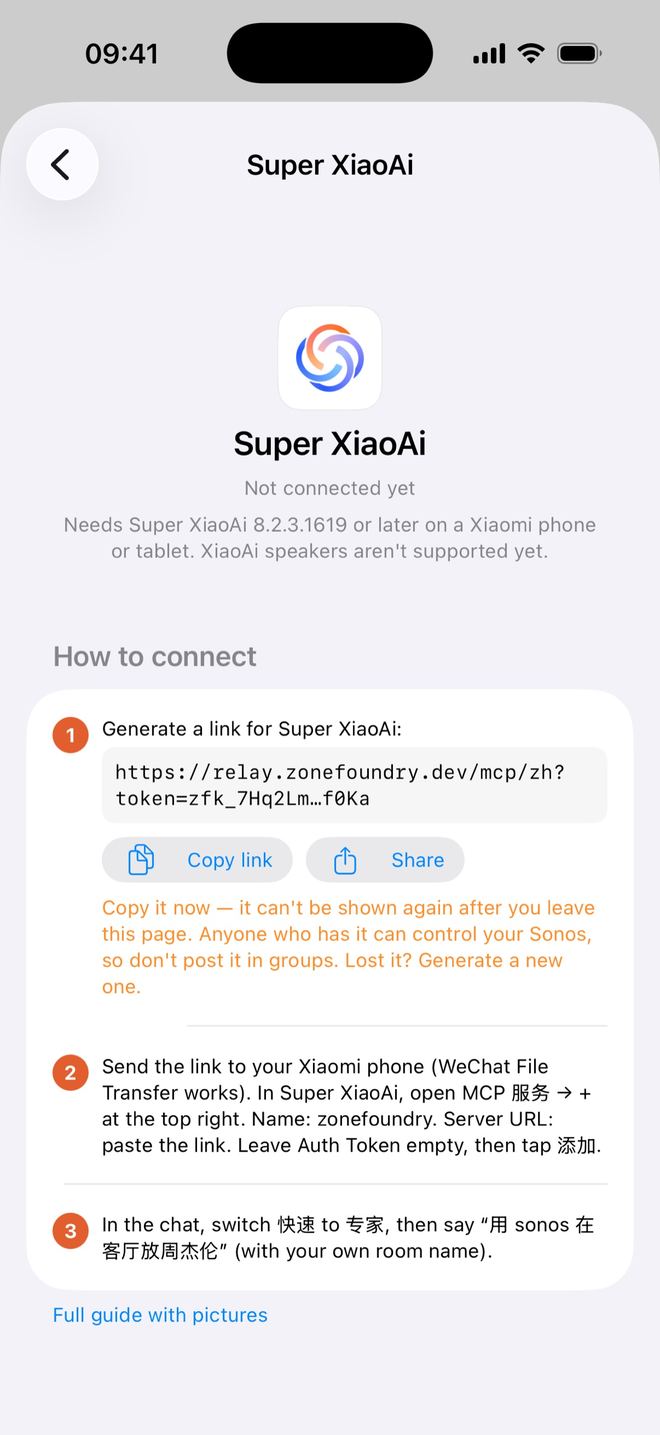
The link is shown this once only: it can't be shown again after you leave the page. If you close it by accident, just tap Generate link again for a new one (you can revoke the old one from the card's Connected list).
Get the link onto the Xiaomi phone
Tap Share to send it straight over, or tap Copy link and send it to yourself (for example WeChat File Transfer), then open it on the Xiaomi phone and copy the whole link (it starts with https://relay.zonefoundry.dev/mcp/zh?token=).
Anyone who has this link can control your home's Sonos. Don't post it in groups or anywhere public.
Add the MCP service in Super XiaoAi
In Super XiaoAi open MCP 服务 (MCP services) → + at the top right, then fill in:
- Name: zonefoundry
- Server URL: paste the whole link from step 2 (no spaces)
- Auth Token: leave empty
Tap Add. If it won't connect, try the other way: put only the line below in Server URL, and in Auth Token put Bearer, a space, then the part of the link after token= (zfagt_…, which is your key):
https://relay.zonefoundry.dev/mcp/zhBearer 这里换成你的密钥⚠️ Put only the URL in Server URL, not a whole config block. It should end in /mcp/zh (or /mcp/zh?token=… with the key). Once added, the top should read 1 server connected, 29 MCP tools available. If it says expired/invalid (已失效), the URL or key is probably wrong.
Switch to Expert mode and talk to XiaoAi
In the XiaoAi chat, tap 快速 > (Fast) at the far left above the input box and switch to 专家 (Expert). Fast mode only uses XiaoAi's own features and won't call Sonos.
Then say (or type) these, starting with 用 sonos:
- "用 sonos 查一下我家有哪些房间" (list my rooms)
- "用 sonos 在客厅放周杰伦" (play Jay Chou in the living room)
- "用 sonos 全屋暂停" (pause everywhere)
- "用 sonos 客厅大声一点" (living room a bit louder)
- "用 sonos 十分钟后在客厅提醒我关火" (remind me in 10 minutes)
Use the room names from your own Sonos system. Without 用 sonos, XiaoAi uses its own music instead of Sonos.
Phrase list: all tested
Every phrase starts with 用 sonos. Replace 客厅 (living room) and 卧室 (bedroom) with your own Sonos room names. XiaoAi expects Chinese.
Play
用 sonos 在客厅放周杰伦— play Jay Chou in the living room用 sonos 在客厅播新闻— play the news in the living room
Pause, resume, skip
用 sonos 客厅暂停— pause the living room用 sonos 客厅继续播放— resume用 sonos 全屋暂停— pause every room用 sonos 下一首 / 上一首— next / previous track用 sonos 客厅单曲循环— repeat the current track
Volume
用 sonos 客厅大声一点— a bit louder用 sonos 把客厅音量调到 20— set the volume to 20用 sonos 客厅静音— mute用 sonos 撤销刚才的音量改动— undo the last volume change
Rooms
用 sonos 查有哪些房间— list my rooms用 sonos 把客厅的音乐转到卧室— move the music to the bedroom用 sonos 让客厅和卧室一起放— play in both rooms together
Announcements and reminders
用 sonos 在客厅播报:晚饭好了— announce “dinner’s ready”用 sonos 十分钟后在客厅提醒我关火— remind me in 10 minutes to turn off the stove
Favourites and playlists
用 sonos 我收藏了哪些— list my favourites用 sonos 我有哪些歌单— list my playlists
If you don't name a music service (as in 放周杰伦), it uses the default service you set in the ZoneFoundry app (QQ Music, NetEase Cloud Music or Apple Music).
Older app versions (1.0.11–1.0.13): build the URL yourself
Older versions don't have the Super XiaoAi card, so you generate an access key and build the URL yourself. If you can, just update to 1.0.14.
- AI access → scroll to the bottom → Access keys (under Advanced) → under Generate a key, type the name XiaoAi → tap Generate next to the name field → Copy the whole block.
- Send the block to the Xiaomi phone, find the line "Authorization header: Bearer zfagt_…" and copy only the part starting with
zfagt_. - Put the whole line below in Server URL, replacing 这里换成你的密钥 with your
zfagt_…key (no spaces); the rest is as in step 3:
https://relay.zonefoundry.dev/mcp/zh?token=这里换成你的密钥Something wrong? Send these screenshots to the group
- Super XiaoAi version, phone model, HyperOS version
- Where the MCP entry is, and whether it asked for a special mode or payment
- Which way you filled it in (Auth Token / key in URL), and how many tools it shows
- What XiaoAi replied and whether the speaker played
If a screenshot shows your zfagt_ key, blur it before sending.
FAQ
The MCP service shows 已失效 (expired)?
Usually the link wasn't copied in full, or the URL or key is wrong. With the card's link, make sure you pasted the whole thing with no spaces or line breaks. If you typed it in, check the server URL ends in /mcp/zh (or /mcp/zh?token=… with the key) and that the key is complete and starts with zfagt_. If it still fails, try the other way of filling it in (step 3), or generate a new link in the card.
Nothing happens, or XiaoAi plays its own music?
Two usual causes: the chat is still on 快速 (Fast) instead of 专家 (Expert), or the request doesn't start with 用 sonos. Fix both and try again.
It says a room can't be reached right now?
Usually that speaker is asleep or its Wi-Fi is unstable. Wait a moment and try again.
Can't find the MCP entry?
Usually Super XiaoAi is too old or your model hasn't got the update yet. Open Super XiaoAi's About page, tap Check for updates and make sure it's 8.2.3.1619 or later.
Leaked your link or key?
In ZoneFoundry, open AI access → the Super XiaoAi card, tap the entry under Connected → Revoke this key (or revoke it under Advanced → Access keys). It stops working immediately. Then tap Generate link in the card for a new one and put it into Super XiaoAi again.
No iPhone?
Not yet. The link is generated in the ZoneFoundry app, which is iPhone/iPad only for now.
Prefer Claude or ChatGPT?
Let Claude or ChatGPT control your Sonos →
Don't have ZoneFoundry yet?
Search ZoneFoundry on the App Store. It's free and works with your existing Sonos.