为什么会喜欢它為何你會喜歡Why you'll love it
- 三大服务一视同仁:不管你惯用 Spotify、QQ音乐 还是网易云音乐,ZoneFoundry 给它们完全一样的浏览和搜索体验 —— 学一次,三家都会用。三大服務一視同仁:不論你慣用 Spotify、QQ音樂還是網易雲音樂,ZoneFoundry 給予它們完全一致的瀏覽與搜尋體驗 —— 學一次,三家都懂得使用。All three services treated equally: whichever you use — Spotify, QQ Music or NetEase Cloud Music — ZoneFoundry gives them the exact same browsing and search experience. Learn it once, use it everywhere.
- 点一首歌不会打断正在播的:单独点某首歌,是把它排到「下一首」并马上播出,你原本的队列还在,不会被清空重来。想整张开始播,用「全部播放」。點選一首歌不會打斷正在播放的:單獨點選某首歌,是將它排入「下一首」並立即播放,你原本的隊列依然保留,不會被清空重來。想整張開始播放,用「全部播放」。Tapping a song won't interrupt what's playing: tap any single track and it queues up next and starts playing right away — your existing queue stays intact, nothing gets wiped. To start a whole album or playlist from the top, use "Play all" instead.
- 搜索结果一眼分清楚:结果按歌曲/专辑/歌单/艺人分类,配一排筛选按钮,想要哪种一点就出来,不用在一堆混杂结果里翻找。搜尋結果一目了然:結果按歌曲/專輯/歌單/藝人分類,配上一排篩選按鈕,想要哪種一點即現,毋須在一堆混雜結果裡翻找。Search results sorted at a glance: results are grouped into songs/albums/playlists/artists with filter chips right above them — tap the one you want instead of scrolling through everything mixed together.
开始前你需要開始前你需要Before you start
- 想用的服务(Spotify/QQ音乐/网易云音乐)已经在 Sonos App 里添加好(音箱才能播),再在 ZoneFoundry 里授权一次(才能搜索和浏览)——右上角齿轮 → 设置 →「音乐」一栏,操作一次即可想使用的服務(Spotify/QQ音樂/網易雲音樂)已在 Sonos App 裡加入(音箱才能播放),再在 ZoneFoundry 裡授權一次(才能搜尋和瀏覽)——右上角齒輪 → 設定 →「音樂」一欄,操作一次即可The service you want (Spotify/QQ Music/NetEase Cloud Music) is already added in the Sonos app (so your speakers can play it), and authorized once in ZoneFoundry (so you can search and browse it) — tap the gear in the top-right → Settings → Music
- 手机和 Sonos 音箱在同一个 Wi-Fi 下手機同 Sonos 音箱處於同一個 Wi-Fi 網絡下Your phone and Sonos speakers are on the same Wi-Fi
- 已登录 Sonos 账户(搜索和浏览音乐服务要用到)已登入 Sonos 帳戶(搜尋與瀏覽音樂服務需要用到)Signed in to your Sonos account (needed to search and browse music services)
提示:如果搜索或资料库显示「连接 XX 后即可浏览」,直接点卡片上的「连接 XX」按钮,或者右上角齿轮 → 设置 →「音乐」一栏,授权一次即可。这一步专门用来解锁搜索和资料库;服务本身也要先在 Sonos 官方 App 里添加好,音箱才播得出来。提示:如果搜尋或資料庫顯示「連接 XX 後即可瀏覽」,直接點卡片上的「連接 XX」按鈕,或者右上角齒輪 → 設定 →「音樂」一欄,授權一次即可。這一步專門用來解鎖搜尋與資料庫;服務本身也要先在 Sonos 官方 App 裡加入,音箱才能播放。Tip: If search or the library shows “Connect XX to browse”, tap the “Connect XX” button right on that card, or go to the gear in the top-right → Settings → Music, and authorize it once. This step unlocks search and library browsing; the service itself also needs to be added in the official Sonos app so your speakers can play it.
步骤步驟Steps
打开搜索页,先逛逛你的资料库打開搜尋頁,先逛逛你的資料庫Open the search tab and browse your library first
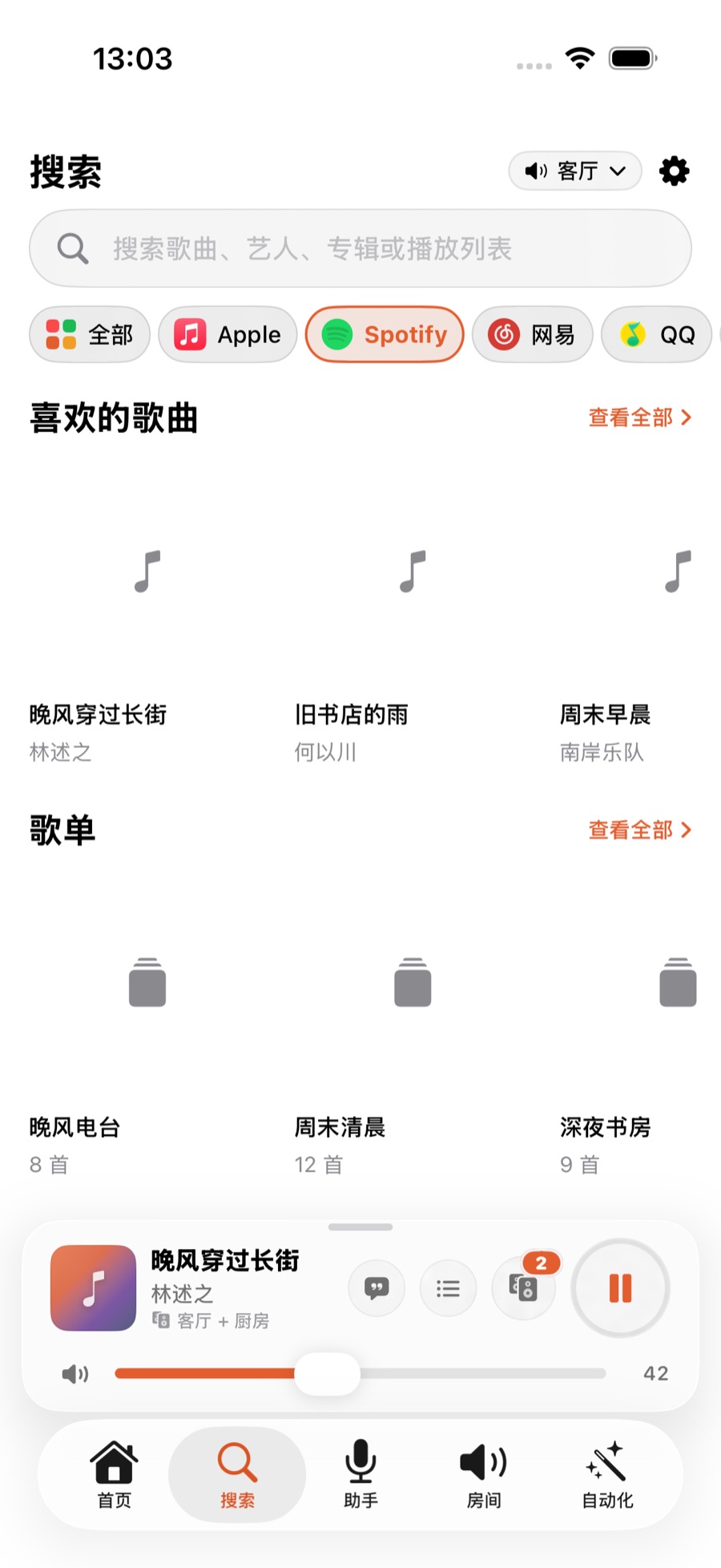
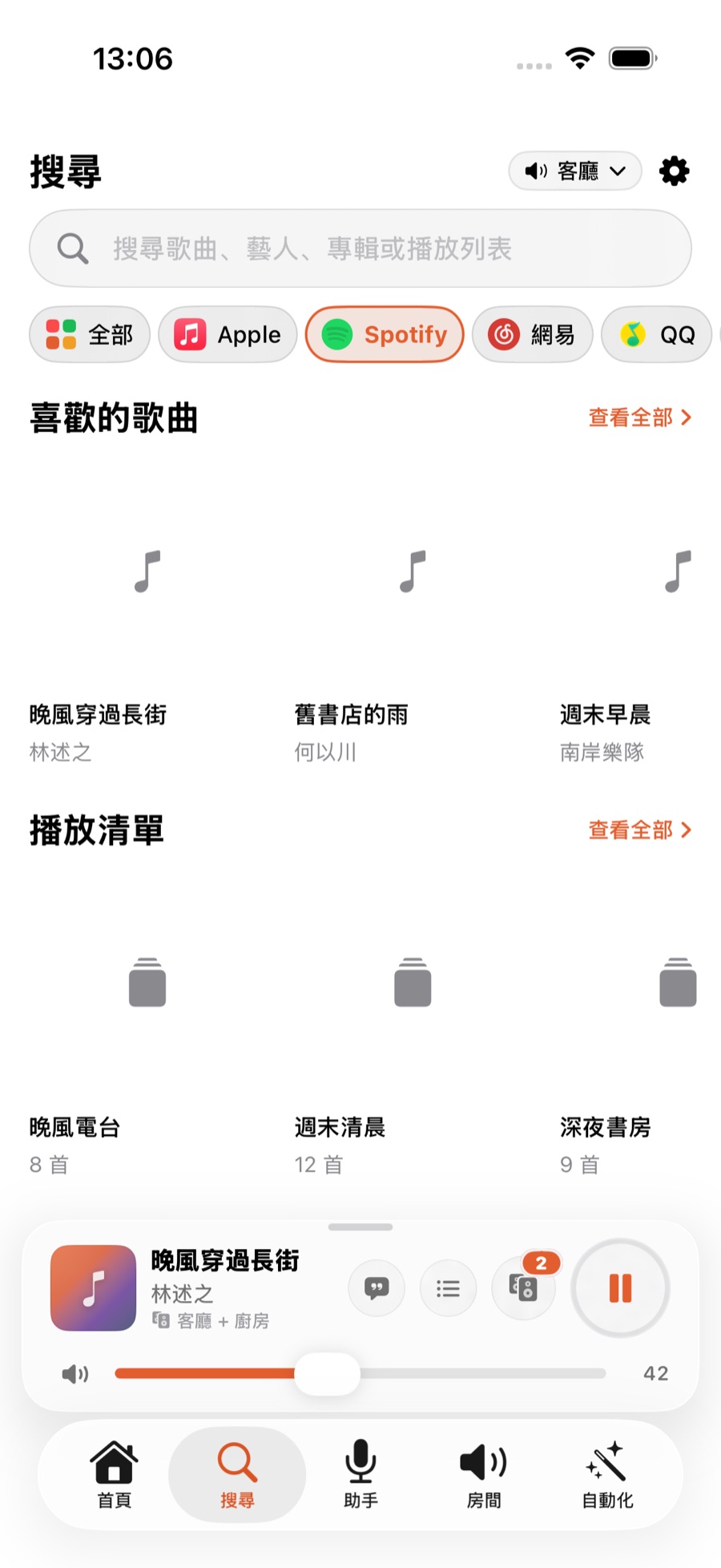
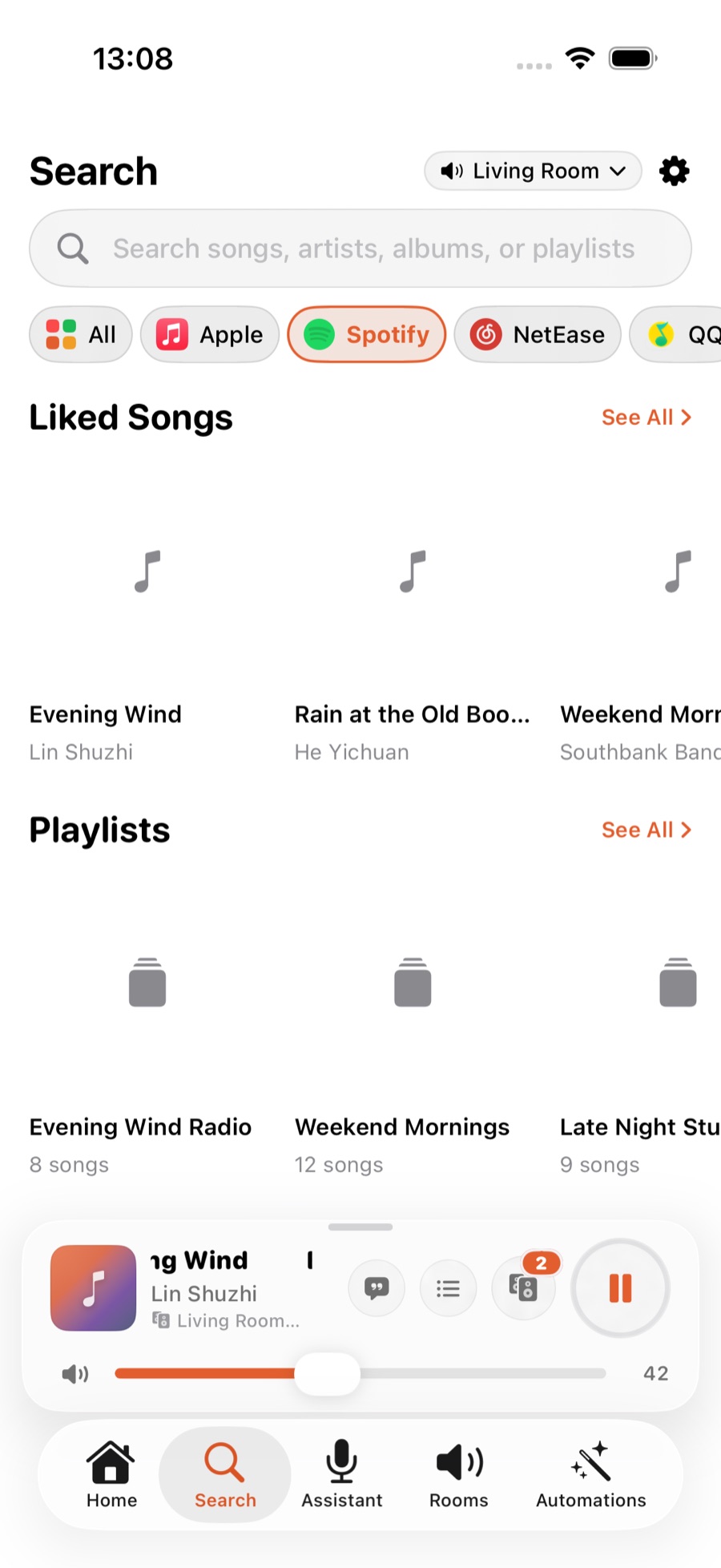
切到「搜索」标签,选好服务(Spotify/QQ音乐/网易云音乐),什么都不输入,往下滑就能看到你的资料库:Spotify 有「喜欢的歌曲」「歌单」「专辑」「热门歌单」「新专辑速递」等;QQ音乐有「我喜欢」「每日推荐」「热歌排行」「新歌抢先」;网易云音乐有「我喜欢的音乐」「每日推荐」「排行榜」「播客」。每个分区横滑看更多,点分区标题旁的箭头看完整列表。切換至「搜尋」分頁,選好服務(Spotify/QQ音樂/網易雲音樂),毋須輸入任何內容,向下滑動即可見到你的資料庫:Spotify 有「喜歡的歌曲」「歌單」「專輯」「熱門歌單」「新專輯速遞」等;QQ音樂有「我喜歡」「每日推薦」「熱歌排行」「新歌搶先」;網易雲音樂有「我喜歡的音樂」「每日推薦」「排行榜」「播客」。每個分區可橫向滑動查看更多,點選分區標題旁的箭頭即可查看完整列表。Switch to the Search tab, pick a service (Spotify/QQ Music/NetEase Cloud Music), and without typing anything, scroll down to see your library: Spotify shows Liked Songs, Playlists, Albums, Popular Playlists, New Releases and more; QQ Music shows Liked, Daily Recommendations, Top Charts, New Releases; NetEase shows Liked Songs, Daily Recommendations, Charts, Podcasts. Swipe each row for more, or tap the arrow next to a section title to see the full list.
点开一张专辑或歌单點開一張專輯或歌單Open an album or playlist
点资料库里任意一张专辑或歌单封面,会打开详情页:大封面、标题、共几首歌,下面是「全部播放」「随机播放」和「⋯」。想整张按顺序播,点「全部播放」;想打乱播,点「随机播放」。几百首的大歌单会先秒开前面一批,往下滑自动加载剩下的,滑到很下面时右下角会出现一个向上的圆形按钮,一键回到顶部。點選資料庫裡任何一張專輯或歌單封面,會打開詳情頁:大封面、標題、共幾多首歌,下方是「全部播放」「隨機播放」同「⋯」。想成張按順序播放,點「全部播放」;想打亂播放次序,點「隨機播放」。幾百首的大歌單會先秒速顯示頭一批,向下滑動會自動載入其餘歌曲,滑到好下的時候,右下角會出現一個向上的圓形按鈕,一鍵返回頂部。Tap any album or playlist cover in your library to open its detail page: a large cover, the title, a track count, and Play all/Shuffle/⋯ underneath. Tap "Play all" to play the whole thing in order, or "Shuffle" to play it in random order. Even a playlist with hundreds of tracks loads the first batch instantly and keeps loading more as you scroll — once you're deep into a long list, a round "back to top" button appears in the bottom-right corner.
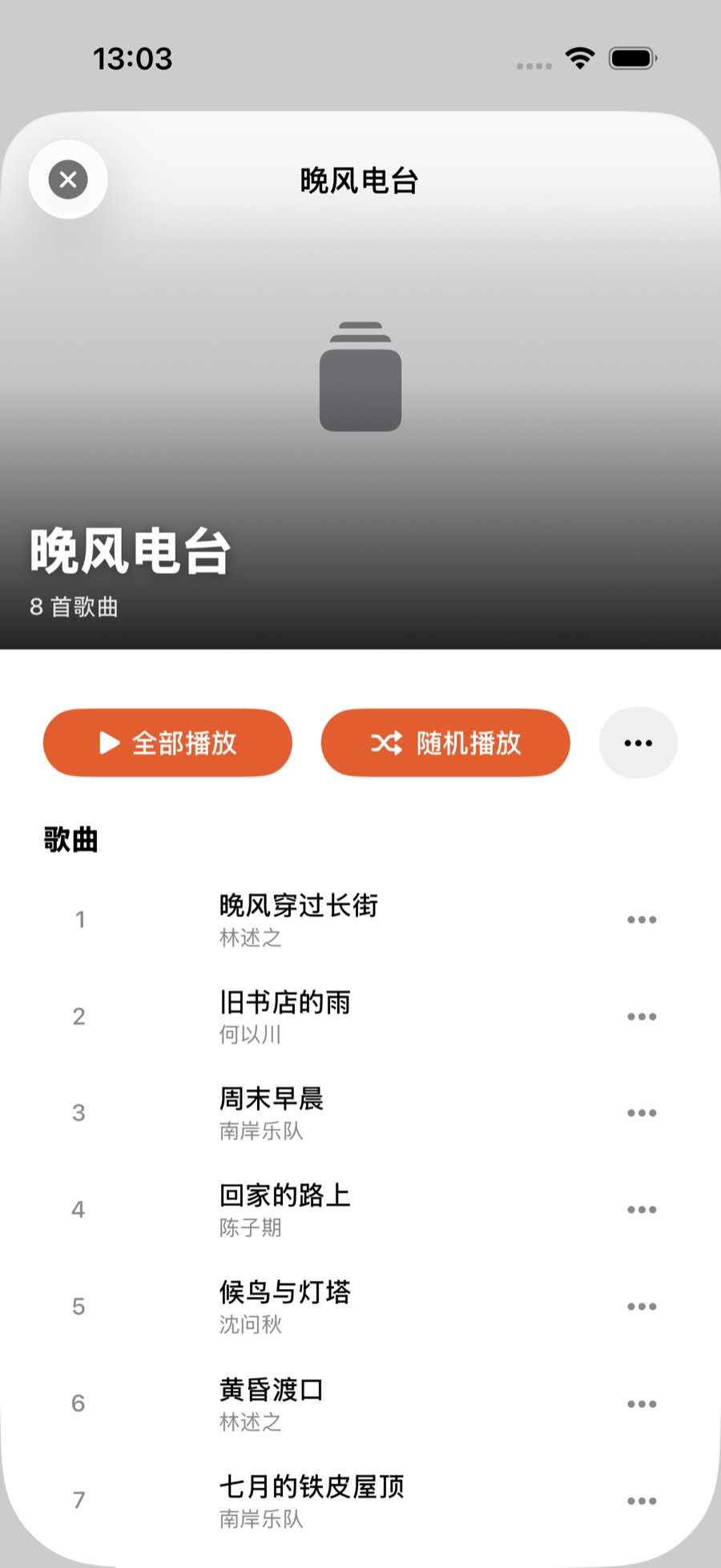
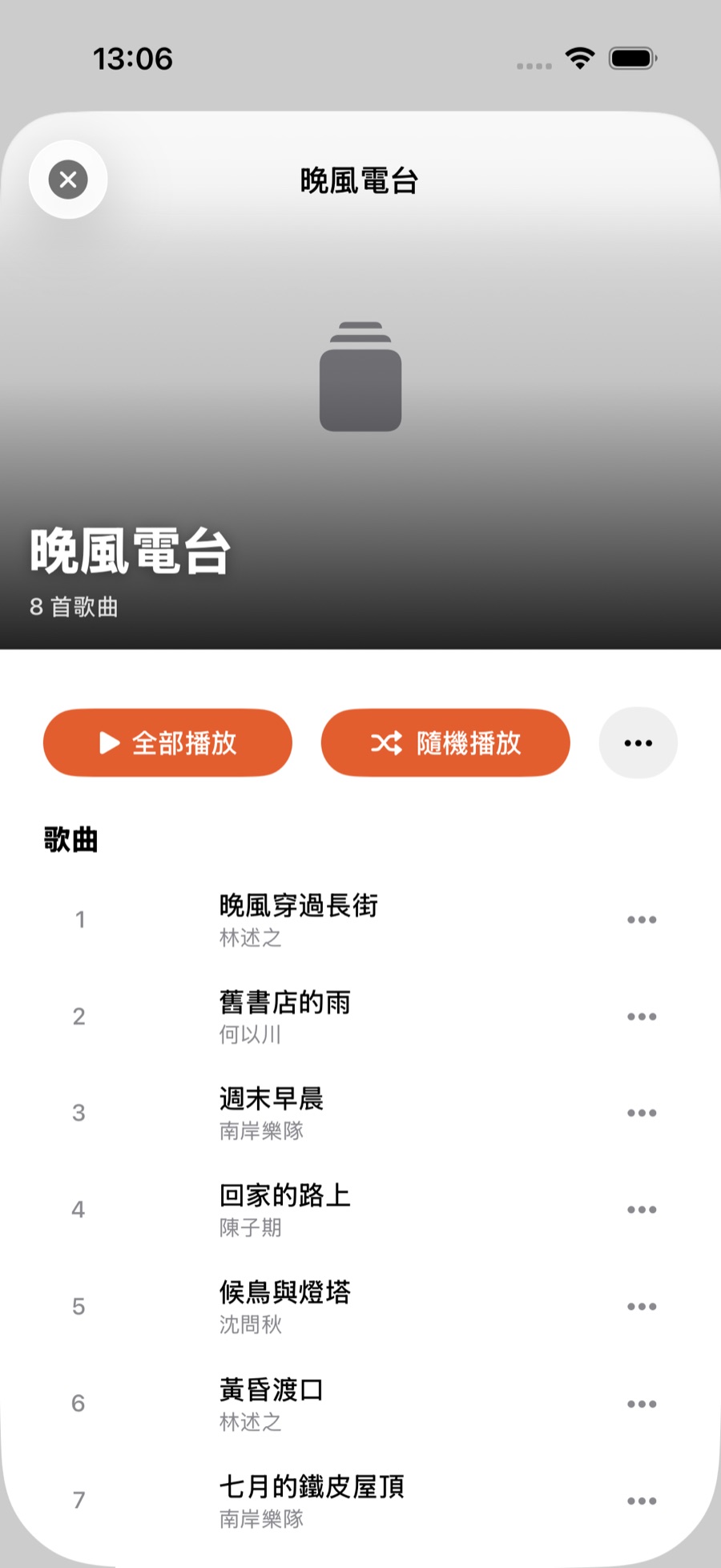
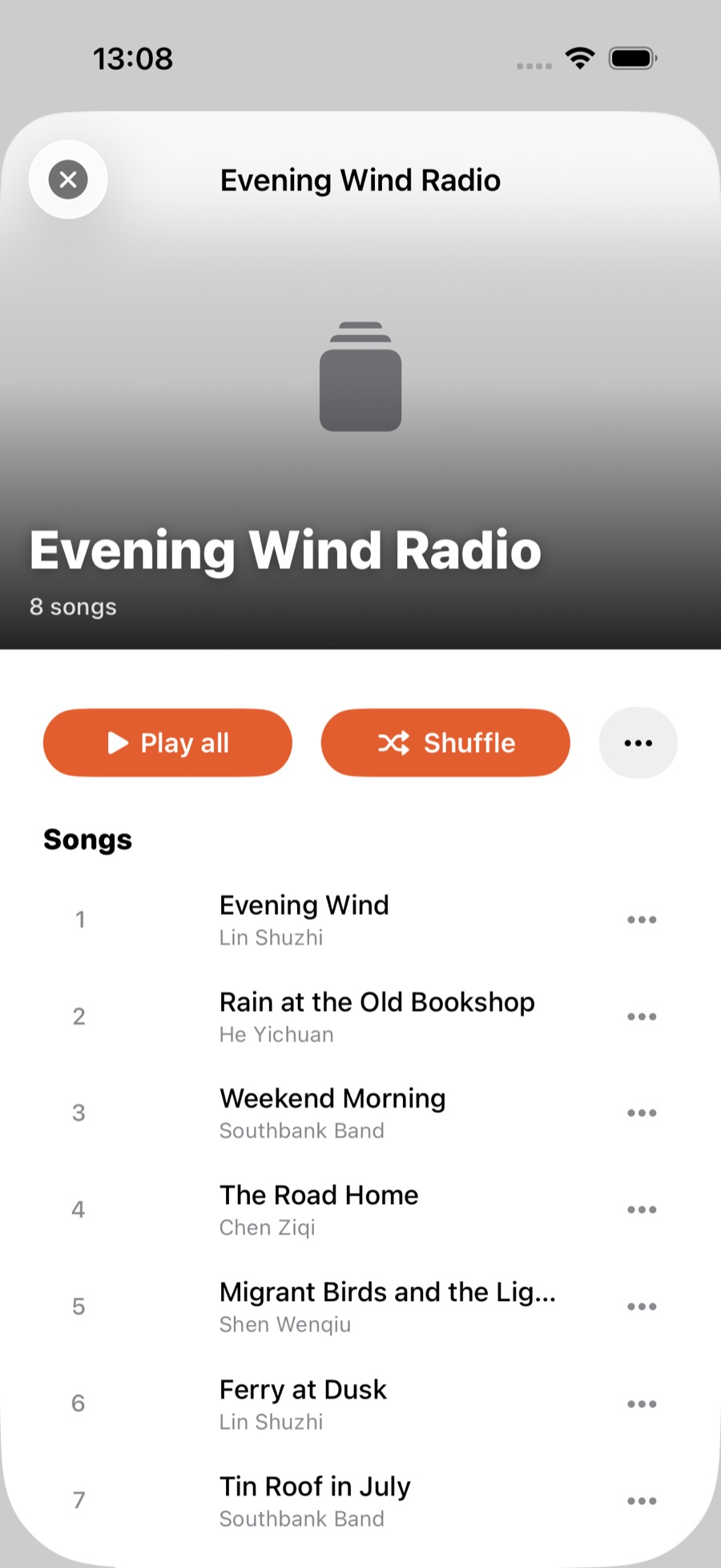
提示:点详情页里某一首歌,是把它插到正在播的下一首并马上播出,不是把整张歌单从那首开始播 —— 这样你可以在逛歌单的时候顺手加一首歌,不用担心打乱手上正在听的音乐。提示:在詳情頁點選某一首歌,是將它插入正在播放的下一首並立即播放,並不是將成張歌單由那首開始播放 —— 這樣你可以在瀏覽歌單的同時隨手加一首歌,毋須擔心打亂你正在聽的音樂。Tip: Tapping any single track on a detail page queues it up next and plays it right away — it doesn't restart the whole playlist from that point. So you can casually add a song while browsing without disturbing whatever you're already listening to.
用每首歌右边的「⋯」安排它怎么播用每首歌右邊的「⋯」安排它怎樣播放Use the ⋯ menu to decide how a track plays
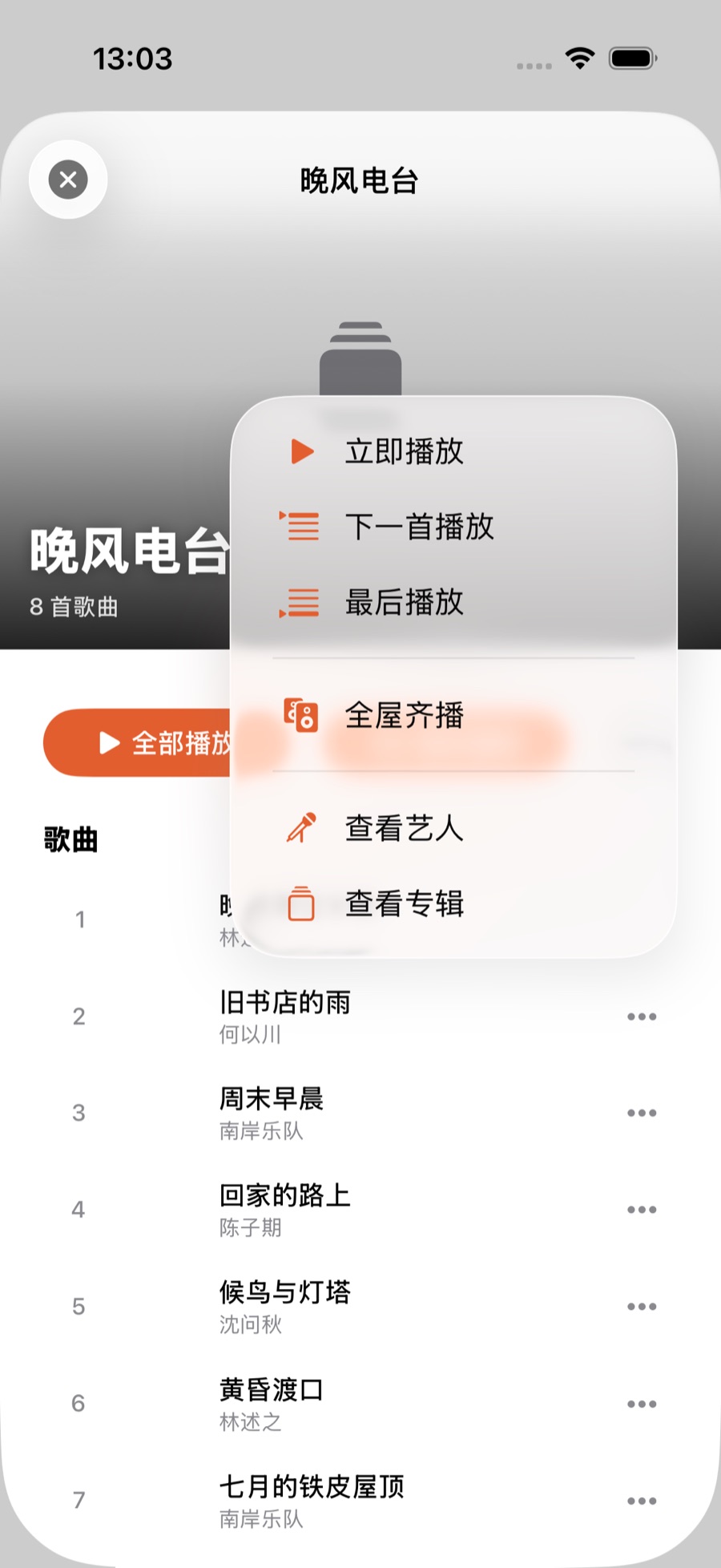
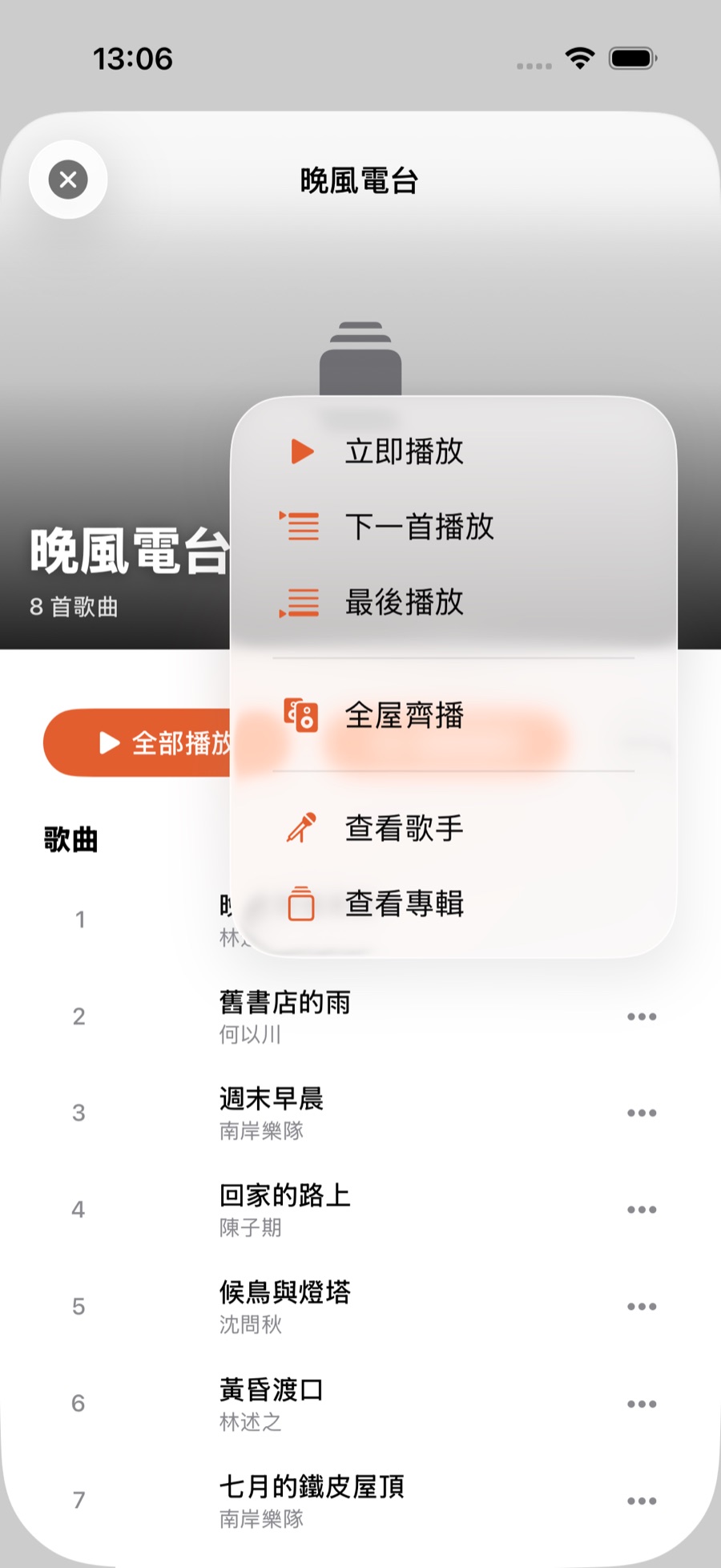
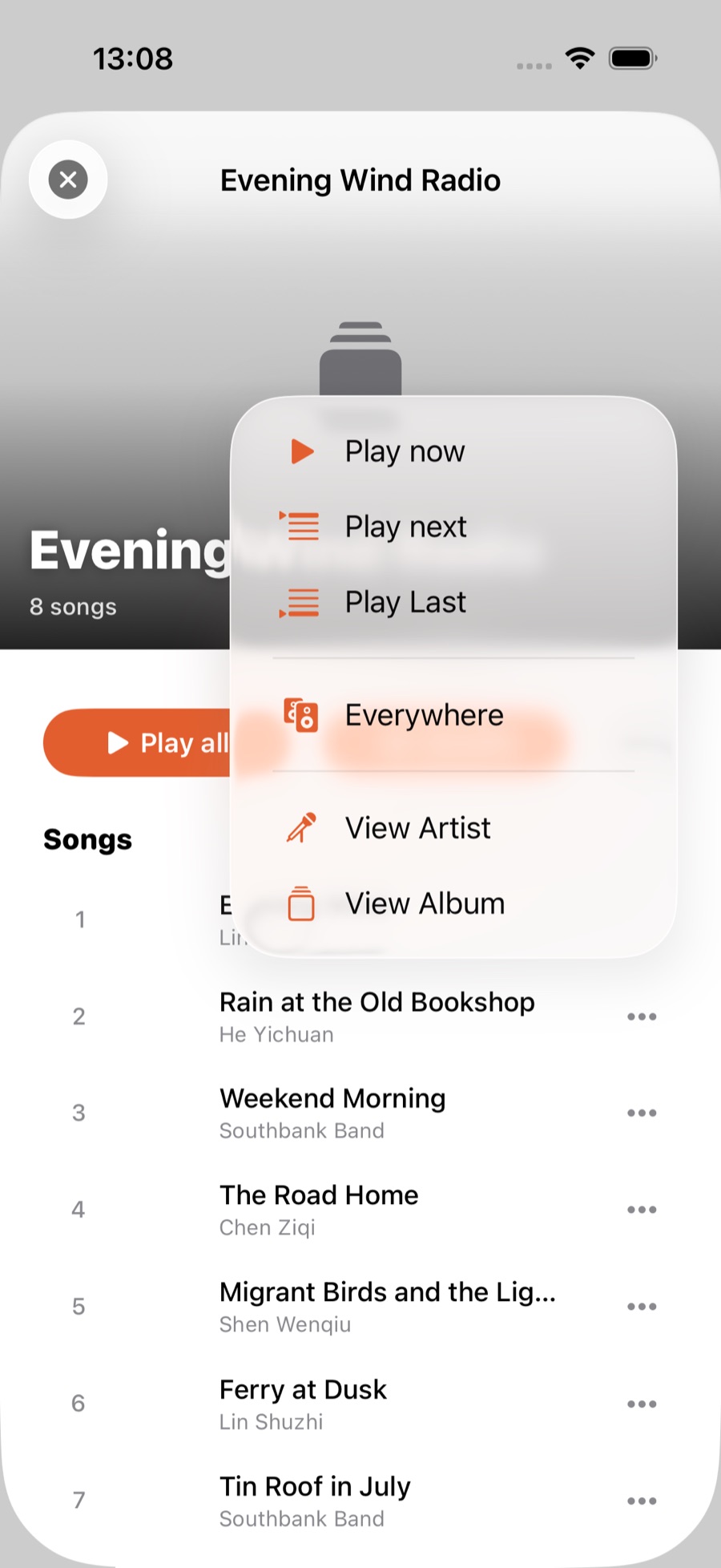
每首歌右边都有一个「⋯」,点开是这几个选项:「立即播放」(马上插播)、「下一首播放」(排到当前歌后面,但不打断正在放的)、「最后播放」(排到整个队列最后)、「全屋齐播」(选一个或多个房间一起播,可以设音量),下面还有「查看艺人」「查看专辑」。长按整行也能弹出同一个菜单。每首歌右邊都有一個「⋯」,點開後有這幾個選項:「立即播放」(馬上插播)、「下一首播放」(排在目前這首歌後面,但不會打斷正在播放的)、「最後播放」(排到整個隊列最後)、「全屋齊播」(選一個或多個房間一起播放,可以設定音量),下面還有「查看藝人」「查看專輯」。長按整行同樣會彈出這個選單。Every track has a "⋯" button on the right with these options: "Play now" (queues and plays immediately), "Play next" (goes right after what's currently playing, without interrupting it), "Play Last" (goes to the very end of the queue) and "Everywhere" (pick one or more rooms to play together, with a volume setting), followed by "View Artist" and "View Album". Long-pressing the row brings up the same menu.
搜索时用筛选按钮,一眼找到想要的类型搜尋時使用篩選按鈕,一眼找到想要的類型Filter search results by type
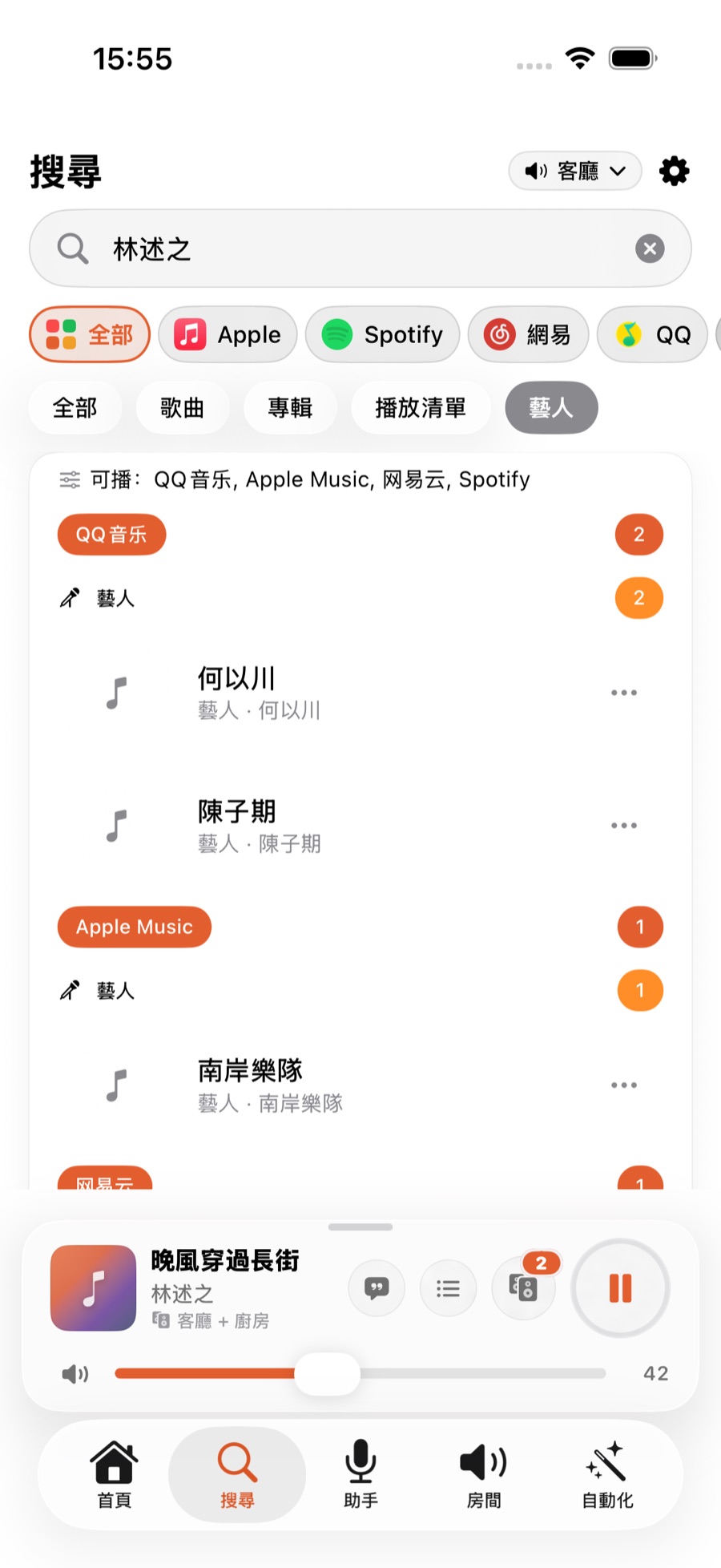
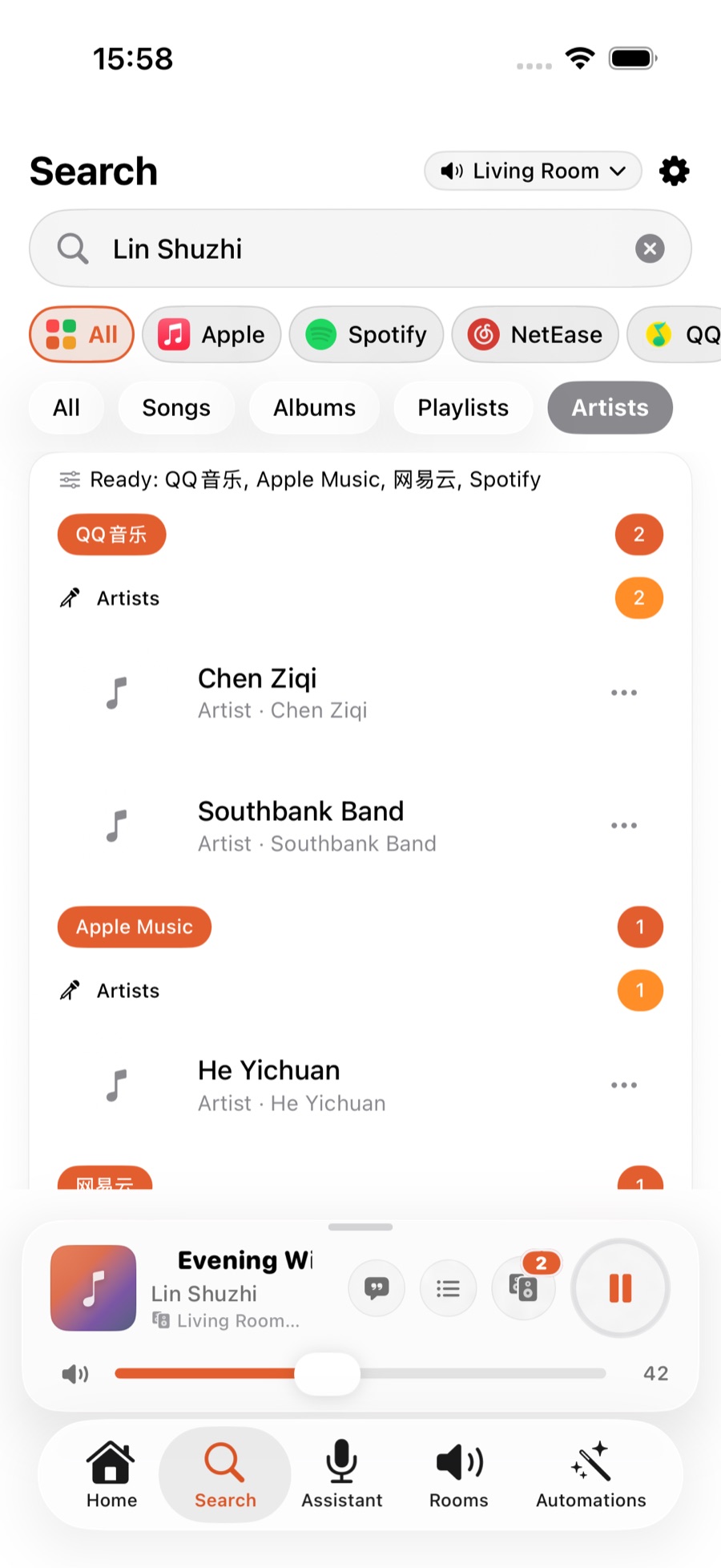
在搜索框输入歌手或歌名,结果上方会出现一排筛选按钮:「全部」「歌曲」「专辑」「歌单」「艺人」。想直接找某位歌手的主页,点「艺人」;只想看歌,点「歌曲」。每条结果也有「⋯」,可以立即播放、插到下一首、排到最后等。在搜尋框輸入歌手或歌名,結果上方會出現一排篩選按鈕:「全部」「歌曲」「專輯」「歌單」「藝人」。想直接找某位歌手的主頁,點選「藝人」;只想看歌,點選「歌曲」。每條結果也有「⋯」,可以立即播放、插到下一首、排到最後等。Type an artist or song name into the search box, and a row of filter chips appears above the results: All, Songs, Albums, Playlists, Artists. Tap "Artists" to jump straight to an artist page, or "Songs" to see only tracks. Every result also has a "⋯" menu — play it now, slot it in next, add it to the end, and more.
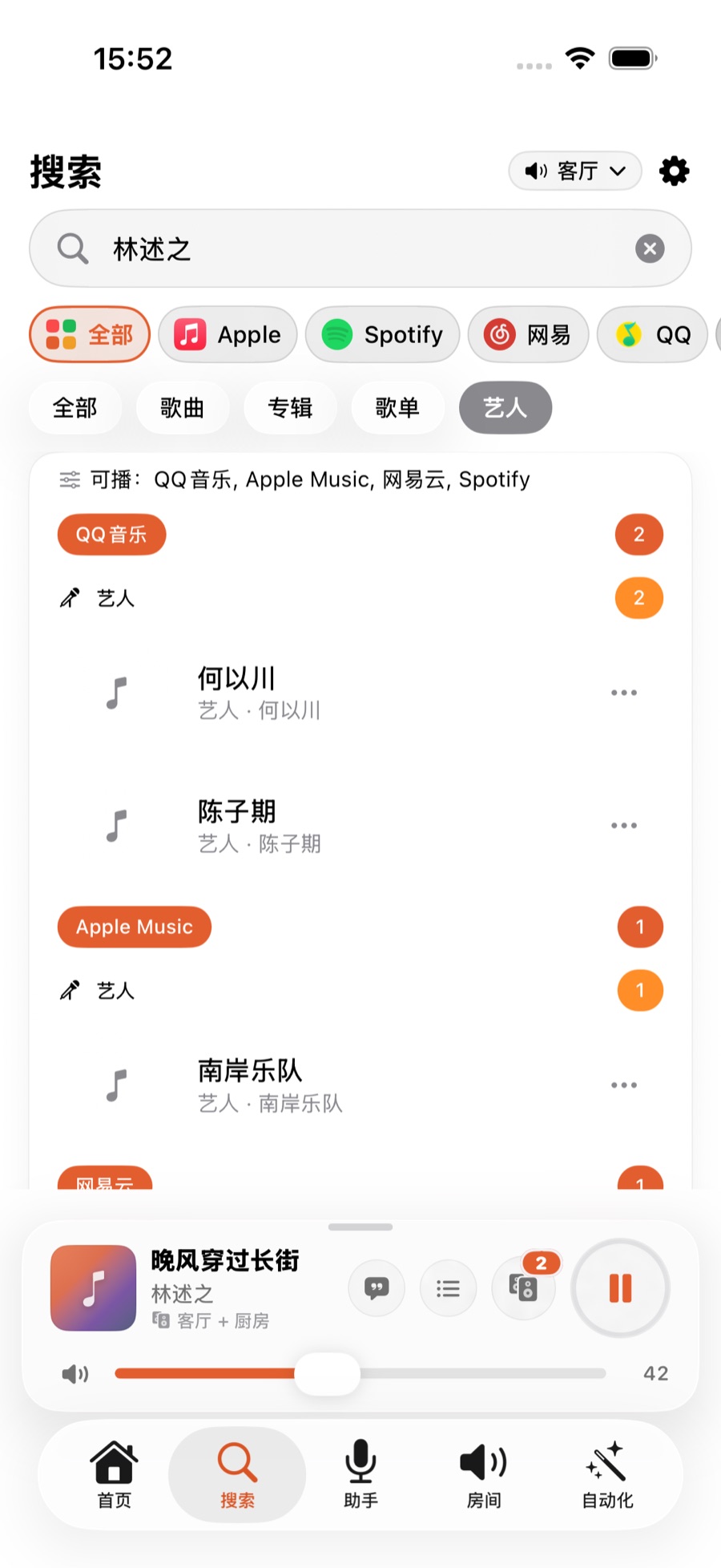
提示:QQ音乐和网易云音乐连拼音都搜得到——打「zhoujielun」一样能找到周杰伦。Spotify 自己的搜索引擎对拼音不太友好——打拼音时如果搜索框下面出现中文建议词,点一下就改用中文搜;或者直接打完整的歌手名或歌名(中文或英文都可以)。提示:QQ音樂與網易雲音樂連拼音都搜得到——打「zhoujielun」一樣可以找到周杰倫。Spotify 本身的搜尋引擎對拼音不太友善——輸入拼音時如果搜尋框下方出現中文建議詞,點一下就改用中文搜尋;或者直接輸入完整的歌手名或歌名(中文或英文都可以)。Tip: QQ Music and NetEase Cloud Music even understand pinyin — typing "zhoujielun" finds Jay Chou just fine. Spotify's own search engine isn't as friendly to pinyin — if Chinese suggestions appear below the search box while you type pinyin, tap one to search in Chinese instead; or just type the full artist or song name (in Chinese or English).
收藏和播放历史也在这里:往下滑还会看到「Sonos 收藏夹」和「Sonos 播放历史」——不管你用哪个服务点的歌,都会出现在同一份播放历史里。收藏超过一屏时,点「查看全部」能进入完整列表,一样可以搜索、播放、加下一首。收藏與播放歷史都在這裡:向下滑還會見到「Sonos 收藏夾」與「Sonos 播放歷史」——不論你用哪個服務點的歌,都會出現在同一份播放歷史裡。收藏超過一屏時,點選「查看全部」即可進入完整列表,同樣可以搜尋、播放、加入下一首。Favorites and play history live here too: scroll further and you'll find "Sonos Favorites" and "Sonos Play History" — no matter which service you played a track from, it lands in the same shared history. When Favorites has more than fits on screen, tap "See all" for the full list, where you can search, play, and queue next just the same.
为什么三家现在体验一样?过去 Spotify 和网易云音乐的搜索结果比 Apple Music 和 QQ音乐弱一截,这是历史遗留问题。现在四家音乐服务在 ZoneFoundry 里一律平等对待,以后新增的音乐服务也会是同一个待遇。為什麼三家現在體驗一致?過往 Spotify 同網易雲音樂的搜尋結果較 Apple Music 同 QQ音樂遜色,此乃歷史遺留問題。現時四家音樂服務在 ZoneFoundry 裡一律平等對待,日後新增的音樂服務同樣會獲得相同待遇。Why do all three feel the same now? Spotify and NetEase Cloud Music search used to lag behind Apple Music and QQ Music — a legacy gap. All four music services now get equal treatment in ZoneFoundry, and any service added in the future will get the same.
几个音乐 App,可以一次搜完幾個音樂 App,可以一次搜完Search every music service at once
Apple Music、Spotify、网易云、QQ 音乐在 ZoneFoundry 里共用同一个搜索框,找到就直接推到 Sonos,不用来回切 App 再投一次。Apple Music、Spotify、網易雲、QQ 音樂在 ZoneFoundry 裡共用同一個搜尋框,找到就直接推到 Sonos,不用來回切 App 再投一次。Apple Music, Spotify, NetEase and QQ Music share one search box in ZoneFoundry. Find a track and it goes straight to Sonos — no switching apps to cast it again.