
独立说明:ZoneFoundry 不是 Sonos 官方产品。本页依据 Sonos 官方支持文档整理;按钮名称可能随地区、产品和小版本略有变化。獨立說明:ZoneFoundry 不是 Sonos 官方產品。本頁依據 Sonos 官方支援文檔整理;按鈕名稱可能隨地區、產品和小版本略有變化。Independent guide: ZoneFoundry is not a Sonos product. This article is based on official Sonos support documentation; labels can vary slightly by region, product, and app revision.
开始前准备開始前準備What you need
- 一台运行 iOS / iPadOS 18 或更高版本,或 Android 10 或更高版本的手机或平板。一台執行 iOS / iPadOS 18 或更高版本,或 Android 10 或更高版本的手機或平板。A phone or tablet running iOS/iPadOS 18 or later, or Android 10 or later, for the current Sonos app.
- 一个普通家庭 Wi-Fi 网络、网络名称和密码;手机与 Sonos 必须处于同一子网。一個普通家庭 Wi-Fi 網絡、網絡名稱和密碼;手機與 Sonos 必須處於同一子網。A normal home Wi-Fi network, its name and password; the phone and Sonos products must be on the same subnet.
- Sonos 产品、电源,以及能够收取验证邮件的邮箱。Sonos 產品、電源,以及能夠收取驗證郵件的郵箱。Your Sonos product, power, and an email address that can receive the account verification message.
设置总是失败,通常卡在哪里?設定總是失敗,通常卡在哪裡?Why does first-time setup keep failing?
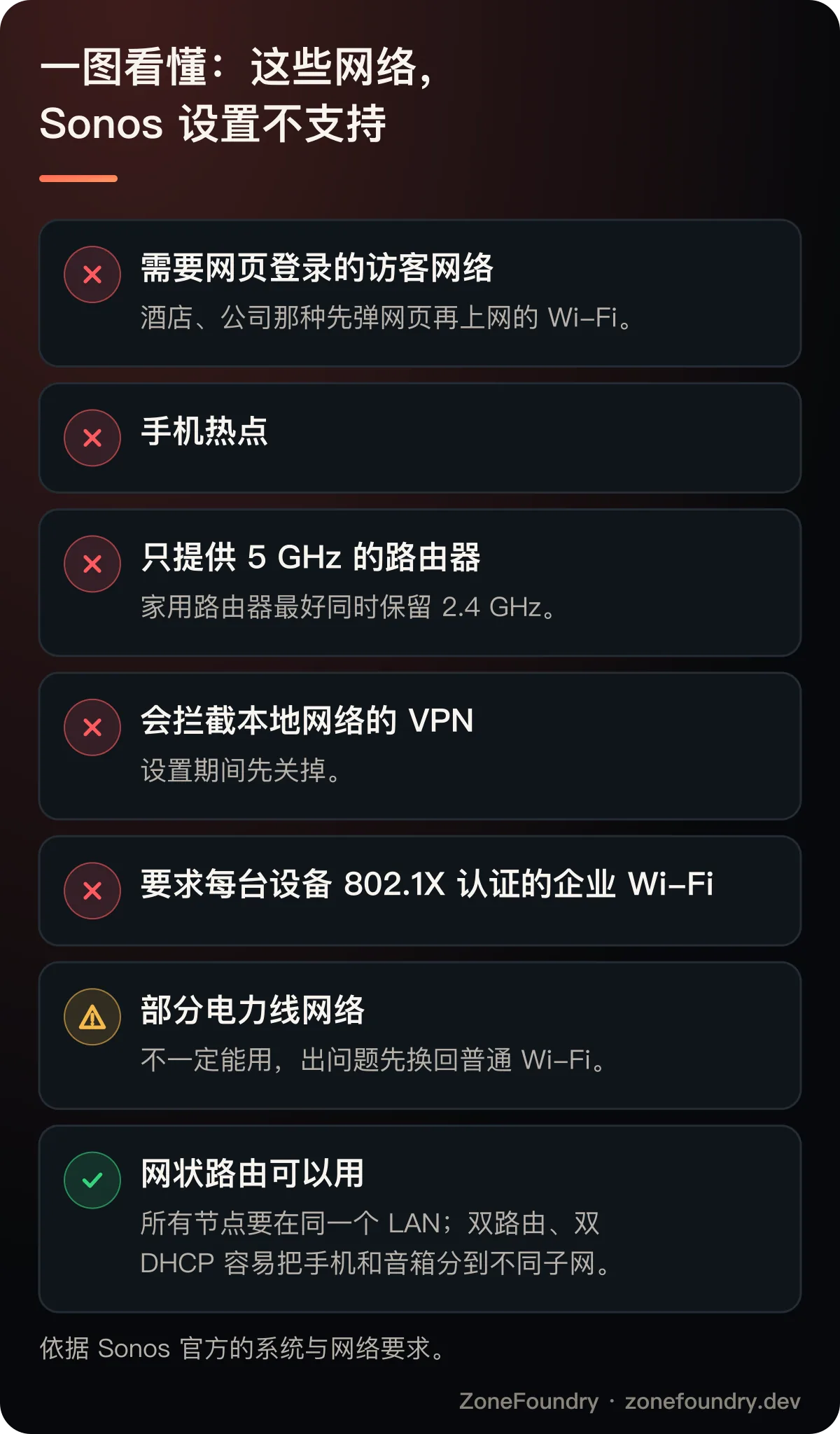
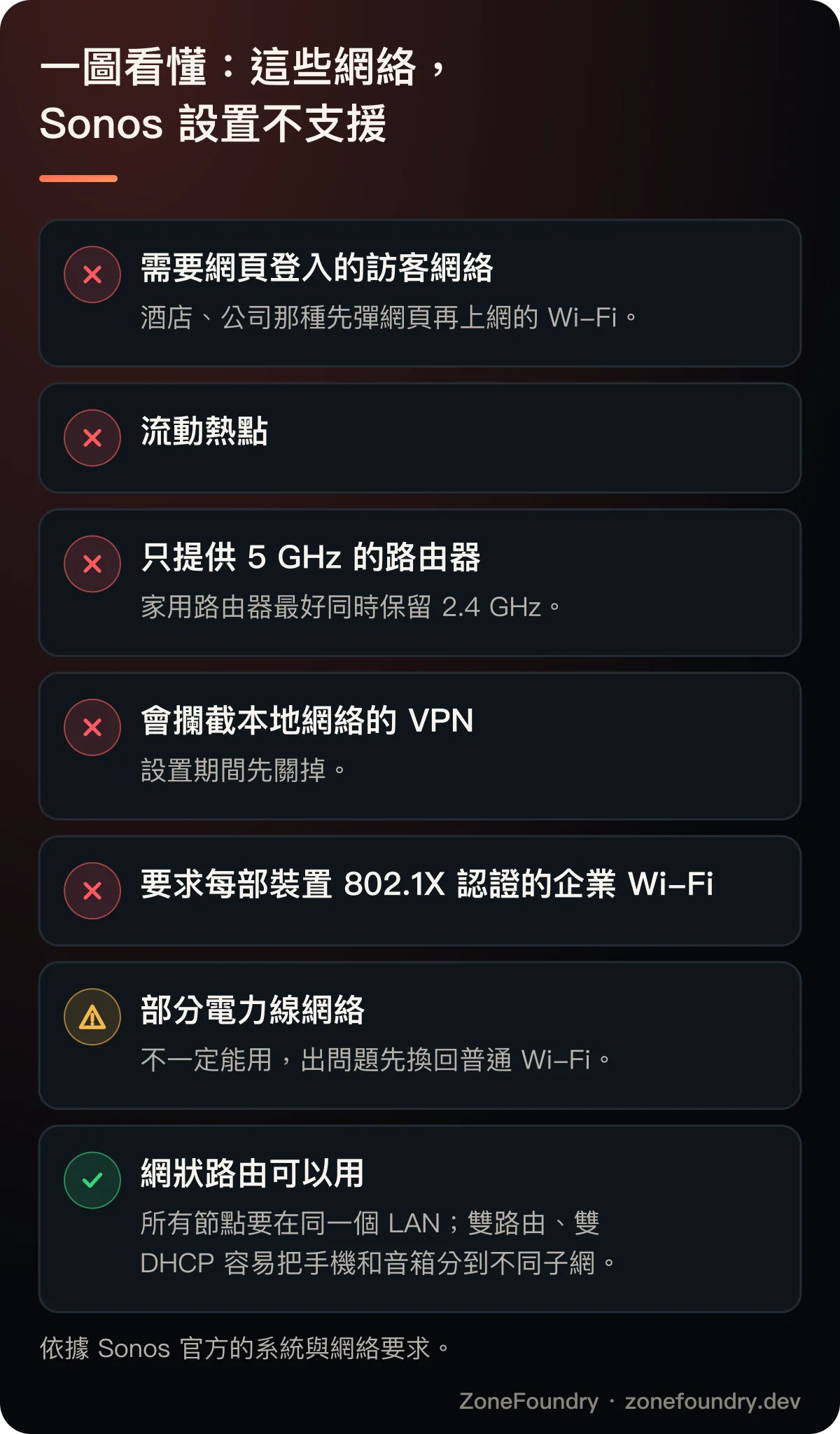
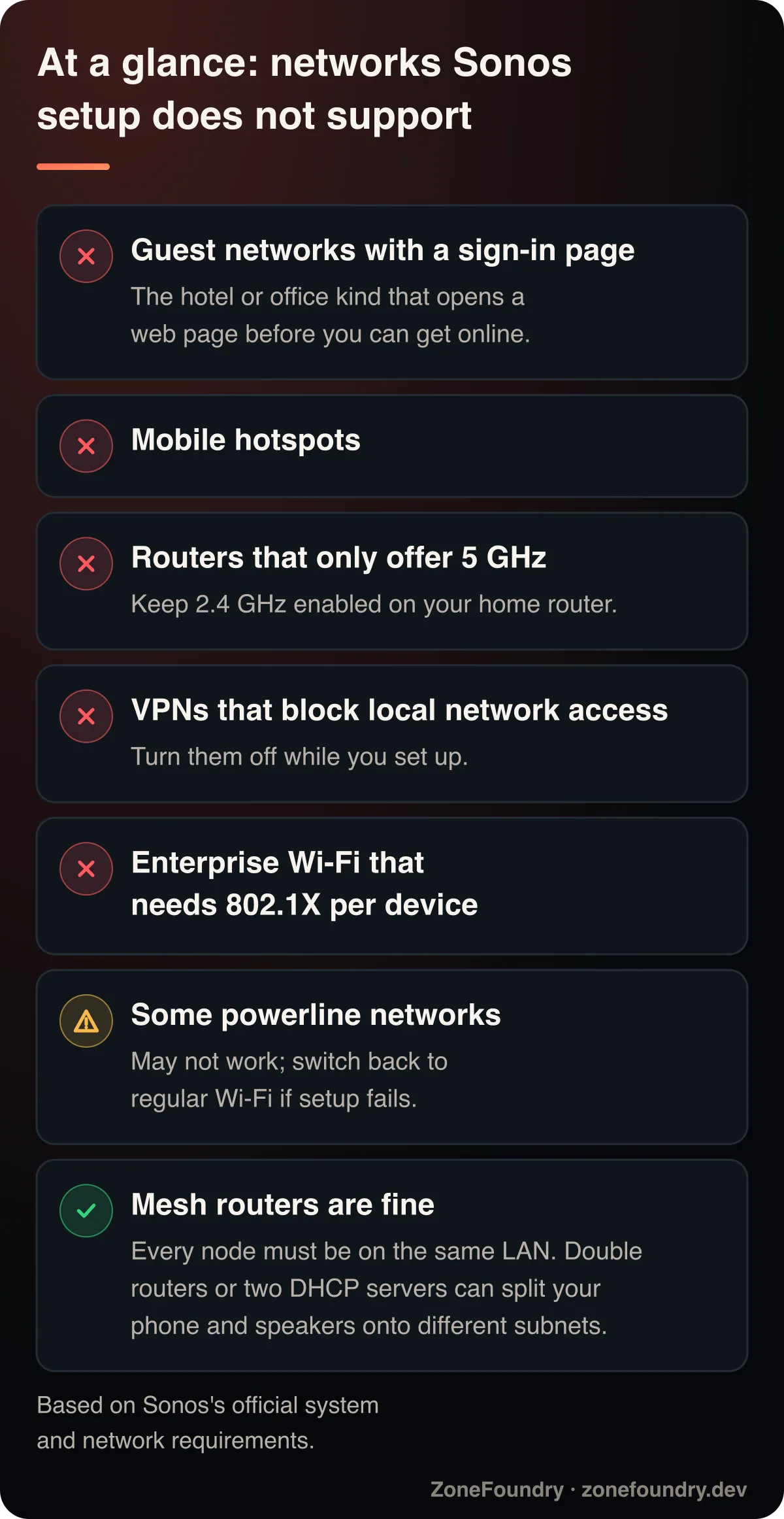
新系统设置最怕的不是操作复杂,而是网络条件不符合。Sonos 官方明确不支持需要网页登录的访客网络、移动热点、只提供 5 GHz 的路由器、部分电力线网络,以及会阻止本地资源的 VPN。企业级 Wi-Fi 如果要求每台设备进行 802.1X 认证,也不适合常规 Sonos 设置。家用路由器最好同时保留 2.4 GHz;较新产品可能使用更多频段,但不要把“支持 5 GHz”误解为“可以完全关闭 2.4 GHz”。新系統設定最怕的不是操作複雜,而是網絡條件不符合。Sonos 官方明確不支援需要網頁登入的訪客網絡、流動熱點、只提供 5 GHz 的路由器、部分電力線網絡,以及會阻止本地資源的 VPN。企業級 Wi-Fi 如果要求每台裝置進行 802.1X 認證,也不適合常規 Sonos 設定。家用路由器最好同時保留 2.4 GHz;較新產品可能使用更多頻段,但不要把“支援 5 GHz”誤解為“可以完全關閉 2.4 GHz”。Most failed first-time setups are network problems, not difficult button sequences. Sonos explicitly excludes captive-portal guest networks, mobile hotspots, routers that provide only 5 GHz, some powerline networking, and VPNs that block local resources. Enterprise Wi-Fi that requires per-device 802.1X authentication is also outside the normal home setup path. Keep 2.4 GHz available on the router. Newer products may use additional bands, but “supports 5 GHz” does not mean “turn off 2.4 GHz.” If your router splits bands into separate names, keep the phone on the same normal LAN you expect Sonos to use.
设置期间不要把手机连接到访客 SSID,也暂时关闭会接管本地网络的 VPN。网状路由可以使用,但所有节点应属于同一个 LAN;双路由或双 DHCP 容易把手机和音箱分到不同子网。若你不确定,先只连接主路由的普通 Wi-Fi,并从一台 Sonos 产品开始。設定期間不要把手機連接到訪客 SSID,也暫時關閉會接管本地網絡的 VPN。網狀路由可以使用,但所有節點應屬於同一個 LAN;雙路由或雙 DHCP 容易把手機和音箱分到不同子網。若你不確定,先只連接主路由的普通 Wi-Fi,並從一台 Sonos 產品開始。Do not use a guest SSID during setup, and temporarily disconnect any VPN that intercepts local traffic. Mesh Wi-Fi is fine when every node belongs to one LAN; two routers or two DHCP servers can quietly put the phone and speaker on different subnets. When in doubt, join the primary router’s normal Wi-Fi and set up one Sonos product before expanding the system.
完整设置步骤完整設定步驟Complete setup sequence
安装当前 Sonos App安裝當前 Sonos AppInstall the current Sonos app
从 Apple App Store、Google Play 或 Amazon Appstore 安装当前 Sonos App。不要仅依靠 Windows 或 Mac 桌面控制器:Sonos 目前要求使用 iOS 或 Android 移动设备设置新系统和添加产品。若你使用的是旧款 S1 专用产品,请先读本批的 S1 与 S2 判断指南,不要误装当前 App 后反复重置。從 Apple App Store、Google Play 或 Amazon Appstore 安裝當前 Sonos App。不要僅依靠 Windows 或 Mac 桌面控制器:Sonos 目前要求使用 iOS 或 Android 移動裝置設定新系統和添加產品。若你使用的是舊款 S1 專用產品,請先讀本批的 S1 與 S2 判斷指南,不要誤裝當前 App 後反覆重置。Install the current Sonos app from the Apple App Store, Google Play, or Amazon Appstore. Do not plan to complete a new system with only the Windows or Mac controller: Sonos currently requires an iOS or Android device to set up new systems and add products. If the hardware may be S1-only, read Sonos S1 vs S2 before resetting anything. Installing the wrong app does not make old hardware compatible.
允许本地网络、蓝牙和所需权限允許本地網絡、藍牙和所需權限Allow local network, Bluetooth, and setup permissions
在 iPhone 或 iPad 上,“本地网络”权限必须开启,否则 App 无法发现同一 Wi-Fi 内的音箱。位置权限可能在设置阶段被使用;蓝牙用于发现附近的新产品;麦克风可能用于设置和 Trueplay。Android 的权限名称略有不同,但原则相同:如果你拒绝了发现附近设备或本地网络权限,先到系统设置里恢复,再重开 Sonos App。在 iPhone 或 iPad 上,“本地網絡”權限必須開啟,否則 App 無法發現同一 Wi-Fi 內的音箱。位置權限可能在設定階段被使用;藍牙用於發現附近的新產品;麥克風可能用於設定和 Trueplay。Android 的權限名稱略有不同,但原則相同:如果你拒絕了發現附近裝置或本地網絡權限,先到系統設定裡恢復,再重開 Sonos App。On iPhone and iPad, Local Network permission must be on or the app cannot discover speakers on the Wi-Fi. Location can be required during setup, Bluetooth helps detect a nearby new product, and microphone access may be used for setup and Trueplay. Android labels differ, but the principle is the same. If “nearby devices” or local access was denied, restore it in the phone’s system settings and relaunch Sonos before troubleshooting the router.
选择“设置新系统”并创建账号選擇“設定新系統”並建立帳號Choose “Set up a new system” and create an account
打开 App 后选择设置新系统,然后创建 Sonos 账号或登录已有账号。新系统需要注册到账号。按邮件中的链接完成验证;若验证邮件未到,请检查垃圾邮件和地址拼写。使用以后仍能长期访问的邮箱,因为产品注册、服务授权和系统管理都依赖这个账号。打開 App 後選擇設定新系統,然後建立 Sonos 帳號或登入已有帳號。新系統需要註冊到帳號。按郵件中的連結完成驗證;若驗證郵件未到,請檢查垃圾郵件和地址拼寫。使用以後仍能長期訪問的郵箱,因為產品註冊、服務授權和系統管理都依賴這個帳號。Open the app, choose to set up a new system, then create a Sonos account or sign in to one you already own. A new system must be registered to an account. Follow the verification link in the email; if it does not arrive, check spam and the spelling of the address. Use an address you will keep, because product registration, service authorization, and system management depend on this account.
接通一台产品并让 App 发现它接通一台產品並讓 App 發現它Power one product and let the app find it
先给一台音箱或组件通电,等待启动完成。App 通常会显示发现产品的提示;按提示确认产品身份并继续。部分产品会要求按背面的 Join 按钮,或用手机触碰产品指定区域。不要在此时同时重置全屋设备:先让一台成为系统基础,再逐台添加,出错时更容易判断是网络还是单个产品。先給一台音箱或組件通電,等待啟動完成。App 通常會顯示發現產品的提示;按提示確認產品身份並繼續。部分產品會要求按背面的 Join 按鈕,或用手機觸碰產品指定區域。不要在此時同時重置全屋裝置:先讓一台成為系統基礎,再逐台添加,出錯時更容易判斷是網絡還是單個產品。Power one speaker or component and wait for it to boot. The app normally presents a product-found card; confirm the product and follow the prompts. Some products ask you to press the Join button or touch the phone to a marked area. Do not factory-reset every speaker at once. Establish the system with one product, then add the rest one at a time so a failure can be isolated to the network or to one device.
命名房间并安装更新命名房間並安裝更新Name the room and install updates
为产品选择真实、唯一的房间名,例如“客厅”或“书房”。不要把三台产品都命名成“Sonos”,否则分组、语音和 AirPlay 目标会难以辨认。若 App 提示系统更新,保持手机、路由器和 Sonos 通电并完成更新。更新中不要退出 App、断电或切换 Wi-Fi。更新后的首次重启可能比平时更久。為產品選擇真實、唯一的房間名,例如“客廳”或“書房”。不要把三台產品都命名成“Sonos”,否則分組、語音和 AirPlay 目標會難以辨認。若 App 提示系統更新,保持手機、路由器和 Sonos 通電並完成更新。更新中不要退出 App、斷電或切換 Wi-Fi。更新後的首次重啟可能比平時更久。Give the product a real, unique room name such as Living Room or Office. Naming three products “Sonos” makes grouping, voice targets, and AirPlay destinations unnecessarily confusing. If the app offers a system update, keep the phone, router, and Sonos powered while it completes. Do not quit the app, disconnect power, or change Wi-Fi during the update. The first restart after an update can take longer than a normal boot.
添加其余产品,再决定配对或编组添加其餘產品,再決定配對或編組Add the remaining products, then choose pairing or grouping
系统稳定播放后,再用 App 的添加产品流程逐台加入。不要把“临时编组”“立体声对”和“家庭影院环绕”当作同一件事:它们改变的范围和撤销方式不同。先把每台设备加入系统并命名,再阅读 编组、立体声对与家庭影院的区别,然后选择结构。系統穩定播放後,再用 App 的添加產品流程逐台加入。不要把“臨時編組”“立體聲對”和“家庭影院環繞”當作同一件事:它們改變的範圍和撤銷方式不同。先把每台裝置加入系統並命名,再閲讀 編組、立體聲對與家庭影院的區別,然後選擇結構。Once one room plays reliably, use Add Product to bring in the remaining devices one at a time. A temporary group, a stereo pair, and home-theater surrounds are not interchangeable: they change different parts of the system and are undone differently. Add and name every device first, then read groups vs stereo pairs vs home theater before choosing the permanent layout.
添加一个音乐服务并测试播放添加一個音樂服務並測試播放Add one music service and test playback
在账户菜单进入 Content Services(内容服务),打开 Connected Services(已连接服务),选择 Add Content Service(添加内容服务),再按提供商的登录流程授权。先添加一个你确定订阅有效、所在地区可用的服务,然后播放一首完整歌曲。服务是否出现、能否搜索及可用的音质取决于国家、账号和订阅层级。NAS 音乐库是另一条路径,详见 添加 Spotify、Apple Music 与 NAS 音乐。在帳戶選單進入 Content Services(內容服務),打開 Connected Services(已連接服務),選擇 Add Content Service(添加內容服務),再按供應商的登入流程授權。先添加一個你確定訂閱有效、所在地區可用的服務,然後播放一首完整歌曲。服務是否出現、能否搜尋及可用的音質取決於國家、帳號和訂閱層級。NAS 音樂庫是另一條路徑,詳見 添加 Spotify、Apple Music 與 NAS 音樂。Open the account menu, choose Content Services, open Connected Services, then select Add Content Service and complete the provider’s authorization flow. Start with one service whose subscription and regional availability you know are valid, then play an entire track. Whether a service appears, what can be searched, and which quality tier is available depend on country, account, and subscription. A NAS library follows a separate path; see adding Spotify, Apple Music, and NAS music to Sonos.
启用 2026 年的新版标签导航啟用 2026 年的新版標籤導航Enable the 2026 tab navigation
Sonos 在 2026 年逐步推出 Improved Navigation(改进的导航)。若你的 App 已提供该选项,可打开 Settings(设置),开启 Enable Improved Navigation(启用改进的导航)。启用后,底部会出现 Home、System 和 Search 三个标签:Home 用于收藏、最近内容和服务;System 用于房间、正在播放和分组;Search 用于跨服务搜索。搜索历史是独立开关,可在 App Preferences 中开启或关闭。Sonos 在 2026 年逐步推出 Improved Navigation(改進的導航)。若你的 App 已提供該選項,可打開 Settings(設定),開啟 Enable Improved Navigation(啟用改進的導航)。啟用後,底部會出現 Home、System 和 Search 三個標籤:Home 用於收藏、最近內容和服務;System 用於房間、正在播放和分組;Search 用於跨服務搜尋。搜尋歷史是獨立開關,可在 App Preferences 中開啟或關閉。Sonos rolled out Improved Navigation during 2026. If the option is present in your app, open Settings and turn on Enable Improved Navigation. The bottom navigation then uses Home, System, and Search. Home collects favorites, recent content, and services; System is where rooms, playback, and grouping live; Search looks across connected services. Search History remains a separate choice in App Preferences. The option has been released in stages, so do not assume a phone with an old build will show the same tabs.
新版导航还支持更灵活的产品排序。你可以按正在播放、常用程度或字母顺序排列,部分版本也允许固定重要房间。先按官方默认的“正在播放”使用几天,再决定是否改成固定或常用顺序;一开始过度整理,反而会掩盖设置是否成功。新版導航還支援更靈活的產品排序。你可以按正在播放、常用程度或字母順序排列,部分版本也允許固定重要房間。先按官方預設的“正在播放”使用幾天,再決定是否改成固定或常用順序;一開始過度整理,反而會掩蓋設定是否成功。The tabbed navigation also supports more flexible product ordering. Depending on the app build, you can sort by actively playing, frequently used, or alphabetically, and pin important rooms. Use the default actively-playing order for a few days before customizing it. Premature reordering makes it harder to tell whether room discovery and playback are behaving normally.
App 找不到新音箱,怎么办?App 找不到新音箱,怎麼辦?The app can't find my new speaker — what now?
先确认产品指示灯处于官方设置说明所描述的等待状态,并把手机靠近产品。检查手机没有自动切换到移动数据、访客 Wi-Fi 或另一个网状网络。iPhone 用户应到“设置 → 隐私与安全性 → 本地网络”确认 Sonos 已启用;Android 用户则检查附近设备、位置和 Wi-Fi 权限。随后退出并重开 Sonos App,只重启当前无法发现的产品,不要重置已经工作的系统。先確認產品指示燈處於官方設定說明所描述的等待狀態,並把手機靠近產品。檢查手機沒有自動切換到移動數據、訪客 Wi-Fi 或另一個網狀網絡。iPhone 用戶應到“設定 → 隱私與安全性 → 本地網絡”確認 Sonos 已啟用;Android 用戶則檢查附近裝置、位置和 Wi-Fi 權限。隨後退出並重開 Sonos App,只重啟當前無法發現的產品,不要重置已經工作的系統。Confirm that the product’s status light matches the waiting state described in its official setup article, then bring the phone close to it. Make sure the phone has not silently moved to cellular data, a guest SSID, or another mesh network. On iPhone, open Settings → Privacy & Security → Local Network and verify Sonos is enabled. On Android, review nearby-device, location, and Wi-Fi permissions. Relaunch the Sonos app and power-cycle only the undiscovered product; do not reset the working system.
若仍然找不到,临时把手机和产品放在主路由附近,避免中继器、企业交换机和 VLAN。检查路由器没有启用客户端隔离或无线隔离。能够上网并不代表设备能互相发现;Sonos 设置依赖局域网内的双向发现。只有在权限、同一子网、隔离设置和产品电源都排除后,才进入该型号的官方“找不到产品”流程。恢复出厂设置应是由官方步骤明确要求的最后手段,而不是默认修复。若仍然找不到,臨時把手機和產品放在主路由附近,避免中繼器、企業交換機和 VLAN。檢查路由器沒有啟用客戶端隔離或無線隔離。能夠上網並不代表裝置能互相發現;Sonos 設定依賴區域網絡內的雙向發現。只有在權限、同一子網、隔離設定和產品電源都排除後,才進入該型號的官方“找不到產品”流程。恢復原廠設定應是由官方步驟明確要求的最後手段,而不是預設修復。If discovery still fails, temporarily place the phone and product near the primary router, bypassing extenders, enterprise switches, and VLAN boundaries. Check that client isolation or wireless isolation is not enabled. Internet access does not prove devices can discover each other; Sonos setup needs bidirectional local communication. Only after permissions, same-subnet access, isolation, and power have been ruled out should you follow the model-specific official “product not found” procedure. A factory reset is a last resort when the official flow explicitly calls for it, not the default remedy.
设置完成后怎么验收?設定完成後怎麼驗收?How do I verify the setup actually worked?
- 关闭并重开 Sonos App 后,所有房间仍能出现,名称正确。關閉並重開 Sonos App 後,所有房間仍能出現,名稱正確。After force-quitting and reopening the app, every room still appears with the correct name.
- 从已连接音乐服务播放至少一首完整歌曲,暂停、继续和音量均正常。從已連接音樂服務播放至少一首完整歌曲,暫停、繼續和音量均正常。One complete track plays from a connected service; pause, resume, and volume all work.
- 拔掉手机充电线、关闭蓝牙后,现有房间仍可控制;这能确认控制依赖 LAN,而不是一次性蓝牙发现。拔掉手機充電線、關閉藍牙後,現有房間仍可控制;這能確認控制依賴 LAN,而不是一次性藍牙發現。Existing rooms remain controllable after Bluetooth is off, confirming normal LAN control rather than only initial Bluetooth discovery.
- 路由器重启后,系统能自行恢复,无需重置音箱。路由器重啟後,系統能自行恢復,無需重置音箱。After a router restart, the system returns without factory-resetting speakers.
不要把“重置音箱”当成第一步。如果设置卡住,先检查手机权限、同一子网、VPN、访客网络和路由器。恢复出厂设置会删除已有注册和配置,却不能修复错误的 Wi-Fi 拓扑。不要把“重置音箱”當成第一步。如果設定卡住,先檢查手機權限、同一子網、VPN、訪客網絡和路由器。恢復原廠設定會刪除已有註冊和配置,卻不能修復錯誤的 Wi-Fi 拓撲。Do not make a factory reset your first move. Check phone permissions, same-subnet access, VPN, guest Wi-Fi, and router topology first. Resetting erases registration and configuration; it does not repair a bad network design.
设置过程中音箱一直找不到?按顺序排查网络、权限和路由器隔离:設定過程中音箱一直找不到?按順序排查網絡、權限和路由器隔離:If products never appear during setup, work through network, permission and router isolation causes in order: 音箱不出现在 App 里怎么修音箱不出現在 App 裡怎麼修How to fix speakers not showing up in the app
官方资料官方資料Official references
- Sonos App 要求Sonos App 要求Sonos app requirements
- Sonos 系统和网络要求Sonos 系統和網絡要求Sonos system requirements
- 移动 App 权限说明移動 App 權限說明Sonos app permissions
- 使用标签导航使用標籤導航Navigating the Sonos app with tabs
- Sonos App 更新说明Sonos App 更新說明Sonos app release notes
排查完了,日常控制其实可以更省事排查完了,日常控制其實可以更省事Once the network is fixed, the daily part can get easier
网络问题解决之后,剩下的是每天都要做的事:分组、切歌、调音量。ZoneFoundry 是一个 iOS App,这些操作说一句话就完成。直接连你现在的 Sonos,Bridge 是可选增强,不是必需品。網絡問題解決之後,剩下的是每天都要做的事:分組、切歌、調音量。ZoneFoundry 是一個 iOS App,這些操作講一句話就完成。直接連你現在的 Sonos,Bridge 是可選增強,並非必需品。Grouping, skipping tracks, adjusting volume — that is the part you actually repeat every day. ZoneFoundry is an iOS app that handles those in one sentence. It works with your existing Sonos; the Bridge is an optional upgrade, not a requirement.



下一步下一步Next
弄懂编组、立体声对和家庭影院 →了解分組、立體聲對及家庭影院 →Understand groups, stereo pairs, and home theater →
添加 Spotify、Apple Music 与 NAS 音乐 →加入 Spotify、Apple Music 與 NAS 音樂 →Add Spotify, Apple Music, and NAS music →
判断你需要 S1 还是当前 Sonos App →判斷你需要 S1 還是目前的 Sonos App →Decide between S1 and the current Sonos app →
设置完成后,ZoneFoundry 可作为第三方 Sonos 控制器补充搜索、自动化和多房间操作;官方 Sonos App 仍应保留用于产品更新和系统管理。設置完成後,ZoneFoundry 可作為第三方 Sonos 控制器,補充搜尋、自動化及多房間操作;官方 Sonos App 仍應保留作產品更新及系統管理之用。After setup, ZoneFoundry can complement the Sonos app with search, automation, and multi-room controls. Keep the official Sonos app installed for product updates and system administration.