
What a scene does for you
- All at once: rooms, volume, content, and muting or stopping other rooms, all done in a single tap.
- Runs on time by itself: schedules are run by the server, so they work with your iPhone locked or the app closed, and need no bridge.
- No need to open the app: put it in Control Center or ask Siri.
Before you start
- Signed in to your Sonos account (no bridge needed). If you aren't, the schedules area on the Automations tab shows "Connect Sonos to view and manage schedules." with a Connect Sonos button.
- A few content sources need a bridge; see When you need the Bridge below.
Where to find scenes
- The Automations tab at the bottom → the Scenes row: tap to run · long-press to customize, edit, or delete.
- + at the top right of Automations → Create scene.
- Home → Quick Execution has a Scene tile that runs the scene you used most recently.
Create a scene
Create and name it
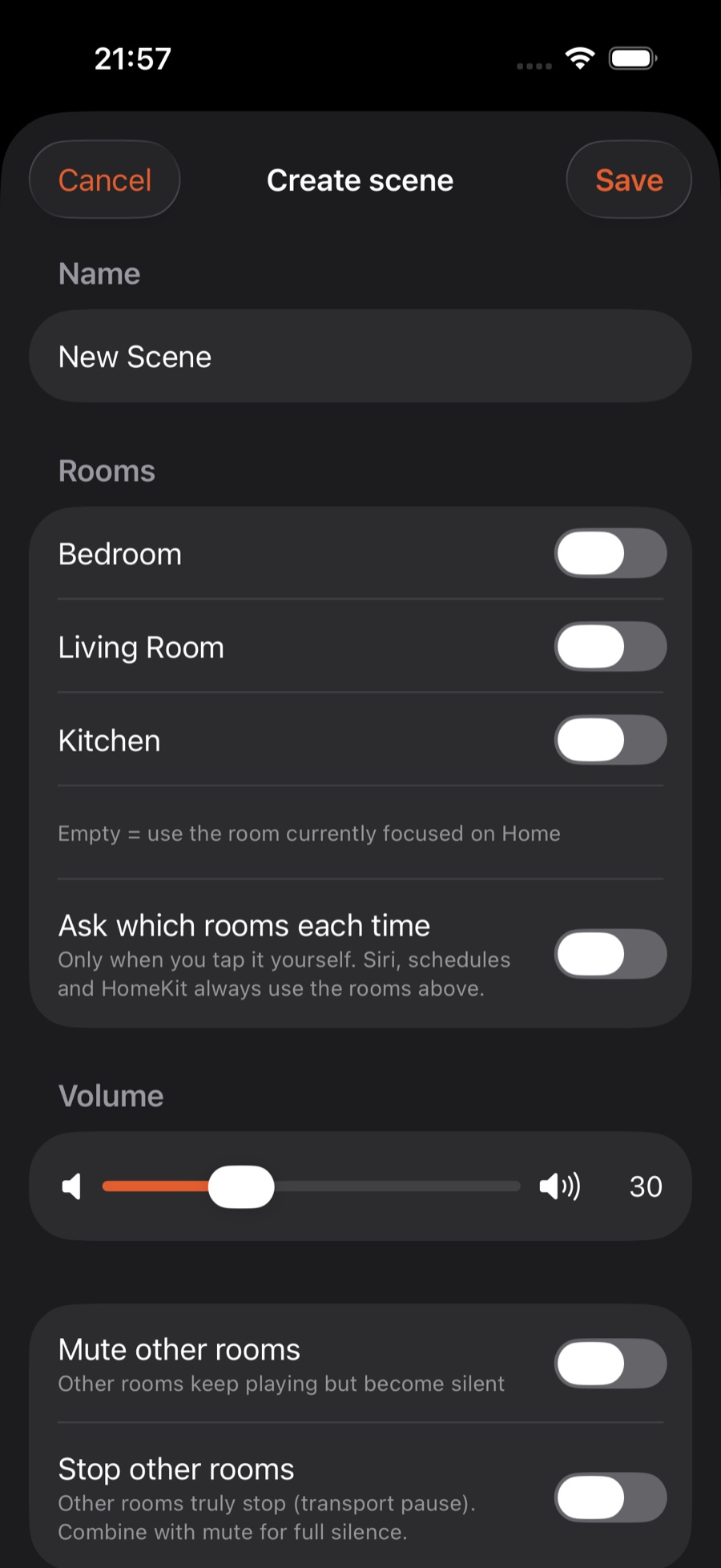
Open Automations, tap + at the top right → Create scene, and type a Scene name.
Choose rooms
- Rooms allows several at once. Leave it empty to use the room currently selected on Home (the one at the top right).
- Ask which rooms each time: when on, tapping the scene yourself first asks you to tick rooms. Siri, schedules and HomeKit always use the rooms selected above.
Choose what to play
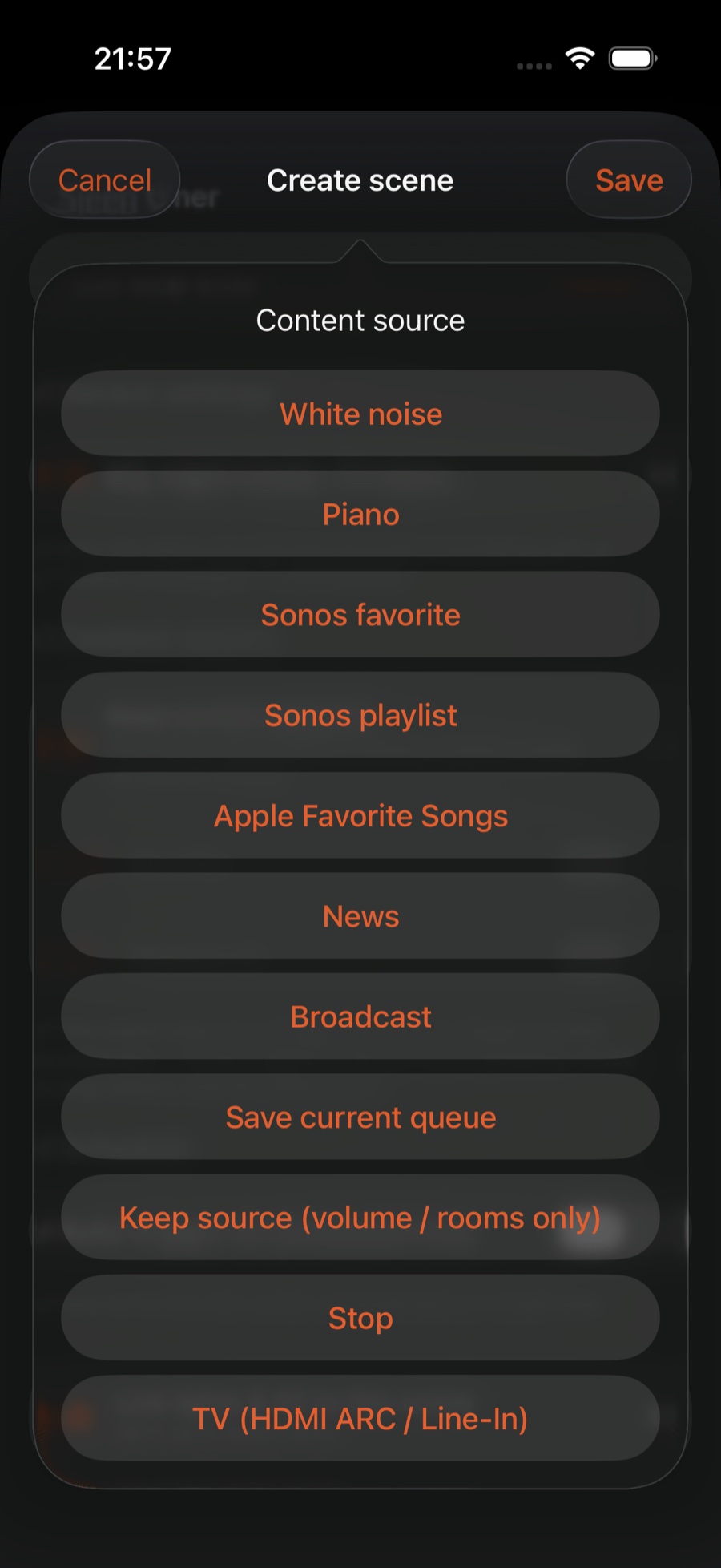
Pick one under Content source:
- Keep source (volume / rooms only) · Stop playback
- Sonos favorite · Sonos playlist · Apple Favorite Songs · Save current queue
- News · Broadcast · TV (HDMI ARC / Line-In) · White noise · Piano
- To make a scene play a specific Apple playlist or album: on that playlist or album page, tap ⋯ → Create scene and it is filled in for you.
Then choose the Queue Position: Replace Queue · Play Next · Play Last · Play now (keep queue). Turn on Shuffle or Repeat all if you like.
News and broadcast need a preset first: create one under Assistant → News / Broadcast, then come back and pick it.
Volume and finishing touches
- Volume: the volume the scene sets.
- Mute other rooms / Stop other rooms: mute keeps other rooms playing silently; stop actually pauses them. Turn both on for a "whole home quiet" scene.
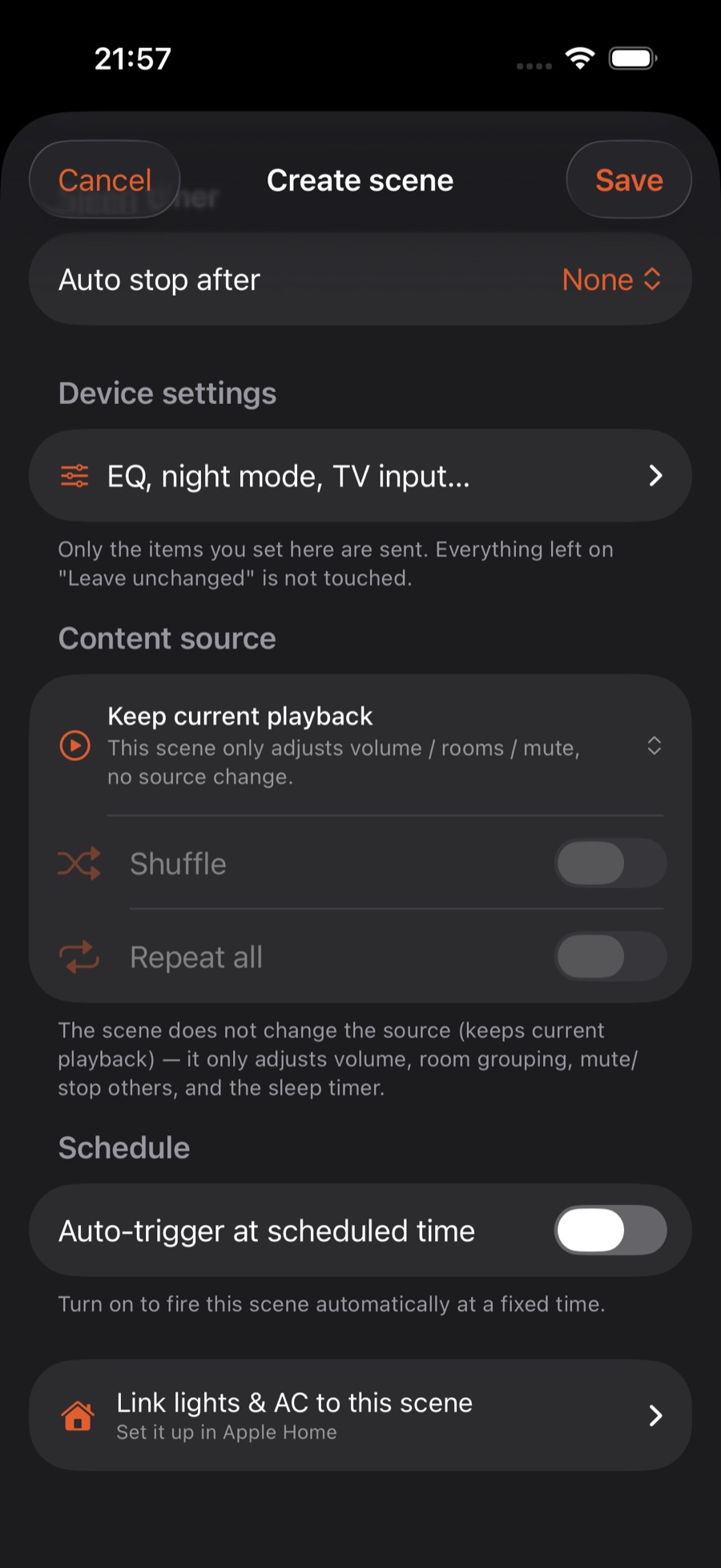
- Sleep timer: auto stop after N minutes.
- Device settings (EQ, night mode, TV input…): change the sound, turn on night mode or switch to TV input as part of the scene.
- Schedule: run it automatically at a set time; see the next section.
Once saved, the scene appears in the Scenes row on Automations; tap it to run.
Run it on a schedule (no bridge needed)
- In the scene editor, open Schedule → turn on Auto-trigger at scheduled time, then pick a time and days, or choose Fire only once.
- The server runs it on time: it works even when your iPhone is locked or the app is closed.
- See your schedules in Automations → Schedules, shown as daily / weekdays / weekends / once, with the last time each one ran.
For the family: Simple mode
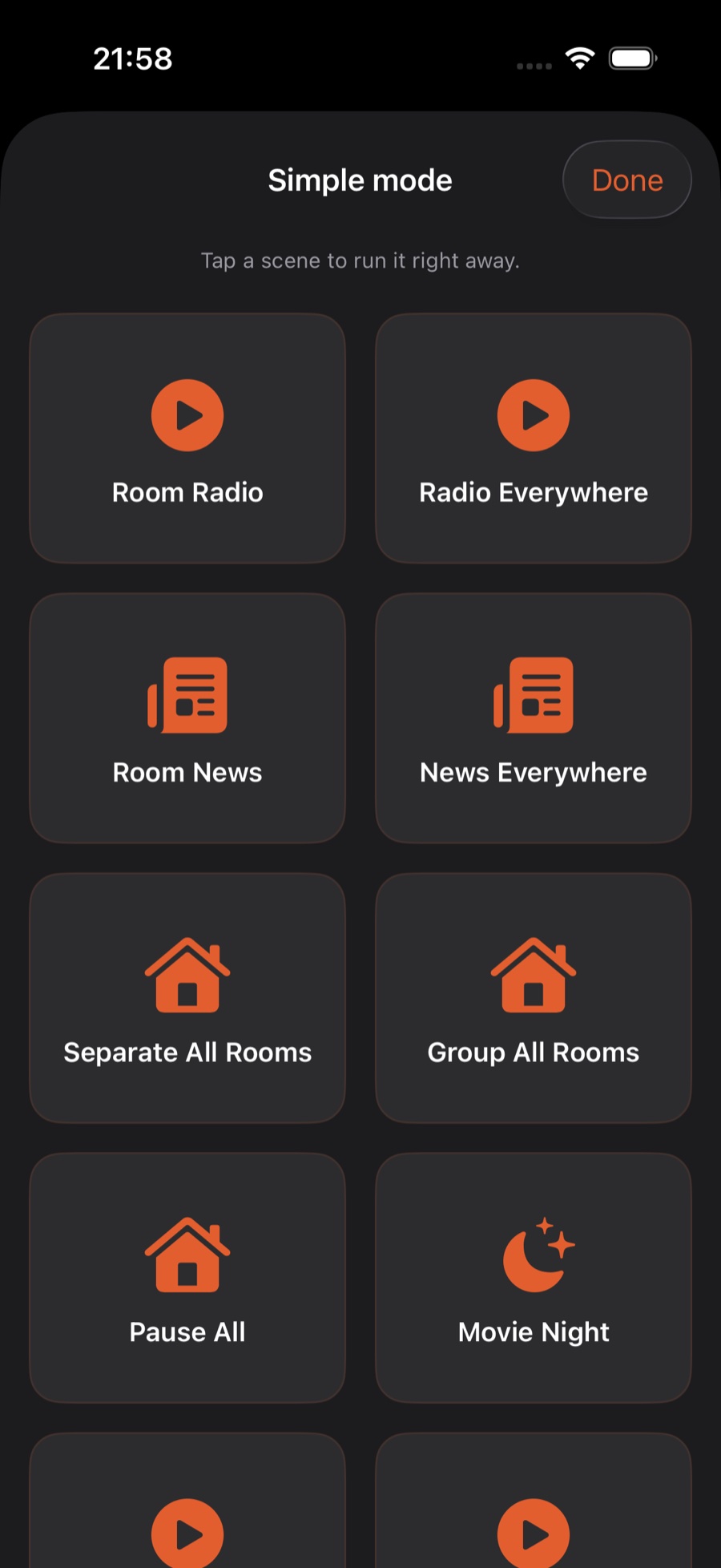
Tap the grid icon at the top right of Automations → Simple mode: every scene becomes a big button on one screen, and one tap runs it. Quick Execution on Home also has a Simple mode tile.
Run a scene without opening the app
- Control Center: Automations → Apple Home & advanced → Control Center scene puts a scene in Control Center, reachable from the lock screen. No bridge needed.
- Siri: say "Run scene <scene name> in ZoneFoundry".
- Shortcuts: use the Run Scene action.
When you need the Bridge
Scenes and schedules themselves don't need the Bridge. Only these cases do:
- The Save current queue content source: the queue is stored on the Bridge.
- White noise and Piano: normally these switch to Apple Music's white-noise / piano playlists and need no bridge. Apple Favorite Songs plays the songs you have loved in Apple Music. Only if Apple Music isn't authorized do they fall back to a method that needs the Bridge, and the bottom of the editor says "Note: this content source currently requires the Bridge to be online."
- Link lights & AC to this scene (Apple Home), see Link a scene with your lights & AC.
Everything else works without it.
FAQ
Tapping a scene does nothing, or it plays in the wrong room?
Check whether the scene's Rooms is empty: if so, it uses the room at the top right of Home. To always use the same rooms, pick them in the scene.
A schedule didn't fire?
Make sure you're signed in to your Sonos account and Auto-trigger at scheduled time is on. Schedules are run by the server, whether or not the app is open.
I renamed a room. Will my scenes still recognise it?
Scenes, schedules, favorites and news plans are renamed along with it. If Automations shows "Room no longer exists: X — tap to pick a room", tap it and choose again.
Nothing to pick for a news or broadcast scene?
Create a preset under Assistant → News / Broadcast first, then come back and pick it.
Your usual setup, saved as one tap
Rooms, volume and what to play, saved as one scene in ZoneFoundry, run with a tap or on a schedule. It's an iOS app that works with your existing Sonos.