不用账号也能控制 Sonos 吗?不用賬號也能控制 Sonos 嗎?Can I control Sonos with no account at all?
- 零账号:不用注册、不用登录。播放、音量这些控制指令在局域网里直达音箱,不经过服务器——你只是在自己家的网络里,跟自己的音箱说话。零帳戶:不用註冊、不用登入。播放、音量這些控制指令在區域網絡裏直達音箱,不經過伺服器——你只是在自己家的網絡裏,和自己的音箱對話。Zero account: no sign-up, no login. Control commands like play and volume go straight to the speaker over your LAN, not through a server — you're simply talking to your own speakers, on your own network.
- 即时响应:播放、暂停、调音量这些操作不用先绕一圈外网,指令在局域网里直达音箱,按下去基本上立刻就动。即時響應:播放、暫停、調音量這些操作不用先繞一圈外網,指令在局域網裏直達音箱,按下去基本上立刻就動。Instant response: play, pause and volume don't take a detour through the internet — the command goes straight to the speaker over your LAN, so it reacts almost the moment you tap.
- 断网也照常用:就算外网不通、云端慢或者上不去,只要家里 Wi-Fi 还在,控制就一切如常。在国内这点尤其踏实。搜歌、语音这些功能还是要联网。斷網也照常用:就算外網不通、雲端慢或者上不去,只要家裏 Wi-Fi 還在,控制就一切如常。在內地這點尤其踏實。搜歌、語音這些功能仍然要連網。Works even offline: if the internet is down, slow or unreachable, control keeps working as long as your home Wi-Fi is up. That's especially reassuring in mainland China. Search and voice still need the internet.
开始前你需要開始前你需要Before you start
- 已经装好并接好电的 Sonos 音箱(已经加入你家 Wi-Fi)已經安裝並接好電的 Sonos 音箱(已經加入你家 Wi-Fi)Sonos speakers that are powered on and already joined to your home Wi-Fi
- 装了 ZoneFoundry 的 iPhone 或 iPad安裝了 ZoneFoundry 的 iPhone 或 iPadAn iPhone or iPad with ZoneFoundry installed
- 手机和音箱在同一个 Wi-Fi(同一个网段)——不需要 Sonos 账号,也不需要桥接手機和音箱在同一個 Wi-Fi(同一個網段)——不需要 Sonos 賬號,也不需要橋接Phone and speakers on the same Wi-Fi (same network) — no Sonos account and no bridge needed
步骤步驟Steps
确认手机和音箱在同一个 Wi-Fi確認手機和音箱在同一個 Wi-FiPut your phone on the same Wi-Fi as the speakers
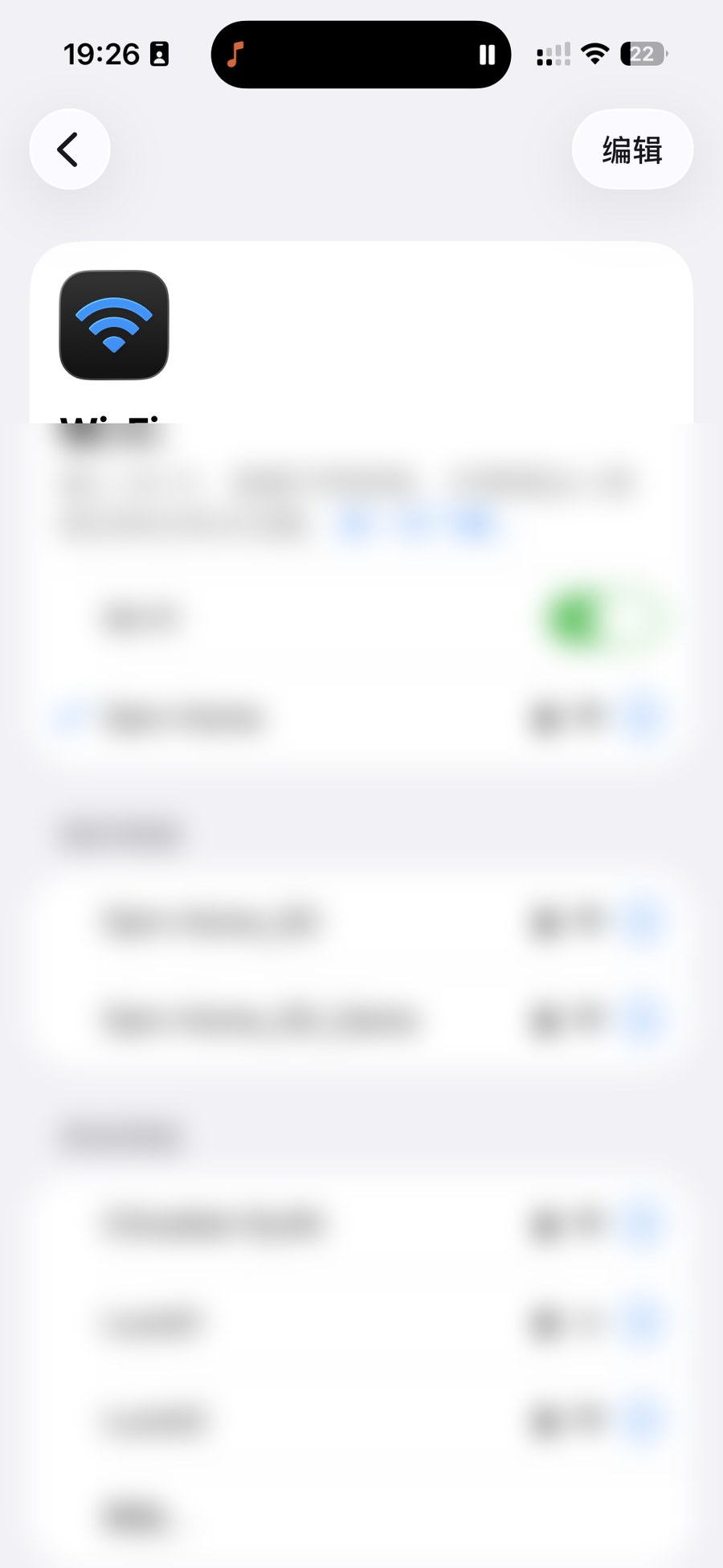
到 iPhone 的「设置 → 无线局域网」,连上和 Sonos 同一个 Wi-Fi。如果家里有 2.4G 和 5G 两个名字,尽量选音箱所在的那个;用网格 / Mesh 路由的话通常同一个名字就行。这一步是关键——本地控制全靠「在同一个网络里」。到 iPhone 的「設定 → 無線區域網」,連上和 Sonos 同一個 Wi-Fi。如果家裏有 2.4G 和 5G 兩個名字,盡量選音箱所在的那個;用網格 / Mesh 路由的話通常同一個名字就可以。這一步是關鍵——本地控制全靠「在同一個網絡裏」。On your iPhone, go to Settings → Wi-Fi and join the same network as your Sonos. If you have separate 2.4G and 5G names, pick whichever your speakers use; with a mesh router a single name is usually fine. This step matters most — local control depends entirely on being on the same network.
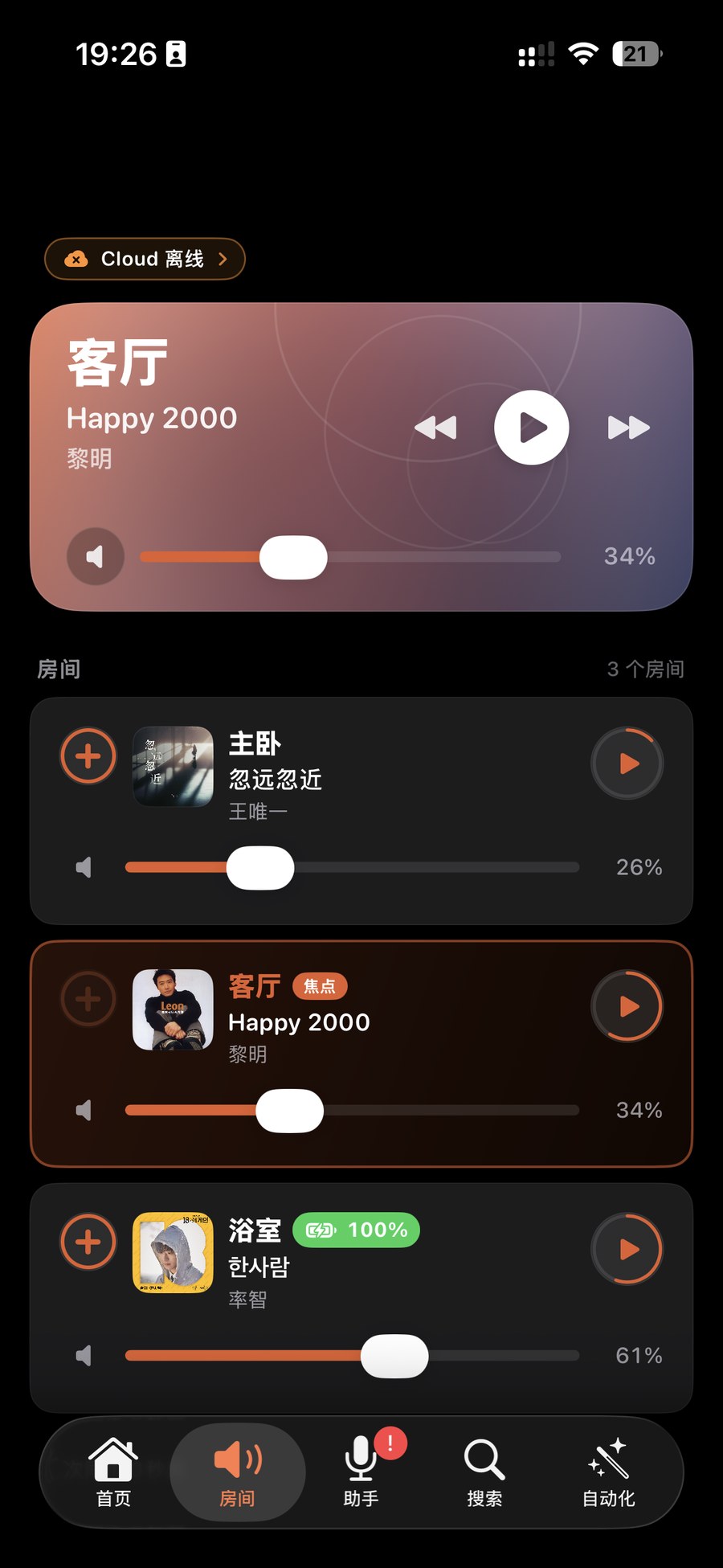
打开 ZoneFoundry,房间自动出现打開 ZoneFoundry,房間自動出現Open ZoneFoundry and watch the rooms appear
打开 App,什么都不用登录——第一次打开时,引导里的「连接 Sonos」那一页点「稍后再说」就行。ZoneFoundry 会在局域网里自动找到你的 Sonos,这时系统会询问能否查找本地网络上的设备,一定要点「允许」。几秒内房间列表(客厅、主卧……)就会自己冒出来。看到房间,就说明本地直连已经成功。打開 App,甚麼都不用登入——第一次打開時,引導裏的「連接 Sonos」那一頁按「稍後再說」就可以。ZoneFoundry 會在區域網絡裏自動找到你的 Sonos,這時系統會詢問可否尋找本地網絡上的裝置,一定要按「允許」。幾秒內房間列表(客廳、主臥……)就會自己出現。看到房間,就代表本地直連已經成功。Open the app — there's nothing to log into; on first launch, just tap "Skip for now" on the "Connect Sonos" onboarding page. ZoneFoundry looks for your Sonos on the local network, and iOS asks whether it may find devices on your local network — tap Allow. Within a few seconds your rooms (Living Room, Bedroom…) appear on their own. Seeing the rooms means the local connection is already working.
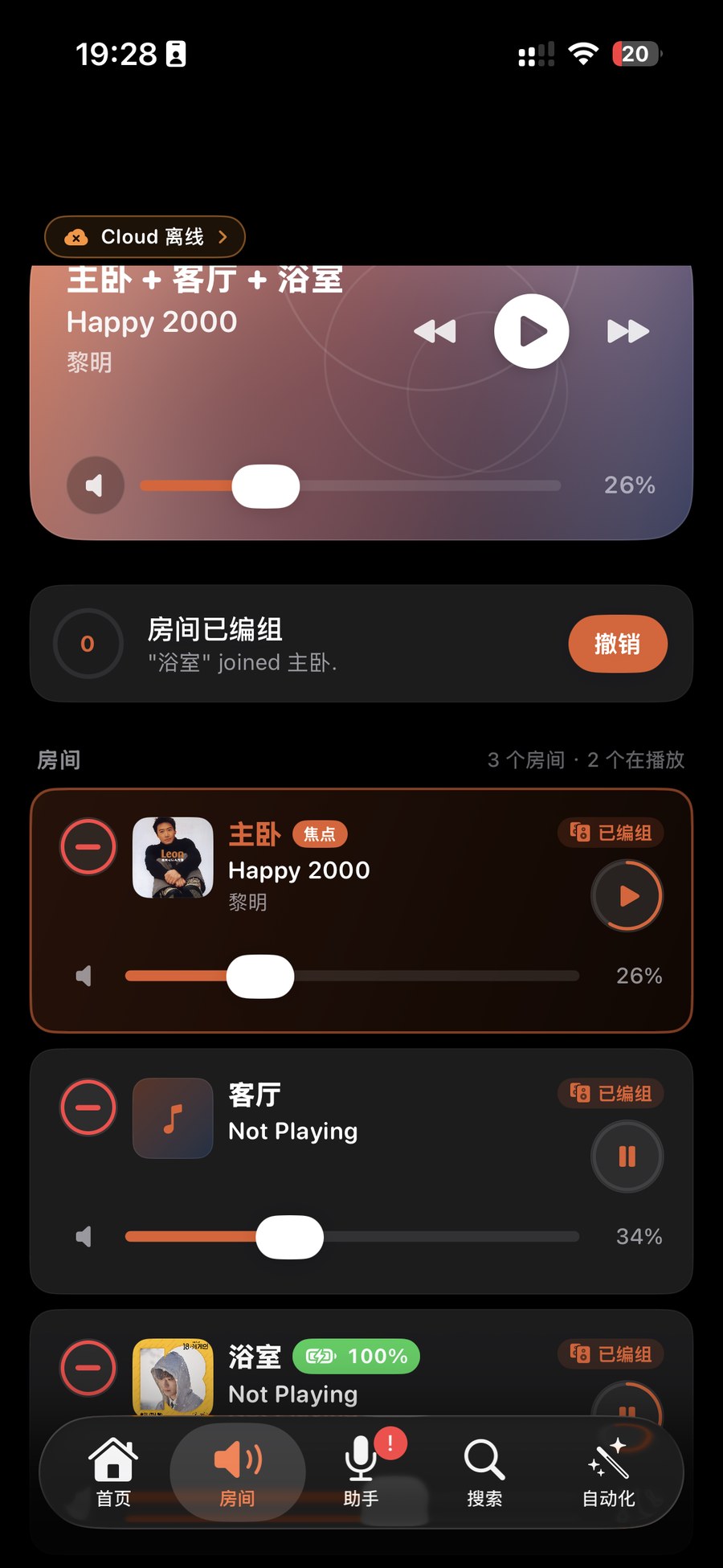
播放、分组、音量、EQ——全部本地、即时播放、分組、音量、EQ——全部本地、即時Play, group, volume, EQ — all local and instant
挑一个房间开始播放;想多房间同步,在「房间」里点其他房间旁边的圆圈,就能加入正在播放的组。左右滑调音量,长按房间进音效调低音 / 高音。这些操作全部走局域网直达音箱,所以反应几乎是即时的,没有「按一下等半天」的那种延迟。挑一個房間開始播放;想多房間同步,在「房間」裏按其他房間旁邊的圓圈,就能加入正在播放的組。左右滑調音量,長按房間進音效調低音 / 高音。這些操作全部走區域網絡直達音箱,所以反應幾乎是即時的,沒有「按一下等半天」的那種延遲。Pick a room and start playing; for multi-room sync, open Rooms and tap the circle next to another room to add it to the group that's playing. Slide to set the volume, and long-press a room for sound settings like bass and treble. Every one of these goes straight to the speaker over the LAN, so it responds almost instantly — none of that "tap and wait" lag.
提示:整套流程都不用 Sonos 账号、不用桥接。想出门也能控制,或者用 AI 助手、场景、新闻播报、全屋广播和跨服务搜歌,登录 Sonos 账户就行,同样不需要桥(见登录 Sonos 账号)。提示:整套流程都不用 Sonos 帳戶、不用橋接。想出門也能控制,或者用 AI 助手、場景、新聞播報、全屋廣播和跨服務搜歌,登入 Sonos 帳戶就可以,同樣不需要橋接(見登入 Sonos 帳戶)。Tip: none of this needs a Sonos account or a bridge. To control your speakers away from home, or to use the AI assistant, scenes, news briefings, whole-home announcements and cross-service search, just sign in to your Sonos account — still no bridge needed (see Signing in to Sonos).
房间没出现?最常见的原因是「本地网络」权限被拒了:到 iPhone「设置 → 隐私与安全性 → 本地网络」打开 ZoneFoundry。其次确认手机确实连的是和音箱同一个 Wi-Fi(别连成访客网络或邻居的网)。有些路由器开了「AP 隔离 / 客户端隔离」会挡住设备间互访,关掉即可。还是不行的话,把音箱断电再通电、把 App 退出重开,让它重新在局域网里搜一遍。房間沒出現?最常見的原因是「本地網絡」權限被拒絕:到 iPhone「設定 → 私隱與保安 → 本地網絡」開啟 ZoneFoundry。其次確認手機確實連的是和音箱同一個 Wi-Fi(別連成訪客網絡或鄰居的網)。有些路由器開了「AP 隔離 / 客戶端隔離」會擋住設備之間互訪,關掉即可。還是不行的話,把音箱斷電再通電、把 App 退出重開,讓它重新在局域網裏搜一遍。Rooms not showing? The most common cause is a denied Local Network permission: go to iPhone Settings → Privacy & Security → Local Network and turn on ZoneFoundry. Next, make sure your phone is really on the same Wi-Fi as the speakers (not a guest network or a neighbour's). Some routers enable "AP / client isolation," which blocks devices from seeing each other — turn that off. If it still doesn't work, power-cycle the speaker and reopen the app so it scans the network again.
本地直连,关键是同一个 Wi-Fi
指令在局域网里直达音箱;外网不通、云端慢,控制照样如常。
设备之间互相看不到,房间不会出现:换回同一个 Wi-Fi,关掉 AP 隔离。
想出门也能控制,登录 Sonos 账户就行,不需要桥。
看到房间自动出现,就说明本地直连已经成功。
本地直連,關鍵是同一個 Wi-Fi
指令在區域網絡裡直達音箱;外網不通、雲端慢,控制照樣如常。
裝置之間互相看不到,房間不會出現:換回同一個 Wi-Fi,關掉 AP 隔離。
想出門也能控制,登入 Sonos 帳戶就行,不需要橋。
看到房間自動出現,就說明本地直連已經成功。
Local control: same Wi-Fi is the key
Commands go straight to the speaker over your LAN, even if the internet is down or the cloud is slow.
Devices can't see each other, so rooms don't show: join the same Wi-Fi, turn off AP isolation.
To control from outside, just sign in to your Sonos account — no bridge needed.
Seeing your rooms appear means the local connection is already working.
和官方 Sonos App 有什么不同?和官方 Sonos App 有什麼不同?How does this differ from the official Sonos app?
- 官方 App 一上来就要你先登录 Sonos 账号,再连云端才进得了控制界面。官方 App 一開始就要你先登入 Sonos 賬號,再連雲端才進得了控制介面。The official app makes you sign in to a Sonos account and connect to the cloud before you can even reach the controls.
- ZoneFoundry 直接在局域网里和音箱对话,所以没有账号、没有外网,照样能用,而且因为少了一趟外网往返,本地操作更跟手。ZoneFoundry 直接在局域網裏和音箱對話,所以沒有賬號、沒有外網,照樣能用,而且因為少了一趟外網往返,本地操作更跟手。ZoneFoundry talks to the speakers directly over the LAN, so it keeps working with no account and no internet — and because it skips an internet round-trip, local actions feel snappier.
- 对国内用户尤其友好:云端慢或者连不上的时候,本地控制完全不受影响。對內地用戶尤其友善:雲端慢或者連不上的時候,本地控制完全不受影響。It's especially friendly for users in mainland China: when the cloud is slow or unreachable, local control is completely unaffected.
不想登云,也有得用不想登雲,也有得用You do not have to sign in to the cloud
ZoneFoundry 支持局域网直连控制,不依赖 Sonos 云账号;想用云端功能再登也不迟。Bridge 是可选增强,不是入场券。ZoneFoundry 支援區域網絡直連控制,不依賴 Sonos 雲端帳戶;想用雲端功能再登入也不遲。Bridge 是可選增強,並非入場券。ZoneFoundry can control Sonos directly over your local network without a Sonos cloud account. Sign in later if you want the cloud features. The Bridge is an optional upgrade, not an entry ticket.