
场景能帮你做什么場景可以幫你做甚麼What a scene does for you
- 一次做完:选房间、调音量、换内容、静音或停止其他房间,点一下全部完成。一次做完:選房間、調音量、換內容、靜音或停止其他房間,點一下全部完成。All at once: rooms, volume, content, and muting or stopping other rooms, all done in a single tap.
- 到点自动执行:定时由服务器执行,锁屏或关闭 App 也有效,不需要桥。到點自動執行:定時由伺服器執行,鎖定畫面或關閉 App 也有效,不需要橋接。Runs on time by itself: schedules are run by the server, so they work with your iPhone locked or the app closed, and need no bridge.
- 不打开 App 也能用:放进控制中心,或对 Siri 说一句。不打開 App 也可以用:放進控制中心,或對 Siri 說一句。No need to open the app: put it in Control Center or ask Siri.
开始前你需要開始前你需要Before you start
- 已登录 Sonos 账户(不需要桥)。没登录时,「自动化」页的定时区会显示「连接 Sonos 后可查看和管理定时。」和一个「连接 Sonos」按钮。已登入 Sonos 帳戶(不需要橋接)。未登入時,「自動化」頁的定時區會顯示「連接 Sonos 後可檢視及管理定時。」和一個「連接 Sonos」按鈕。Signed in to your Sonos account (no bridge needed). If you aren't, the schedules area on the Automations tab shows "Connect Sonos to view and manage schedules." with a Connect Sonos button.
- 少数内容源需要桥,见下面哪些情况需要家庭桥接。少數內容源需要橋接,見下面哪些情況需要家庭橋接。A few content sources need a bridge; see When you need the Bridge below.
场景在哪里場景在哪裡Where to find scenes
- 底部「自动化」tab →「场景」一栏:点按运行 · 长按自定义、编辑或删除。底部「自動化」分頁 →「場景」一欄:輕按執行 · 長按自訂、編輯或刪除。The Automations tab at the bottom → the Scenes row: tap to run · long-press to customize, edit, or delete.
- 「自动化」页右上角 + →「新建场景」。「自動化」頁右上角 + →「新建場景」。+ at the top right of Automations → Create scene.
- 「首页」的「快捷执行」里有一格「场景」:一键运行你最近用过的场景。「首頁」的「快捷執行」裡有一格「場景」:一鍵執行你最近用過的場景。Home → Quick Execution has a Scene tile that runs the scene you used most recently.
新建一个场景新建一個場景Create a scene
新建并命名新建並命名Create and name it
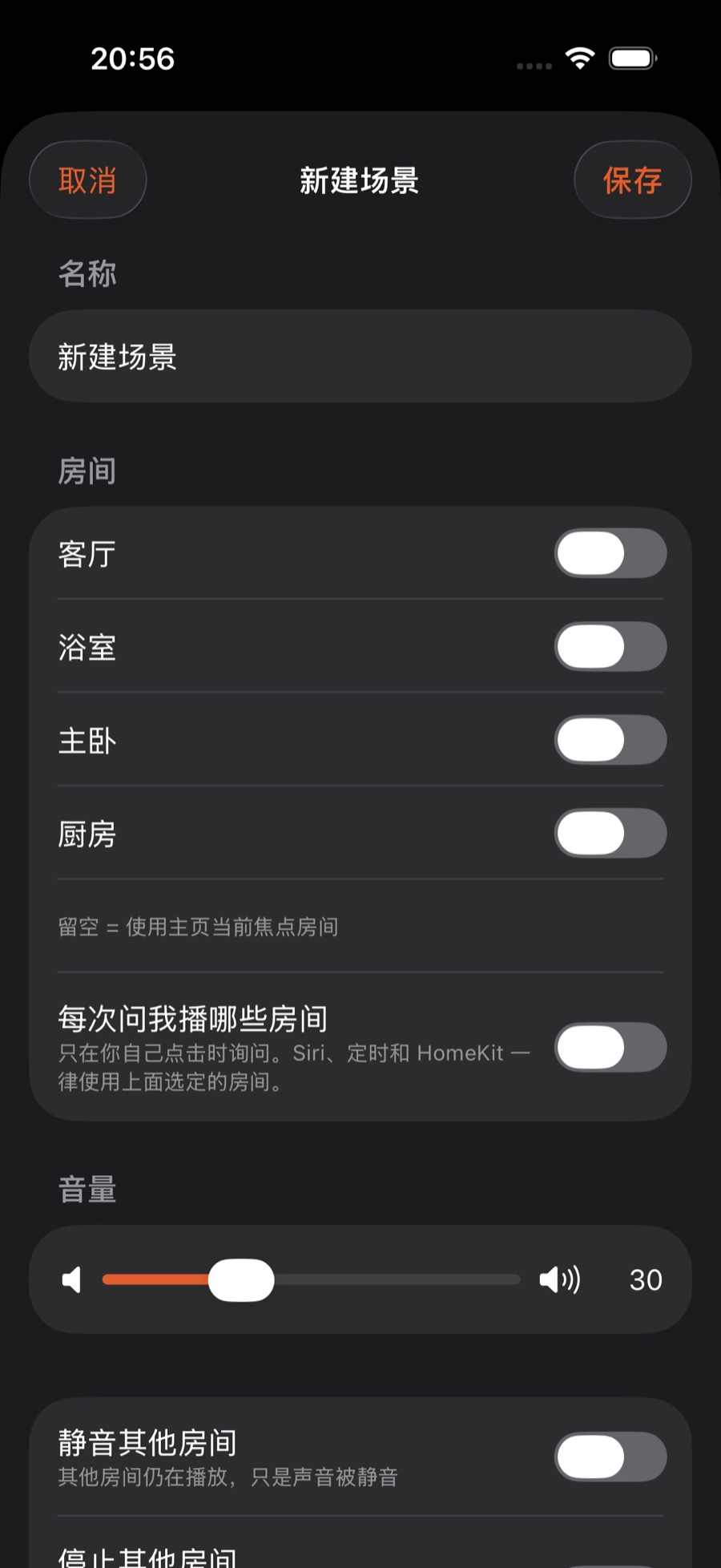
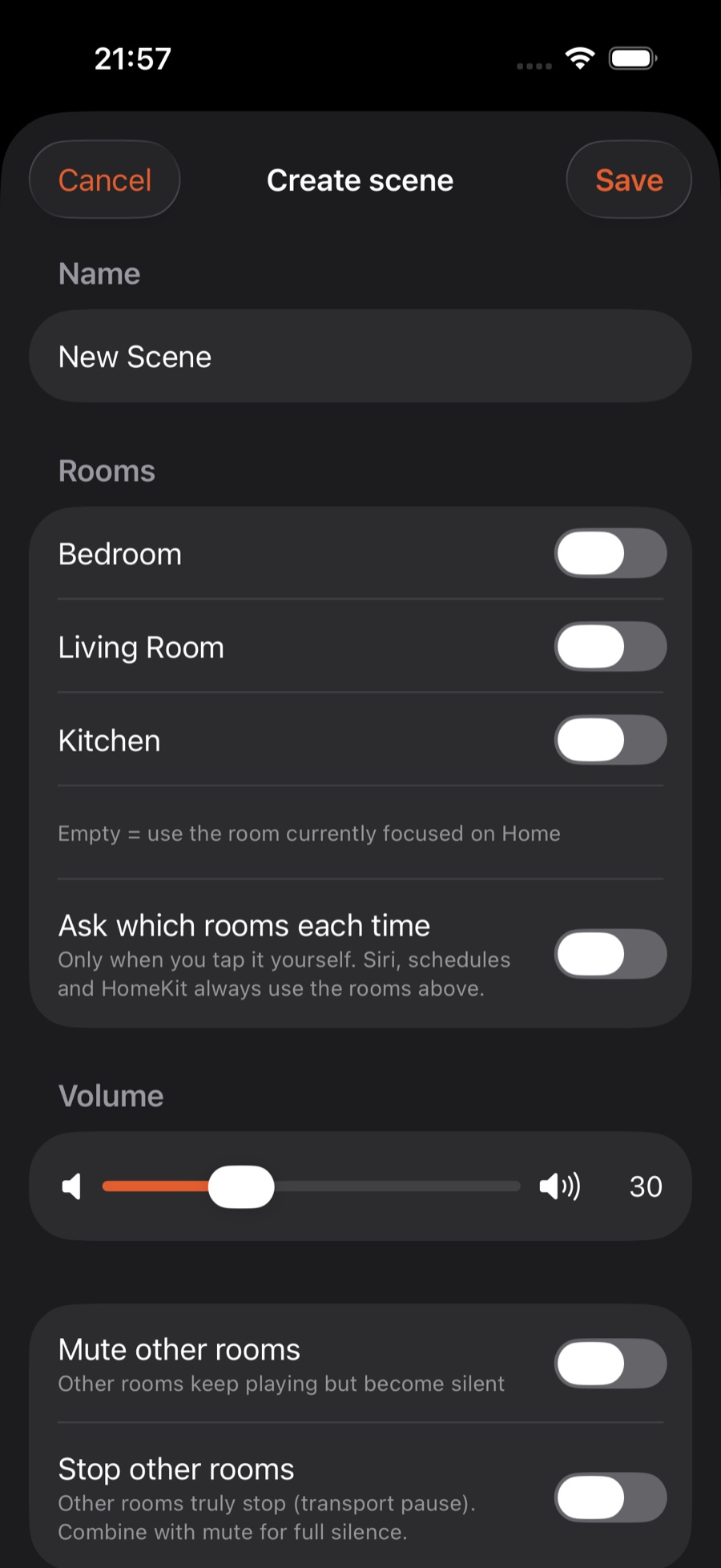
打开「自动化」,点右上角 + →「新建场景」,在「场景名称」里起个名字。打開「自動化」,點右上角 + →「新建場景」,在「場景名稱」裡起個名字。Open Automations, tap + at the top right → Create scene, and type a Scene name.
选房间選房間Choose rooms
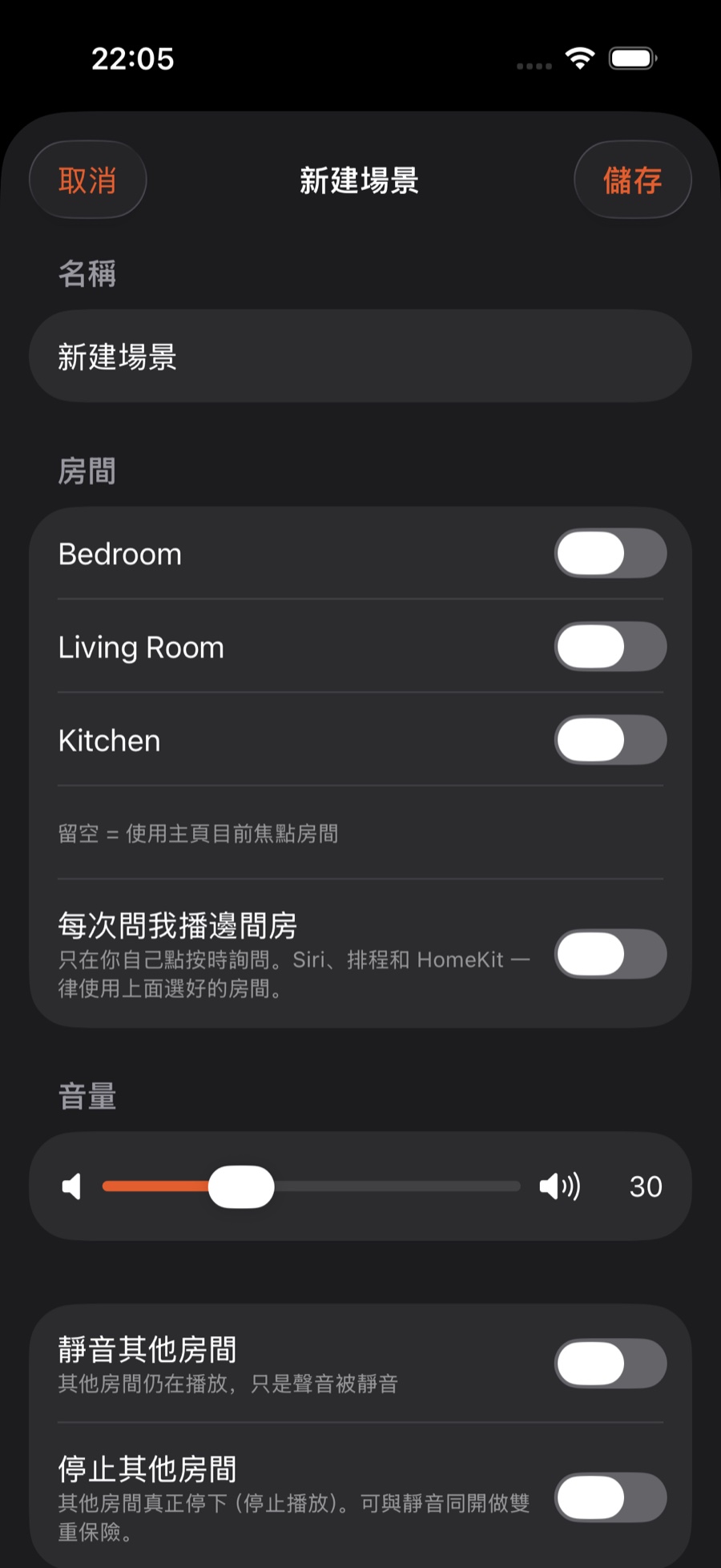
- 「房间」可以多选。留空 = 使用首页当前选中的房间(首页右上角那个)。「房間」可以多選。留空 = 使用首頁目前選中的房間(首頁右上角那個)。Rooms allows several at once. Leave it empty to use the room currently selected on Home (the one at the top right).
- 「每次问我播哪些房间」:打开后,你自己点这个场景时会先让你勾房间。Siri、定时和 HomeKit 一律使用上面选定的房间。「每次問我播邊間房」:開啟後,你自己點這個場景時會先讓你勾選房間。Siri、定時和 HomeKit 一律使用上面選定的房間。Ask which rooms each time: when on, tapping the scene yourself first asks you to tick rooms. Siri, schedules and HomeKit always use the rooms selected above.
选播什么選播甚麼Choose what to play
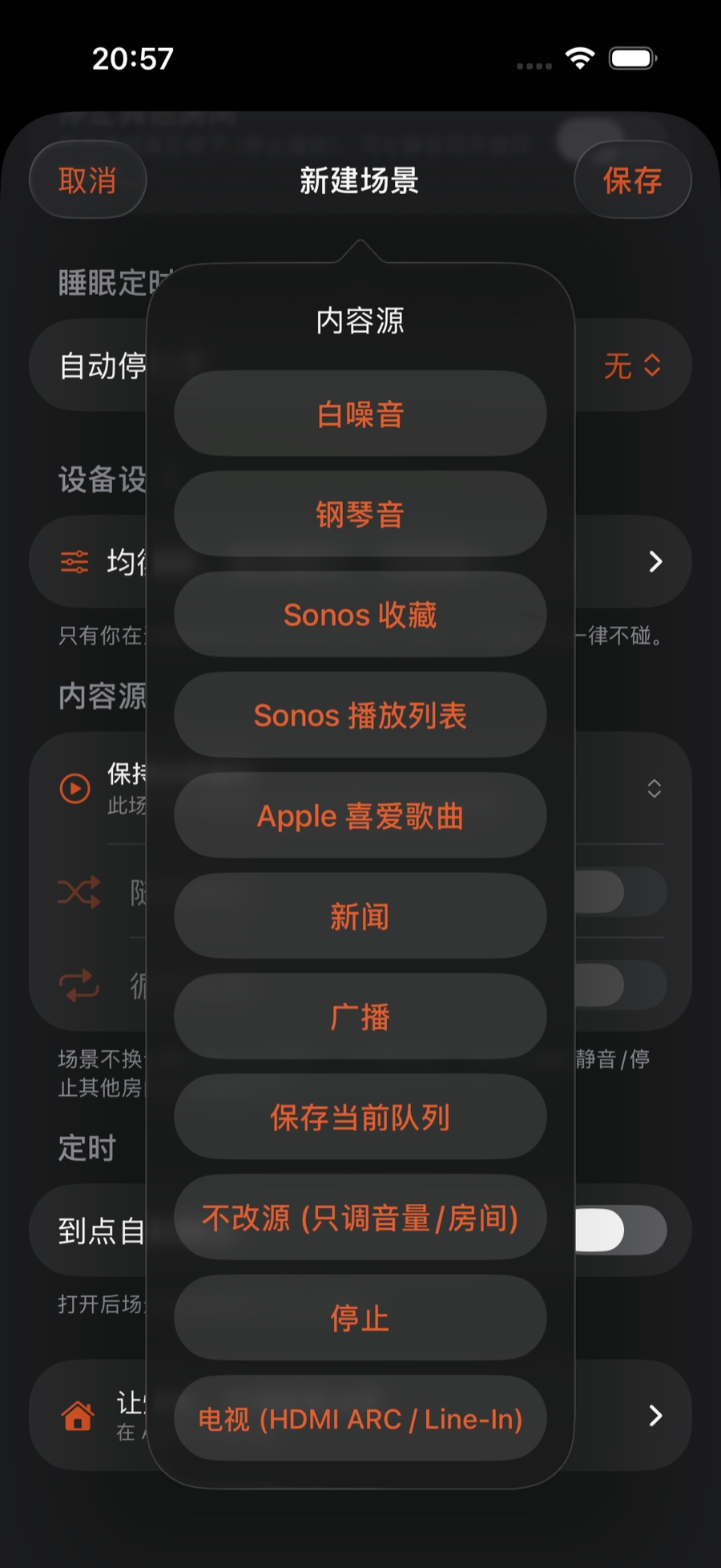
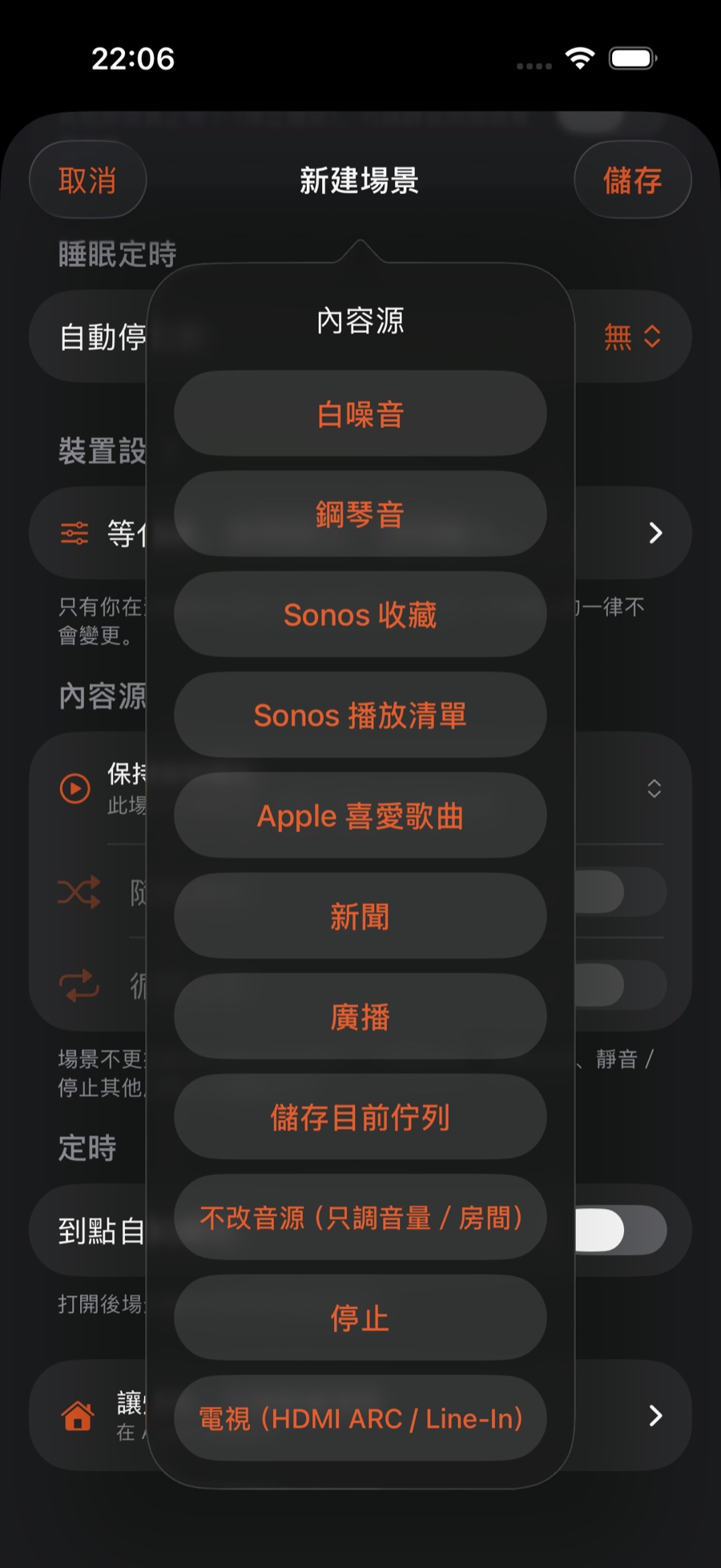
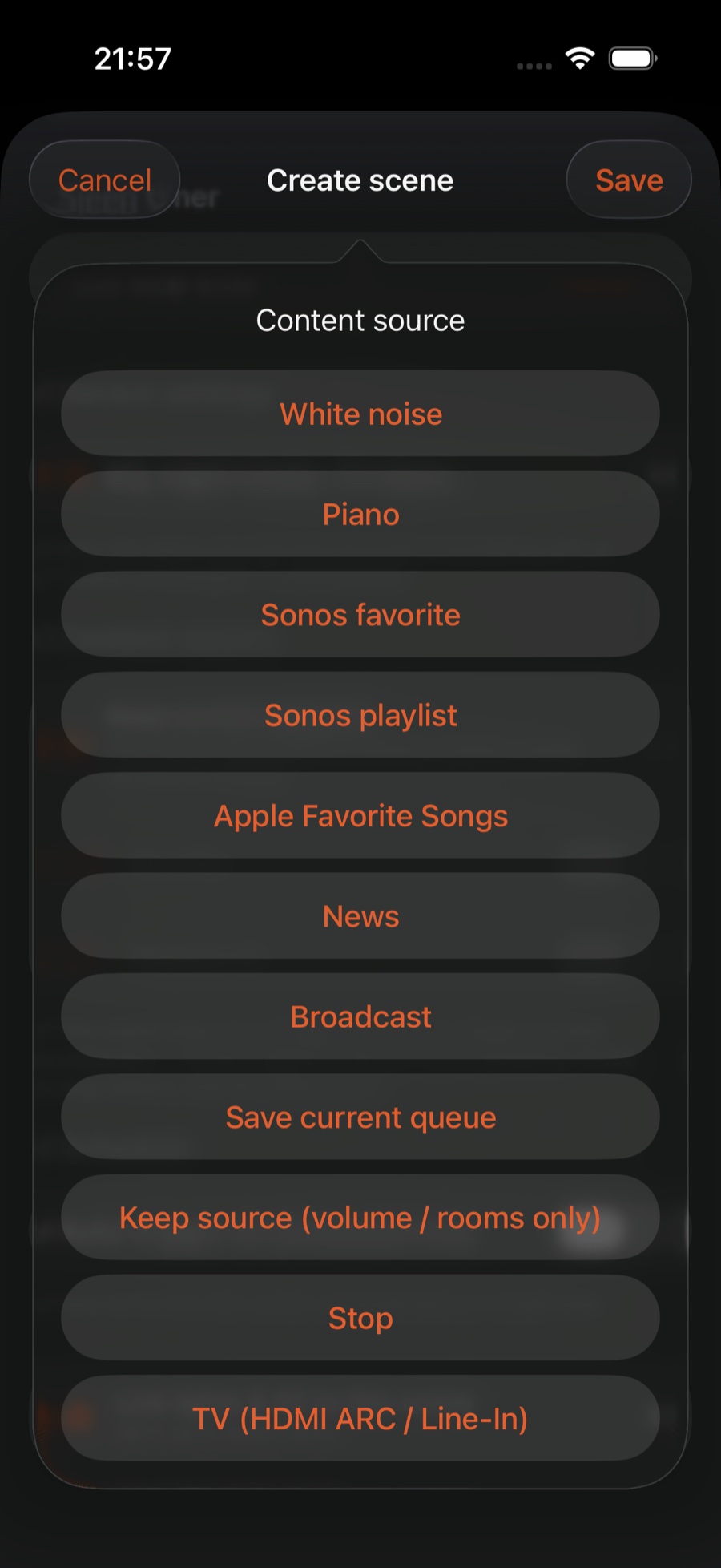
在「内容源」里选一种:在「內容源」裡選一種:Pick one under Content source:
- 不改源 (只调音量/房间) · 停止播放不改音源(只調音量/房間)· 停止播放Keep source (volume / rooms only) · Stop playback
- Sonos 收藏 · Sonos 播放列表 · Apple 喜爱歌曲 · 保存当前队列Sonos 收藏 · Sonos 播放清單 · Apple 喜愛歌曲 · 儲存目前佇列Sonos favorite · Sonos playlist · Apple Favorite Songs · Save current queue
- 新闻 · 广播 · 电视(HDMI ARC / Line-In)· 白噪音 · 钢琴音新聞 · 廣播 · 電視(HDMI ARC / Line-In)· 白噪音 · 鋼琴音News · Broadcast · TV (HDMI ARC / Line-In) · White noise · Piano
- 想让场景播某张 Apple 歌单或专辑:在那张歌单 / 专辑页点「⋯」→「新建场景」,会自动带进来。想讓場景播某張 Apple 歌單或專輯:在那張歌單/專輯頁點「⋯」→「新建場景」,會自動帶進來。To make a scene play a specific Apple playlist or album: on that playlist or album page, tap ⋯ → Create scene and it is filled in for you.
然后选「入队位置」:替换队列 · 下一首插播 · 最后播放 · 立即播放(保留队列);需要的话再打开「随机播放」「循环全部」。然後選「加入佇列位置」:替換佇列 · 跟住播 · 最後播放 · 立即播放(保留佇列);需要的話再開啟「隨機播放」「循環全部」。Then choose the Queue Position: Replace Queue · Play Next · Play Last · Play now (keep queue). Turn on Shuffle or Repeat all if you like.
新闻、广播要先有预设:先去「助手 → 新闻 / 广播」里建好预设,再回到场景里选。新聞、廣播要先有預設:先到「助手 → 新聞 / 廣播」裡建立預設,再回到場景裡選。News and broadcast need a preset first: create one under Assistant → News / Broadcast, then come back and pick it.
音量和收尾设置音量和收尾設定Volume and finishing touches
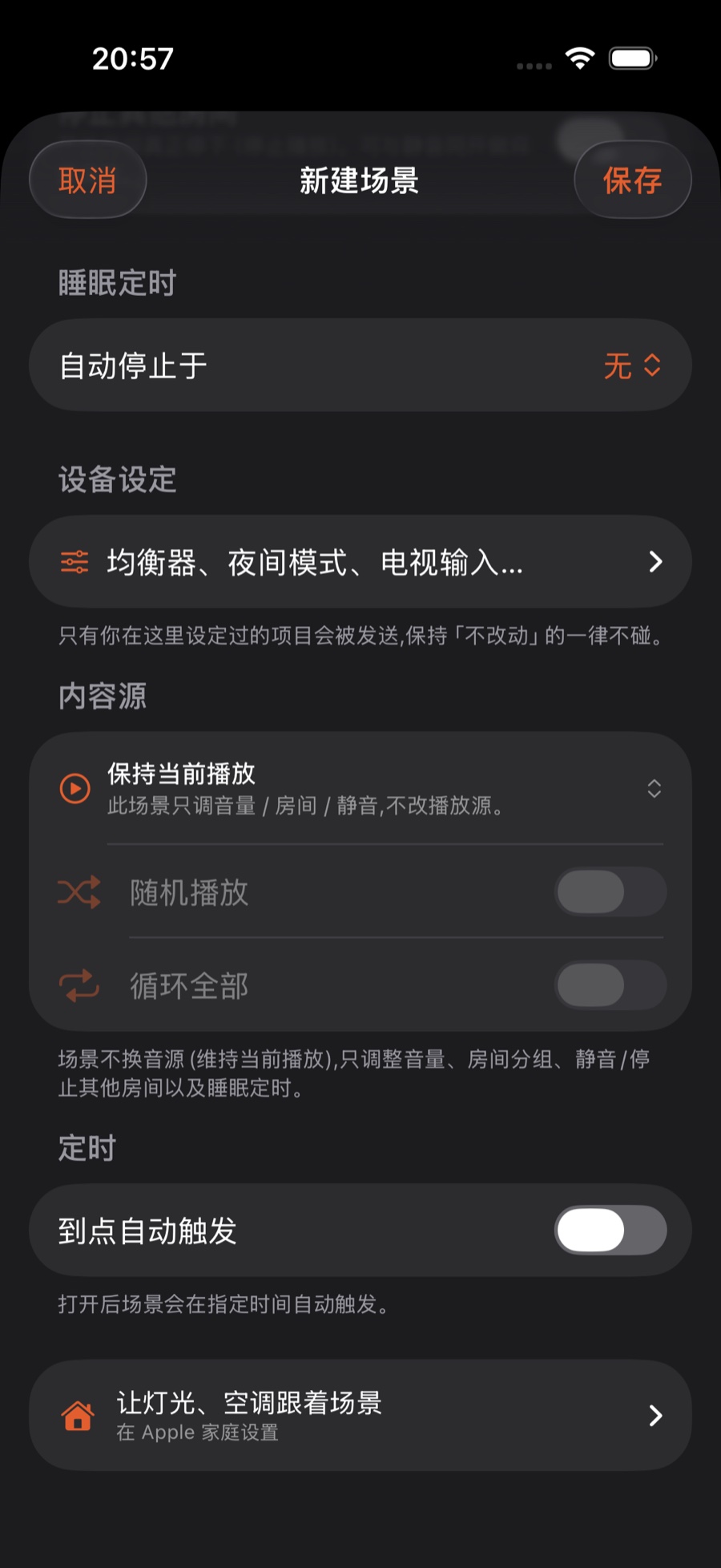
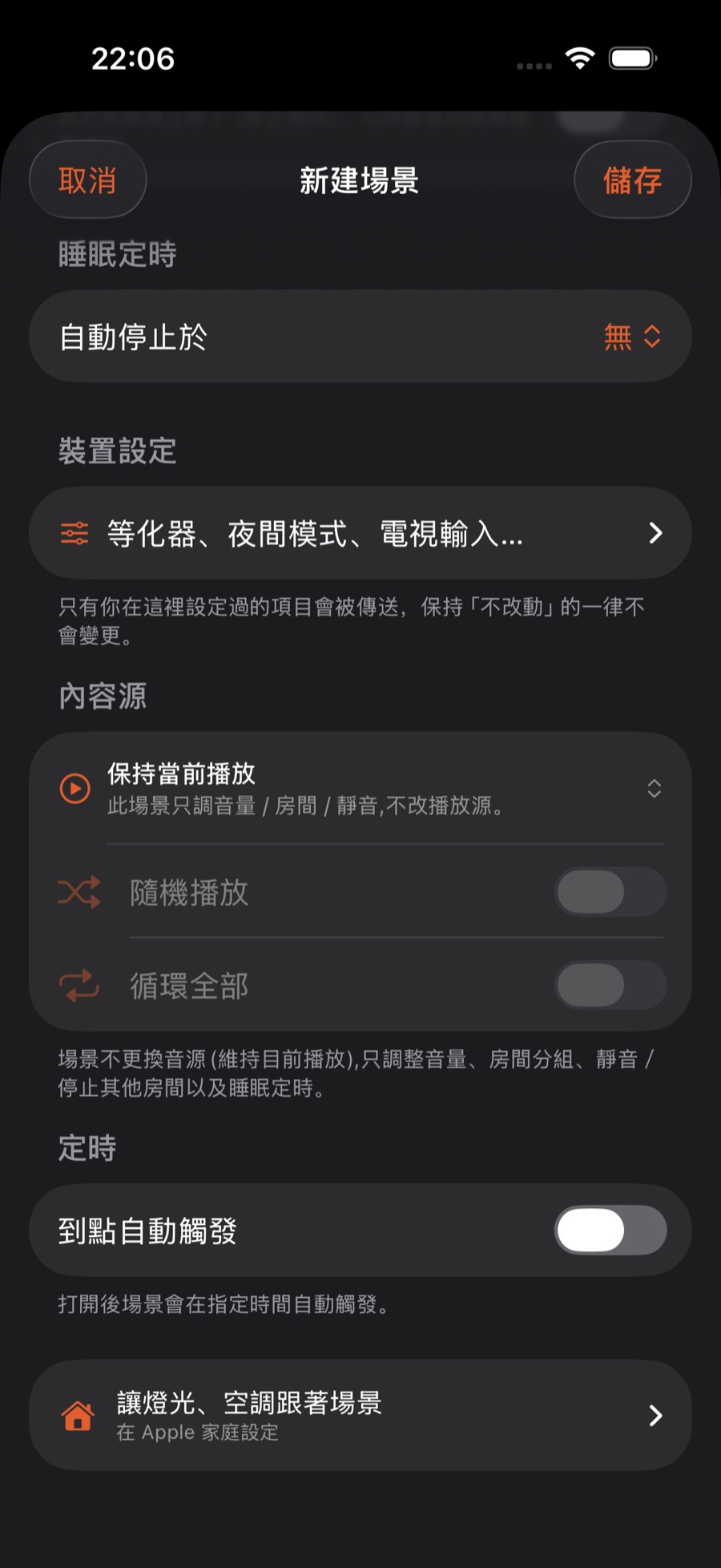
- 「音量」:场景运行时的音量。「音量」:場景執行時的音量。Volume: the volume the scene sets.
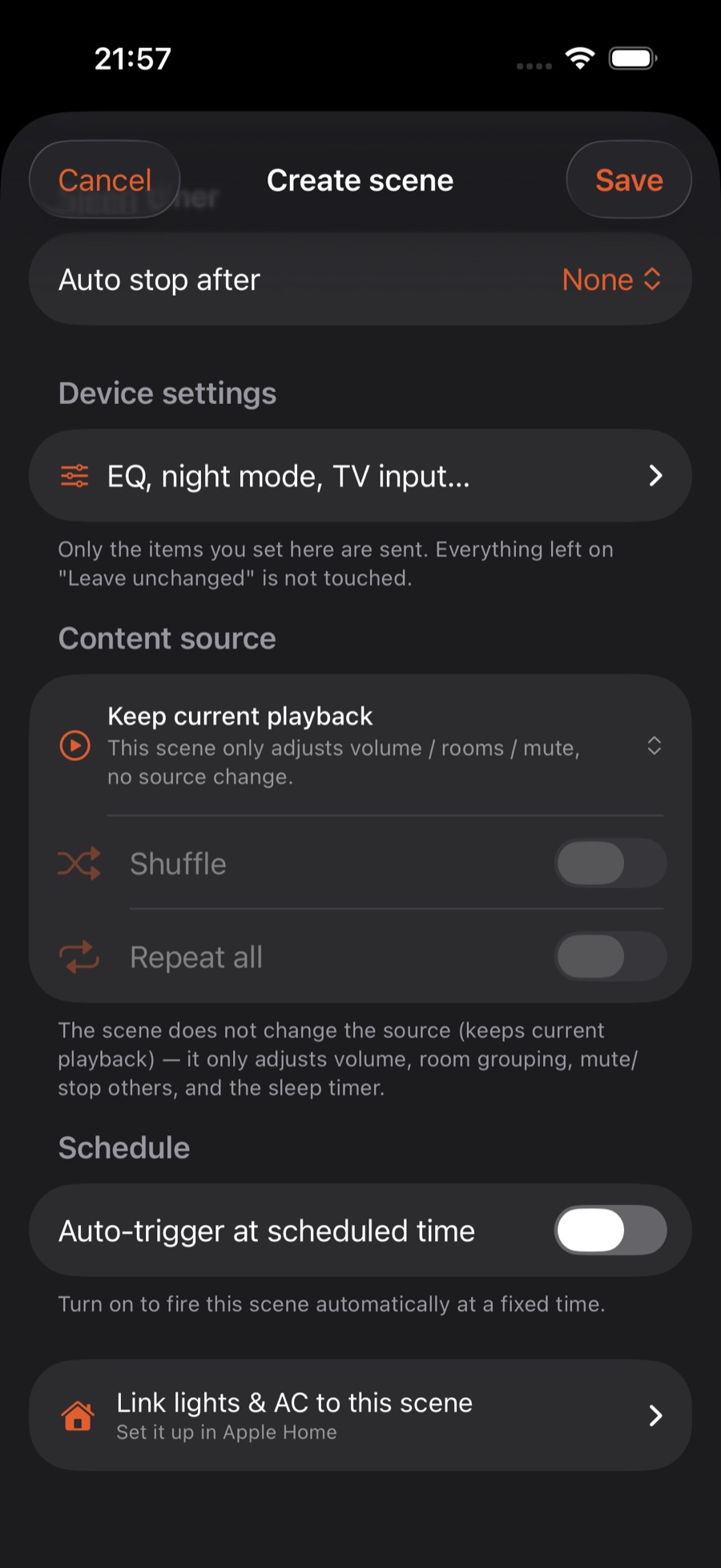
- 「静音其他房间」/「停止其他房间」:静音 = 其他房间还在播但没声音;停止 = 真的暂停。两个可以一起开,做「全屋安静」。「靜音其他房間」/「停止其他房間」:靜音 = 其他房間仍在播但沒有聲音;停止 = 真的暫停。兩個可以一起開,做成「全屋安靜」。Mute other rooms / Stop other rooms: mute keeps other rooms playing silently; stop actually pauses them. Turn both on for a "whole home quiet" scene.
- 「睡眠定时」:自动停止于 N 分钟。「睡眠定時」:自動停止於 N 分鐘。Sleep timer: auto stop after N minutes.
- 「设备设定」(均衡器、夜间模式、电视输入…):运行场景时顺便改音效、打开夜间模式、切到电视输入。「裝置設定」(等化器、夜間模式、電視輸入…):執行場景時順便改音效、開啟夜間模式、切換到電視輸入。Device settings (EQ, night mode, TV input…): change the sound, turn on night mode or switch to TV input as part of the scene.
- 「定时」:让它到点自动运行,见下一节。「定時」:讓它到點自動執行,見下一節。Schedule: run it automatically at a set time; see the next section.
保存后,场景就出现在「自动化」的「场景」一栏里,点一下就能运行。儲存後,場景就會出現在「自動化」的「場景」一欄裡,點一下就可以執行。Once saved, the scene appears in the Scenes row on Automations; tap it to run.
定时自动执行(不需要桥)定時自動執行(不需要橋接)Run it on a schedule (no bridge needed)
- 在场景编辑器里打开「定时」→「到点自动触发」,选时间和星期,或者选「仅触发一次」。在場景編輯器裡打開「定時」→「到點自動觸發」,選時間和星期,或者選「僅觸發一次」。In the scene editor, open Schedule → turn on Auto-trigger at scheduled time, then pick a time and days, or choose Fire only once.
- 定时由服务器按时执行:锁屏或关闭 App 也有效。定時由伺服器按時執行:鎖定畫面或關閉 App 也有效。The server runs it on time: it works even when your iPhone is locked or the app is closed.
- 设好的定时在「自动化 → 定时」一栏里看,会显示每天 / 工作日 / 周末 / 一次,以及上次运行的时间。設定好的定時在「自動化 → 定時」一欄裡查看,會顯示每天 / 平日 / 週末 / 一次,以及上次執行的時間。See your schedules in Automations → Schedules, shown as daily / weekdays / weekends / once, with the last time each one ran.
给家人用:简易模式給家人用:簡易模式For the family: Simple mode
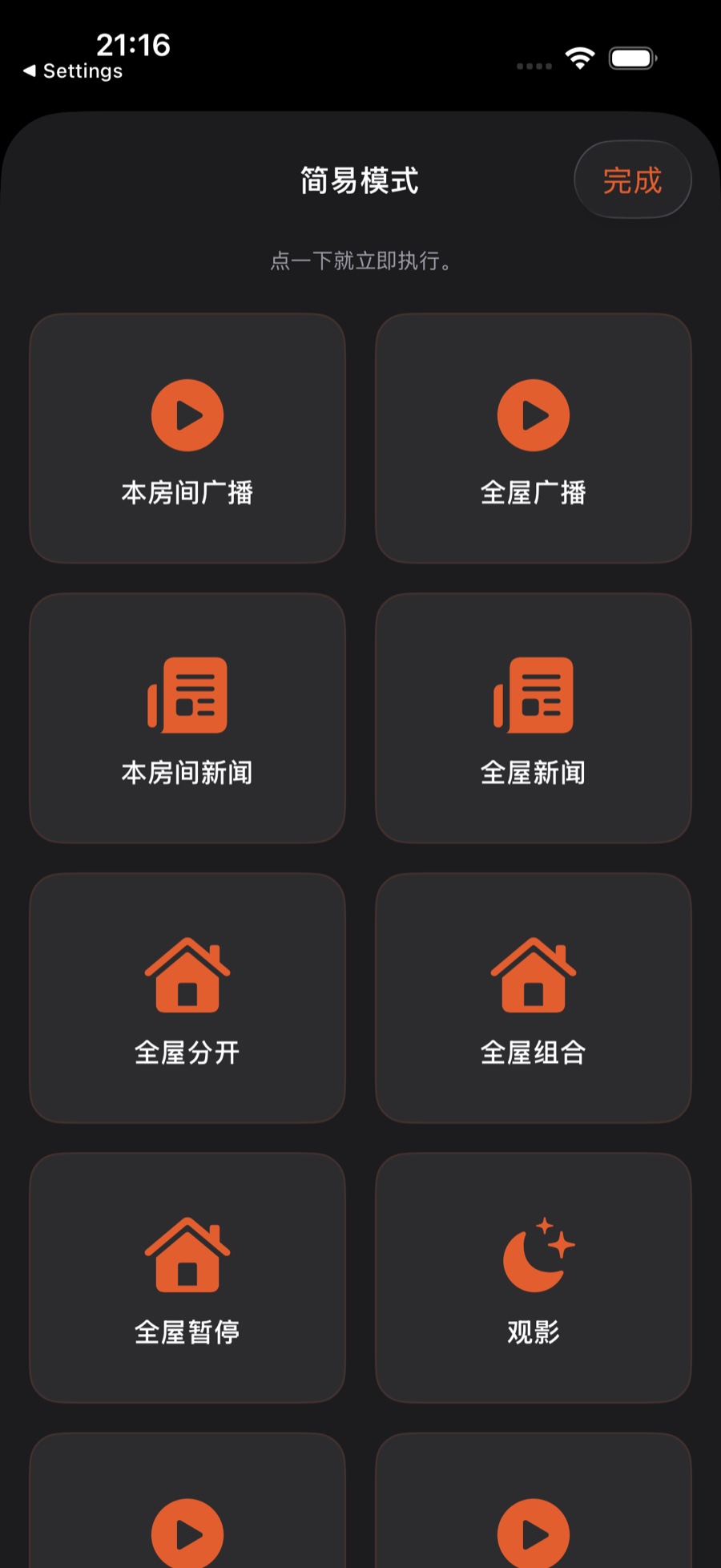
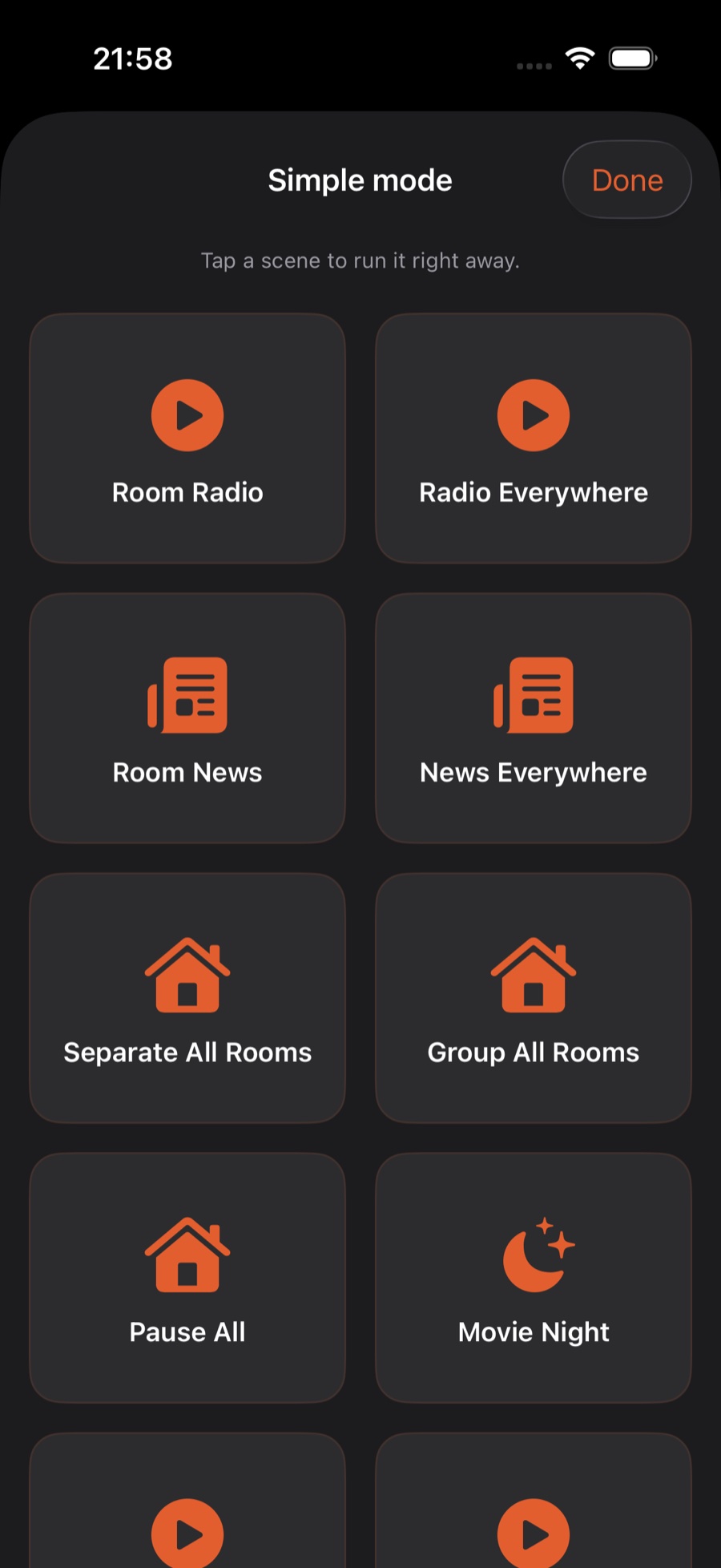
点「自动化」页右上角的九宫格图标 →「简易模式」:全部场景变成一屏大按钮,点一下就运行。首页「快捷执行」里也有一格「简易模式」。點「自動化」頁右上角的九宮格圖示 →「簡易模式」:全部場景變成一屏大按鈕,點一下就執行。首頁「快捷執行」裡也有一格「簡易模式」。Tap the grid icon at the top right of Automations → Simple mode: every scene becomes a big button on one screen, and one tap runs it. Quick Execution on Home also has a Simple mode tile.
不打开 App 也能运行不打開 App 也可以執行Run a scene without opening the app
- 控制中心:「自动化」→「Apple Home 与进阶」→「控制中心场景」,把场景放进控制中心,锁屏也按得到。不需要桥。控制中心:「自動化」→「Apple Home 與進階」→「控制中心場景」,把場景放進控制中心,鎖定畫面時也按得到。不需要橋接。Control Center: Automations → Apple Home & advanced → Control Center scene puts a scene in Control Center, reachable from the lock screen. No bridge needed.
- Siri:说「用 ZoneFoundry 执行〈场景名〉」。Siri:說「用 ZoneFoundry 執行場景〈場景名〉」。Siri: say "Run scene <scene name> in ZoneFoundry".
- 快捷指令:使用「执行场景」动作。捷徑:使用「執行場景」動作。Shortcuts: use the Run Scene action.
哪些情况需要家庭桥接哪些情況需要家庭橋接When you need the Bridge
场景和定时本身都不需要桥。只有下面几种情况要用到:場景和定時本身都不需要橋接。只有以下幾種情況要用到:Scenes and schedules themselves don't need the Bridge. Only these cases do:
- 内容源「保存当前队列」:队列内容存在桥上。內容源「儲存目前佇列」:佇列內容儲存在橋接上。The Save current queue content source: the queue is stored on the Bridge.
- 「白噪音」「钢琴音」:正常情况下会换成 Apple Music 上的白噪音 / 钢琴歌单播放,不需要桥;「Apple 喜爱歌曲」播的是你自己在 Apple Music 里标记喜爱的歌;只有没授权 Apple Music 时才会退回需要桥的做法,编辑器底部会提示「注:此内容源目前需要桥接在线才可执行。」「白噪音」「鋼琴音」:一般情況下會換成 Apple Music 上的白噪音/鋼琴歌單播放,不需要橋接;「Apple 喜愛歌曲」播的是你自己在 Apple Music 標記喜愛的歌曲;只有未授權 Apple Music 時才會退回需要橋接的做法,編輯器底部會顯示「註:此內容源目前需要橋接在線才可執行。」White noise and Piano: normally these switch to Apple Music's white-noise / piano playlists and need no bridge. Apple Favorite Songs plays the songs you have loved in Apple Music. Only if Apple Music isn't authorized do they fall back to a method that needs the Bridge, and the bottom of the editor says "Note: this content source currently requires the Bridge to be online."
- 「让灯光、空调跟着场景」(Apple 家庭联动),见把场景和你的灯、空调连成一键。「讓燈光、空調跟著場景」(Apple 家庭聯動),見把場景和你的燈、空調連成一鍵。Link lights & AC to this scene (Apple Home), see Link a scene with your lights & AC.
除此之外,全部不需要桥。除此之外,全部不需要橋接。Everything else works without it.
常见问题常見問題FAQ
点场景没反应,或者播错了房间?點場景沒有反應,或者播錯了房間?Tapping a scene does nothing, or it plays in the wrong room?
看场景的「房间」有没有留空:留空就用首页右上角那个房间。想固定房间,就在场景里选好。看場景的「房間」有沒有留空:留空就會用首頁右上角那個房間。想固定房間,就在場景裡選好。Check whether the scene's Rooms is empty: if so, it uses the room at the top right of Home. To always use the same rooms, pick them in the scene.
定时没触发?定時沒有觸發?A schedule didn't fire?
确认已登录 Sonos 账户,并且「到点自动触发」是打开的。定时由服务器执行,跟手机开不开 App 无关。確認已登入 Sonos 帳戶,並且「到點自動觸發」已開啟。定時由伺服器執行,與手機有沒有打開 App 無關。Make sure you're signed in to your Sonos account and Auto-trigger at scheduled time is on. Schedules are run by the server, whether or not the app is open.
我改了房间名,场景还认得吗?我改了房間名,場景還認得嗎?I renamed a room. Will my scenes still recognise it?
场景、定时、收藏、新闻计划会一起改名。如果「自动化」页显示「房间已不存在:X — 点一下重新选择房间」,点它重新选就行。場景、定時、收藏、新聞計劃會一起改名。如果「自動化」頁顯示「房間已不存在:X — 請點一下重新選擇房間」,點它重新選擇就可以。Scenes, schedules, favorites and news plans are renamed along with it. If Automations shows "Room no longer exists: X — tap to pick a room", tap it and choose again.
新闻 / 广播场景选不到内容?新聞 / 廣播場景選不到內容?Nothing to pick for a news or broadcast scene?
先去「助手 → 新闻 / 广播」建预设,再回来选。先到「助手 → 新聞 / 廣播」建立預設,再回來選擇。Create a preset under Assistant → News / Broadcast first, then come back and pick it.
常用的一套设置,存成一键常用的一套設定,存成一鍵Your usual setup, saved as one tap
房间、音量、播什么,在 ZoneFoundry 里存成一个场景,点一下或到点自动运行。它是一个 iOS App,直接连你现在的 Sonos。房間、音量、播甚麼,在 ZoneFoundry 裡存成一個場景,點一下或到點自動執行。它是一個 iOS App,直接連接你現在的 Sonos。Rooms, volume and what to play, saved as one scene in ZoneFoundry, run with a tap or on a schedule. It's an iOS app that works with your existing Sonos.
下一步下一步Next
把场景和你的灯、空调连成一键(需要家庭桥接)→把場景和你的燈、空調連成一鍵(需要家庭橋接)→Link a scene with your lights & AC (needs the Bridge) →
一键自动化预设:起床、离家、定时场景 →一鍵自動化預設:起床、離家、定時場景 →One-tap automation presets →
先选房间,再点圆圈:Sonos 多房间控制的两个基本动作 →先選房間,再點圓圈:Sonos 多房間控制的兩個基本動作 →Pick a room, then tap the circle: multi-room Sonos control →
登录 Sonos 账号:解锁搜歌、语音和场景 →登入 Sonos 賬號:解鎖搜歌、語音和場景 →Signing in to Sonos: unlock search, voice and scenes →
← 返回所有教程← 返回所有教程← Back to all guides