
两件事先记住先記住兩件事Two things to remember
- 右上角的房间名 = 音乐和音量去的地方。播歌、调音量、语音点歌,默认都对这个房间。右上角的房間名 = 音樂和音量去的地方。播歌、調音量、語音點歌,預設都是對這個房間。The room name at the top right is where music and volume go. Playing, volume and voice requests all target that room by default.
- 「房间」页里的圆圈 = 要不要跟它一起播。打勾就加入正在播放的那一组,再点一下就移出。「房間」頁裡的圓圈 = 要不要跟它一起播。打勾就加入正在播放的那一組,再點一下就移出。The circles on the Rooms tab decide who plays along. Tick one to join the group that's playing; tap it again to take the room out.
开始前你需要開始前你需要Before you start
- 手机和 Sonos 音箱在同一个 Wi-Fi 下。选房间、分组不需要登录,也不需要桥。手機和 Sonos 喇叭在同一個 Wi-Fi 下。選房間、分組不需要登入,也不需要橋接。Your phone and Sonos speakers on the same Wi-Fi. Picking rooms and grouping need no sign-in and no bridge.
- 想用语音、微信或 AI 说「把音乐移到厨房」这类话,需要已登录 Sonos 账户(同样不需要桥)。想用語音、微信或 AI 說「把音樂移到廚房」這類話,需要已登入 Sonos 帳戶(同樣不需要橋接)。To say things like "move the music to the kitchen" by voice, WeChat or AI, you need to be signed in to your Sonos account (still no bridge).
步骤步驟Steps
选在哪个房间播選在哪個房間播Pick the room to play in
- 「首页」「搜索」「助手」三个页面的右上角都有一个房间名(胶囊形按钮)。点它,选一个房间。「首頁」「搜尋」「助手」三個頁面的右上角都有一個房間名(膠囊形按鈕)。點它,選一個房間。The top right of Home, Search and Assistant shows a room name in a capsule-shaped button. Tap it and pick a room.
- 或者打开底部「房间」tab,点一下房间那一行,它就变成当前房间。或者打開底部「房間」分頁,點一下房間那一行,它就會變成目前的房間。Or open the Rooms tab at the bottom and tap a room's row to make it the current room.
- 长按房间 →「设为默认」:以后打开 App、没指定房间的指令,都去这个房间。長按房間 →「設為預設」:以後打開 App、沒有指定房間的指令,都會去這個房間。Long-press a room → Set as default: from then on, opening the app and any command that doesn't name a room go to this room.
点圆圈,让多个房间一起播點圓圈,讓多個房間一起播Tap a circle to play rooms together
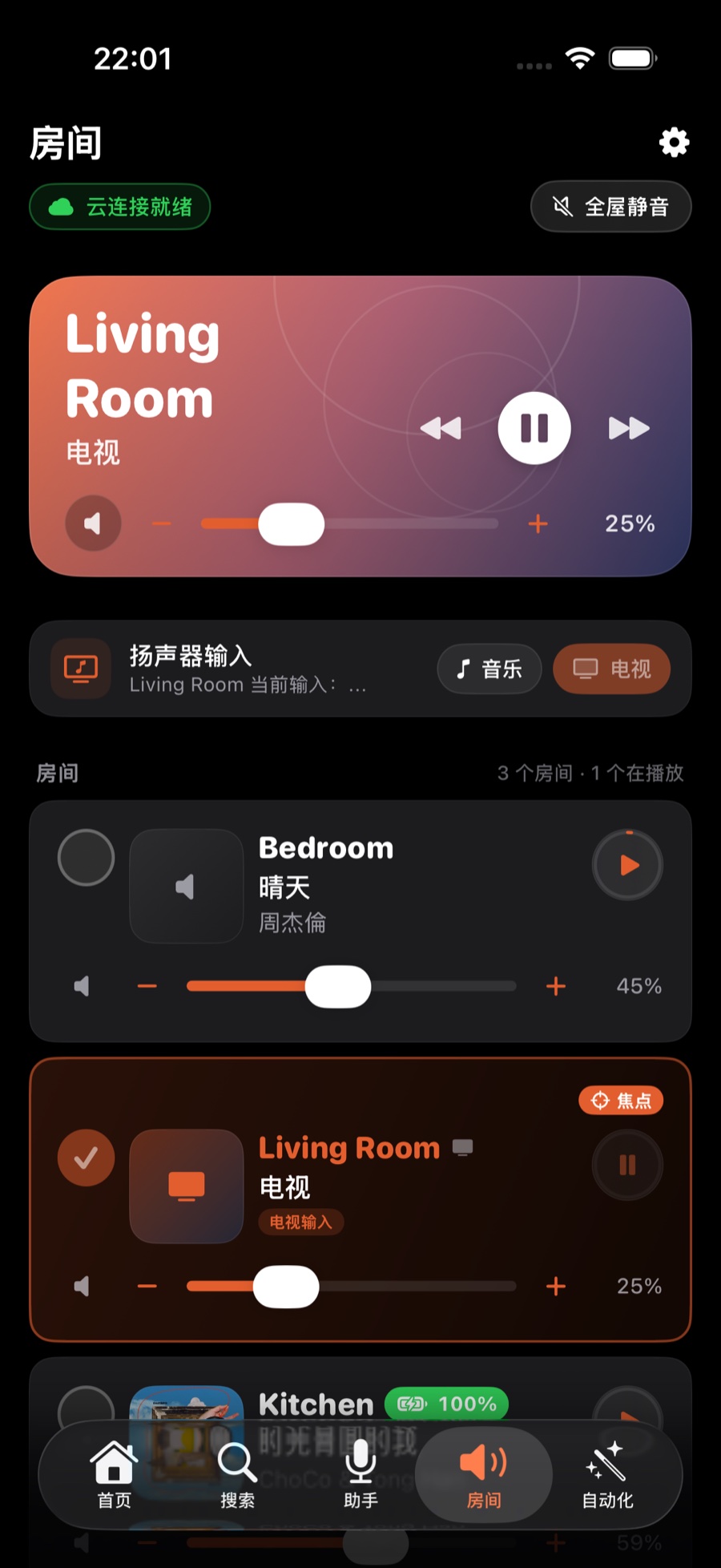
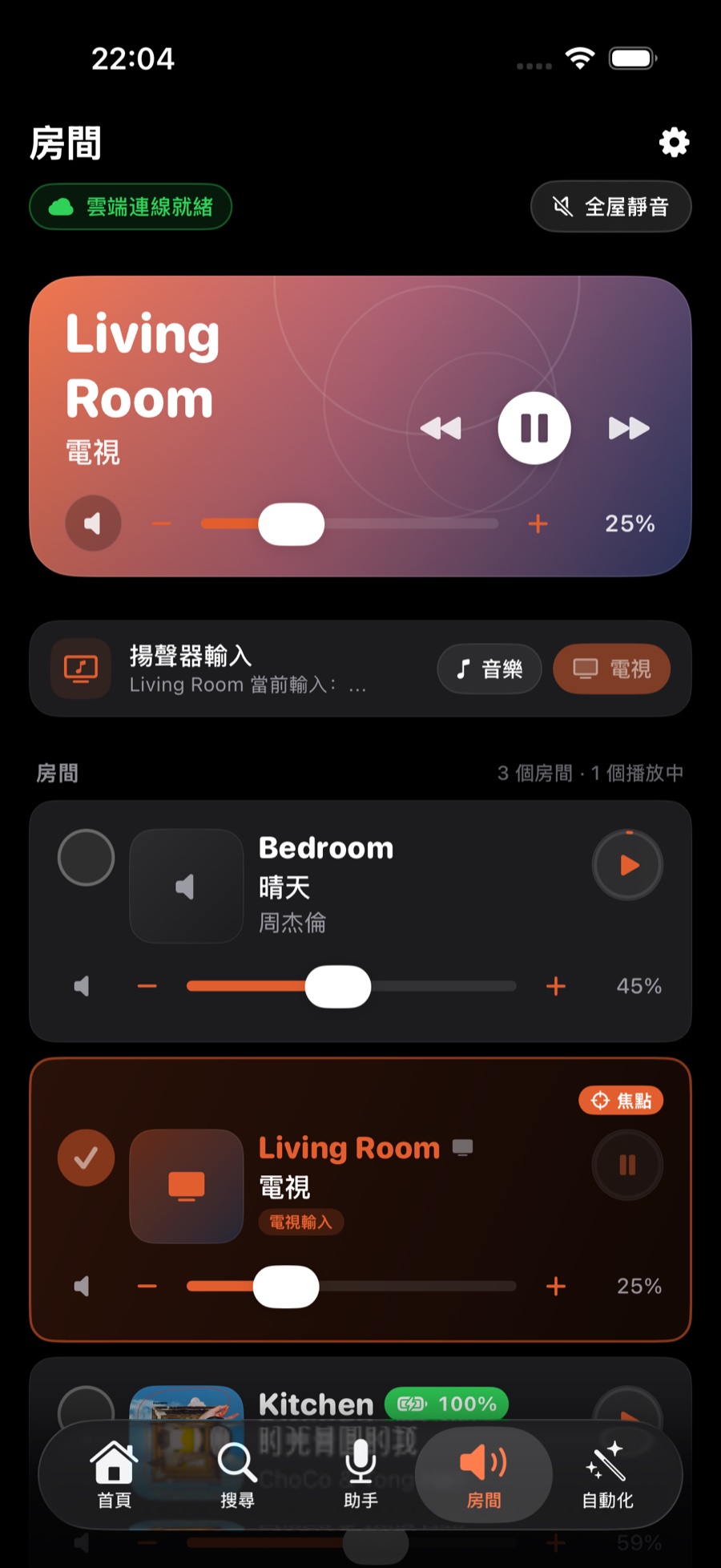
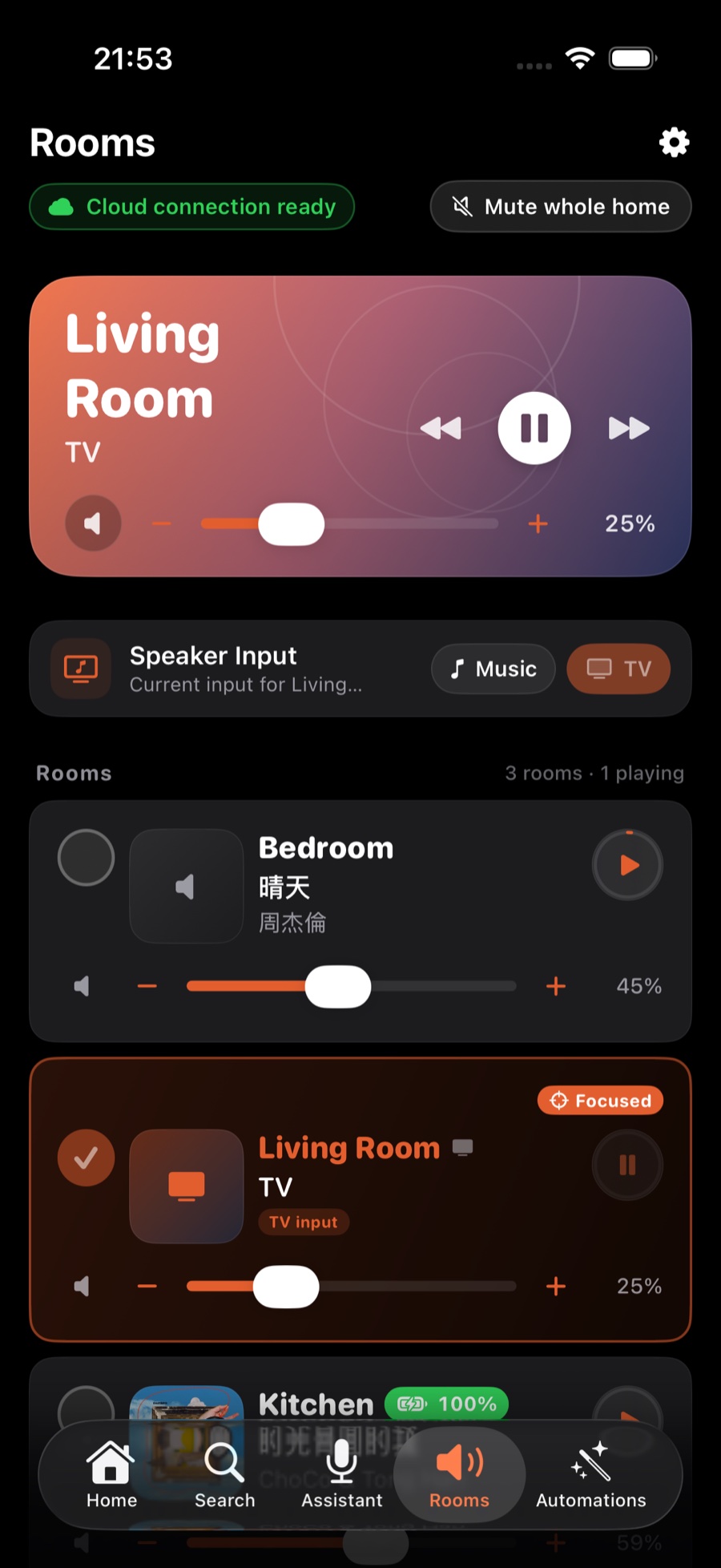
打开「房间」tab,每个房间那一行最左边都有一个圆圈:打開「房間」分頁,每個房間那一行最左邊都有一個圓圈:Open the Rooms tab. Every room's row has a circle at its far left:
- 空心圆 = 没在这一组。点一下,加入正在播放的组,圆圈打勾,并提示「已加入分组」。空心圓 = 不在這一組。點一下,加入正在播放的組,圓圈打勾,並顯示「已加入分組」。Empty circle: not in this group. Tap it to join the group that's playing; the circle gets a tick and you'll see "Joined the group".
- 打勾 = 在组里。再点一下,移出这一组,并提示「已退出分组」。打勾 = 在組裡。再點一下,移出這一組,並顯示「已退出分組」。Ticked: in the group. Tap again to take it out; you'll see "Left the group".
当前房间的圆圈一直是打勾、点不动:它就是这一组的中心。想让它退出,先点另一个房间,把那个房间设成当前房间,再点原来那个房间的圆圈。目前房間的圓圈一直是打勾、點不動:它就是這一組的中心。想讓它退出,先點另一個房間,把那個房間設為目前房間,再點原來那個房間的圓圈。The current room's circle always stays ticked and can't be tapped: it's the centre of the group. To take it out, tap another room to make that the current room, then tap the original room's circle.
长按一个在组里的房间,也可以选「离开分组」。「房间」页右上角还有「全屋静音」,一下让所有房间静音。長按一個在組裡的房間,也可以選「離開分組」。「房間」頁右上角還有「全屋靜音」,一下子讓所有房間靜音。You can also long-press a grouped room and choose Leave group. The top right of the Rooms tab has Mute whole home, which mutes every room at once.
分组后怎么调音量分組後怎樣調音量Setting volume for a group
- 底部播放条上有一个分组音量图标(显示组里有几个房间)。点开是「分组音量」:可以整组一起调,也可以逐个房间调。底部播放列上有一個分組音量圖示(顯示組裡有幾個房間)。點開是「分組音量」:可以整組一起調,也可以逐個房間調。The playback bar at the bottom has a group volume icon showing how many rooms are in the group. Tap it to open Group volume, where you can move the whole group together or set each room on its own.
- 在底部播放条上往上滑,可以一次看到所有房间在播什么。在底部播放列上向上掃,可以一次看到所有房間在播甚麼。Swipe up on the playback bar to see what every room is playing at once.
长按房间还能做什么長按房間還可以做甚麼More on long-press
- 重命名:新名字在 Sonos 官方 App 里也会同步显示。改名:新名字在 Sonos 原廠 App 裡也會同步顯示。Rename: the new name shows up in the official Sonos app too.
- 音效:低音、高音、响度;回音壁还有夜间模式、人声增强。音效:低音、高音、響度;Soundbar 還有夜間模式、人聲增強。Sound: Bass, Treble and Loudness; soundbars also have Night Mode and Speech Enhancement.
- 设为默认、聚焦此房间(设为当前房间)、离开分组。設為預設、聚焦此房間(設為目前房間)、離開分組。Set as default, Focus room (make it the current room) and Leave group.
用一句话做(需要登录 Sonos 账户)用一句話做(需要登入 Sonos 帳戶)Do it with one sentence (Sonos account sign-in needed)
在「助手」(语音或打字)、微信 / QQ / Telegram、Claude / ChatGPT 里都可以这样说,不需要桥:在「助手」(語音或打字)、微信 / QQ / Telegram、Claude / ChatGPT 裡都可以這樣說,不需要橋接:You can say these in the Assistant (voice or typing), WeChat / QQ / Telegram, or Claude / ChatGPT, with no bridge:
| 想做想做To | 可以这样说可以這樣說Say | 效果效果What happens |
|---|---|---|
| 把音乐转到另一个房间把音樂轉到另一個房間Move the music to another room | 「把音乐移到卧室」「音乐跟我去厨房」「把音乐从客厅转到卧室」「把音樂移到臥室」「音樂跟我去廚房」「把音樂從客廳轉到臥室」"Move the music to the kitchen" | 先把目标房间加进组,再把原来的房间移出,音乐不中断先把目標房間加入組,再把原來的房間移出,音樂不中斷The target room joins the group first, then the original room is removed, so the music keeps playing |
| 全屋一起播全屋一起播Play everywhere | 「所有房间一起播放」「全屋合并」「所有房間一起播放」「全屋合併」"Play in all rooms together" | 把所有房间并到当前房间把所有房間併入目前房間Every room joins the current room |
| 全部拆开全部拆開Split everything | 「全部解组」「全部解組」"Ungroup all rooms" | 每个房间回到独立每個房間回到獨立Every room goes back to playing on its own |
一定要说「音乐」或「歌」。「把音乐移到卧室」会转房间;「移到电视」会被理解成切到电视输入,不是转房间。一定要說「音樂」或「歌」。「把音樂移到臥室」會轉房間;「移到電視」會被理解為切換到電視輸入,不是轉房間。Always say "music" or "song". "Move the music to the bedroom" moves rooms; "move to the TV" is taken as switching to TV input, not moving rooms.
想一键回到常用组合?用场景想一鍵回到常用組合?用場景Want a combination back in one tap? Use a scene
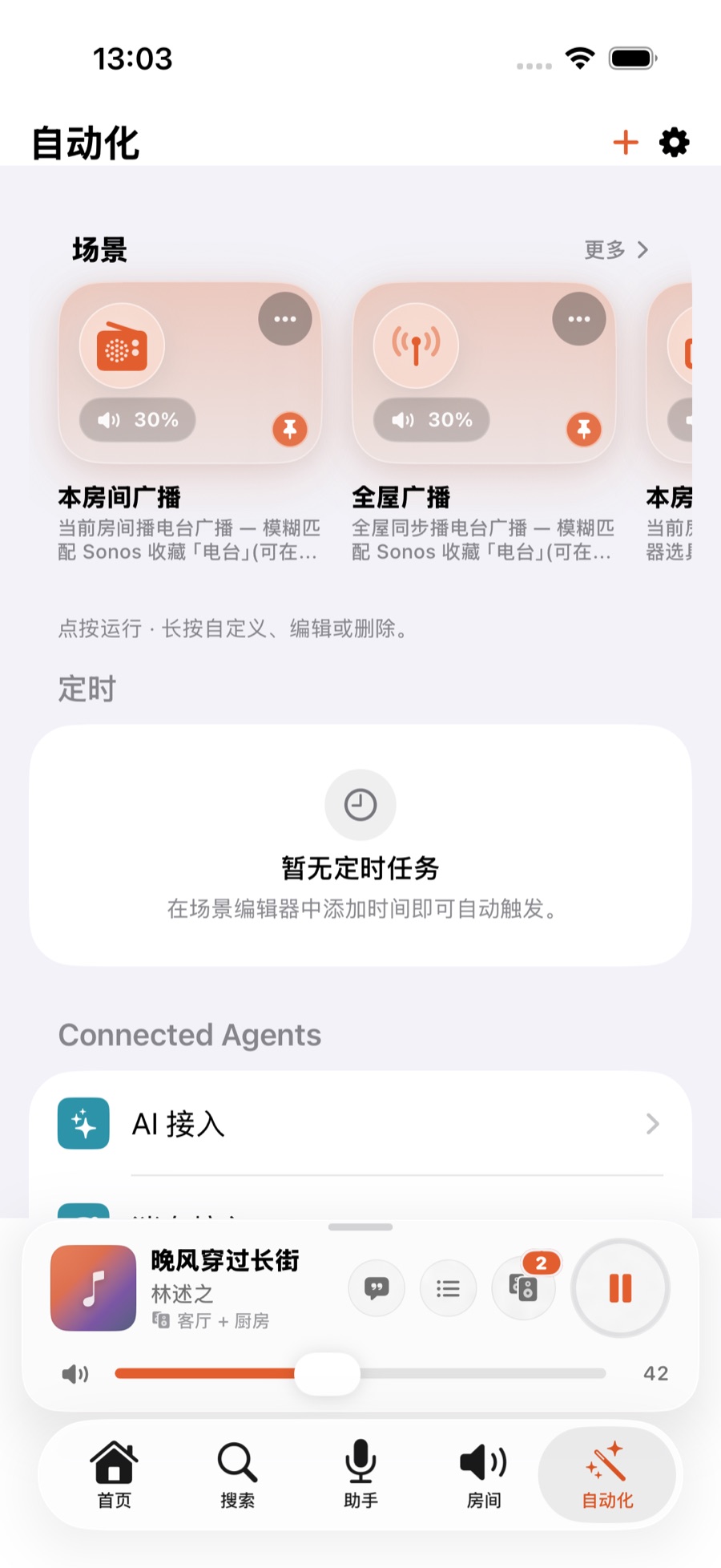
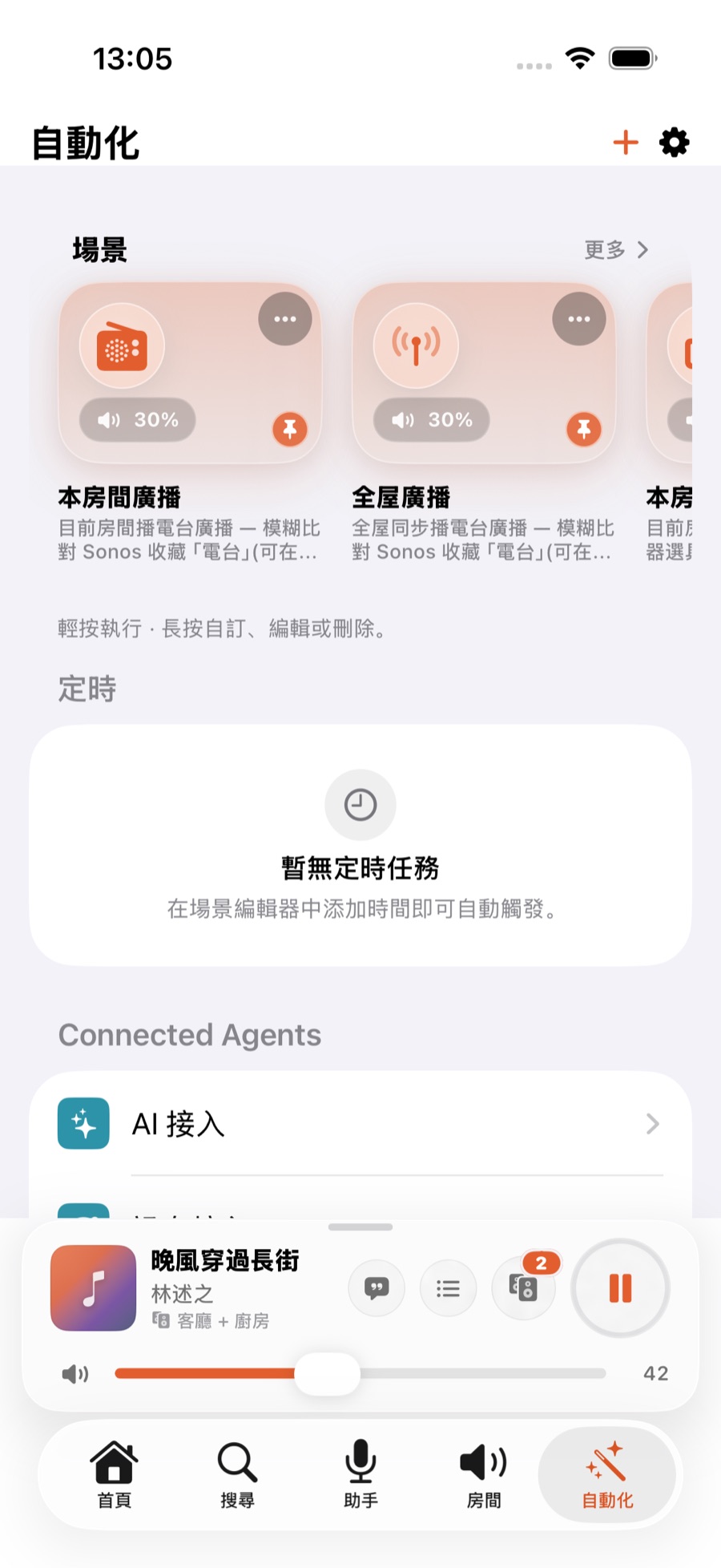
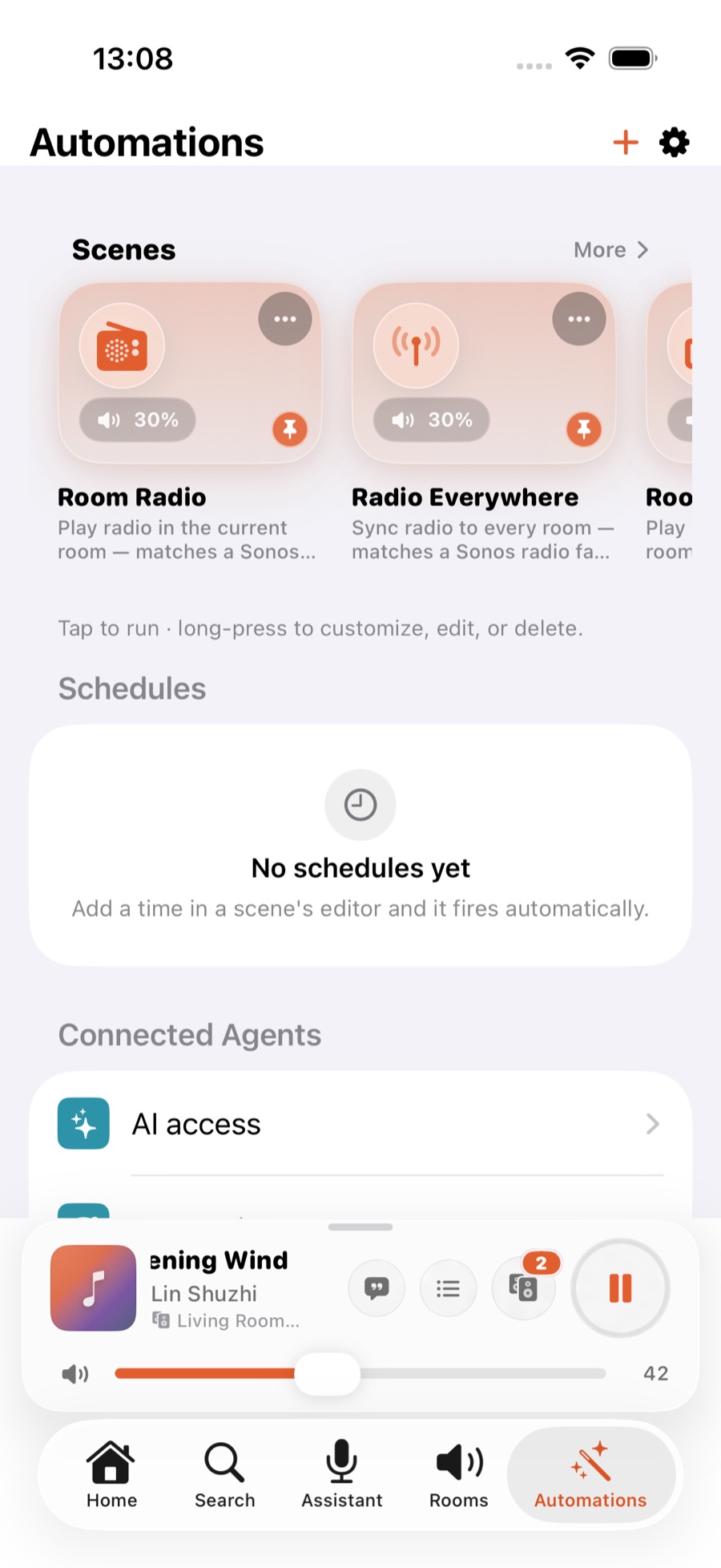
一个场景 = 在哪些房间 + 多大音量 + 播什么,点一下一次做完,也可以定时自动执行。在底部「自动化」tab 右上角点 + →「新建场景」。场景需要登录 Sonos 账户,不需要桥。详细做法见场景:把房间、音量和音乐存成一键。一個場景 = 在哪些房間 + 多大音量 + 播甚麼,點一下一次做完,也可以定時自動執行。在底部「自動化」分頁右上角點 + →「新建場景」。場景需要登入 Sonos 帳戶,不需要橋接。詳細做法見場景:把房間、音量和音樂存成一鍵。A scene is which rooms + how loud + what to play, done in one tap, and it can also run on a schedule. On the Automations tab, tap + at the top right → Create scene. Scenes need a Sonos account sign-in, not a bridge. Full walkthrough: Scenes: save rooms, volume and music as one tap.
提示:想让灯光、空调跟着场景一起动,要用 Apple「家庭」联动,这一步需要家庭桥接。见把场景和你的灯、空调连成一键。提示:想讓燈光、空調跟著場景一起動,要用 Apple「家庭」聯動,這一步需要家庭橋接。見把場景和你的燈、空調連成一鍵。Tip: To bring lights and AC along with a scene, you link it through Apple Home, and that part needs the ZoneFoundry Bridge. See Link a scene with your lights & AC.
常见问题常見問題FAQ
为什么我调了音量,响的不是我面前这个房间?為甚麼我調了音量,變大聲的不是我面前這個房間?Why does the volume change in a different room from the one I'm in?
看右上角:音量调的一定是那个房间(分组时是那一组)。先把右上角换成你面前的房间。看右上角:音量調的一定是那個房間(分組時是那一組)。先把右上角換成你面前的房間。Check the top right: volume always follows that room (or its whole group, if grouped). Switch it to the room in front of you first.
当前房间的圆圈为什么点不掉?目前房間的圓圈為甚麼取消不了?Why can't I untick the current room's circle?
它是这一组的中心。先点另一个房间让它变成当前房间,再点原来那个。它是這一組的中心。先點另一個房間,讓那個房間變成目前房間,再點原來那個。It's the centre of the group. Tap another room to make that the current room, then tap the original one.
圆圈是灰的、点不动?圓圈變淡、點不動?A circle is faded and won't respond?
可能正在处理上一个操作,等一两秒;也可能这个房间现在连不上(离线,或者不在同一个 Wi-Fi)。可能正在處理上一個操作,等一兩秒;也可能這個房間現在連不上(離線,或者不在同一個 Wi-Fi)。The previous action may still be in progress, so wait a second or two. Or the room can't be reached right now (offline, or not on the same Wi-Fi).
分组后歌会从头开始吗?分組後歌會從頭開始嗎?Does the song start over when I group rooms?
不会。新加入的房间跟着组里正在播的内容同步播放。不會。新加入的房間會跟著組裡正在播的內容同步播放。No. A room that joins plays in sync with whatever the group is already playing.
可以把房间拖到一起分组吗?可以把房間拖到一起分組嗎?Can I drag rooms together to group them?
不可以,ZoneFoundry 没有拖动分组。分组就是在「房间」页点圆圈。不可以,ZoneFoundry 沒有拖動分組。分組就是在「房間」頁點圓圈。No, ZoneFoundry has no drag-to-group. To group, tap the circles on the Rooms tab.
分组这件事,说一句就行分組這件事,講一句就行Grouping rooms can be one sentence
「客厅和主卧一起播」——在 ZoneFoundry 里就是一句话,不用逐个房间点进去配对。它是一个 iOS App,直接连你现在的 Sonos,不需要额外硬件。「客廳和主人房一齊播」——在 ZoneFoundry 裏就是一句話,不用逐個房間點進去配對。它是一個 iOS App,直接連你現在的 Sonos,不需要額外硬件。“Play the living room and bedroom together” is a single sentence in ZoneFoundry — no tapping through rooms one by one. It is an iOS app that works with your existing Sonos, no extra hardware needed.



下一步下一步Next
场景:把房间、音量和音乐存成一键 →場景:把房間、音量和音樂存成一鍵 →Scenes: save rooms, volume and music as one tap →
Sonos 分组失败:加不进去,或者加进去没声音 →Sonos 分組失敗:加不進去,或者加進去沒聲音 →Sonos grouping not working: rooms won't join, or play silence →
← 回到 10 分钟上手← 回到 10 分鐘上手← Back to Your first 10 minutes
← 返回所有教程← 返回所有教程← Back to all guides