开始前你需要開始前你需要Before you start
- 已经在用的 Sonos 音箱(用官方 App 设置过、连着家里 Wi-Fi)已經在用的 Sonos 音箱(用官方 App 設置過、連着家裏 Wi-Fi)Sonos speakers already set up with the official app and on your home Wi-Fi
- 从 App Store 装好 ZoneFoundry 的 iPhone 或 iPad由 App Store 裝好 ZoneFoundry 的 iPhone 或 iPadAn iPhone or iPad with ZoneFoundry installed from the App Store
- 你的 Sonos 账号(就是官方 App 用的那个;没有的话在官方 App 里注册一个)你的 Sonos 賬號(就是官方 App 用的那個;沒有的話在官方 App 裏註冊一個)Your Sonos account — the same one the official app uses (create one there if you don't have it)
还没有 Sonos,或者想先看看?在引导的 Sonos 登录页点「没有 Sonos?先看演示」,App 会用示例数据带你看一遍首页、房间和播放页,不会碰到任何真实音箱。想离开演示,在首页顶部点「连接真实 Sonos」。還沒有 Sonos,或者想先看看?在引導的 Sonos 登入頁按「未有 Sonos?先睇示範」,App 會用示例資料帶你看一遍首頁、房間和播放頁,不會碰到任何真實音箱。想離開示範,在首頁頂部按「連接真實 Sonos」。No Sonos yet, or just curious? On the Sonos sign-in step of onboarding, tap "No Sonos yet? See the demo". The app walks you through Home, Rooms and Now Playing with sample data and never touches real speakers. To leave the demo, tap "Connect real Sonos" at the top of Home.
步骤步驟Steps
打开 App,选好语言和外观打開 App,選好語言和外觀Open the app and pick your language
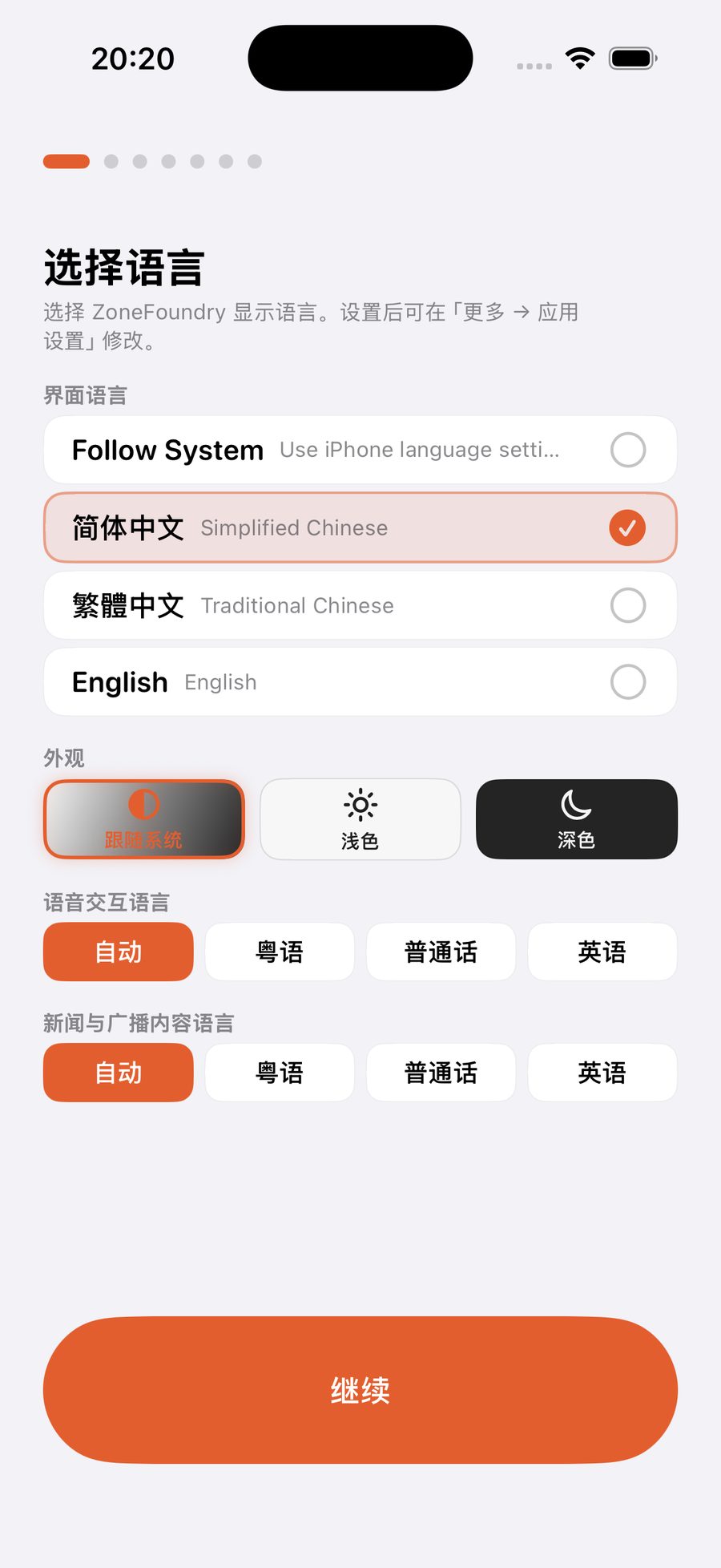
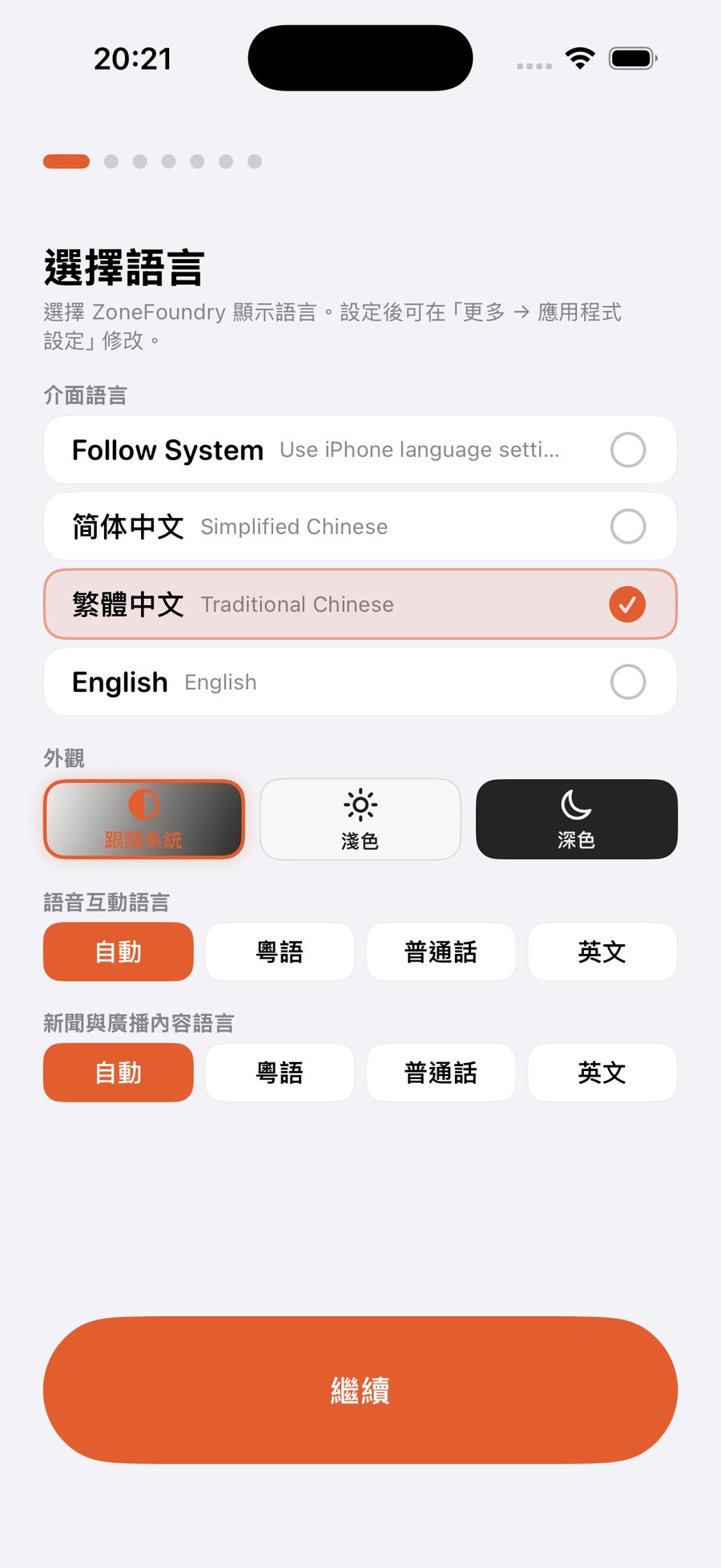
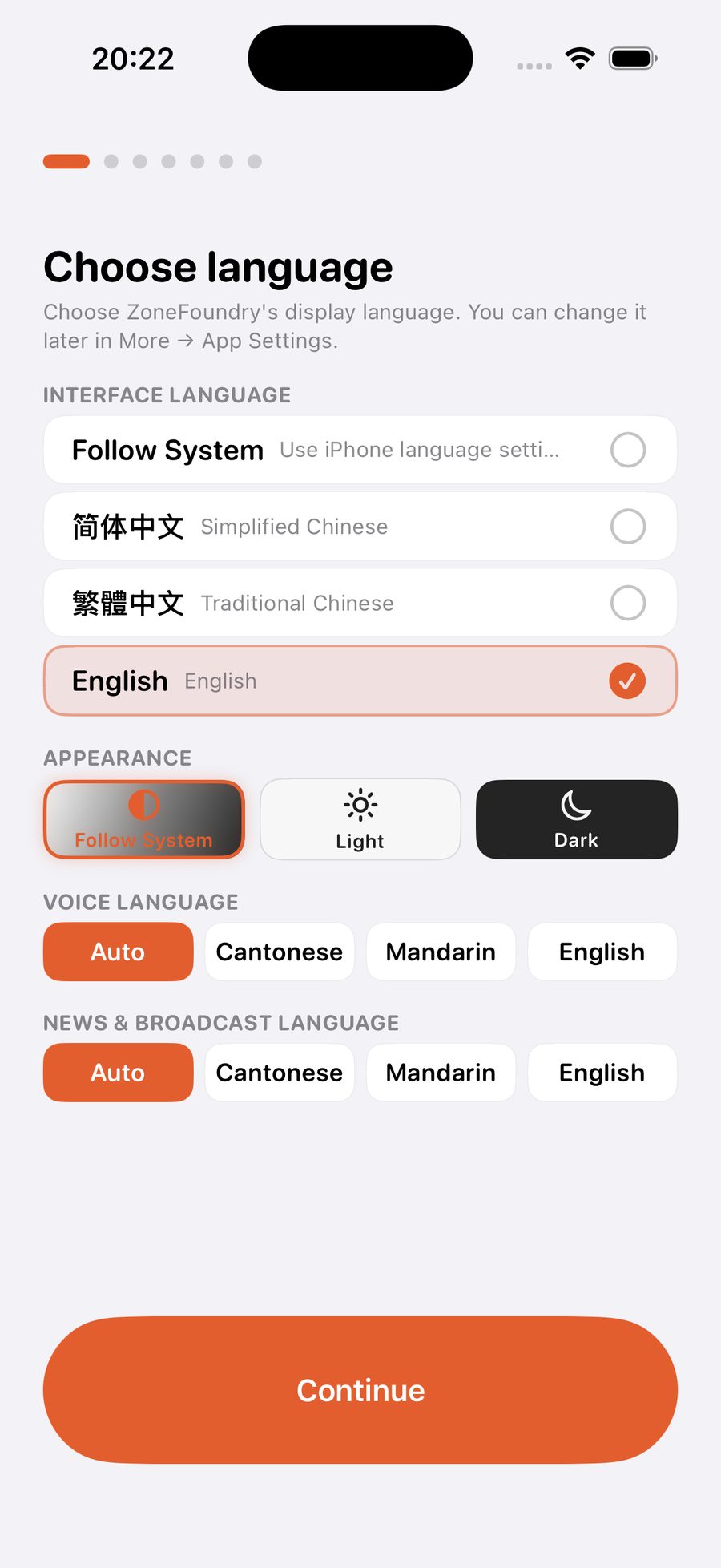
第一屏就是语言:界面语言(简体 / 繁体 / English)、深浅外观、语音交互用什么话(粤语 / 普通话 / 英语)、新闻广播念什么话——全部以后都能在「设置」里改,先按直觉选就行。第一屏就是語言:介面語言(簡體 / 繁體 / English)、深淺外觀、語音交互用什麼話(粵語 / 普通話 / 英語)、新聞廣播念什麼話——全部以後都能在「設置」裡改,先按直覺選就行。The first screen is all about language: interface language (Simplified / Traditional Chinese / English), light or dark look, which language you'll speak to the assistant (Cantonese / Mandarin / English) and which one news briefings use. Everything can be changed later in Settings — just go with your gut.
欢迎页和权限页:记得允许「本地网络」歡迎頁和權限頁:記得允許「本地網絡」Welcome and permissions: be sure to allow Local Network
选完语言会先看到一页欢迎介绍,接着是权限页。权限页列着麦克风(语音点歌用)、通知和本地网络三项,下面是「全部授权」和「稍后再说」两个按钮。点「全部授权」只会弹出麦克风和通知的系统询问,不想给的在弹窗里拒绝就行。本地网络要等 App 第一次搜索音箱时,系统才会弹窗询问能否查找本地网络上的设备,这时一定要点「允许」,否则找不到你家音箱。選完語言會先看到一頁歡迎介紹,接着是權限頁。權限頁列出麥克風(語音點歌用)、通知和本地網絡三項,下面是「全部授權」和「稍後再說」兩個按鈕。按「全部授權」只會彈出麥克風和通知的系統詢問,不想授權的在彈窗裏拒絕就可以。本地網絡要等 App 第一次搜尋音箱時,系統才會彈窗詢問可否尋找本地網絡上的裝置,這時一定要按「允許」,否則找不到你家音箱。After the language screen comes a short welcome page, then permissions. The permissions page lists the microphone (for voice), notifications and Local Network, with two buttons below: "Grant all" and "Skip for now". "Grant all" only brings up the system prompts for the microphone and notifications — decline anything you don't want there. iOS asks about Local Network the first time the app looks for your speakers, asking whether it may find devices on your local network. Tap Allow then, or your speakers can't be found.
登录 Sonos 账号——最重要的一步登入 Sonos 賬號——最重要的一步Sign in to Sonos — the step that unlocks everything
点「连接 Sonos」,会打开 Sonos 官方的登录页,输入你平时用官方 App 的那个账号密码,授权后自动跳回来。网络慢时登录页可能要等上一分钟;如果授权后没有跳回,回到 App 点「已经登录过了?刷新状态」。登录以后,云端搜歌、语音点歌、场景、全屋广播这些能力就全部解锁了——不用装任何别的东西(搜歌还要先连上你的音乐服务,见下文)。按「連接 Sonos」,會打開 Sonos 官方的登入頁,輸入你平時用官方 App 的那個帳戶密碼,授權後自動跳回來。網絡慢時登入頁可能要等上一分鐘;如果授權後沒有跳回,回到 App 按「已經登入咗?重新整理狀態」。登入之後,雲端搜歌、語音點歌、場景、全屋廣播這些能力就全部解鎖了——不用裝任何其他東西(搜歌還要先連接你的音樂服務,見下文)。Tap "Connect Sonos" and the official Sonos sign-in page opens. Use the same account and password as the official app; after authorizing it jumps straight back. On a slow connection the page can take up to a minute; if it doesn't jump back after you authorize, return to the app and tap "Already signed in? Refresh status". Once signed in, cloud music search, voice control, scenes and whole-home announcements are all unlocked — nothing else to install (search also needs your music services linked; see below).
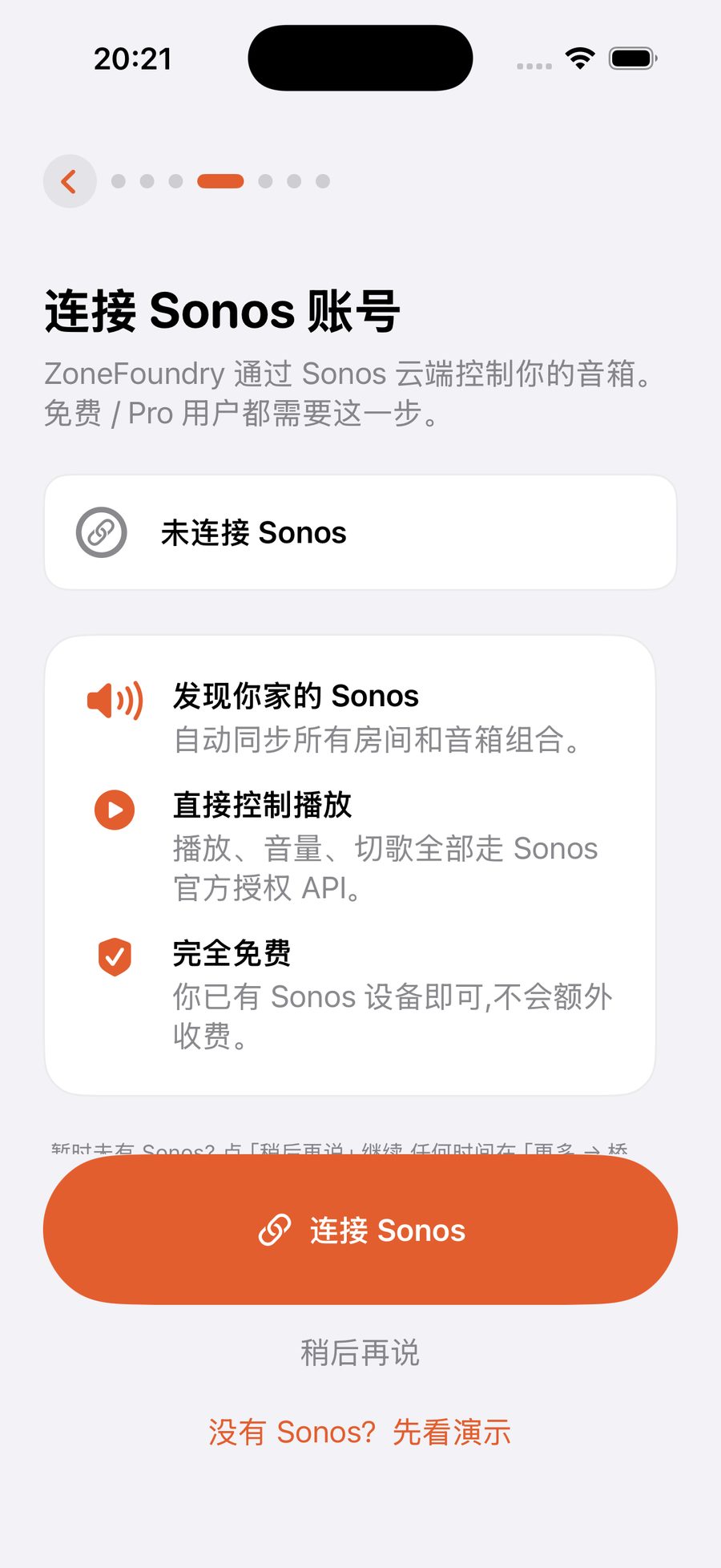
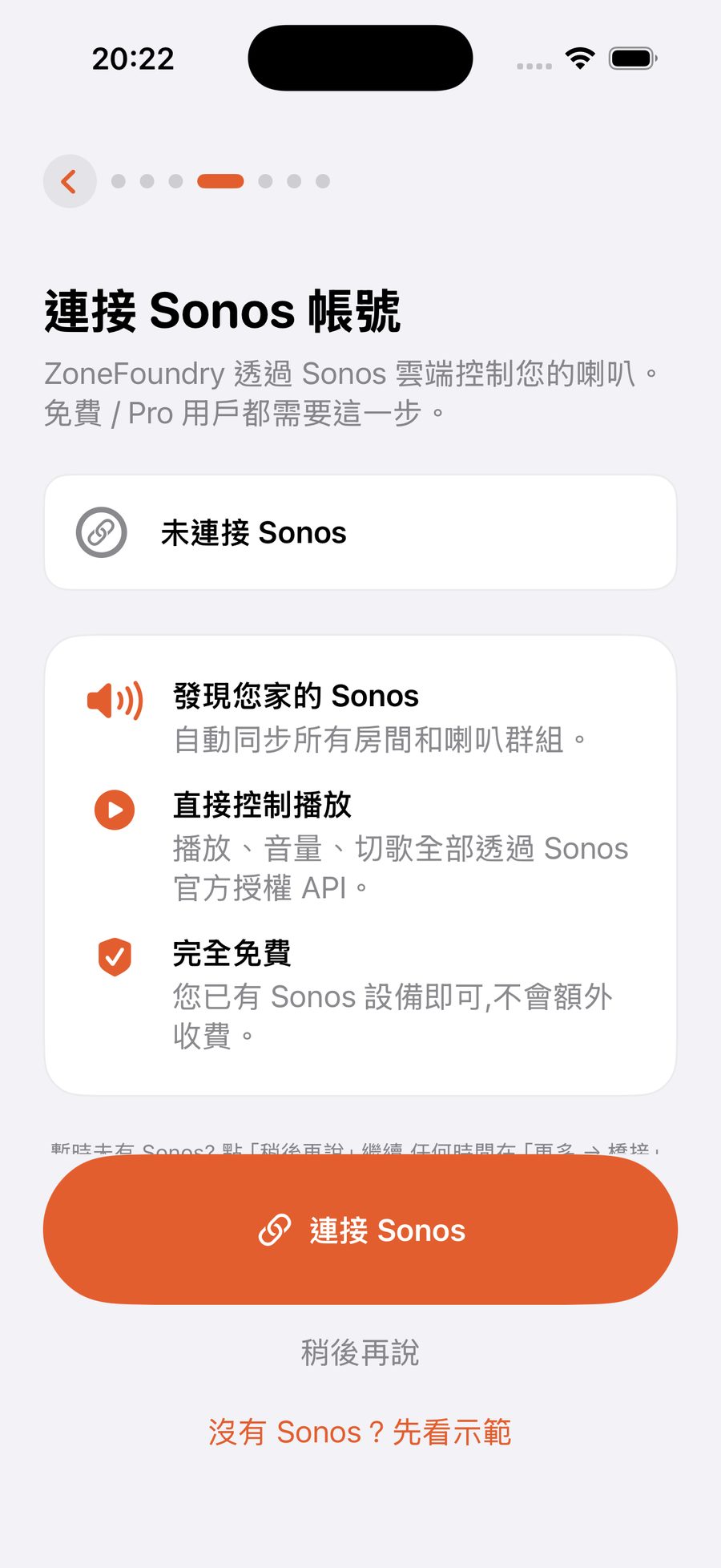
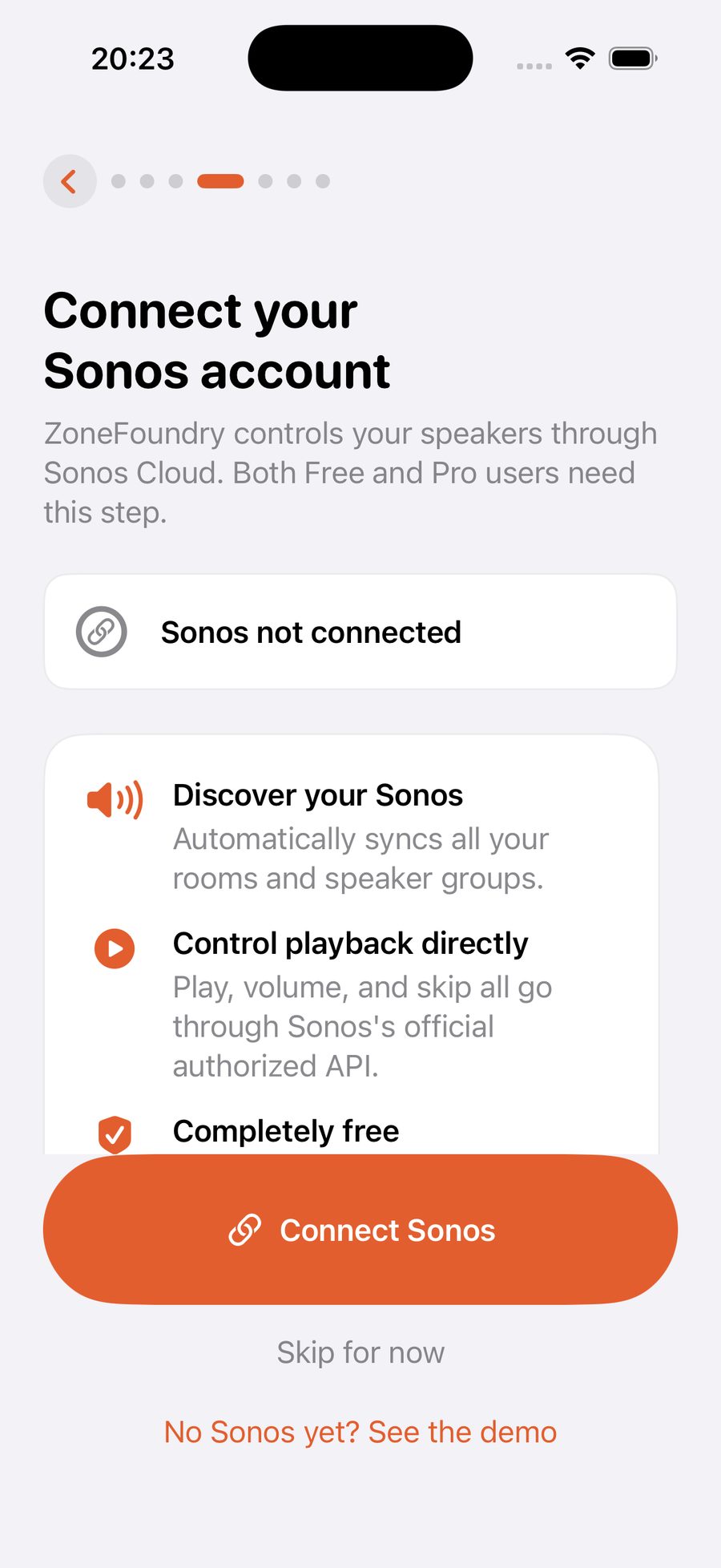
先不想登录?点「稍后再说」也能进 App:同一个 Wi-Fi 下播放、音量、分组、EQ、队列、收藏、歌单、闹钟和简单广播照常用。出门遥控、AI 助手、场景、新闻、全屋广播和跨服务搜歌要等你登录后才可用——详细看登录 Sonos 账号这篇。暫時不想登入?按「稍後再說」也能進 App:同一個 Wi-Fi 下播放、音量、分組、EQ、佇列、收藏、歌單、鬧鐘和簡單廣播照常用。出門遙控、AI 助手、場景、新聞、全屋廣播和跨服務搜歌要等你登入後才可用——詳細看登入 Sonos 賬號這篇。Not ready to sign in? Tap "Skip for now" and you're still in: playback, volume, grouping, EQ, the queue, favorites, playlists, alarms and the simple broadcast all work on your Wi-Fi. Control away from home, the AI assistant, scenes, news, whole-home announcements and cross-service search wait until you sign in — see Signing in to Sonos for details.
后面几步都可以跳过後面幾步都可以跳過The remaining steps are all skippable
ZF 账号(跨设备同步用)、音乐服务连接、语音示范——这些引导步骤全部可以「跳过」,以后随时在「设置」里补(设置在首页右上角的齿轮)。第一次用,建议一路跳到主界面,先把歌播起来。ZF 帳戶(跨裝置同步用)、音樂服務連接、語音示範——這些引導步驟全部可以「跳過」,以後隨時在「設定」裏補(設定在首頁右上角的齒輪)。第一次用,建議一路跳到主介面,先把歌播起來。ZF account (for cross-device sync), music-service linking, a voice demo — every remaining step can be skipped and finished later in Settings (the gear at the top right of Home). On a first run, skip ahead to the main screen and get music playing first.
认识首页:你的房间都在这認識首頁:你的房間都在這Meet Home: your rooms live here
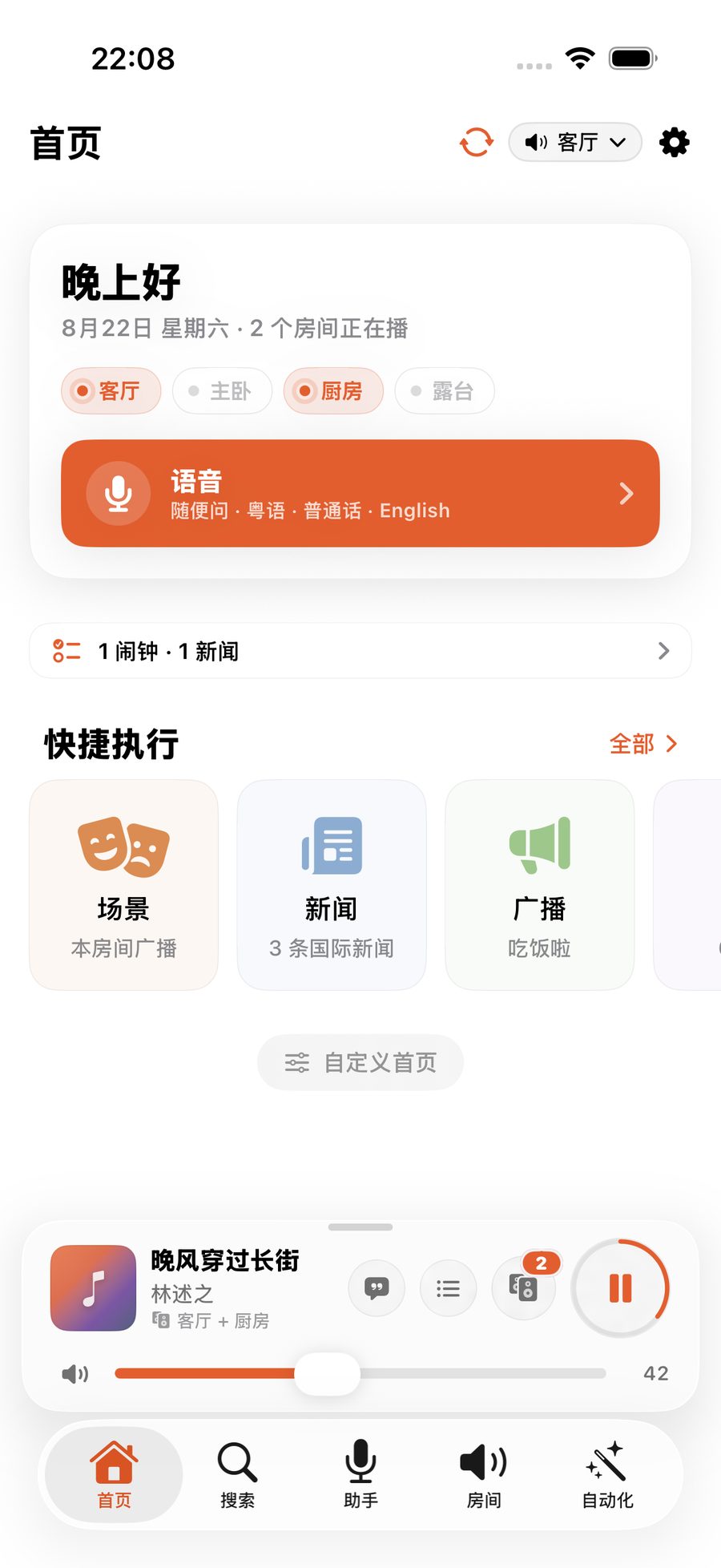
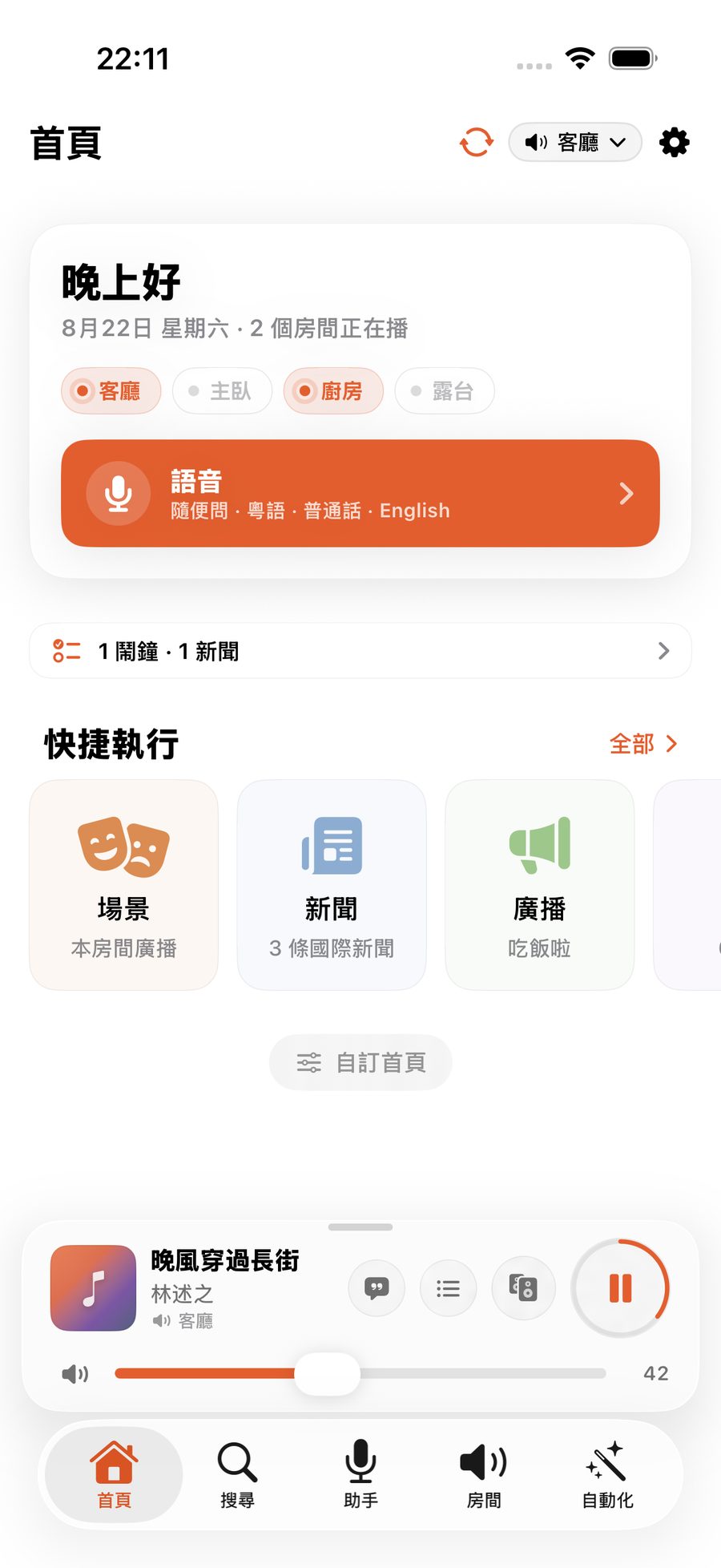
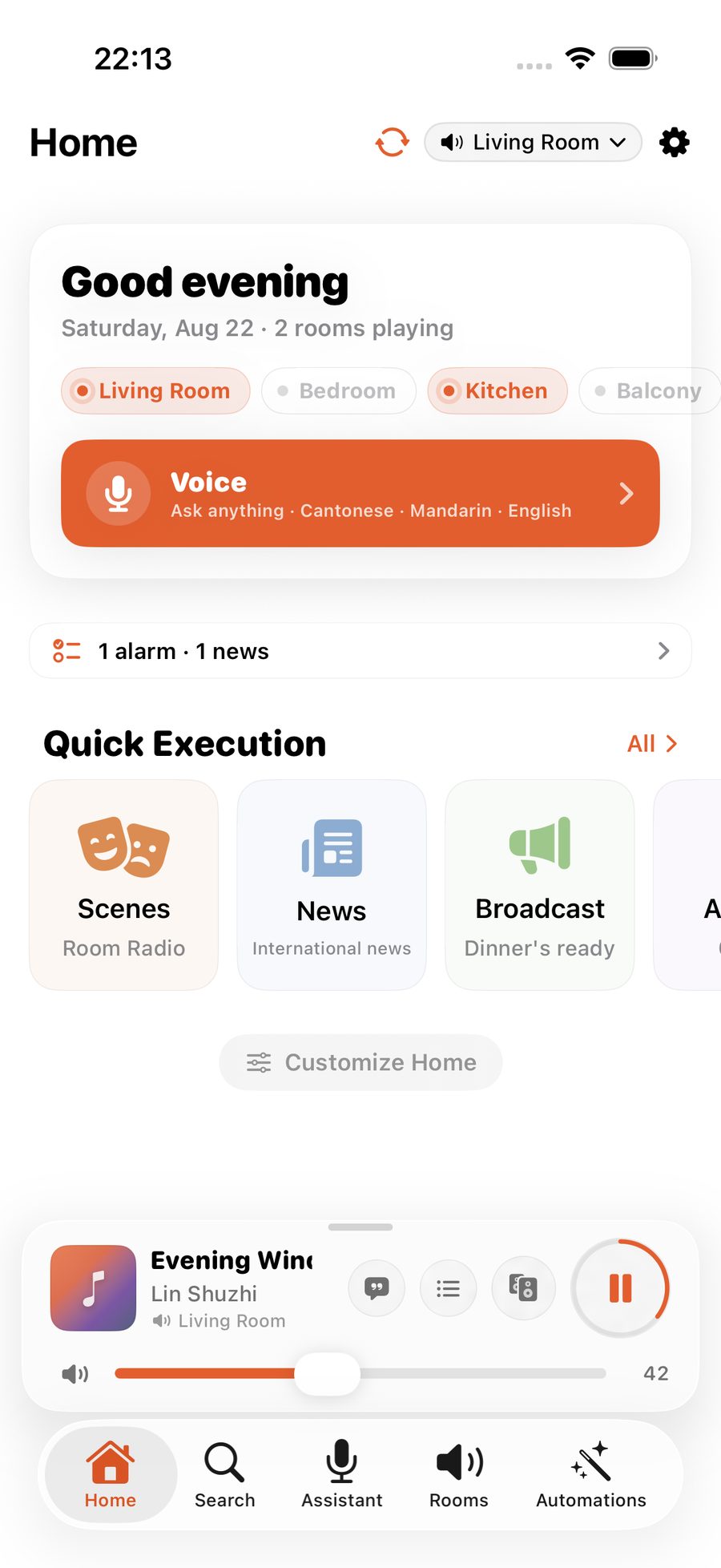
进来第一眼是首页:问候语、每个房间的状态、正在播放的迷你播放器,往下是快捷执行、播放历史、收藏和歌单。底部五个标签——首页、搜索、助手、房间、自动化——就是整个 App 的地图。入來第一眼是首頁:問候語、每個房間的狀態、正在播放的迷你播放器,向下是快捷執行、播放歷史、收藏和歌單。底部五個分頁——首頁、搜尋、助手、房間、自動化——就是成個 App 的地圖。The first thing you see is Home: a greeting, each room's status, a mini player for whatever's on, then quick actions, play history, favorites and playlists. The five tabs along the bottom — Home, Search, Assistant, Rooms, Automations — are the whole map of the app.
首页、搜索、助手右上角的房间名(胶囊形按钮)就是你当前控制的房间,播歌、调音量默认都去这里,点它可以换房间。想让几个房间一起播,到「房间」里点其他房间旁边的圆圈。首頁、搜尋、助手右上角的房間名(膠囊形按鈕)就是你目前控制的房間,播歌、調音量預設都去這裏,按它可以換房間。想讓幾個房間一起播,到「房間」裏按其他房間旁邊的圓圈。The room name at the top right of Home, Search and the Assistant (the pill-shaped button) is the room you're controlling: songs and volume go there by default, and tapping it lets you pick another room. To play in several rooms together, open Rooms and tap the circle next to the other rooms.
播出第一首歌播出第一首歌Play your first song
切到「搜索」,输入一个歌名或歌手——结果会同时来自你已连接的音乐服务(比如 QQ 音乐、网易云、Apple Music、Spotify)。点一下就在当前房间播;长按可以选「下一首播放」或「最后播放」。也可以去「助手」直接说一句「客厅放周杰伦」。切到「搜尋」,輸入一個歌名或歌手——結果會同時來自你已連接的音樂服務(例如 Apple Music、Spotify)。按一下就在當前房間播;長按可以選「下一首播放」或「最後播放」。也可以去「助手」直接講一句「客廳放周杰倫」。Go to Search and type a song or artist — results come from your connected music services at once (Apple Music, Spotify and more). Tap to play in the current room; long-press for "Play next" or "Play Last". Or open the Assistant and just say "play some jazz in the living room".
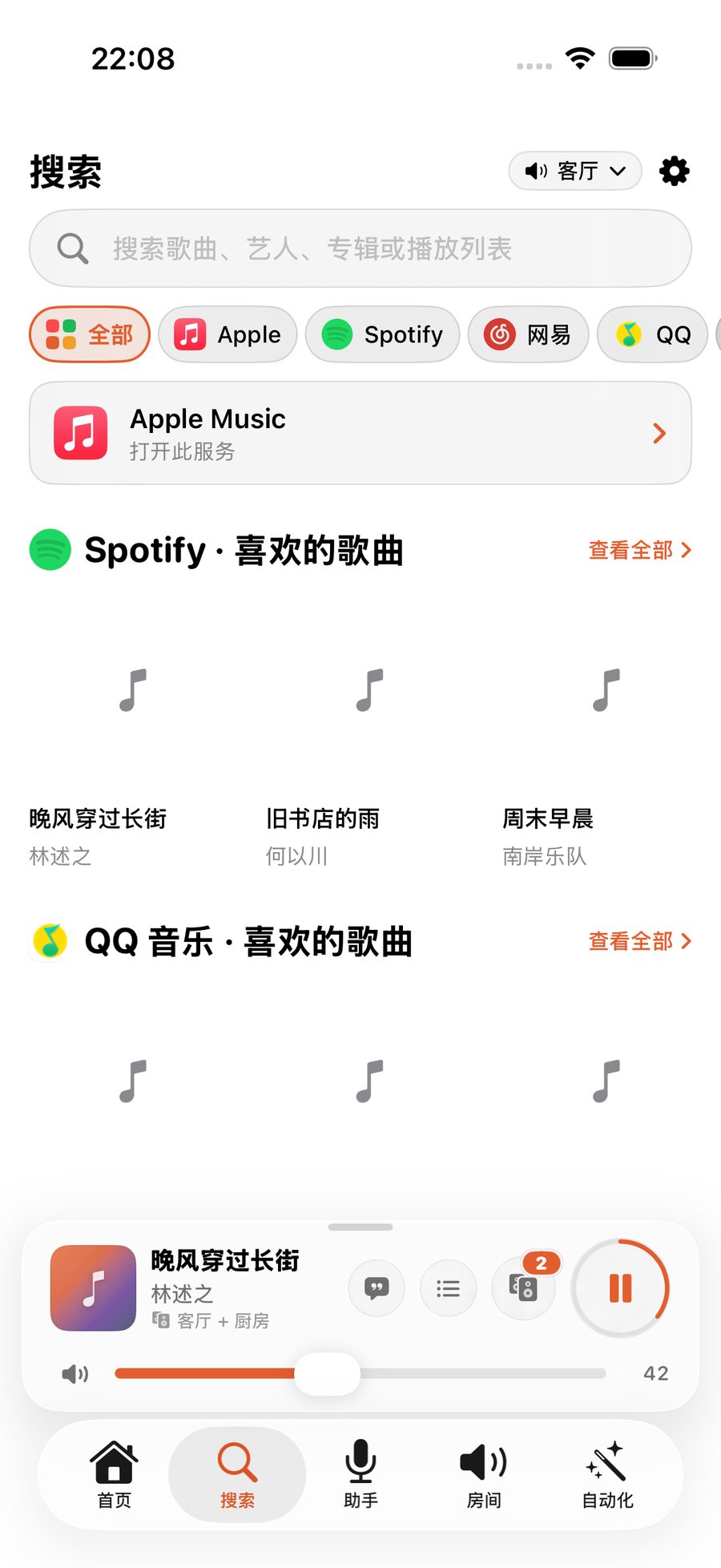
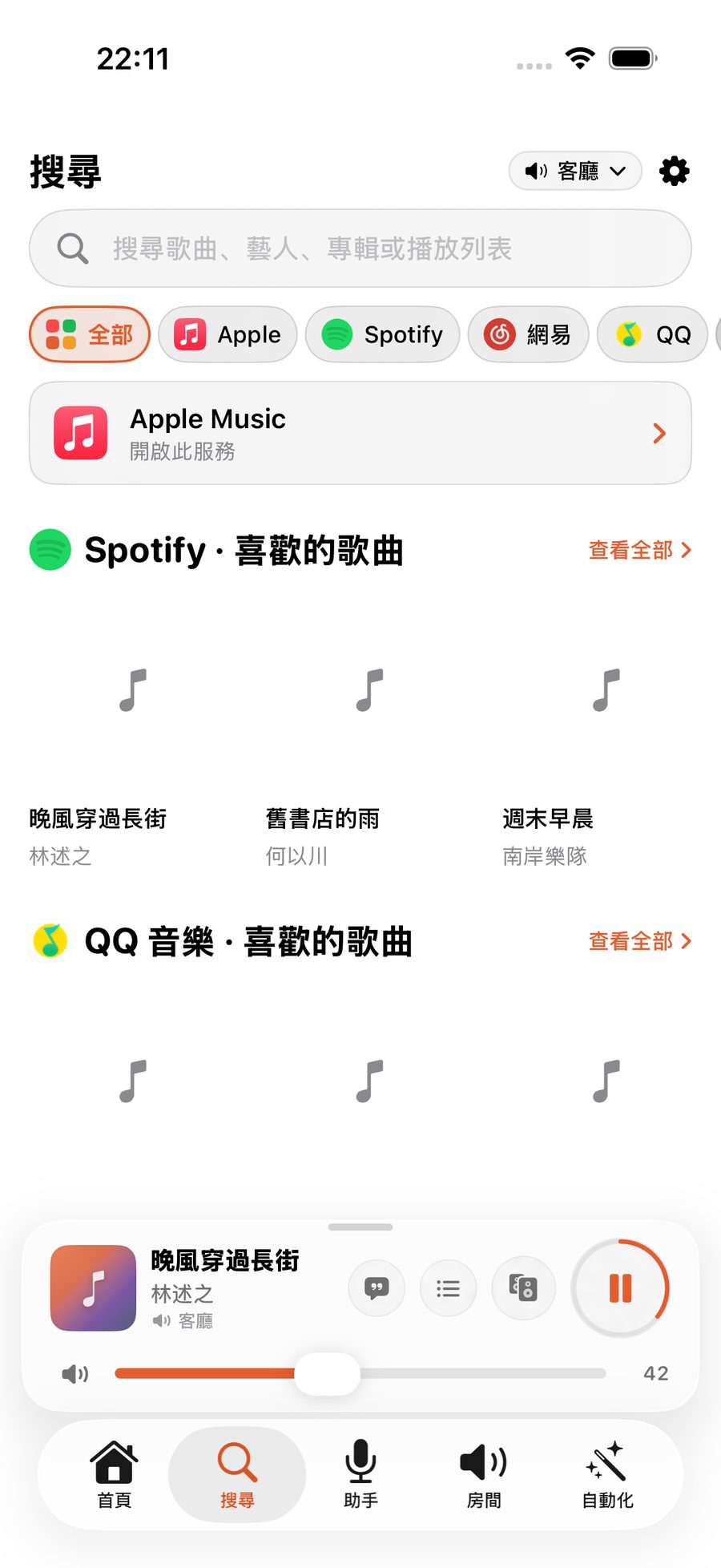
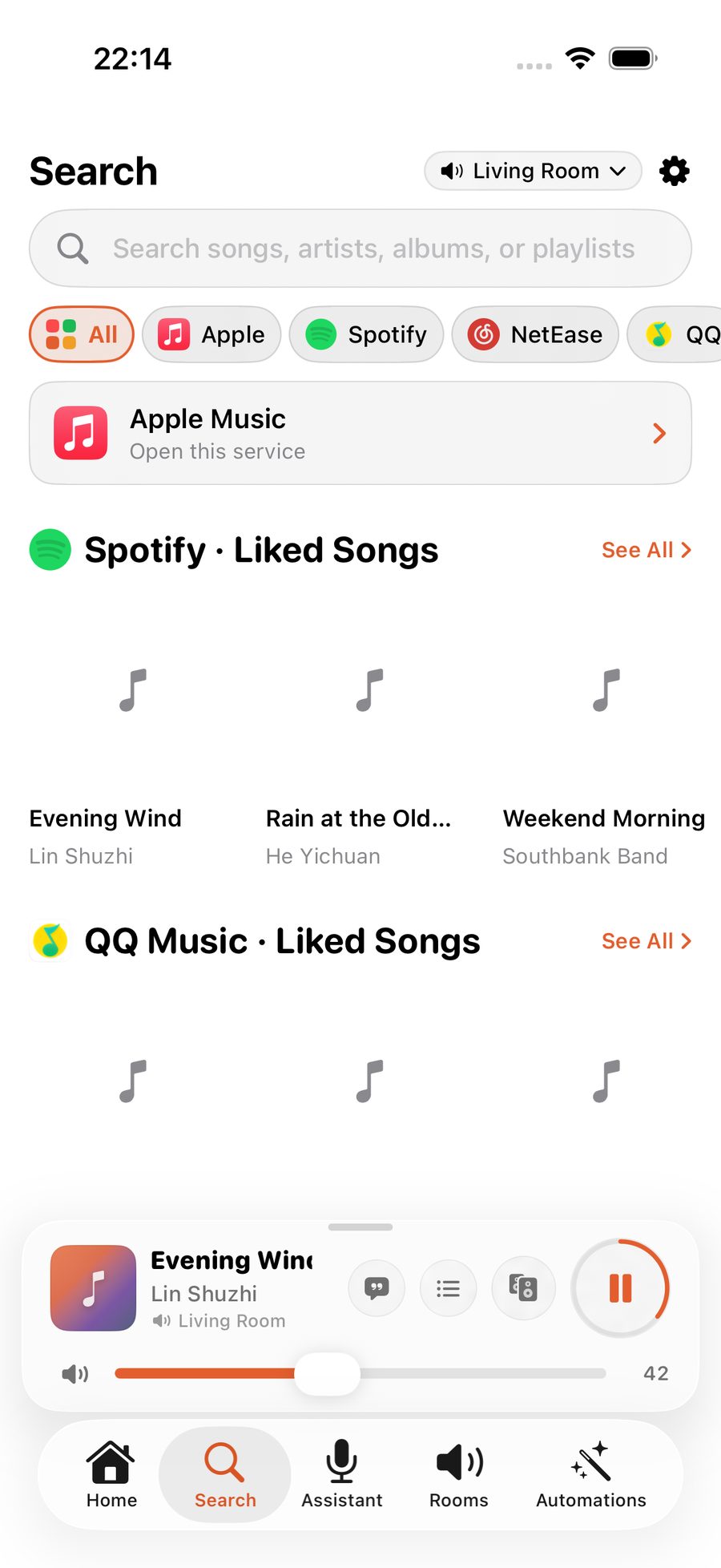
搜索结果是空的?多半是音乐服务还没连接。到「设置 → 音乐」把你在用的服务连上(QQ 音乐 / 网易云 / Spotify 扫码一次即可,Apple Music 先在 Sonos 官方 App 里添加,再在「设置 → 音乐」点「授权此 iPhone」),详见连接你的音乐服务。搜尋結果是空的?多數是音樂服務未連接。到「設定 → 音樂」把你在用的服務連上(Spotify 掃碼一次即可,Apple Music 先在 Sonos 官方 App 裏添加,再在「設定 → 音樂」按「授權呢部 iPhone」),詳見連接你的音樂服務。Search coming up empty? Your music services probably aren't linked yet. Go to Settings → Music and connect the ones you use (Spotify links once with a quick sign-in; for Apple Music, add it in the official Sonos app first, then tap "Authorize this iPhone" in Settings → Music) — see Linking your music services.
这一串动作,可以合成一个场景這一串動作,可以合成一個場景A whole routine can collapse into one scene
起床、回家、睡前——ZoneFoundry 可以把房间、音量、音乐、播报打包成一个场景,一句话或一个按钮触发,不用每次重排一遍。起床、回家、睡前——ZoneFoundry 可以把房間、音量、音樂、廣播打包成一個場景,一句話或一個按鈕觸發,不用每次重新排一遍。Waking up, coming home, winding down — ZoneFoundry can bundle rooms, volume, music and announcements into one scene, triggered by a sentence or a button instead of rebuilt each time.