为什么好用為什麼好用Why it's handy
- 开箱即用:常见的起床、离家、日落场景已经做成模板,不用从零搭。開箱即用:常見的起床、離家、日落場景已做成模板,毋須從零搭建。Ready-made: common wake-up, leave-home and sunset routines come as templates — no building from scratch.
- 同步进 Apple 家庭:需要桥接的模板会作为「家庭」自动化运行,和你的灯、空调一起联动。同步至 Apple 家庭:需要橋接的模板會作為「家庭」自動化運行,與你的燈、空調一起聯動。Syncs to Apple Home: the bridge-based templates run as Home automations, working alongside your lights and AC.
- 复杂的交给家庭:需要多重条件或人物在场判断时,直接到 Apple「家庭」自定义即可。複雜的交給家庭:需要多重條件或人物在場判斷時,直接去 Apple「家庭」自訂即可。Complex to Home: for multi-condition or presence logic, customize directly in Apple Home.
不需要桥:场景定时、新闻定时、提示音闹钟毋須橋接:場景定時、新聞定時、提示音鬧鐘No bridge needed: scene schedules, scheduled news, chime alarms
只是想每天定时跑一个场景,不需要桥:打开场景编辑器,在「定时」里打开「到点自动触发」,选时间,再选只执行一次或每周哪几天。到点由服务器执行,手机锁屏或没打开 App 也会触发;设好的定时列在「自动化」页的「定时」区。需要已登录 Sonos 账户。只是想每日定時執行一個場景,毋須橋接:打開場景編輯器,在「定時」開啟「到點自動觸發」,選時間,再選只執行一次或每星期哪幾日。到點由伺服器執行,手機鎖屏或未打開 App 也會觸發;設好的定時列在「自動化」頁的「定時」區。需要已登入 Sonos 帳戶。If you just want a scene to run on a schedule, you don't need a bridge: open the scene editor, turn on "Auto-trigger at scheduled time" under Schedule, pick a time, then choose once or which days of the week. Our server runs it on time, even if your phone is locked or the app is closed; your schedules are listed under Schedules on the Automations tab. You need to be signed in to your Sonos account.
另外两种免桥的定时:新闻页的自定义预设可以设成定时或闹钟响完后播(见 让 Sonos 每天给你播新闻简报);Sonos 闹钟用提示音时直接通过家里 Wi-Fi 工作,不需要桥;铃声选 Sonos 收藏的闹钟仍需要桥接在线。另外兩種毋須橋接的定時:新聞頁的自訂預設可以設成定時或鬧鐘響完後播(見 讓 Sonos 每日為你播新聞簡報);Sonos 鬧鐘用提示音時直接經家中 Wi-Fi 運作,毋須橋接;鈴聲選 Sonos 收藏的鬧鐘仍需要橋接在線。Two more bridge-free options: a custom news preset can run on a schedule or after your alarm (see Let Sonos read you the news), and Sonos alarms with a chime work directly over your home Wi-Fi with no bridge; alarms that ring a Sonos favorite still need the bridge online.
提示:同一个起床时间,不要同时用 Sonos 闹钟、场景定时和 Apple 家庭定时,否则音箱会响好几次。选一种就好。提示:同一個起床時間,不要同時用 Sonos 鬧鐘、場景定時及 Apple 家庭定時,否則音箱會響好幾次。選其中一種即可。Tip: for the same wake-up time, don't use a Sonos alarm, a scene schedule and an Apple Home schedule together, or your speakers will go off several times. Pick one.
开始前你需要開始前你需要Before you start
- 以下 Apple 家庭模板需要:ZoneFoundry 桥接已连接,且已在 Apple「家庭」完成配对(模板靠这些「灯泡」配件运行);并在「Apple Home 自动化」页先点「启用 Apple Home 自动化」授权以下 Apple 家庭模板需要:ZoneFoundry 橋接已連接,並在 Apple「家庭」完成配對(模板靠這些「燈泡」配件運行);並在「Apple Home 自動化」頁先點「啟用 Apple Home 自動化」授權For the Apple Home templates below: the ZoneFoundry bridge connected and paired in Apple Home (templates run through those "lightbulb" accessories), and "Enable Apple Home Automation" tapped on the Apple Home automation page
- 桥接要装在一台一直开着、装了 Docker 的机器上(群晖 / 飞牛 / Unraid / TrueNAS / 软路由 / Linux 主机);Mac / Windows 的 Docker Desktop 不行。安装见家庭桥接安装教程。橋接要裝在一部一直開著、裝了 Docker 的機器上(群暉 / 飛牛 / Unraid / TrueNAS / 軟路由 / Linux 主機);Mac / Windows 的 Docker Desktop 不行。安裝見家庭橋接安裝教學。The bridge runs on an always-on machine with Docker (Synology / fnOS / Unraid / TrueNAS / a soft router / a Linux box); Docker Desktop on Mac or Windows won’t work. Setup: home bridge guide.
- 家里有家居中枢(HomePod、Apple TV 或 iPad)时,手机不在家这些自动化也会触发家中有家居中樞(HomePod、Apple TV 或 iPad)時,手機不在家這些自動化也會觸發With a home hub (HomePod, Apple TV or iPad), these automations fire even when your phone is away
- 不懂配对?先看 让 Siri 和 Apple 家庭控制 Sonos不懂配對?先看 讓 Siri 與 Apple 家庭控制 SonosNew to pairing? Start with Let Siri & Apple Home control your Sonos
需要桥接:Apple 家庭模板需要橋接:Apple 家庭模板Bridge needed: Apple Home templates
定时「起床音乐」定時「起床音樂」Scheduled "Wake-up music"
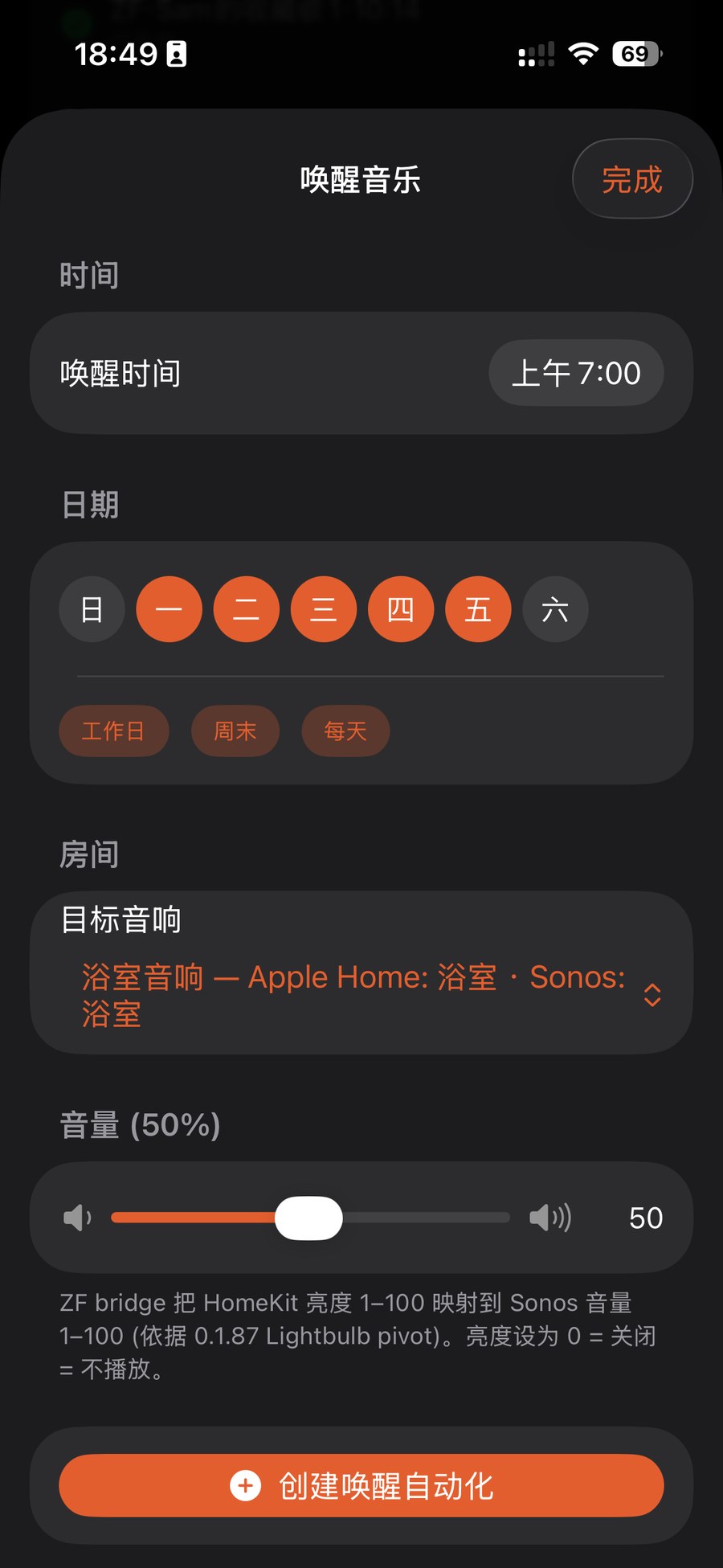
在「自动化」→「Apple Home 与进阶」→「Apple Home 自动化」的「自动化模板」里点「起床音乐场景」(打开后页名是「唤醒音乐」):设唤醒时间(例如上午 7:00)、选星期(工作日/周末/每天)、挑目标房间和音量,然后点「创建唤醒自动化」。到点它会用设定音量开始播放那间房当前的内容(模板里不能选歌单)。在「自動化」→「Apple Home 與進階」→「Apple Home 自動化」的「自動化模板」點「起床音樂場景」(打開後頁名是「喚醒音樂」):設喚醒時間(例如上午 7:00)、選星期(工作日/週末/每日)、選目標房間與音量,然後點「建立喚醒自動化」。到點它會用設定音量開始播放那間房目前的內容(模板內不能選歌單)。Go to Automations → Apple Home & advanced → Apple Home automation, and under Automation Templates tap "Wake-up music scene" (the page is titled "Wake-up Music"): set the time (e.g. 7:00 AM), days (weekdays/weekend/every day), a target room and volume, then tap "Create Wake-up Automation". At that time it starts playing whatever is current in that room at the set volume (the template has no playlist picker).
「离家自动暂停」「離家自動暫停」"Leave-home auto-pause"
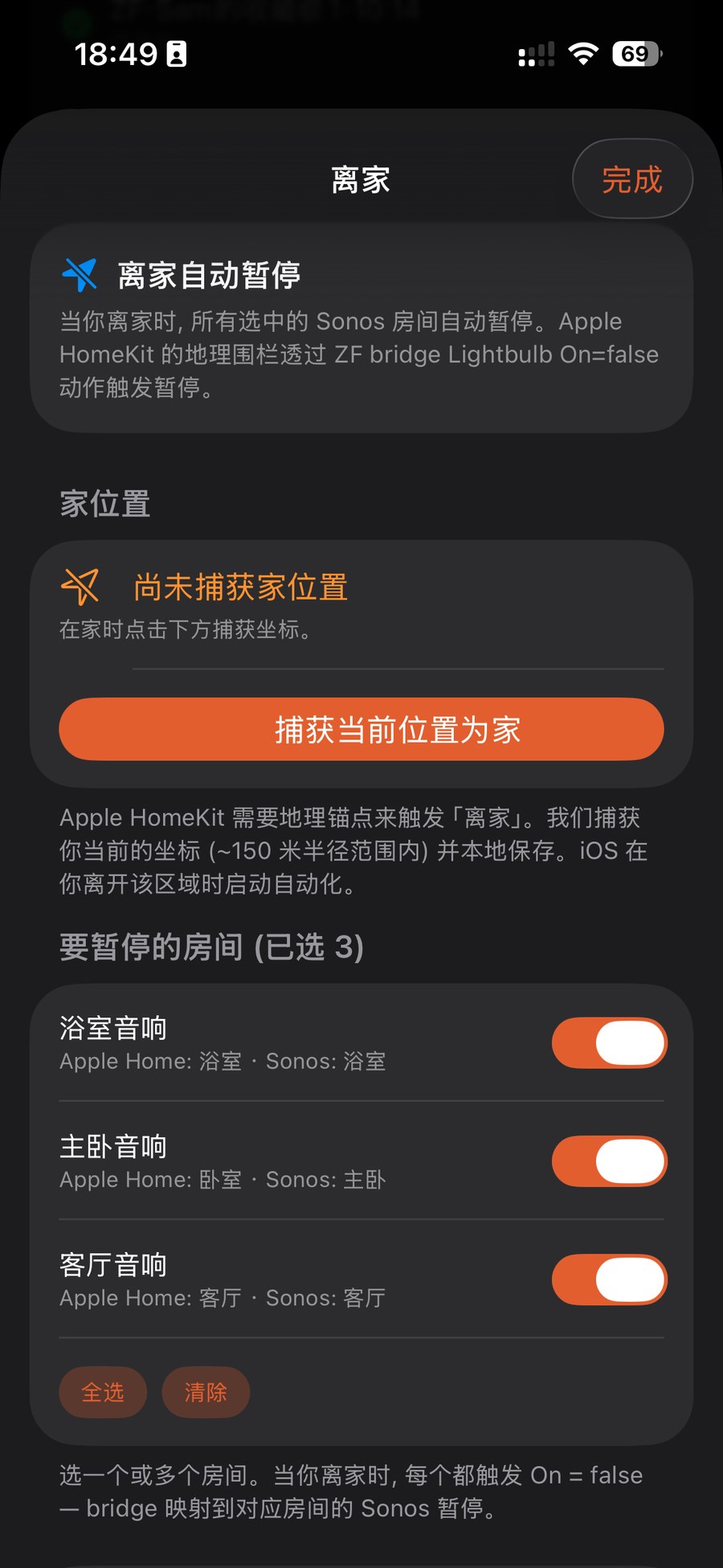
在同一页选「离家自动暂停」模板:先在家里点一下「捕获当前位置为家」(需要定位权限;Apple HomeKit 用这个地理锚点、约 150 米范围判断你离家),再勾选离家时要暂停的房间(可以全选),然后点「创建离家暂停」。之后你一走出家门,这些房间就会自动停下。在同一頁選「離家自動暫停」模板:先在家中點一下「擷取目前位置為家」(需要定位權限;Apple HomeKit 用這個地理錨點、約 150 米範圍判斷你離家),再勾選離家時要暫停的房間(可以全選),然後點「建立離家暫停」。之後你一出門口,這些房間便會自動停下。On the same page pick "Leave home auto-pause": while at home, tap "Capture current location as home" (needs location access; Apple HomeKit uses this geo-anchor, about 150 m, to detect leaving), tick the rooms to pause (or select all), then tap "Create Leave Home Pause". When you step out, those rooms stop on their own.
用到家 / 离家或传感器触发场景用到家 / 離家或感應器觸發場景Fire a scene on arrive / leave or a sensor
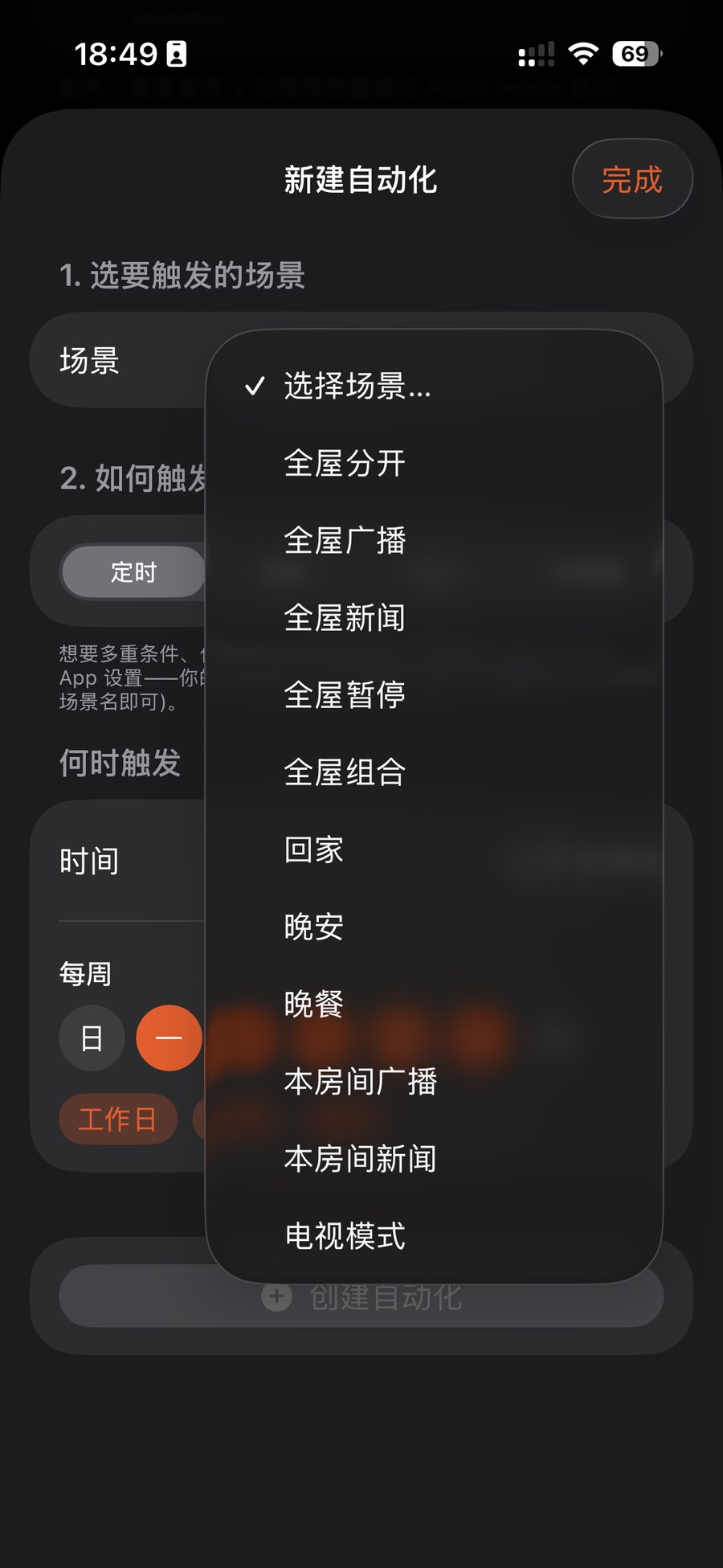
需要到家 / 离家或传感器触发时,在「Apple Home 自动化」页用「创建场景自动化」:选一个已保存的场景(全屋广播、全屋新闻、回家、晚安、电视模式……),再选一种触发方式——每天定时、到家 / 离家,或传感器。之后它会作为 Apple「家庭」自动化运行。只是想每天定时跑一个场景,用上面不需要桥的场景定时就够了。注意:「全屋广播」场景是播电台,不是语音广播。需要到家 / 離家或感應器觸發時,在「Apple Home 自動化」頁用「建立場景自動化」:選一個已儲存的場景(全屋廣播、全屋新聞、回家、晚安、電視模式……),再選一種觸發方式——每日定時、到家 / 離家,或感應器。之後它會作為 Apple「家庭」自動化運行。只是想每日定時執行一個場景,用上面毋須橋接的場景定時便足夠。注意:「全屋廣播」場景是播電台,並非語音廣播。When you need arrive / leave or a sensor as the trigger, use "Create scene automation" on the Apple Home automation page: pick a saved scene (whole-home broadcast, whole-home news, arrive-home, good-night, TV mode…) and a trigger — daily at a time, arrive / leave, or a sensor. It then runs as an Apple Home automation. If you only want a scene on a daily schedule, the bridge-free scene schedule above is enough. Note: the "whole-home broadcast" scene plays a radio station; it isn't a spoken announcement.
模板没生效?先确认桥接还连着、且已在 Apple「家庭」配对——这些自动化是通过你配对的 ZF「灯泡」配件运行的。可以在「自动化」→「Apple Home 与进阶」→「Apple Home 自动化」页顶部的状态区核对权限、家、房间和 ZF 灯泡数量。模板沒有生效?先確認橋接仍然連著、而且已在 Apple「家庭」配對——這些自動化是經你配對的 ZF「燈泡」配件運行的。可以在「自動化」→「Apple Home 與進階」→「Apple Home 自動化」頁頂部的狀態區核對權限、家、房間及 ZF 燈泡數量。Template not firing? Check the bridge is still connected and paired in Apple Home — these run through your paired ZF "lightbulb" accessories. The status area at the top of Automations → Apple Home & advanced → Apple Home automation shows permission, home, rooms and the number of ZF lightbulbs.
另外几点:「日落降低音量」模板是在日落时(可提前或推后最多 60 分钟)把一间房的音量一次调到设定值,不是逐步降低。起床、日落、离家每种模板各只能有一个,再建一次会替换旧的;要修改,就点模板按钮重新建。列表里的「睡眠定时」「影院模式」不是 Apple 家庭自动化,点进去只是说明到哪里用。另外幾點:「日落降低音量」模板是在日落時(可提前或延後最多 60 分鐘)把一間房的音量一次調到設定值,並非逐步降低。起床、日落、離家每種模板各只能有一個,再建立一次會取代舊的;要修改,就點模板按鈕重新建立。列表裡的「睡眠定時」「戲院模式」不是 Apple 家庭自動化,點進去只是說明到哪裡使用。Also good to know: the "Sunset volume drop" template sets one room to your chosen volume once, at sunset (up to 60 minutes before or after) — it doesn't ramp down gradually. You can have only one each of the wake-up, sunset and leave-home templates; creating one again replaces the old one, so to edit, tap the template button and rebuild it. The sleep timer and movie mode entries in the list aren't Apple Home automations — they just explain where to use those features.
这一串动作,可以合成一个场景這一串動作,可以合成一個場景A whole routine can collapse into one scene
起床、回家、睡前——ZoneFoundry 可以把房间、音量、音乐、播报打包成一个场景,一句话或一个按钮触发,不用每次重排一遍。起床、回家、睡前——ZoneFoundry 可以把房間、音量、音樂、廣播打包成一個場景,一句話或一個按鈕觸發,不用每次重新排一遍。Waking up, coming home, winding down — ZoneFoundry can bundle rooms, volume, music and announcements into one scene, triggered by a sentence or a button instead of rebuilt each time.