The one-minute version
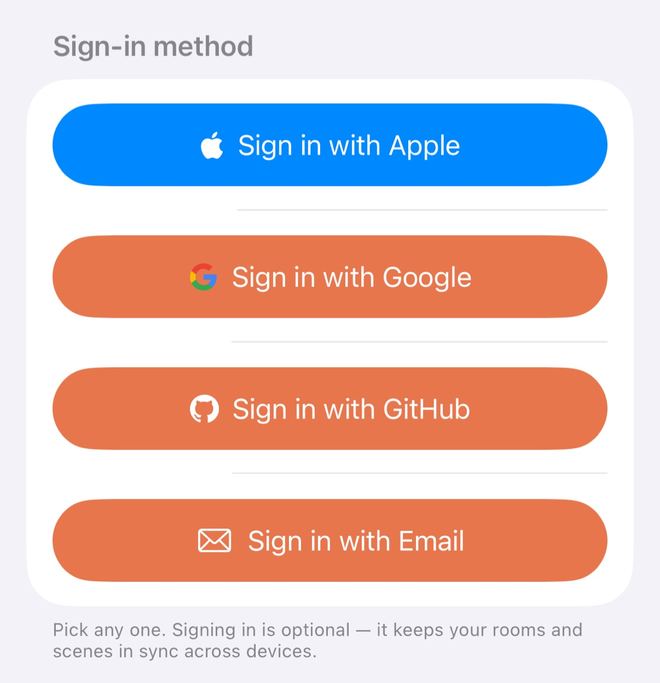
1. Yes, you can sign in with GitHub: from 1.0.14 the sign-in screen has Sign in with GitHub next to Sign in with Apple, Sign in with Google and Sign in with Email.
2. Already have an account and want to add GitHub: Settings → the account card at the top → Sign-in methods → tap Link next to GitHub.
3. To avoid a second account: sign in the way you always do, then link the new method. If you just sign in a new way, you only land in the same account when a verified email matches.
4. Old devices: this device is listed first and marked This device; devices not used for 30 days are folded into one row that you can clear in one go.
Before you start
- ZoneFoundry 1.0.14 or later (GitHub sign-in and the new Account page arrived in this version)
- For GitHub, a GitHub account, ideally with a verified email address on it (section 3 explains why)
- Signing in to ZoneFoundry is optional: on the same Wi-Fi you can control Sonos without it
1. Can I sign in with GitHub?
Yes. Since 1.0.14, GitHub is ZoneFoundry's fourth sign-in method, using the same account system as Apple, Google and email. You can sign in with GitHub in all of these places:
- Onboarding, the first time you open the app: at the Sign in to ZoneFoundry step, tap Sign in with GitHub. Not now? Tap Maybe later.
- The app's sign-in page: tap the gear at the top right of Home to open Settings, tap the Sign In card at the top, then tap Sign in with GitHub.
- Already signed in: link GitHub under Sign-in methods on the Account page; see the next section.
- The web console at zonefoundry.dev/app: click Continue with GitHub.
- The authorization page when you connect Claude or ChatGPT: if you already have an account, click Continue with GitHub and approve right there.
This opens GitHub's own page, and your GitHub password is only ever entered there. ZoneFoundry only asks to read the email addresses on your GitHub account, to match you to an existing account. Each sign-in link works once and only for a few minutes, so if you see "GitHub sign-in expired — please try again.", just tap it again.
2. I already sign in with Apple. How do I add GitHub?
Link GitHub to the account you're signed in to, from the Account page. As the page itself puts it: "Any of these opens this same account. Link a few so you can still get in if one stops working." Linking Google works exactly the same way.
Open Settings and tap the account card
Tap the gear at the top right of Home to open Settings. The card at the very top shows your name or ZoneFoundry Account; tap it to open the Account page.
Under Sign-in methods, tap Link next to GitHub
Sign-in methods always lists four rows, Apple, Google, GitHub and Email, with a count at the top right (for example "1 of 4 linked"). Linked methods show a green tick and Linked; the others have a Link button, or Add for Email. Tap Link on the GitHub row.
Approve on GitHub's own page
GitHub's sign-in page opens. Sign in to GitHub there if you need to, then approve ZoneFoundry. Cancelling part way changes nothing.
Back in the app, check it says Linked
You're taken back to ZoneFoundry and see "Linked. You can now sign in with this method too." The GitHub row now says Linked, with your GitHub email or @username underneath. From now on, Sign in with GitHub anywhere opens this account.
Add an email, set a password
- Add an email: when Email isn't linked, its row says "Add an email to sign in with a one-time code". Tap Add, enter your email on the Add email sign-in page, tap Send code, type the 6-digit code you receive and tap Confirm and link. You'll see "Email added. You can now sign in with it too."
- Set a password: further down the Account page, under Password, enter a new password twice (at least 8 characters) and tap Set password. Next time you sign in with email, you can use the password instead of a code.
3. Will signing in a different way give me two accounts?
Not if you've linked it. If you skip linking and just sign in a new way, it comes down to the email: if it matches you get the same account, and if it doesn't a new one is created.
- A method you've linked (or used before) opens the account it belongs to, whatever the email.
- Apple, Google or GitHub used for the first time joins an existing account only if the provider says the email is verified and it matches that ZoneFoundry account's email; the method is then remembered. Otherwise a new account is created.
- Which GitHub email is used: only one GitHub marks as verified, preferring your primary email.
[email protected]noreply addresses can't receive mail, so they don't count. If your GitHub has no verified email, your first GitHub sign-in always creates a new account. - Apple's Hide My Email gives a forwarding address that never matches your Gmail or other email. If you signed in that way and then sign in with Google directly, you get a separate account. On the Account page this address shows as Hide My Email.
- Email sign-in: the code proves the address is yours, and if it's an account's email (including other emails added to that account), you land in that account.
The safe way: sign in the way you always do, then tap Link under Sign-in methods. Linking simply records that identity on your current account; it ignores the email and doesn't change your account's email.
If it already belongs to another account, the app just tells you "This sign-in method is already linked to a different account." (for email: "This email already belongs to another ZoneFoundry account, so it can't be added here."). Nothing is quietly moved across, so nobody can take your sign-in method by linking it. You can't merge two separate accounts in the app; if you need that, email [email protected].
4. How is my Sonos account related to my ZoneFoundry account?
They're two different things with different jobs:
- Your ZoneFoundry account (Apple, Google, GitHub or email) keeps your rooms, scenes, favorites and bridges. Sign in with it on another iPhone and the same setup is there.
- Your Sonos account lets ZoneFoundry control your speakers through Sonos. You enter its password on Sonos's own page, and connect or disconnect it under Settings → Sonos account. See Signing in to Sonos.
That's why the Account page lists Sonos on its own under Connected services, marked Connected, with the note "Sonos is connected so ZoneFoundry can control your speakers. It isn't a way to sign in to ZoneFoundry." You can't sign in to ZoneFoundry with a Sonos account, and the section only appears once Sonos is connected. Skip both and you can still control your speakers on the same Wi-Fi; see Control your speakers with just Wi-Fi.
5. How do I clear old devices from the list?
The Devices section of the Account page lists every device signed in to your home: "These devices can control your home without signing in again. Remove one to cut it off immediately." Each row shows the device name, its system and when it was Last seen.
- This device is listed first, marked This device, and has no Remove button. To sign it out, use Sign out further down the Account page.
- Devices used in the last 30 days each get their own row with a Remove button that cuts them off straight away.
- Devices not used for 30+ days are folded into one row, such as "Not used in 30+ days: 4". Expand it, tap "Remove inactive devices (4)" and confirm with Remove. This device stays signed in; the others will need to sign in again if you use them later.
- Duplicate entries left by reinstalling the app are hidden automatically, with a note under the list: "Duplicate entries from reinstalls hidden: N."
FAQ
Can I use ZoneFoundry without an account?
Yes. Tap Maybe later during onboarding and you can control Sonos directly on the same Wi-Fi. Once you sign in, your rooms, scenes, favorites and bridges follow your account, so signing in on a new iPhone brings them back. Your first sign-in creates the account automatically; there's no separate registration.
Linking says "This sign-in method is already linked to a different account." What now?
It means that Apple, Google or GitHub account was used to sign in on its own before, so it became a separate account. The app won't move it across. Keep using your usual account and link a method you haven't used yet; if you really need the two accounts merged, email [email protected].
GitHub sign-in says it expired, or the sign-in window closed by itself?
Each sign-in link works once and only for a few minutes, so go back to the app and tap Sign in with GitHub again. If the sign-in window closed by itself, change Settings → Apps → Default Browser App back to Safari and try again.
Can I use GitHub on the web console and the Claude / ChatGPT authorization page?
Yes. Both zonefoundry.dev/app and the authorization page have Continue with GitHub, and they use the same accounts. When approving Claude or ChatGPT, use the same account you're signed in with in the app.
What happens when I remove a device?
That device is cut off immediately and can no longer control your home; to use it again, sign in on it. You can't remove this device from the list; to sign it out, use Sign out further down the Account page.
One account, four ways in
ZoneFoundry is an iOS app that works with your existing Sonos. Use it on your home Wi-Fi without an account, or sign in with Apple, Google, GitHub or email so your rooms, scenes and favorites follow you.