
一分钟看懂一分鐘看懂The one-minute version
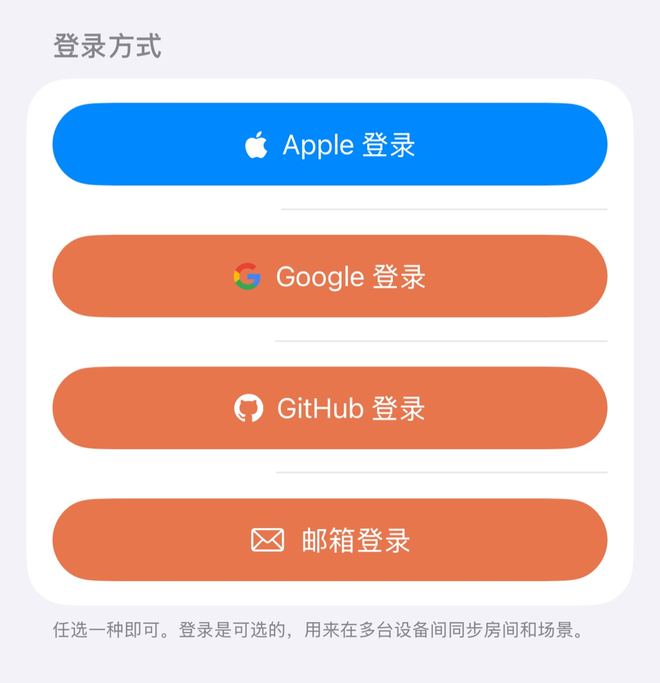
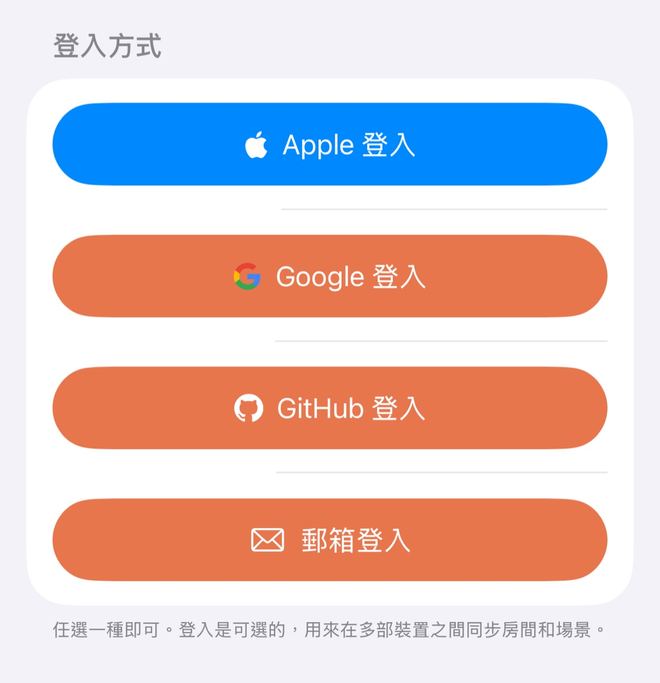
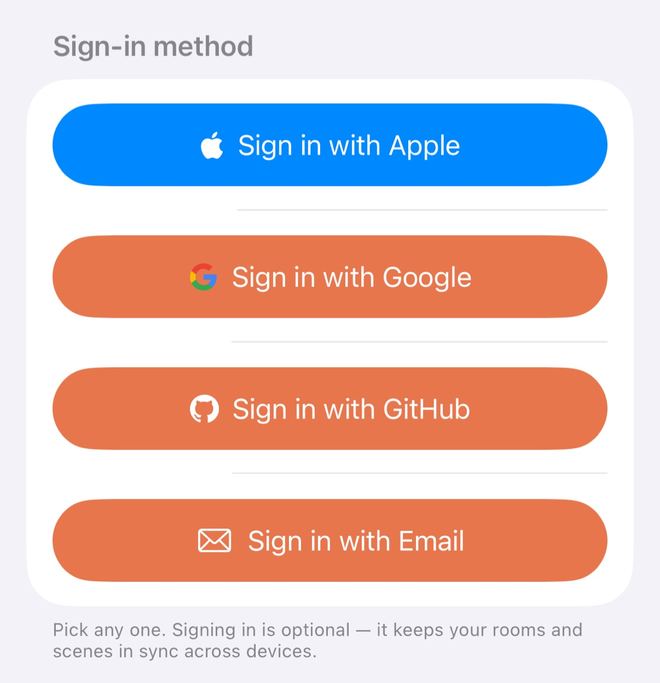
① 可以用 GitHub 登录:1.0.14 起,登录页有「GitHub 登录」,和「Apple 登录」「Google 登录」「邮箱登录」并列。① 可以用 GitHub 登入:1.0.14 起,登入頁有「GitHub 登入」,與「Apple 登入」「Google 登入」「電郵登入」並列。1. Yes, you can sign in with GitHub: from 1.0.14 the sign-in screen has Sign in with GitHub next to Sign in with Apple, Sign in with Google and Sign in with Email.
② 已经有账号,想加 GitHub:「设置」→ 最上面的账户卡片 →「登录方式」→ GitHub 旁边点「绑定」。② 已有帳戶,想加上 GitHub:「設定」→ 最上方的帳戶卡片 →「登入方式」→ GitHub 旁邊點「綁定」。2. Already have an account and want to add GitHub: Settings → the account card at the top → Sign-in methods → tap Link next to GitHub.
③ 不想变成两个账号:先用原来的方式登录,再绑定新方式。直接换方式登录时,只有已验证的邮箱对得上才会进同一个账号。③ 不想變成兩個帳戶:先用原來的方式登入,再綁定新方式。直接換方式登入時,只有已驗證的電郵對得上才會進入同一個帳戶。3. To avoid a second account: sign in the way you always do, then link the new method. If you just sign in a new way, you only land in the same account when a verified email matches.
④ 旧设备:设备列表里本机排第一并标「本机」;30 天没用的设备收在一行里,可以一键移除。④ 舊裝置:裝置列表中本機排第一並標示「本機」;30 天未使用的裝置收在一行內,可一鍵移除。4. Old devices: this device is listed first and marked This device; devices not used for 30 days are folded into one row that you can clear in one go.
开始前你需要開始前你需要Before you start
- ZoneFoundry 1.0.14 或以上(GitHub 登录和新版账号页从这一版开始)ZoneFoundry 1.0.14 或以上(GitHub 登入和新版帳戶頁由這一版開始)ZoneFoundry 1.0.14 or later (GitHub sign-in and the new Account page arrived in this version)
- 想用 GitHub 的话,一个 GitHub 账号;最好在 GitHub 里有一个已验证的邮箱(原因见第三节)想用 GitHub 的話,需要一個 GitHub 帳戶;最好在 GitHub 中有一個已驗證的電郵(原因見第三節)For GitHub, a GitHub account, ideally with a verified email address on it (section 3 explains why)
- 登录 ZoneFoundry 账号是可选的:不登录也能在同一个 Wi-Fi 下控制 Sonos登入 ZoneFoundry 帳戶是可選的:不登入也能在同一個 Wi-Fi 下控制 SonosSigning in to ZoneFoundry is optional: on the same Wi-Fi you can control Sonos without it
一、可以用 GitHub 登录吗?一、可以用 GitHub 登入嗎?1. Can I sign in with GitHub?
可以。从 1.0.14 开始,GitHub 是 ZoneFoundry 的第四种登录方式,和 Apple、Google、邮箱用的是同一套账号。这些地方都能用 GitHub 登录:可以。由 1.0.14 開始,GitHub 是 ZoneFoundry 的第四種登入方式,與 Apple、Google、電郵使用同一套帳戶。以下地方都可以用 GitHub 登入:Yes. Since 1.0.14, GitHub is ZoneFoundry's fourth sign-in method, using the same account system as Apple, Google and email. You can sign in with GitHub in all of these places:
- 首次打开的引导页:「登录 ZF 账号」这一步点「GitHub 登录」。暂时不想登录,点「稍后再说」。首次開啟的引導頁:「登入 ZF 帳號」這一步點「GitHub 登入」。暫時不想登入,點「稍後再說」。Onboarding, the first time you open the app: at the Sign in to ZoneFoundry step, tap Sign in with GitHub. Not now? Tap Maybe later.
- App 的登录页:点「首页」右上角的齿轮打开「设置」,点最上面的「登录」卡片,再点「GitHub 登录」。App 的登入頁:點「首頁」右上角的齒輪開啟「設定」,點最上方的「登入」卡片,再點「GitHub 登入」。The app's sign-in page: tap the gear at the top right of Home to open Settings, tap the Sign In card at the top, then tap Sign in with GitHub.
- 已经登录了:在账号页的「登录方式」里绑定 GitHub,见下一节。已經登入:在帳戶頁的「登入方式」中綁定 GitHub,見下一節。Already signed in: link GitHub under Sign-in methods on the Account page; see the next section.
- 网页控制台 zonefoundry.dev/app:点「用 GitHub 登录」。網頁控制台 zonefoundry.dev/app:點「用 GitHub 登入」。The web console at zonefoundry.dev/app: click Continue with GitHub.
- 接入 Claude / ChatGPT 时的授权页:已有账号的话,可以点「用 GitHub 登录」后直接授权。接入 Claude / ChatGPT 時的授權頁:已有帳戶的話,可以點「使用 GitHub 登入」後直接授權。The authorization page when you connect Claude or ChatGPT: if you already have an account, click Continue with GitHub and approve right there.
点了之后会打开 GitHub 官方的页面,你的 GitHub 密码只在那里输入;ZoneFoundry 只请求读取你在 GitHub 的邮箱地址,用来对上已有的账号。每次登录用的链接只能用一次,几分钟内有效:如果看到「GitHub 登录已过期,请重试。」,再点一次就行。點擊後會開啟 GitHub 官方頁面,你的 GitHub 密碼只在那裡輸入;ZoneFoundry 只要求讀取你在 GitHub 的電郵地址,用來對應已有的帳戶。每次登入所用的連結只能使用一次,幾分鐘內有效:如果看到「GitHub 登入已逾時,請重試。」,再點一次即可。This opens GitHub's own page, and your GitHub password is only ever entered there. ZoneFoundry only asks to read the email addresses on your GitHub account, to match you to an existing account. Each sign-in link works once and only for a few minutes, so if you see "GitHub sign-in expired — please try again.", just tap it again.
二、已经用 Apple 登录了,怎么再绑 GitHub?二、已經用 Apple 登入,怎樣再綁定 GitHub?2. I already sign in with Apple. How do I add GitHub?
在账号页把 GitHub「绑定」到当前账号。账号页上写得很清楚:「用以上任何一种方式登录,都会进入同一个账号。多绑几种,某一种用不了时也能登录。」绑 Google 的步骤完全一样。在帳戶頁把 GitHub「綁定」到目前的帳戶。帳戶頁上寫明:「使用以上任何一種方式登入,都會進入同一個帳號。多綁定幾種,某一種無法使用時仍可登入。」綁定 Google 的步驟完全相同。Link GitHub to the account you're signed in to, from the Account page. As the page itself puts it: "Any of these opens this same account. Link a few so you can still get in if one stops working." Linking Google works exactly the same way.
打开「设置」,点最上面的账户卡片開啟「設定」,點最上方的帳戶卡片Open Settings and tap the account card
点「首页」右上角的齿轮打开「设置」。最上面那张卡片显示你的名字或「ZoneFoundry 账户」,点进去就是账号页。點「首頁」右上角的齒輪開啟「設定」。最上方的卡片顯示你的名稱或「ZoneFoundry 帳戶」,點選後便會開啟帳戶頁。Tap the gear at the top right of Home to open Settings. The card at the very top shows your name or ZoneFoundry Account; tap it to open the Account page.
在「登录方式」里,点 GitHub 旁边的「绑定」在「登入方式」中,點 GitHub 旁邊的「綁定」Under Sign-in methods, tap Link next to GitHub
「登录方式」固定列出 Apple、Google、GitHub、邮箱四行,右上角写着已绑定几种(例如「已绑定 1 / 4」)。已绑定的显示绿勾和「已绑定」,没绑的旁边有「绑定」按钮,邮箱那一行是「添加」。点 GitHub 那一行的「绑定」。「登入方式」固定列出 Apple、Google、GitHub、電子郵件四行,右上角顯示已綁定幾種(例如「已綁定 1 / 4」)。已綁定的顯示綠色勾號和「已綁定」,未綁定的旁邊有「綁定」按鈕,電子郵件那一行是「新增」。點 GitHub 那一行的「綁定」。Sign-in methods always lists four rows, Apple, Google, GitHub and Email, with a count at the top right (for example "1 of 4 linked"). Linked methods show a green tick and Linked; the others have a Link button, or Add for Email. Tap Link on the GitHub row.
在 GitHub 官方页面同意授权在 GitHub 官方頁面同意授權Approve on GitHub's own page
会打开 GitHub 的登录页。需要的话先在那里登录 GitHub,再同意授权 ZoneFoundry。中途取消不会改动任何东西。會開啟 GitHub 的登入頁。如有需要,先在那裡登入 GitHub,再同意授權 ZoneFoundry。中途取消不會改動任何東西。GitHub's sign-in page opens. Sign in to GitHub there if you need to, then approve ZoneFoundry. Cancelling part way changes nothing.
回到 App,确认显示「已绑定」回到 App,確認顯示「已綁定」Back in the app, check it says Linked
自动回到 ZoneFoundry,显示「绑定成功。之后用该方式登录也是这个账号。」GitHub 那一行变成「已绑定」,下面显示你的 GitHub 邮箱或 @用户名。以后在任何入口点「GitHub 登录」,进的都是这个账号。自動回到 ZoneFoundry,顯示「綁定成功。之後用該方式登入也是這個帳號。」GitHub 那一行變成「已綁定」,下方顯示你的 GitHub 電郵或 @用戶名。之後在任何入口點「GitHub 登入」,進入的都是這個帳戶。You're taken back to ZoneFoundry and see "Linked. You can now sign in with this method too." The GitHub row now says Linked, with your GitHub email or @username underneath. From now on, Sign in with GitHub anywhere opens this account.
添加邮箱、设置密码新增電郵、設定密碼Add an email, set a password
- 添加邮箱:邮箱那一行没绑定时写着「添加邮箱后可以用验证码登录」。点「添加」,在「添加邮箱登录」页输入邮箱,点「发送验证码」,填入收到的 6 位验证码,点「确认并绑定」。成功后提示「邮箱已添加,以后也可以用它登录。」新增電郵:電子郵件那一行未綁定時顯示「新增電子郵件後可用驗證碼登入」。點「新增」,在「新增電子郵件登入」頁輸入電郵,點「傳送驗證碼」,填入收到的 6 位數驗證碼,點「確認並綁定」。成功後提示「電子郵件已新增,日後也可以用它登入。」Add an email: when Email isn't linked, its row says "Add an email to sign in with a one-time code". Tap Add, enter your email on the Add email sign-in page, tap Send code, type the 6-digit code you receive and tap Confirm and link. You'll see "Email added. You can now sign in with it too."
- 设置密码:账号页往下有「密码」一栏,输入两次新密码(至少 8 位),点「设置密码」。之后用邮箱登录时,可以用密码代替验证码。設定密碼:帳戶頁往下有「密碼」一欄,輸入兩次新密碼(最少 8 個字元),點「設定密碼」。之後用電郵登入時,可以用密碼代替驗證碼。Set a password: further down the Account page, under Password, enter a new password twice (at least 8 characters) and tap Set password. Next time you sign in with email, you can use the password instead of a code.
三、用不同方式登录,会不会变成两个账号?三、用不同方式登入,會不會變成兩個帳戶?3. Will signing in a different way give me two accounts?
绑定过就不会。没绑定、直接换一种方式登录时,要看邮箱对不对得上:对得上就进同一个账号,对不上就会新建一个。綁定過就不會。未綁定而直接換一種方式登入時,要看電郵是否對得上:對得上便進入同一個帳戶,對不上就會新建一個。Not if you've linked it. If you skip linking and just sign in a new way, it comes down to the email: if it matches you get the same account, and if it doesn't a new one is created.
- 已经绑定(或用过)的方式:直接进它所属的那个账号,不看邮箱。已綁定(或使用過)的方式:直接進入它所屬的帳戶,不看電郵。A method you've linked (or used before) opens the account it belongs to, whatever the email.
- 第一次用的 Apple / Google / GitHub:只有当对方确认是「已验证」的邮箱,而且和某个 ZoneFoundry 账号的邮箱相同,才会接到那个账号上,并记住这种方式;否则新建一个账号。首次使用的 Apple / Google / GitHub:只有當對方確認是「已驗證」的電郵,而且與某個 ZoneFoundry 帳戶的電郵相同,才會接到該帳戶,並記住這種方式;否則新建一個帳戶。Apple, Google or GitHub used for the first time joins an existing account only if the provider says the email is verified and it matches that ZoneFoundry account's email; the method is then remembered. Otherwise a new account is created.
- GitHub 用哪个邮箱:只用 GitHub 标为已验证的邮箱,优先主邮箱。
[email protected]这种 noreply 地址收不到信,不算。GitHub 里没有已验证邮箱时,第一次用 GitHub 登录一定会新建账号。GitHub 用哪個電郵:只用 GitHub 標示為已驗證的電郵,優先使用主要電郵。[email protected]這類 noreply 地址收不到郵件,不算在內。GitHub 中沒有已驗證電郵時,首次用 GitHub 登入一定會新建帳戶。Which GitHub email is used: only one GitHub marks as verified, preferring your primary email.[email protected]noreply addresses can't receive mail, so they don't count. If your GitHub has no verified email, your first GitHub sign-in always creates a new account. - Apple「隐藏邮件地址」:Apple 给的是一个转发地址,和你的 Gmail 等邮箱永远对不上。用它登录过,再直接用 Google 登录,就会变成另一个账号。账号页里这种地址显示为「隐藏邮件地址」。Apple「隱藏郵件地址」:Apple 提供的是一個轉寄地址,與你的 Gmail 等電郵永遠對不上。用它登入過,再直接用 Google 登入,就會變成另一個帳戶。帳戶頁中這種地址顯示為「隱藏郵件地址」。Apple's Hide My Email gives a forwarding address that never matches your Gmail or other email. If you signed in that way and then sign in with Google directly, you get a separate account. On the Account page this address shows as Hide My Email.
- 邮箱登录:验证码证明邮箱是你的;这个邮箱是某个账号的邮箱(包括在账号里添加过的其他邮箱),就进那个账号。電郵登入:驗證碼證明電郵屬於你;這個電郵是某個帳戶的電郵(包括在帳戶中新增過的其他電郵),便會進入該帳戶。Email sign-in: the code proves the address is yours, and if it's an account's email (including other emails added to that account), you land in that account.
最稳的做法:先用原来的方式登录,再到「登录方式」点「绑定」。绑定只把这个身份记到当前账号上,不看邮箱,也不会改动你账号的邮箱。最穩妥的做法:先用原來的方式登入,再到「登入方式」點「綁定」。綁定只會把這個身份記到目前的帳戶,不看電郵,也不會改動帳戶的電郵。The safe way: sign in the way you always do, then tap Link under Sign-in methods. Linking simply records that identity on your current account; it ignores the email and doesn't change your account's email.
已经属于另一个账号时,App 只会提示「该登录方式已绑定到另一个账号。」(邮箱是「这个邮箱已经属于另一个 ZoneFoundry 账号,不能添加到这里。」),不会把它从另一个账号悄悄搬过来,所以别人也没法靠绑定把你的登录方式拿走。App 里不能自行合并两个已经分开的账号,需要的话请发邮件到 [email protected]。已屬於另一個帳戶時,App 只會提示「該登入方式已綁定至另一個帳號。」(電郵則是「這個電子郵件已屬於另一個 ZoneFoundry 帳號,無法新增到這裡。」),不會把它從另一個帳戶悄悄轉移過來,所以別人也無法靠綁定拿走你的登入方式。App 內無法自行合併兩個已分開的帳戶,如有需要請發電郵到 [email protected]。If it already belongs to another account, the app just tells you "This sign-in method is already linked to a different account." (for email: "This email already belongs to another ZoneFoundry account, so it can't be added here."). Nothing is quietly moved across, so nobody can take your sign-in method by linking it. You can't merge two separate accounts in the app; if you need that, email [email protected].
四、Sonos 账号和 ZoneFoundry 账号是什么关系?四、Sonos 帳戶與 ZoneFoundry 帳戶有甚麼關係?4. How is my Sonos account related to my ZoneFoundry account?
它们是两样东西,各管各的:兩者是不同的東西,各有用途:They're two different things with different jobs:
- ZoneFoundry 账号(Apple / Google / GitHub / 邮箱):保存你的房间、场景、收藏和桥接。换一台 iPhone 用同一个账号登录,就能看到同一份资料。ZoneFoundry 帳戶(Apple / Google / GitHub / 電郵):保存你的房間、場景、收藏和橋接。換一部 iPhone 用同一個帳戶登入,就能看到相同資料。Your ZoneFoundry account (Apple, Google, GitHub or email) keeps your rooms, scenes, favorites and bridges. Sign in with it on another iPhone and the same setup is there.
- Sonos 账户:授权 ZoneFoundry 通过 Sonos 控制你的音箱,在 Sonos 官方页面输入密码,在「设置」→「Sonos 账户」里连接或断开。详见登录 Sonos 账号。Sonos 帳戶:授權 ZoneFoundry 透過 Sonos 控制你的喇叭,在 Sonos 官方頁面輸入密碼,在「設定」→「Sonos 帳戶」中連接或斷開。詳見登入 Sonos 帳戶。Your Sonos account lets ZoneFoundry control your speakers through Sonos. You enter its password on Sonos's own page, and connect or disconnect it under Settings → Sonos account. See Signing in to Sonos.
所以账号页把 Sonos 单独放在「已连接的服务」里,显示「已连接」,并注明:「Sonos 账号用于让 ZoneFoundry 控制你的音箱,不是 ZoneFoundry 的登录方式。」不能用 Sonos 账号登录 ZoneFoundry;还没连接 Sonos 时,这一栏不会出现。两个都不登录,也可以在同一个 Wi-Fi 下控制,见不用登录、不用桥接,连上 Wi-Fi 就能控制。所以帳戶頁把 Sonos 另列於「已連接的服務」,顯示「已連接」,並註明:「Sonos 帳號用於讓 ZoneFoundry 控制你的喇叭,並非 ZoneFoundry 的登入方式。」不能用 Sonos 帳戶登入 ZoneFoundry;未連接 Sonos 時,這一欄不會出現。兩者都不登入,也可以在同一個 Wi-Fi 下控制,見不用登入、不用橋接,連上 Wi-Fi 就能控制。That's why the Account page lists Sonos on its own under Connected services, marked Connected, with the note "Sonos is connected so ZoneFoundry can control your speakers. It isn't a way to sign in to ZoneFoundry." You can't sign in to ZoneFoundry with a Sonos account, and the section only appears once Sonos is connected. Skip both and you can still control your speakers on the same Wi-Fi; see Control your speakers with just Wi-Fi.
五、设备列表里的旧设备怎么清理?五、裝置列表中的舊裝置如何清理?5. How do I clear old devices from the list?
账号页的「设备」一栏列出所有登录着你家的设备:「这些设备不用再登录就能控制你的家。移除后会立即断开。」每行显示设备名、系统和「最近活跃」时间。帳戶頁的「裝置」一欄列出所有已登入你家的裝置:「這些裝置不用再登入就能控制你的家。移除後會立即斷開。」每行顯示裝置名稱、系統和「最近活躍」時間。The Devices section of the Account page lists every device signed in to your home: "These devices can control your home without signing in again. Remove one to cut it off immediately." Each row shows the device name, its system and when it was Last seen.
- 本机排在第一,标着「本机」,没有「移除」按钮。要让这台设备下线,用账号页下面的「退出登录」。本機排在第一,標示「本機」,沒有「移除」按鈕。要讓這部裝置下線,請用帳戶頁下方的「退出登入」。This device is listed first, marked This device, and has no Remove button. To sign it out, use Sign out further down the Account page.
- 30 天内用过的设备逐行列出,每行有「移除」,点了立即断开。30 天內使用過的裝置逐行列出,每行有「移除」,點擊後立即斷開。Devices used in the last 30 days each get their own row with a Remove button that cuts them off straight away.
- 超过 30 天没用的设备收在一行里,例如「4 台设备超过 30 天未使用」。展开后点「移除这 4 台长期未用的设备」,确认框再点「移除」。本机不受影响,那些设备以后再用需要重新登录。超過 30 天未使用的裝置收在一行內,例如「4 部裝置超過 30 天未使用」。展開後點「移除這 4 部長期未使用的裝置」,在確認框再點「移除」。本機不受影響,那些裝置日後再使用需要重新登入。Devices not used for 30+ days are folded into one row, such as "Not used in 30+ days: 4". Expand it, tap "Remove inactive devices (4)" and confirm with Remove. This device stays signed in; the others will need to sign in again if you use them later.
- 重装 App 留下的重复记录会自动隐藏,列表下方会注明「已隐藏 N 条重装 App 产生的重复记录。」重新安裝 App 留下的重複記錄會自動隱藏,列表下方會註明「已隱藏 N 條重新安裝 App 產生的重複記錄。」Duplicate entries left by reinstalling the app are hidden automatically, with a note under the list: "Duplicate entries from reinstalls hidden: N."
常见问题常見問題FAQ
不登录 ZoneFoundry 账号能用吗?不登入 ZoneFoundry 帳戶可以使用嗎?Can I use ZoneFoundry without an account?
能。引导页点「稍后再说」就行,在同一个 Wi-Fi 下可以直接控制 Sonos。登录后,房间、场景、收藏和桥接会跟着账号走,换 iPhone 登录同一个账号就能恢复。第一次登录会自动创建账号,不用另外注册。可以。在引導頁點「稍後再說」即可,在同一個 Wi-Fi 下可以直接控制 Sonos。登入後,房間、場景、收藏和橋接會跟隨帳戶,換 iPhone 登入同一個帳戶就能還原。首次登入會自動建立帳戶,毋須另行註冊。Yes. Tap Maybe later during onboarding and you can control Sonos directly on the same Wi-Fi. Once you sign in, your rooms, scenes, favorites and bridges follow your account, so signing in on a new iPhone brings them back. Your first sign-in creates the account automatically; there's no separate registration.
绑定时提示「该登录方式已绑定到另一个账号。」怎么办?綁定時提示「該登入方式已綁定至另一個帳號。」怎麼辦?Linking says "This sign-in method is already linked to a different account." What now?
说明这个 Apple、Google 或 GitHub 账号以前单独登录过,已经成了另一个账号。App 不会把它从那个账号搬过来。请继续用你常用的账号,换一种还没用过的方式绑定;确实需要把两个账号合在一起,请发邮件到 [email protected]。這表示這個 Apple、Google 或 GitHub 帳戶以前曾單獨登入,已成為另一個帳戶。App 不會把它從那個帳戶轉移過來。請繼續使用你常用的帳戶,改用一種未使用過的方式綁定;如確實需要把兩個帳戶合併,請發電郵到 [email protected]。It means that Apple, Google or GitHub account was used to sign in on its own before, so it became a separate account. The app won't move it across. Keep using your usual account and link a method you haven't used yet; if you really need the two accounts merged, email [email protected].
GitHub 登录提示「已过期」,或者授权窗口自己关了?GitHub 登入提示「已逾時」,或授權視窗自行關閉?GitHub sign-in says it expired, or the sign-in window closed by itself?
登录链接只能用一次、几分钟内有效,回到 App 再点一次「GitHub 登录」即可。如果授权窗口自己关闭,请到「设置 → App → 默认浏览器 App」改回 Safari 再试一次。登入連結只能使用一次、幾分鐘內有效,回到 App 再點一次「GitHub 登入」即可。如授權視窗自行關閉,請到「設定 → App → 預設瀏覽器 App」改回 Safari 再試一次。Each sign-in link works once and only for a few minutes, so go back to the app and tap Sign in with GitHub again. If the sign-in window closed by itself, change Settings → Apps → Default Browser App back to Safari and try again.
网页控制台和 Claude / ChatGPT 的授权页能用 GitHub 登录吗?網頁控制台和 Claude / ChatGPT 的授權頁可以用 GitHub 登入嗎?Can I use GitHub on the web console and the Claude / ChatGPT authorization page?
能。zonefoundry.dev/app 和授权页都有「用 GitHub 登录」,进的是同一套账号。授权 Claude、ChatGPT 时,请用你在 App 里登录的同一个账号。可以。zonefoundry.dev/app 有「用 GitHub 登入」,授權頁有「使用 GitHub 登入」,進入的是同一套帳戶。授權 Claude、ChatGPT 時,請使用你在 App 內登入的同一個帳戶。Yes. Both zonefoundry.dev/app and the authorization page have Continue with GitHub, and they use the same accounts. When approving Claude or ChatGPT, use the same account you're signed in with in the app.
移除一台设备之后会怎样?移除一部裝置之後會怎樣?What happens when I remove a device?
那台设备立即断开,不能再控制你的家;以后要用,在那台设备上重新登录即可。本机不能在列表里移除,要让本机下线请用账号页下面的「退出登录」。那部裝置會立即斷開,不能再控制你的家;日後要使用,在那部裝置上重新登入即可。本機不能在列表中移除,要讓本機下線請用帳戶頁下方的「退出登入」。That device is cut off immediately and can no longer control your home; to use it again, sign in on it. You can't remove this device from the list; to sign it out, use Sign out further down the Account page.
一个账号,四种方式都能进一個帳戶,四種方式都能進入One account, four ways in
ZoneFoundry 是一个 iOS App,直接连你现在的 Sonos。不登录也能在家里的 Wi-Fi 下控制;登录后房间、场景和收藏跟着账号走,Apple、Google、GitHub、邮箱都能登录。ZoneFoundry 是一個 iOS App,直接連接你現在的 Sonos。不登入也能在家中 Wi-Fi 下控制;登入後房間、場景和收藏跟隨帳戶,Apple、Google、GitHub、電郵都能登入。ZoneFoundry is an iOS app that works with your existing Sonos. Use it on your home Wi-Fi without an account, or sign in with Apple, Google, GitHub or email so your rooms, scenes and favorites follow you.



下一步下一步Next
登录 Sonos 账号:解锁搜歌、语音和场景 →登入 Sonos 帳戶:解鎖搜歌、語音和場景 →Signing in to Sonos: unlock search, voice and scenes →
不用登录、不用桥接,连上 Wi-Fi 就能控制 →不用登入、不用橋接,連上 Wi-Fi 就能控制 →Control your speakers with just Wi-Fi — no login, no bridge →
让 Claude / ChatGPT 控制你的 Sonos →讓 Claude / ChatGPT 控制你的 Sonos →Let Claude or ChatGPT control your Sonos →
设置里有什么:一页地图 →設定裡有甚麼:一頁地圖 →What's in Settings: a one-page map →
← 返回所有教程← 返回所有教程← Back to all guides