
开始前你需要開始前你需要Before you start
- ZoneFoundry 已登录 Sonos 账户(设置里的 Sonos 账户显示已连接)。只连局域网、没登录时,AI 用不了。ZoneFoundry 已登入 Sonos 帳戶(設定裡的 Sonos 帳戶顯示已連接)。只連接區域網絡、未登入時,AI 無法使用。ZoneFoundry signed in to your Sonos account (Sonos account in Settings shows it's connected). Local network only, without signing in, isn't enough.
- 一个能接入的 AI:Claude、ChatGPT 用连接器 + 6 位授权码;超级小爱(小米手机)用卡片生成的专用链接;Muse(Meta,目前只限美国)用卡片生成的密钥;Hermes、OpenClaw 用配置文件;Claude Code 和脚本用「访问密钥」。一個可接入的 AI:Claude、ChatGPT 用連接器 + 6 位授權碼;超級小愛(小米手機)用卡片產生的專用連結;Muse(Meta,目前只限美國)用卡片產生的密鑰;Hermes、OpenClaw 用設定檔;Claude Code 和腳本用「存取密鑰」。An AI to connect: Claude and ChatGPT use a connector plus a 6-digit code; Super XiaoAi (Xiaomi phones) uses a link generated in its card; Muse (Meta, US only for now) uses a key generated in its card; Hermes and OpenClaw use a config file; Claude Code and scripts use an access key.
「AI 接入」在哪里「AI 接入」在哪裡Where to find AI access
- 设置(首页右上角齿轮)→「AI 与聊天」区 →「AI 接入」(1.0.10 在「连接」区)。設定(首頁右上角齒輪)→「AI 與聊天」區 →「AI 接入」(1.0.10 在「連接」區)。Settings (the gear at the top right of Home) → AI & Chat → AI access (under Connections in 1.0.10).
- 也可以从「自动化」→「已接入的助手」→「AI 接入」进入。也可以從「自動化」→「已接入的助手」→「AI 接入」進入。Or from Automations → Connected Agents → AI access.
四张卡片:Claude、ChatGPT、超级小爱、Muse四張卡片:Claude、ChatGPT、超級小愛、MuseFour cards: Claude, ChatGPT, Super XiaoAi, Muse
从 1.0.14 起,「AI 接入」页的「AI 应用」区里,Claude、ChatGPT、超级小爱、Muse 各有一张卡片,一眼就能看出连了没有:由 1.0.14 起,「AI 接入」頁的「AI 應用程式」區內,Claude、ChatGPT、超級小愛、Muse 各有一張卡片,一眼就能看出是否已連接:From 1.0.14, the AI apps section of AI access has a card each for Claude, ChatGPT, Super XiaoAi and Muse, so you can see at a glance what's connected:
- 没连接:卡片右边是「连接」,下面一行写着怎么连,例如「在 Claude 设置里添加链接,再输入 6 位授权码」。未連接:卡片右邊是「連接」,下面一行寫著如何連接,例如「在 Claude 設定加入連結,再輸入 6 位授權碼」。Not connected: the card shows Connect on the right, with a line on how to connect, such as "Add a link in Claude settings, then enter a 6-digit code".
- 已连接:右边显示「已授权」,下面一行是最近的用量,例如「上次使用 3 分钟前 · 128 次调用 · 最近: play_music」;还没用过时显示「尚未使用」。已連接:右邊顯示「已授權」,下面一行是最近的用量,例如「上次使用 3 分鐘前 · 128 次呼叫 · 最近: play_music」;未使用過時顯示「尚未使用」。Connected: it shows Authorized, with recent usage underneath, such as "Last used 3 min ago · 128 calls · last: play_music", or "Never used yet".
- 点进卡片:最上面是这个应用的图标和状态(「尚未连接」或「已授权」);连过的会多一个「已连接」列表;下面是这个应用自己的三步「怎么连接」(连过之后标题变成「重新连接」)。Claude、ChatGPT 的卡片页最下面还有「输入授权码」框。點入卡片:最上面是該應用程式的圖示和狀態(「尚未連接」或「已授權」);連接過的會多一個「已連線」列表;下面是該應用程式專屬的三步「如何連接」(連接過之後標題變成「重新連接」)。Claude、ChatGPT 的卡片頁最下面還有「輸入授權碼」欄。Tap a card to see the app's icon and status (Not connected yet or Authorized), a Connected list if you've connected it before, and that app's own three steps under How to connect (Connect again once connected). The Claude and ChatGPT pages also have an Enter authorization code box at the bottom.
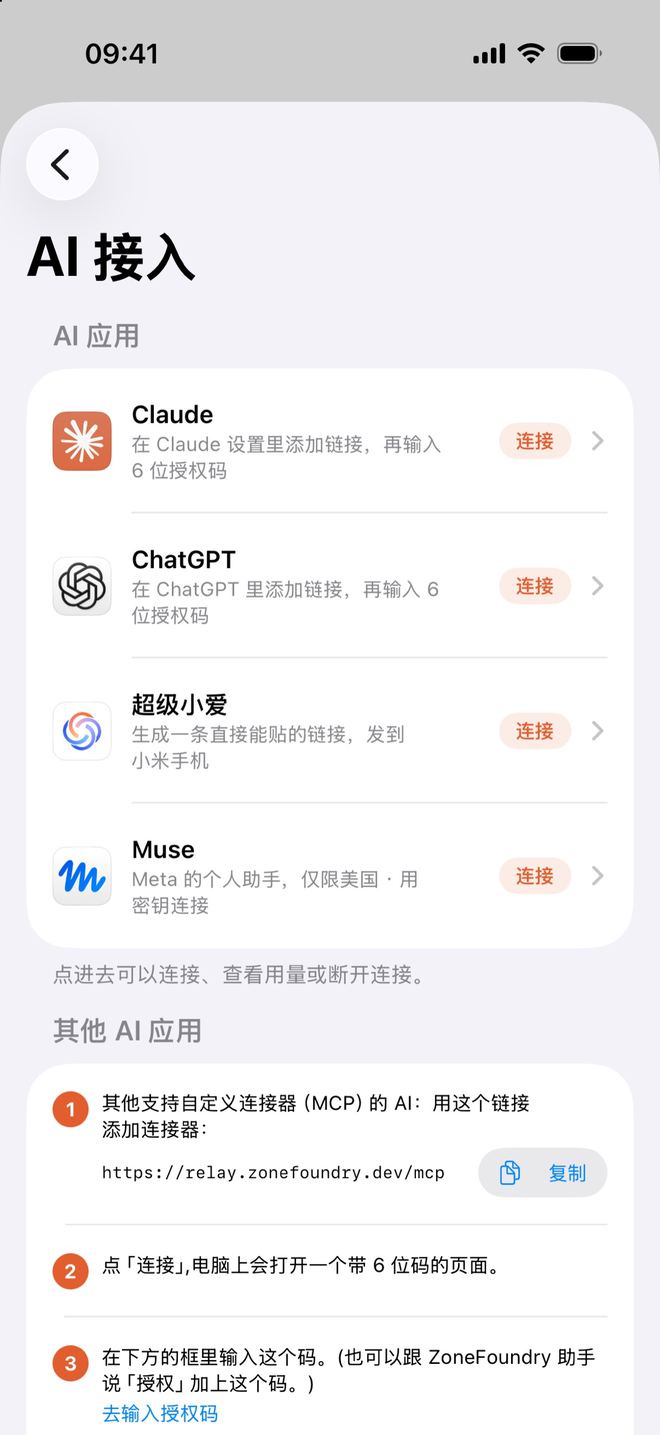
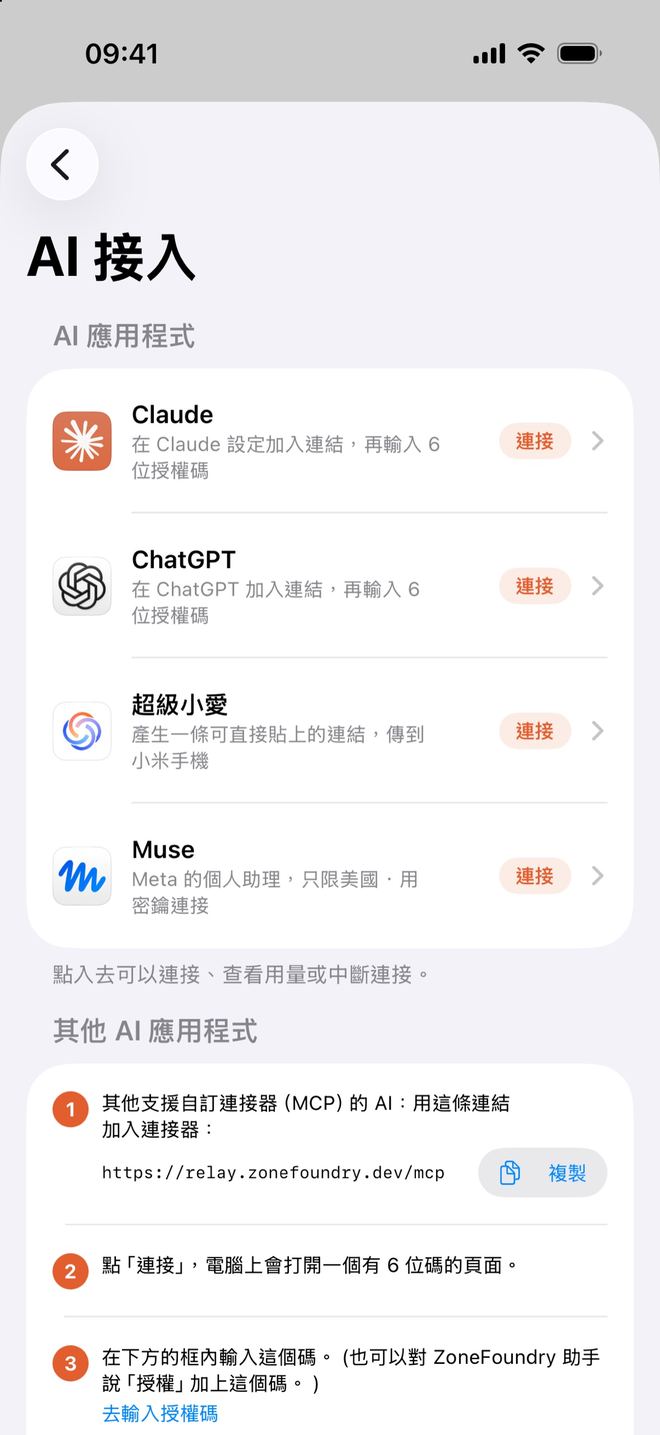
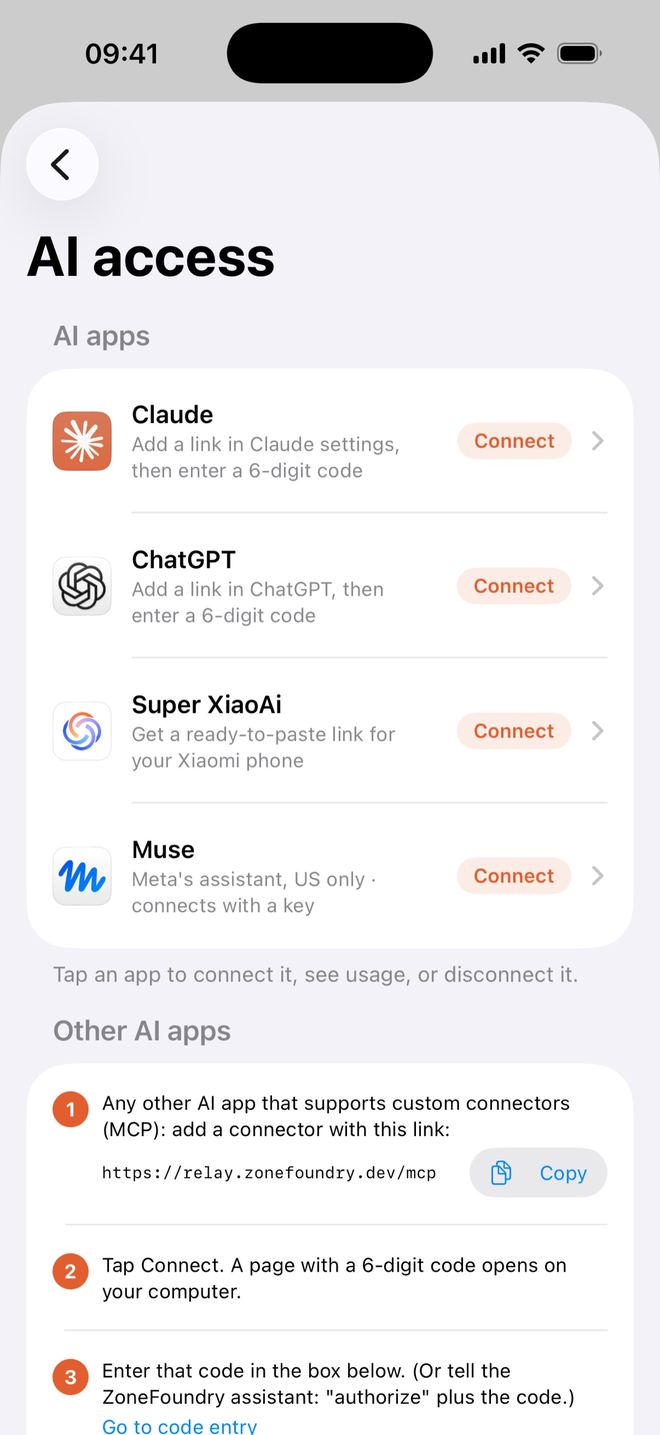
页面上的顺序:第一次来、还没连过任何 AI 时,依次是「AI 应用」四张卡片 →「其他 AI 应用」→「输入授权码」→「高级」;连过 AI 之后,「输入授权码」移到最上面。不属于这四张卡片的 AI(其他支持连接器的 AI)连上后列在「其他已连接的 AI」里。頁面上的次序:第一次使用、未連接過任何 AI 時,依次是「AI 應用程式」四張卡片 →「其他 AI 應用程式」→「輸入授權碼」→「進階」;連接過 AI 之後,「輸入授權碼」會移到最上面。不屬於這四張卡片的 AI(其他支援連接器的 AI)連接後列在「其他已連接的 AI」內。Page order: the first time, before any AI is connected, it's the four AI apps cards → Other AI apps → Enter authorization code → Advanced. Once an AI is connected, Enter authorization code moves to the top. Other connector-based AI apps that aren't one of the four cards are listed under Other connected AI apps once connected.
连接 Claude 或 ChatGPT連接 Claude 或 ChatGPTConnect Claude or ChatGPT
打开卡片,复制连接器链接開啟卡片,複製連接器連結Open the card and copy the connector link
「AI 接入」→ 点「Claude」或「ChatGPT」卡片。「怎么连接」里有连接器链接 https://relay.zonefoundry.dev/mcp,点下面的「复制」。两张卡片用的是同一个链接,区别只在各自 AI 里添加的位置。「AI 接入」→ 點「Claude」或「ChatGPT」卡片。「如何連接」內有連接器連結 https://relay.zonefoundry.dev/mcp,點下面的「複製」。兩張卡片用的是同一條連結,分別只在於各自 AI 內加入的位置。AI access → tap the Claude or ChatGPT card. Under How to connect you'll find the connector link https://relay.zonefoundry.dev/mcp; tap Copy below it. Both cards use the same link; only where you add it differs.
在电脑上添加连接器在電腦上加入連接器Add the connector on your computer
卡片页上写的步骤是:卡片頁上寫的步驟是:The card lists these steps:
- Claude:「在 claude.ai 或 Claude 电脑版打开「设置 → 连接器 → 添加自定义连接器」,粘贴这个链接」,然后「点「连接」,会打开一个带 6 位授权码的页面。」Claude:「在 claude.ai 或 Claude 電腦版開啟「設定 → 連接器 → 加入自訂連接器」,貼上這條連結」,然後「點「連接」,會開啟一個有 6 位授權碼的頁面。」Claude: "On claude.ai or the Claude desktop app, open Settings → Connectors → Add custom connector, and paste this link", then "Click Connect. A page with a 6-digit code opens."
- ChatGPT:「在 chatgpt.com 打开「设置 → 应用(Apps)→ 高级设置」,开启「开发者模式」。」→「回到「应用(Apps)」点「创建」,MCP 服务器 URL 填这个链接,认证方式选 OAuth」→「创建后点连接。」ChatGPT:「在 chatgpt.com 開啟「設定 → 應用程式(Apps)→ 進階設定」,開啟「開發者模式」。」→「回到「應用程式(Apps)」點「建立」,MCP 伺服器 URL 填這條連結,驗證方式選 OAuth」→「建立後點連接。」ChatGPT: "On chatgpt.com, open Settings → Apps → Advanced settings and turn on Developer mode." → "Back in Apps, choose Create. Paste this link as the MCP server URL and set Authentication to OAuth" → "Create it and connect."
连接后,电脑上会打开授权页,上面有二维码和 6 位授权码。(Claude、ChatGPT 自己的菜单名称以它们当前的界面为准。)連接後,電腦上會開啟授權頁,上面有二維碼和 6 位授權碼。(Claude、ChatGPT 本身的選單名稱以其當前介面為準。)An authorization page then opens on your computer, with a QR code and a 6-digit code. (Menu names inside Claude and ChatGPT may change; go by what their current screens show.)
用手机确认(5 分钟内)用手機確認(5 分鐘內)Approve on your phone (within 5 minutes)
授权页 5 分钟内有效,下面几种方式任选一种:授權頁 5 分鐘內有效,下面幾種方式任選一種:The authorization page is valid for 5 minutes. Use any one of these:
- 扫码(最快):授权页最上面是「用手机扫码,一键允许」。用 iPhone 相机扫一扫,在 ZoneFoundry App 里点「允许」就完成。掃碼(最快):授權頁最上面是「用手機掃碼,一鍵允許」。以 iPhone 相機掃描,在 ZoneFoundry App 內點選「允許」就完成。Scan (fastest): the top of the page says Scan with your phone to approve. Point your iPhone camera at the QR code, then tap Allow in the ZoneFoundry app.
- 输入授权码:手机上的 ZoneFoundry → Claude 或 ChatGPT 卡片页最下面的「输入授权码」(或「AI 接入」页的「输入授权码」)→ 输入页面上的 6 位码 →「授权」。輸入授權碼:手機上的 ZoneFoundry → Claude 或 ChatGPT 卡片頁最下面的「輸入授權碼」(或「AI 接入」頁的「輸入授權碼」)→ 輸入頁面上的 6 位碼 →「授權」。Enter the code: in ZoneFoundry on your phone, use Enter authorization code at the bottom of the Claude or ChatGPT card (or the one on AI access) → type the 6 digits from the page → Authorize.
- 对助手说:跟 ZoneFoundry 的助手说或打字「授权 123456」(换成你的 6 位码);在已绑定的微信 / QQ 里发同一句也行。App 是英文界面的,就说「authorize 123456」,授权页上两种说法都会给出。對助手說:對 ZoneFoundry 的助手說或輸入「授權 123456」(換成你的 6 位碼);在已綁定的微信 / QQ 裡發同一句也可以。App 是英文介面的,就說「authorize 123456」,授權頁上兩種說法都會列出。Tell the assistant: say or type "authorize 123456" (your code) to the ZoneFoundry assistant, or send the same thing in your linked WeChat / QQ. If your app is in Chinese, say 「授权 123456」; the authorization page shows both.
- 已有 ZoneFoundry 账号:在授权页下方「已有 ZoneFoundry 账号?登录后直接授权」里选「用 Apple 登录」「用 GitHub 登录」或「用邮箱验证码登录」(邮箱要输入收到的 6 位验证码);能访问 Google 时,页面上还会出现 Google 登录按钮。页面会问「允许 Claude 控制「你的家」吗?」,点「允许」就完成。要用和 App 里同一个账号;没在 App 里登录过账号的,请用扫码或输入授权码。已有 ZoneFoundry 帳號:在授權頁下方「已有 ZoneFoundry 帳號?登入後直接授權」裡選「使用 Apple 登入」「使用 GitHub 登入」或「使用電子郵件驗證碼登入」(電子郵件要輸入收到的 6 位驗證碼);能存取 Google 時,頁面上還會出現 Google 登入按鈕。頁面會問「允許 Claude 控制「你的家」嗎?」,點「允許」就完成。要使用與 App 內同一個帳號;沒在 App 內登入過帳號的,請用掃碼或輸入授權碼。Already have a ZoneFoundry account: under Have a ZoneFoundry account? Sign in to approve here, choose Continue with Apple, Continue with GitHub or Continue with email code (for email, enter the 6-digit code we send you); if Google is reachable on your network, a Google sign-in button appears too. The page then asks “Allow Claude to control “your home”?” — tap Allow. Use the same account you’re signed in with in the app; if you never signed in to an account in the app, scan the QR code or enter the code instead.
- 如果授权页是在手机上打开的,直接点「在 App 里一键允许」。如果授權頁是在手機上開啟的,直接點「在 App 內一鍵允許」。If the authorization page opened on your phone, just tap Allow in the app.
回到 Claude / ChatGPT回到 Claude / ChatGPTBack to Claude / ChatGPT
授权页显示「已确认,正在返回…」,回到 Claude 或 ChatGPT 就能用了。ZoneFoundry 里对应的卡片会显示「已授权」。授權頁顯示「已確認,正在返回…」,回到 Claude 或 ChatGPT 就可以使用。ZoneFoundry 內對應的卡片會顯示「已授權」。The page shows "Approved — returning…"; go back to Claude or ChatGPT and start talking. The matching card in ZoneFoundry now shows Authorized.
超级小爱(小米手机)超級小愛(小米手機)Super XiaoAi (Xiaomi phones)
需要小米手机或平板上的超级小爱 8.2.3.1619 或更新版本;小爱音箱暂不支持。不用自己拼网址:需要小米手機或平板上的超級小愛 8.2.3.1619 或更新版本;小愛音箱暫不支援。毋須自行組合網址:Needs Super XiaoAi 8.2.3.1619 or later on a Xiaomi phone or tablet; XiaoAi speakers aren't supported yet. No need to build the address by hand:
- 「AI 接入」→「超级小爱」卡片 →「生成链接」→「复制网址」或「分享」到小米手机。「AI 接入」→「超級小愛」卡片 →「產生連結」→「複製網址」或「分享」到小米手機。AI access → Super XiaoAi card → Generate link → Copy link or Share it to your Xiaomi phone.
- 超级小爱 →「MCP 服务」→ 右上角「+」:名称填 zonefoundry,「服务器 URL」粘贴这条链接,Auth Token 留空,点「添加」。超級小愛 →「MCP 服務」→ 右上角「+」:名稱填 zonefoundry,「伺服器 URL」貼上這條連結,Auth Token 留空,點「添加」。In Super XiaoAi: MCP 服务 (MCP services) → + at the top right. Name: zonefoundry; Server URL: paste the link; leave Auth Token empty; tap 添加 (Add).
- 对话页把「快速」切到「专家」,然后说「用 sonos 在客厅放周杰伦」。對話頁把「快速」切到「專家」,然後說「用 sonos 在客廳放周杰倫」。In the chat, switch 快速 (Fast) to 专家 (Expert), then say "用 sonos 在客厅放周杰伦".
Muse(Meta,目前只限美国)Muse(Meta,目前只限美國)Muse (Meta, US only for now)
Muse 是 Meta 的个人助手,目前只在美国开放,用密钥连接。Muse 是英文界面,要在 Muse 里说的那句话也是英文的。Muse 是 Meta 的個人助理,目前只在美國開放,用密鑰連接。Muse 是英文介面,要在 Muse 說的那句話也是英文。Muse is Meta's personal assistant, available in the US only for now. It connects with a key, and the sentence you say to it is in English.
在卡片里生成密钥在卡片內產生密鑰Generate a key in the card
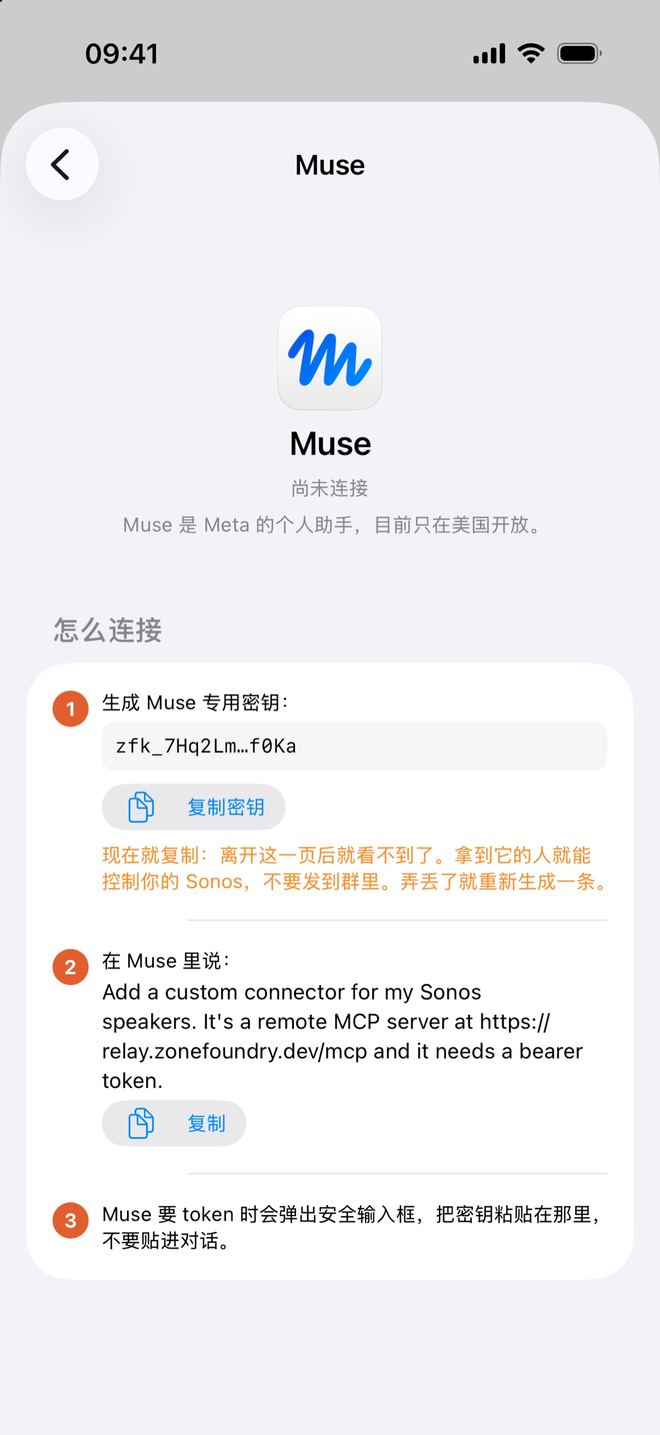
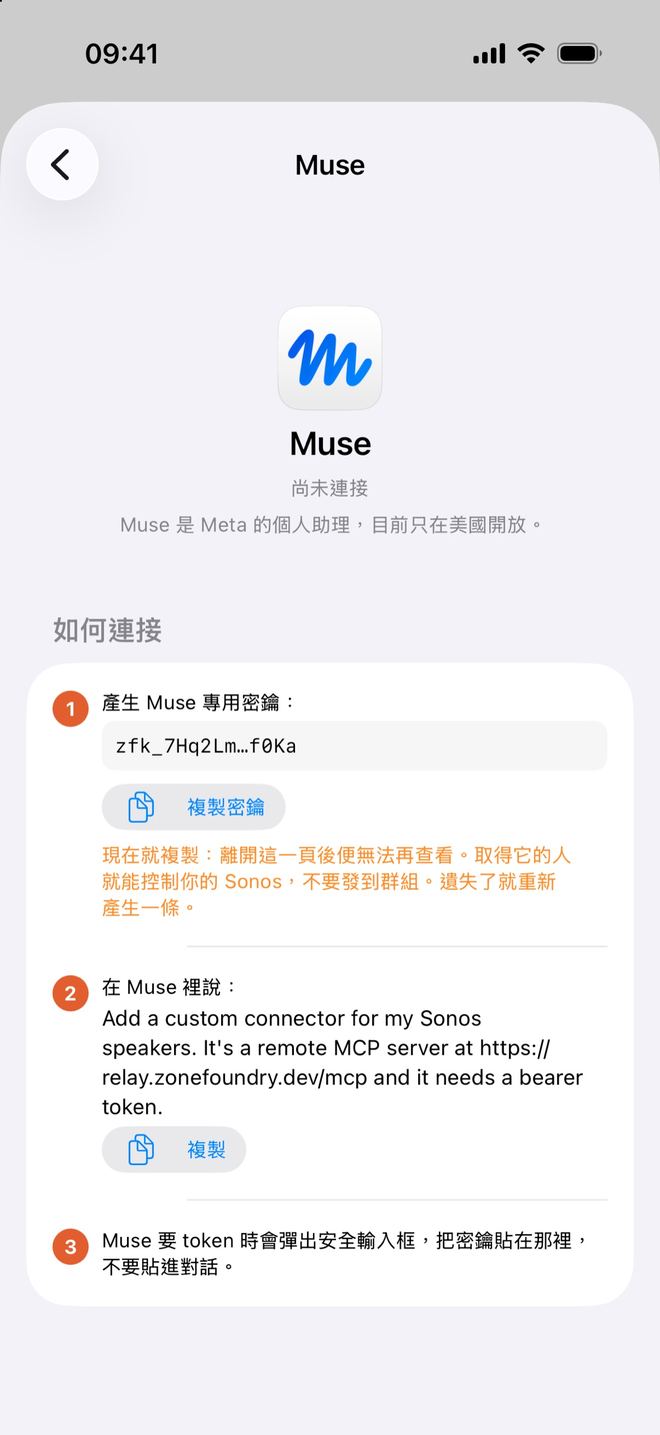
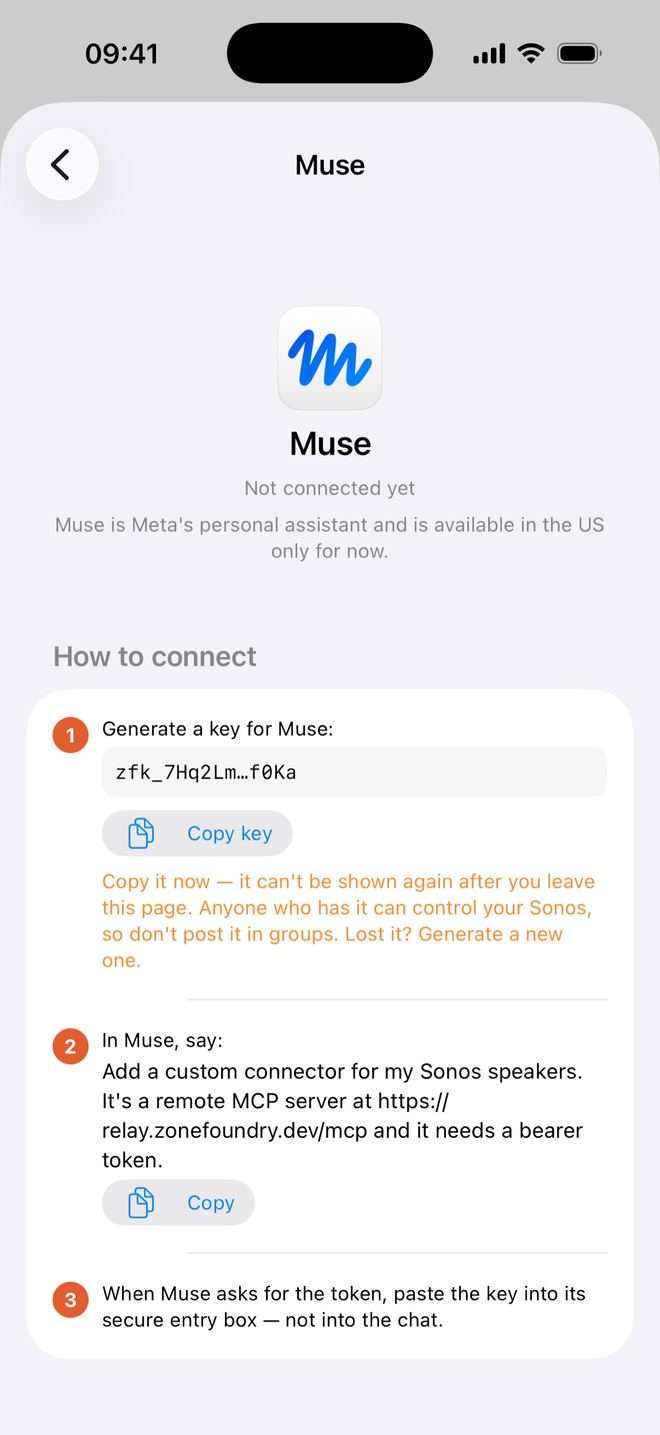
「AI 接入」→「Muse」卡片。第 1 步「生成 Muse 专用密钥:」下点「生成密钥」,再点「复制密钥」。屏幕上只显示打码的版本,复制到的是完整密钥。「AI 接入」→「Muse」卡片。第 1 步「產生 Muse 專用密鑰:」下點「產生密鑰」,再點「複製密鑰」。畫面上只顯示遮蔽版本,複製到的是完整密鑰。AI access → Muse card. Under step 1, "Generate a key for Muse:", tap Generate key, then Copy key. The screen only shows a masked version; what you copy is the full key.
卡片上的提醒:现在就复制,离开这一页后就看不到了;拿到它的人就能控制你的 Sonos,不要发到群里;弄丢了就重新生成一条。卡片上的提醒:現在就複製,離開這一頁後便無法再查看;取得它的人就能控制你的 Sonos,不要發到群組;遺失了就重新產生一條。As the card warns: copy it now, because it can't be shown again after you leave the page. Anyone who has it can control your Sonos, so don't post it in groups. Lost it? Generate a new one.
在 Muse 里说这句话在 Muse 說這句話Say this in Muse
卡片第 2 步「在 Muse 里说:」下面有这句英文,点「复制」后发给 Muse:卡片第 2 步「在 Muse 裡說:」下面有這句英文,點「複製」後發給 Muse:Step 2 in the card, "In Muse, say:", has this sentence. Tap Copy and send it to Muse:
Add a custom connector for my Sonos speakers. It's a remote MCP server at https://relay.zonefoundry.dev/mcp and it needs a bearer token.把密钥贴进安全输入框把密鑰貼進安全輸入框Paste the key into the secure box
Muse 要 token 时会弹出安全输入框,把密钥粘贴在那里,不要贴进对话。连好之后,ZoneFoundry 里的 Muse 卡片会显示「已授权」和用量。Muse 要 token 時會彈出安全輸入框,把密鑰貼在那裡,不要貼進對話。連接好之後,ZoneFoundry 內的 Muse 卡片會顯示「已授權」和用量。When Muse asks for the token, paste the key into its secure entry box, not into the chat. Once connected, the Muse card in ZoneFoundry shows Authorized and its usage.
Hermes / OpenClaw 和其他 AIHermes / OpenClaw 和其他 AIHermes, OpenClaw and other AI apps
「AI 接入」页的「其他 AI 应用」区:其他支持自定义连接器(MCP)的 AI,用同一个链接 https://relay.zonefoundry.dev/mcp 添加连接器,同样用 6 位授权码确认。区里还有「Hermes / OpenClaw 配置」:把给出的配置加进去(其中是 auth: oauth),再运行登录命令。同样会出现 6 位授权码,按上面第 3 步确认。「AI 接入」頁的「其他 AI 應用程式」區:其他支援自訂連接器(MCP)的 AI,用同一條連結 https://relay.zonefoundry.dev/mcp 加入連接器,同樣用 6 位授權碼確認。區內還有「Hermes / OpenClaw 設定」:把提供的設定加進去(其中是 auth: oauth),再執行登入指令。同樣會出現 6 位授權碼,按上面第 3 步確認。The Other AI apps section of AI access covers any other AI app that supports custom connectors (MCP): add a connector with the same link, https://relay.zonefoundry.dev/mcp, and approve it with a 6-digit code. It also has Hermes / OpenClaw setup: add the config it gives you (it uses auth: oauth), then run the login command. You'll get a 6-digit code; approve it as in step 3.
Claude Code、脚本:用访问密钥Claude Code、腳本:用存取密鑰Claude Code and scripts: access keys
- 「AI 接入」→「高级」→「访问密钥」→ 在「生成密钥」下填个名字(例如 Claude)→ 点名字框旁边的「生成」→「复制整段」。把整段贴进助手的对话框,它会自己完成接入,不用手动输入命令。「AI 接入」→「進階」→「存取密鑰」→ 在「產生密鑰」下填個名字(例如 Claude)→ 點名稱欄旁邊的「產生」→「複製整段」。把整段貼進助手的對話框,它會自行完成接入,不用手動輸入指令。AI access → Advanced → Access keys → under Generate a key, type a name (for example Claude) → tap Generate next to the name field → Copy the whole block. Paste the whole block into the assistant's chat and it sets itself up; nothing to type by hand.
- 密钥只显示一次,之后只显示打码版本。随时可以「撤销」,撤销后立即失效,可以再生成新的。密鑰只顯示一次,之後只顯示遮蔽版本。隨時可以「撤銷」,撤銷後即時失效,可以再產生新的。The key is shown once only; after that you only see a masked version. You can Revoke it any time; it stops working immediately, and you can generate a new one.
- 超级小爱、Muse 卡片里生成的密钥,也会出现在「访问密钥」页的「你的密钥」列表里。超級小愛、Muse 卡片內產生的密鑰,也會出現在「存取密鑰」頁的「你的密鑰」列表內。Keys generated in the Super XiaoAi and Muse cards also appear under Your keys on the Access keys page.
- 旧版本(1.0.9)没有「高级」,「AI 接入」页直接就是起名 → 生成 → 复制整段。舊版本(1.0.9)沒有「進階」,「AI 接入」頁直接就是起名 → 產生 → 複製整段。In the older 1.0.9, there's no Advanced: AI access goes straight to name → Generate → Copy the whole block.
管理已连接的 AI管理已連接的 AIManage connected AI apps
- 卡片上直接显示最近用量。点进卡片,在「已连接」列表里点一条,可以看详情:上次使用、总调用次数、最近使用的工具。不属于四张卡片的 AI 在「其他已连接的 AI」里,点法一样。卡片上直接顯示最近用量。點入卡片,在「已連線」列表點選一條,可以查看詳情:上次使用、總呼叫次數、最近使用的工具。不屬於四張卡片的 AI 在「其他已連接的 AI」內,操作相同。Each card shows recent usage. Tap the card, then an entry under Connected, for details: last used, total calls and most recent tool. AI apps that aren't one of the four cards are under Other connected AI apps and work the same way.
- 详情页最下面:连接器授权的(Claude、ChatGPT)是「解除连接」,立即切断这个 AI,要再用就从那个 AI 里重新连接;用密钥的(超级小爱、Muse)是「撤销此钥匙」,立即失效,可以在卡片里重新生成。詳情頁最下面:經連接器授權的(Claude、ChatGPT)是「解除連結」,即時中斷這個 AI,要再使用就從那個 AI 重新連接;用密鑰的(超級小愛、Muse)是「撤銷此鑰匙」,即時失效,可以在卡片內重新產生。At the bottom of the details: connector-based ones (Claude, ChatGPT) have Disconnect, which cuts the AI off immediately (connect again from the AI app to use it again); key-based ones (Super XiaoAi, Muse) have Revoke this key, which stops it working immediately, and you can generate a new one in the card.
- 同一个家共用这些连接;每个 AI、每把密钥都可以单独解除或撤销。同一個家共用這些連接;每個 AI、每條密鑰都可以單獨解除或撤銷。Connections are shared by the whole home, and each AI or key can be disconnected or revoked on its own.
连上之后能做什么連接之後可以做甚麼What it can do once connected
说人话就行。ZoneFoundry 一共给 AI 提供 27 个工具:說日常用語就可以。ZoneFoundry 一共為 AI 提供 27 個工具:Just talk normally. ZoneFoundry gives the AI 27 tools in total:
- 播放:点歌、歌手、专辑、歌单,新闻、电台,搜索(不播放),播放历史、收藏、Sonos 歌单,你的口味摘要。播放:點歌、歌手、專輯、歌單,新聞、電台,搜尋(不播放),播放歷史、收藏、Sonos 歌單,你的口味摘要。Play: songs, artists, albums, playlists, news, radio, search (without playing), play history, favorites, Sonos playlists, and your taste summary.
- 控制:播放 / 暂停、上一首 / 下一首、拖进度、音量(单次最高 70,相对调节每次最多 ±30)、静音、随机 / 循环。控制:播放 / 暫停、上一首 / 下一首、調整進度、音量(單次最高 70,相對調節每次最多 ±30)、靜音、隨機 / 循環。Control: play/pause, previous/next, seek, volume (at most 70 in one go, and ±30 per relative change), mute, shuffle/repeat.
- 房间:列出房间、正在播放、分组 / 取消分组、把音乐移到另一个房间、切电视 / 线路输入、家庭影院(夜间模式、人声增强)。切电视、切线路输入、切回音乐都走 Sonos 云端,不用在家、不用开着 App(要已登录 Sonos 账户)。房間:列出房間、正在播放、分組 / 取消分組、把音樂移到另一個房間、切換電視 / 線路輸入、家庭影院(夜間模式、人聲增強)。切電視、切線路輸入、切回音樂都經 Sonos 雲端,不用在家、不用開著 App(要已登入 Sonos 帳戶)。Rooms: list rooms, what's playing, group/ungroup, move the music to another room, switch to TV / line-in, home theater (night mode, speech enhancement). Switching to TV, to line-in or back to music goes through the Sonos cloud, so you don't need to be home or have the app open (Sonos account sign-in needed).
- 其他:广播一句话,提醒(设 / 查 / 取消),撤销上一步。其他:廣播一句話,提醒(設定 / 查看 / 取消),撤銷上一步。Other: announce a message, reminders (set / list / cancel), undo the last action.
也可以让它帮你建定时场景:说「后天晚上11点在主卧放白噪音」,就会建好场景并开好定时;10 分钟内说「取消」可以撤回。详见 一句话让 Sonos 定时播放。亦可以讓它幫你建立定時場景:說「後天晚上11點在主臥放白噪音」,就會建立場景並開啟定時;10 分鐘內說「取消」可以撤回。詳見 一句話讓 Sonos 定時播放。It can also set up a scheduled scene: say “play white noise in the bedroom at 11 pm the day after tomorrow” and the scene and its schedule are created; say “cancel” within 10 minutes to undo. See Schedule Sonos with one sentence.
AI 点的歌会不会进播放队列AI 點的歌會不會進入播放佇列Do AI requests go into the queue?
- 有家庭桥接:直接进 Sonos 播放队列,可以切歌、看列表。有家庭橋接:直接進入 Sonos 播放佇列,可以切歌、查看列表。With the home bridge: straight into the Sonos queue, so you can skip and see the list.
- 没有桥:马上有声,歌先直接在音箱上播,暂时不在播放列表里;之后打开 ZoneFoundry,会自动载入列表。沒有橋接:馬上有聲,歌曲先直接在喇叭上播放,暫時不在播放列表裡;之後打開 ZoneFoundry,會自動載入列表。Without a bridge: sound starts right away and plays on the speaker directly, but isn't in the play queue yet; open ZoneFoundry later and the list loads automatically.
常见问题常見問題FAQ
授权码过期了?授權碼過期了?The code expired?
5 分钟内没确认就会过期,授权页会写「已过期,请返回重新连接。」回到 Claude / ChatGPT 再点一次连接。5 分鐘內未確認就會過期,授權頁會寫「已過期,請返回重新連接。」回到 Claude / ChatGPT 再點一次連接。If you don't approve within 5 minutes it expires, and the page says "Expired — go back and connect again." Go back to Claude or ChatGPT and connect again.
说了「授权 123456」没反应?說了「授權 123456」沒有反應?Said "authorize 123456" and nothing happened?
确认是在 ZoneFoundry 的助手里,或已绑定的微信 / QQ 里说的。App 是英文界面时,要说「authorize 123456」。也可以直接在「AI 接入」→「输入授权码」里输入。確認是在 ZoneFoundry 的助手裡,或已綁定的微信 / QQ 裡說的。App 是英文介面時,要說「authorize 123456」。也可以直接在「AI 接入」→「輸入授權碼」裡輸入。Make sure you said it to the ZoneFoundry assistant or in your linked WeChat / QQ. If the app is in Chinese, use 「授权 123456」 instead. You can also type the code under AI access → Enter authorization code.
为什么 Sonos 官方 App 的队列里看不到 AI 点的歌?為何 Sonos 原廠 App 的佇列裡看不到 AI 點的歌?Why don't AI-requested songs show in the Sonos app's queue?
没有家庭桥接时,歌是直接在音箱上播的,暂时不在播放列表里;打开 ZoneFoundry 后会自动载入。有桥时会直接进队列。沒有家庭橋接時,歌曲是直接在喇叭上播放的,暫時不在播放列表裡;打開 ZoneFoundry 後會自動載入。有橋接時會直接進入佇列。Without the home bridge the songs play on the speaker directly and aren't in the play queue yet; they load once you open ZoneFoundry. With a bridge they go straight into the queue.
家里其他人能用吗?家中其他人可以用嗎?Can others in my home use it?
同一个家共用。每个 AI、每把密钥都可以单独解除连接或撤销。同一個家共用。每個 AI、每條密鑰都可以單獨解除連結或撤銷。Yes, it's shared by the home. Each AI or key can be disconnected or revoked on its own.
Claude Code 用访问密钥接入了,为什么 Claude 卡片还显示「连接」?Claude Code 用存取密鑰接入了,為何 Claude 卡片仍然顯示「連接」?I connected Claude Code with an access key. Why does the Claude card still say Connect?
Claude、ChatGPT 卡片只算通过连接器授权(6 位授权码)的连接。用访问密钥接入的(例如 Claude Code、脚本)列在「高级」→「访问密钥」里。Claude、ChatGPT 卡片只計算經連接器授權(6 位授權碼)的連接。用存取密鑰接入的(例如 Claude Code、腳本)列在「進階」→「存取密鑰」內。The Claude and ChatGPT cards only count connections authorized through the connector (the 6-digit code). Anything connected with an access key, such as Claude Code or a script, is listed under Advanced → Access keys instead.
需要家庭桥接吗?需要家庭橋接嗎?Do I need the home bridge?
不需要,只要已登录 Sonos 账户。桥只影响 AI 点的歌是否马上进播放队列。不需要,只要已登入 Sonos 帳戶。橋接只影響 AI 點的歌曲是否即時進入播放佇列。No, just a Sonos account sign-in. The bridge only decides whether AI-requested songs go straight into the queue.
不用迁就固定指令的说法不用遷就固定指令的說法No fixed command phrasing to memorise
在 Claude 或 ChatGPT 里说「在客厅播周杰伦」就够了,不用背固定句式。ZoneFoundry 是一个 iOS App,直接连你现在的 Sonos。在 Claude 或 ChatGPT 裡說「在客廳播周杰倫」就夠了,不用背固定句式。ZoneFoundry 是一個 iOS App,直接連接你現在的 Sonos。Telling Claude or ChatGPT "play Jay Chou in the living room" is enough; no fixed syntax to memorise. ZoneFoundry is an iOS app that works with your existing Sonos.



下一步下一步Next
用超级小爱控制 Sonos(图文)→用超級小愛控制 Sonos(圖文)→Control Sonos with Super XiaoAi →
在微信、Telegram、QQ 里发一句话就点歌 →在微信、Telegram、QQ 裡發一句話就點歌 →Queue music by texting WeChat, Telegram or QQ →
Sonos MCP 是什么:官方 27mcp 与我们这一个的端点与工具 →Sonos MCP 是什麼:官方 27mcp 與我們這一個的端點與工具 →What Sonos MCP is: the official 27mcp vs ours, endpoints and tools →
只接 Claude:官方连接器与自定义连接器怎么选 →只接 Claude:官方連接器與自訂連接器怎麼選 →Claude only: choosing between the official and a custom connector →
只接 ChatGPT:插件与自定义 MCP 的完整步骤 →只接 ChatGPT:外掛與自訂 MCP 的完整步驟 →ChatGPT only: the plugin and custom MCP, step by step →
播放页和队列:随机、循环、睡眠定时、左右滑 →播放頁和佇列:隨機、循環、睡眠定時、左右掃 →The player and the queue: shuffle, repeat, sleep timer, swipe actions →
登录 Sonos 账号:解锁搜歌、语音和场景 →登入 Sonos 賬號:解鎖搜歌、語音和場景 →Signing in to Sonos: unlock search, voice and scenes →
本地 Bridge / Docker 部署 →本地 Bridge / Docker 部署 →Local Bridge on Docker →
← 返回所有教程← 返回所有教程← Back to all guides